Sometimes you just want to send a client a quick message that is not tied to a particular job: a general update, a reminder, or a note about their account. The Send message tab on a company page does exactly that. It sends the owner a one-off email and an in-app message, without you having to open or create a request.
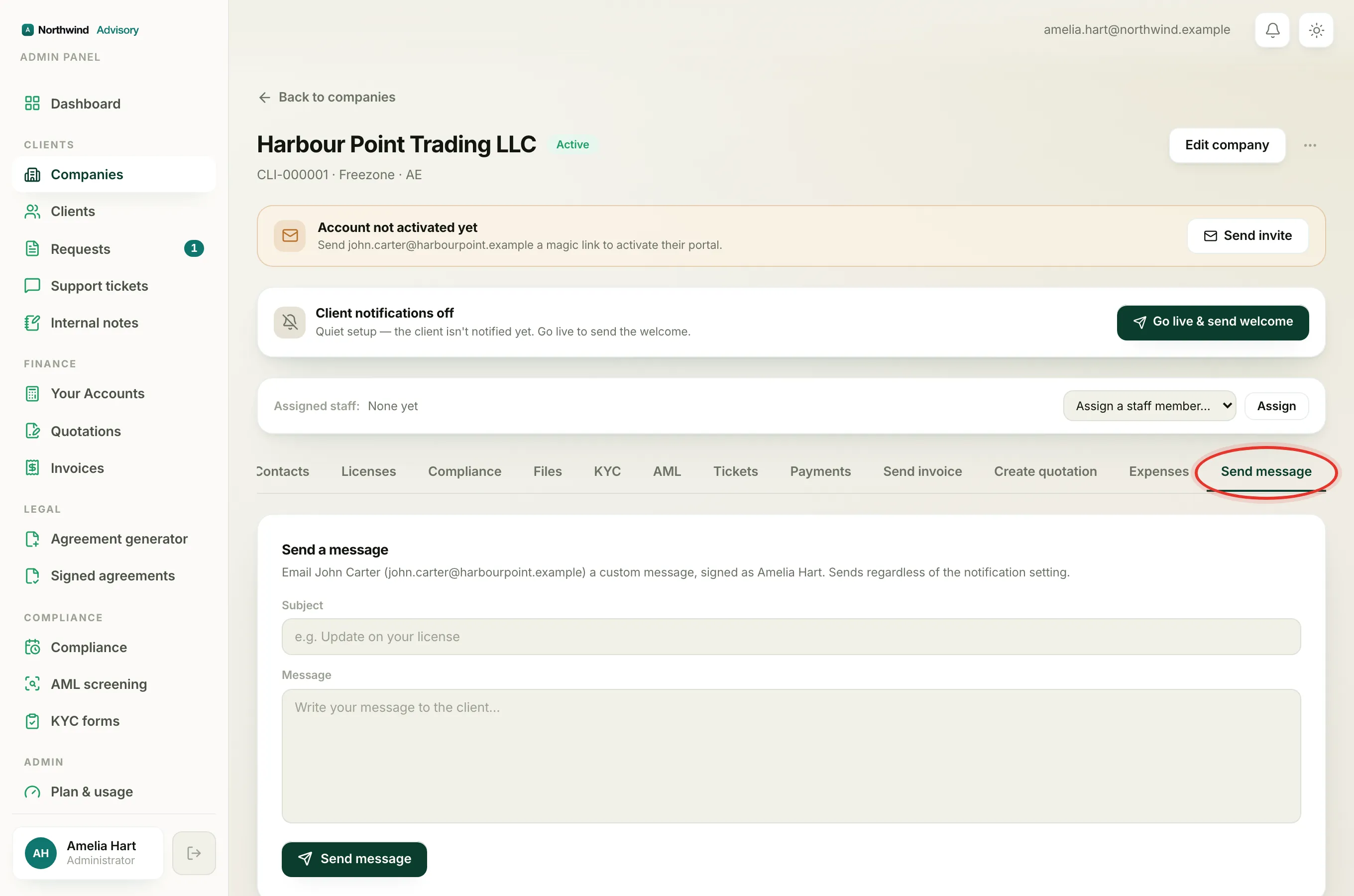
Send the message
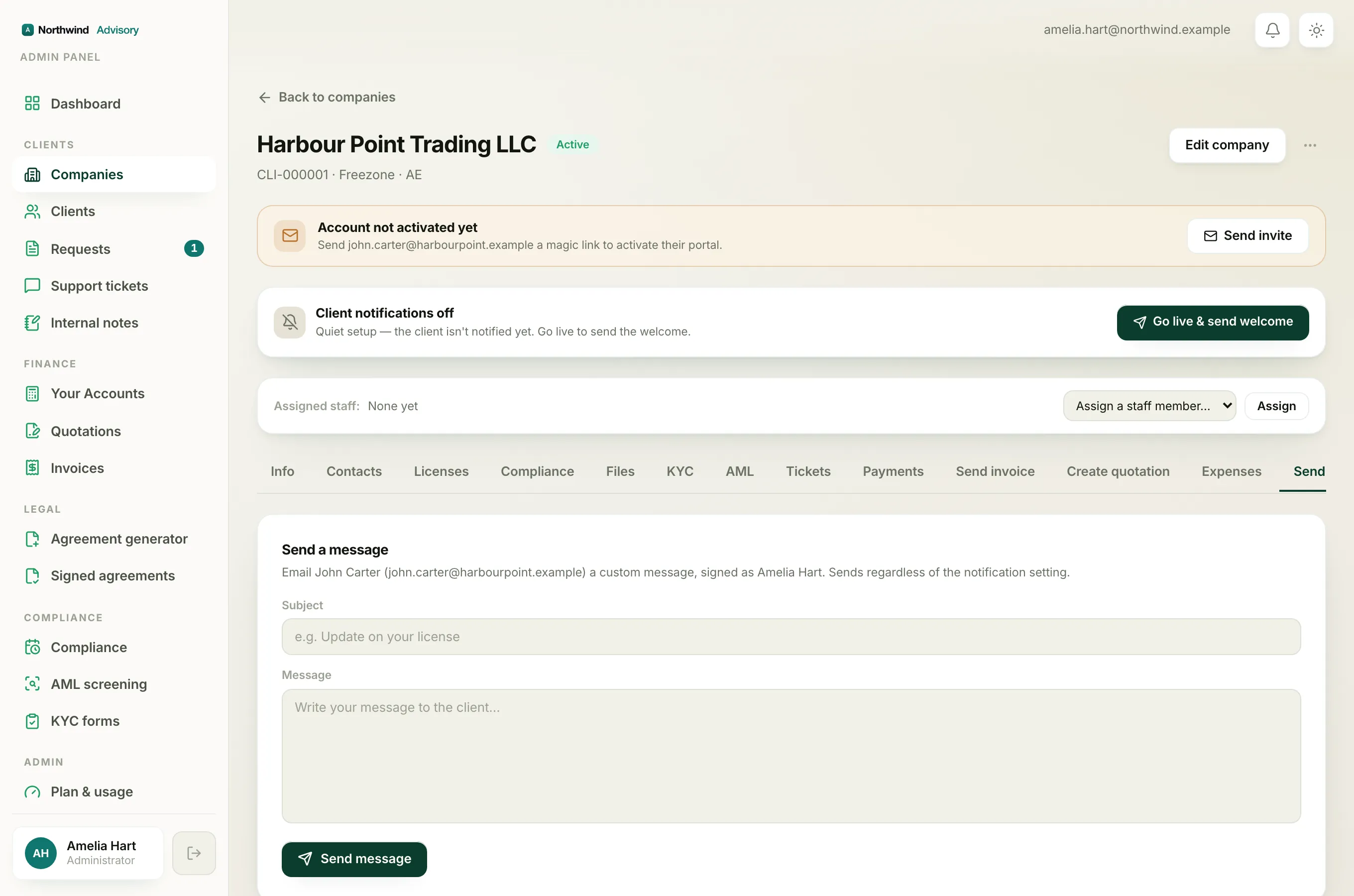
- Log in to your workspace.
- In the left menu, under Clients, click Companies, then open the company.
- Click the Send message tab.
- Fill in the Subject, for example Update on your license.
- Write your note in the Message box.
- Click Send message.
You will see a short Message sent confirmation when it has gone.
What the client gets, and whose name is on it
The message is signed as you, the staff member sending it. The tab tells you this up front: it names the owner and their email address, and shows that the message is signed as your name. The client receives it as an email and as an in-app message in their portal.
Note
If the company has no email address on file, the tab says so and sends the message inside the portal only. The owner will see it next time they log in.
It always sends
This is a deliberate, one-off action, so it goes out even if the client's automatic updates are switched off. The tab spells this out: it sends regardless of the notification setting. That makes it a reliable way to reach a client you need to speak to, whatever their update preferences. To manage those automatic updates, see Turn client emails and updates on or off.
When to use a request instead
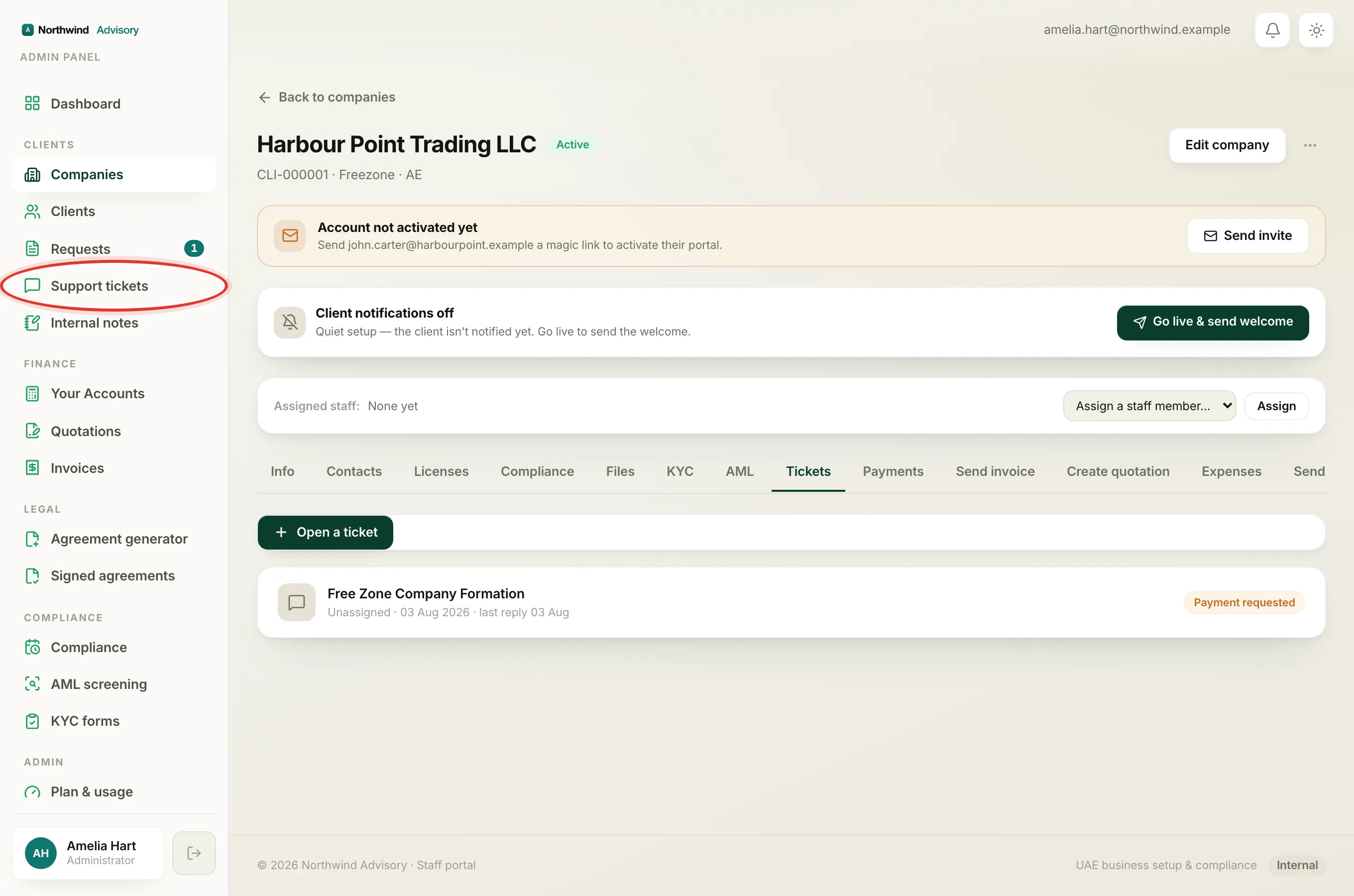
Use Send message for a standalone note. If your message is really part of an ongoing job, or you need to attach files, request documents, take a payment or send a quotation, reply inside the relevant request instead so everything stays together. See Reply to a client in a ticket and Support tickets vs service requests.