Sometimes a client pays only part of an invoice. Maybe they send a 50% deposit up front, or they clear the balance in stages. IzzyTap lets you record each part payment against the same invoice. It keeps a running total, shows the balance still owed, and only marks the invoice as fully paid once the whole amount is in.
This is the manual way to log money you received offline, like a bank transfer or cash. If a client pays the full amount online, the system records that on its own. To log a full offline payment in one go, see How to record a payment.
Before you start
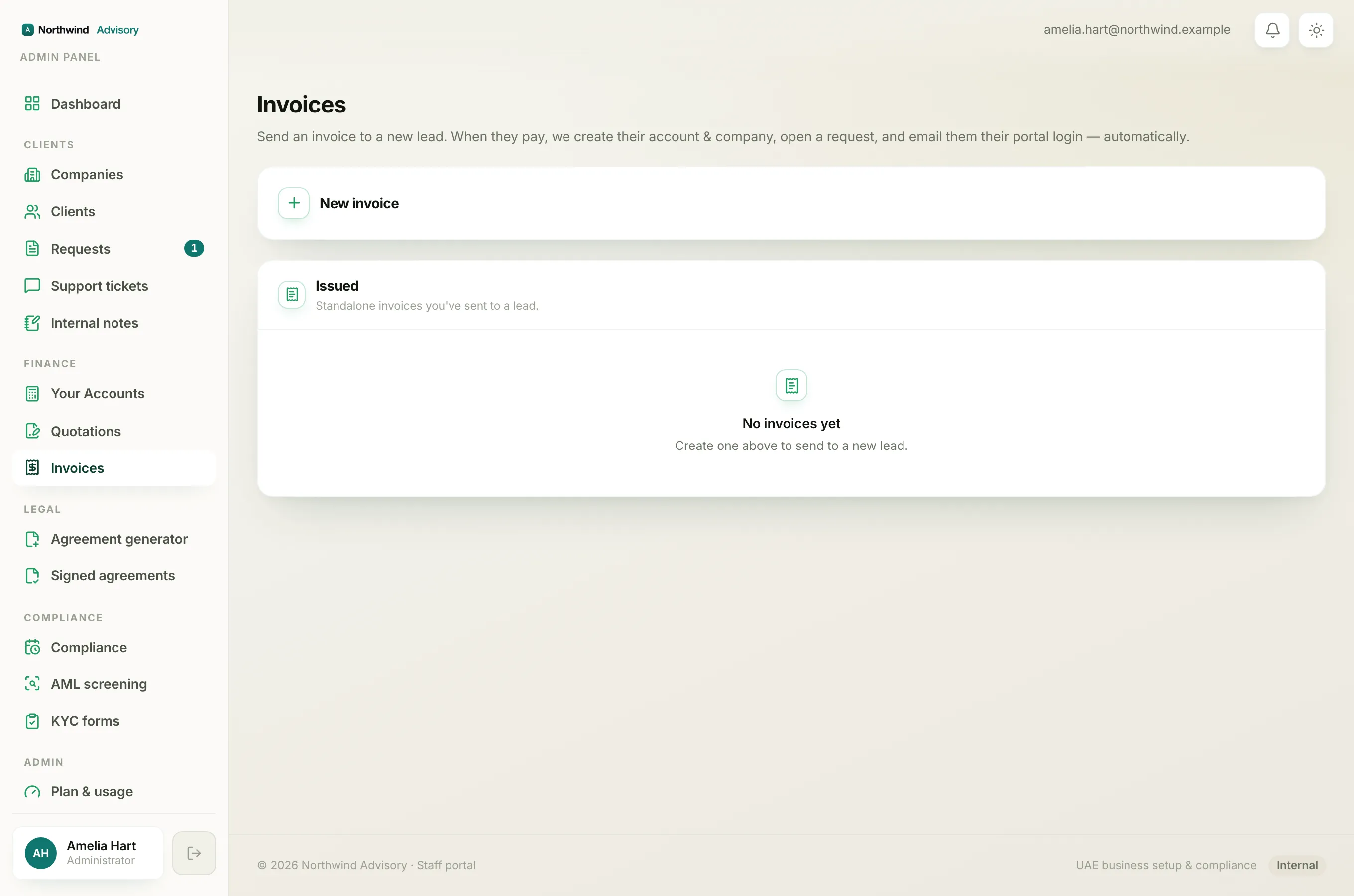
A part payment is recorded on the Payment requested card inside the ticket where you asked the client to pay. So you need an invoice that has already been sent on a request. If you have not raised one yet, see How to create an invoice.
Record the first part payment
- Log in to your workspace.
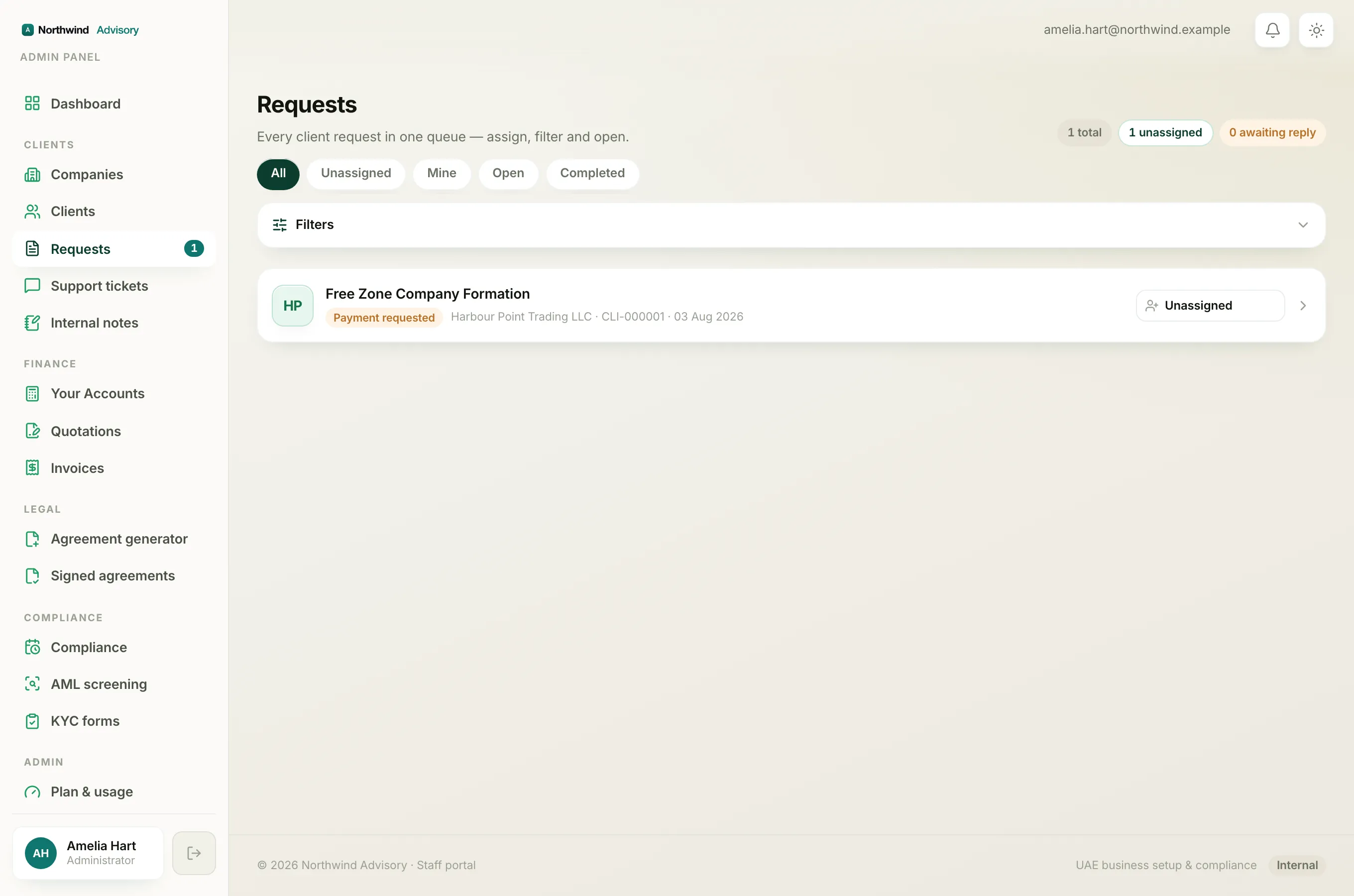
- In the left menu, under Clients, click Requests.
- Find the client's request in the list and click it to open the ticket.
- Scroll down the ticket to the Payment requested card. It shows the amount due and a Pending label.
- On that card, click Mark as received. A small panel opens.
- In the Amount received (AED) box, you will see the full balance already filled in. Delete it and type the smaller amount the client actually paid. For example, if the invoice is 5,000 and they paid 2,000, type
2000. - Open the Payment method list and choose how the money arrived, like Bank transfer or Cash.
- In the Where / reference box, type a short note so you can find this money later. For example the bank account it landed in, or a transfer reference number.
- If you see a Deposit to list, choose the bank or cash account that received the money. This only shows when you have set up more than one account in your books. See Add a bank account.
- Click Confirm payment.
Important
The Amount received (AED) box starts with the full balance already in it. If you leave it as is and confirm, you will record a full payment, not a part payment. Always change the amount to the smaller sum the client actually paid.
The card now shows a Partially paid label. It leads with the Balance due figure, and below it a line like "2,000 of 5,000 paid", so you always know how much is still owed.
Note
The client gets an email receipt that clearly says it was a partial payment, with the amount paid and the balance remaining. The request itself moves off "Payment requested" so your team can start work while the rest of the money comes in.
Record the rest later
When the client pays the remaining balance, come back and record it against the same invoice.
- Log in to your workspace.
- In the left menu, under Clients, click Requests.
- Open the same ticket and scroll to the Payment requested card. It now reads Partially paid.
- Click Record payment.
- In the Amount received (AED) box you will see the outstanding balance already filled in. If the client is clearing the whole balance, leave it as is. If they are paying only part of it again, type the smaller amount.
- Choose the Payment method, add a Where / reference note, and pick the Deposit to account if shown.
- Click Confirm payment.
You can repeat this as many times as it takes. Once the running total reaches the full invoice amount, the card flips to Paid and the client gets a paid receipt.
Good to know
Tip
You cannot record more than the balance owed. If you type a number larger than what is still outstanding, IzzyTap will not accept it. This stops an invoice being overpaid by mistake.
Heads up
You cannot mark a request as Completed while any of its invoices still has a balance owing. IzzyTap blocks it and tells you how much is outstanding. Collect the rest of the money first, then close the request. This makes sure a part payment is never forgotten.
Every part payment updates the stored invoice PDF with the running balance, so a client who opens the invoice always sees an up to date figure. You can open that PDF anytime, see Download an invoice PDF.