What the switch does
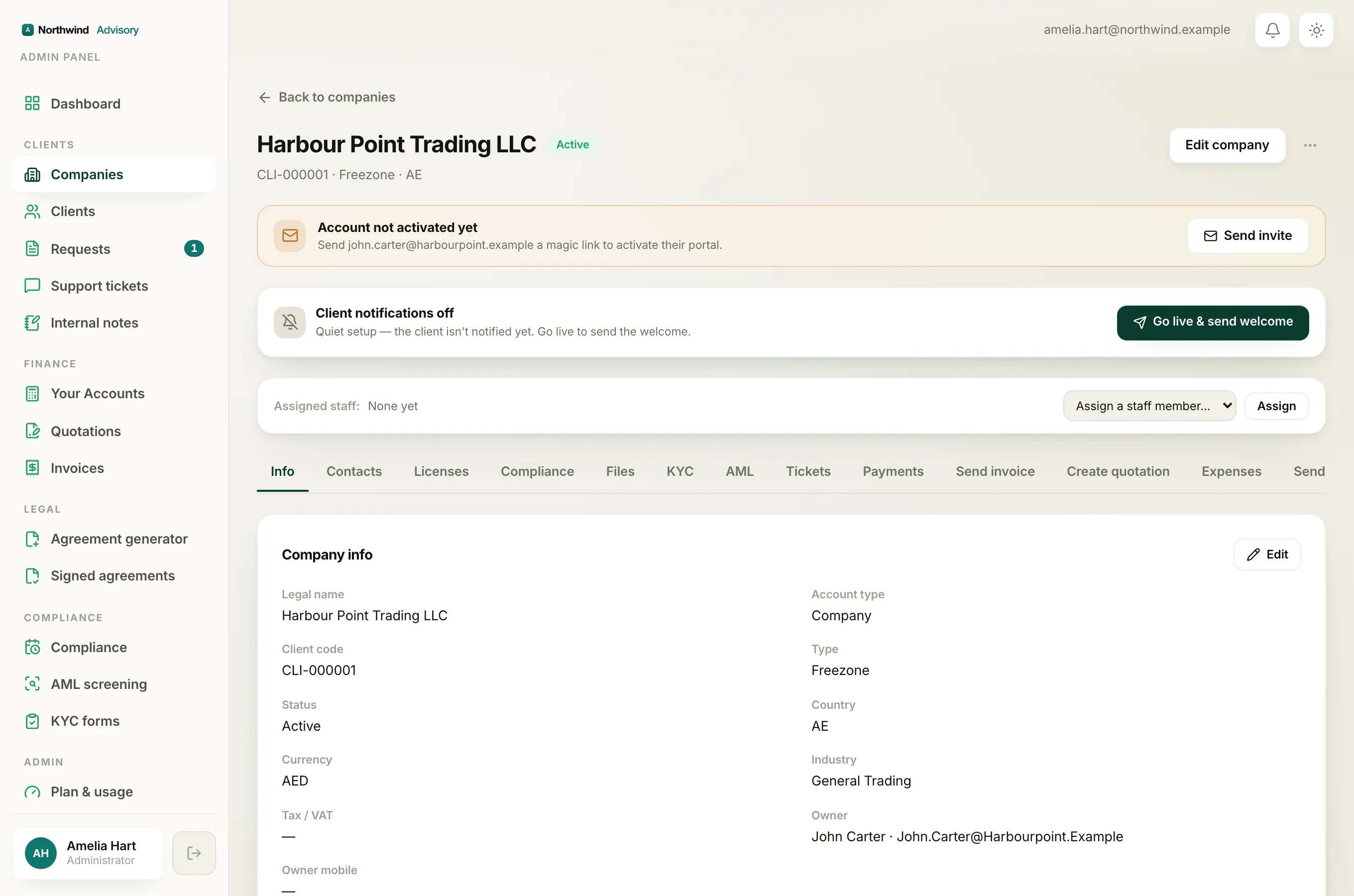
Every company has a single master switch that controls whether the client is kept in the loop. You will find it on the company page as a panel that reads either Client notifications on or Client notifications off.
- On: the client is notified of activity by email and in the portal, and they receive deadline reminders.
- Off: this is quiet setup. The client is not notified of anything yet. You can build up their portal in the background without a single email reaching them.
This switch is only about updates and reminders. It does not control whether the client can log in. A client can have an active login while notifications are off, and the other way round.
Note
Changing this switch needs the client management permission. If you cannot see the buttons, your staff role does not include it.
Turn client updates off (quiet setup)
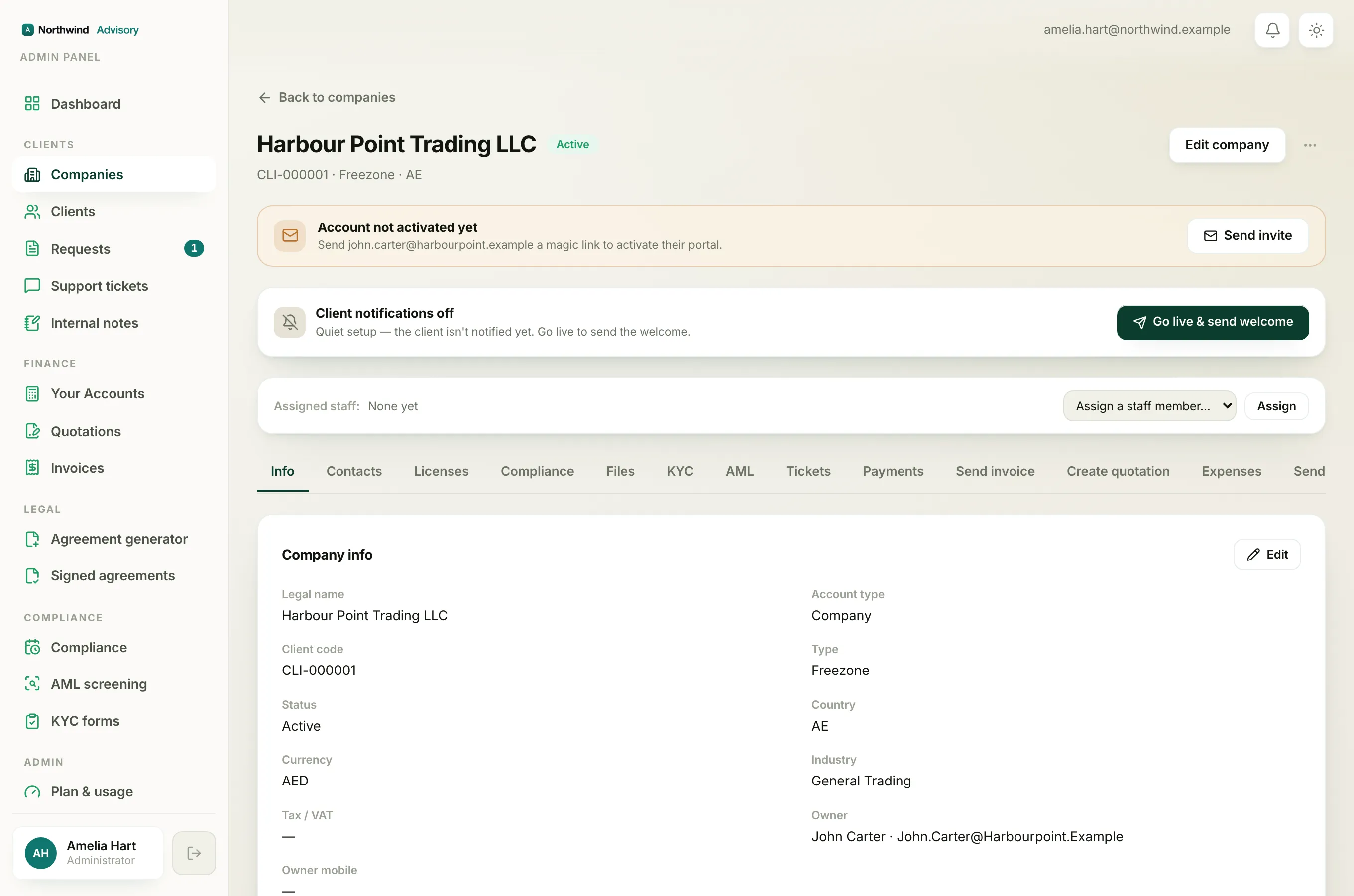
Turning updates off is useful when you are migrating an existing client or still preparing their file and do not want them getting notifications about half-finished work.
- Log in to your workspace.
- In the left menu, under Clients, click Companies.
- Open the company.
- On the Client notifications on panel, click Turn off.
The panel switches to Client notifications off and the client stops receiving updates and reminders.
Go live and send the welcome
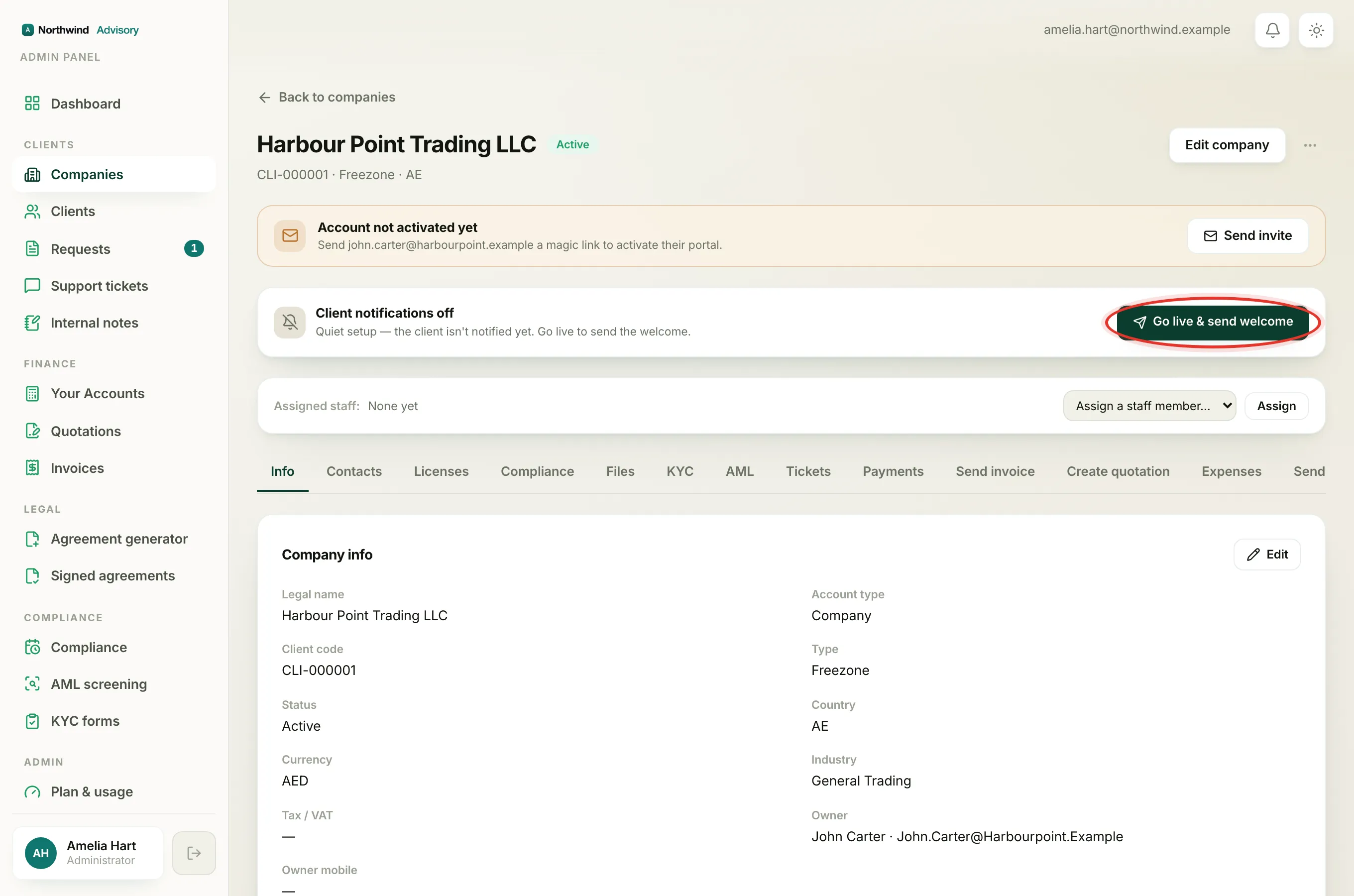
When a quietly set up client is ready to hear from you, going live switches notifications on and, in the same step, sends them their welcome and login link.
- Open the company.
- On the Client notifications off panel, click Go live & send welcome.
That one action turns updates on and emails the client their welcome with a link to sign in. Their portal is already populated, so what they see on first login is the finished picture. Past steps are not replayed as a flood of old notifications.
Note
If the client has already activated their account or already had a welcome, the button simply reads Go live. In that case it switches notifications on without sending another welcome, because they already have their access.
When a client actually hears from you
It helps to know what the switch does and does not silence:
- Automatic updates and reminders (activity notifications, deadline reminders) follow the switch. Off means silent.
- Things you send by hand always go out, whatever the switch says. If you send a message from the Send message tab, or send an activation invite, the client receives it even during quiet setup, because you chose to send it deliberately. See Send a message to a client.
So quiet setup keeps the automatic noise off while still letting you reach out directly when you need to.
To decide which mode to pick when you first add a client, see Live updates vs quiet setup. To send the login link itself, see Activate a client's portal account.