Who signs
An agreement needs the people who will put their signature to it. In IzzyTap your firm signs first automatically, so you only list the other side: the client, and any partners, directors or shareholders who also need to sign.
Add the signing parties
- Log in to your workspace.
- In the left menu, under Legal, click Agreement generator, and open or continue the agreement you are working on.
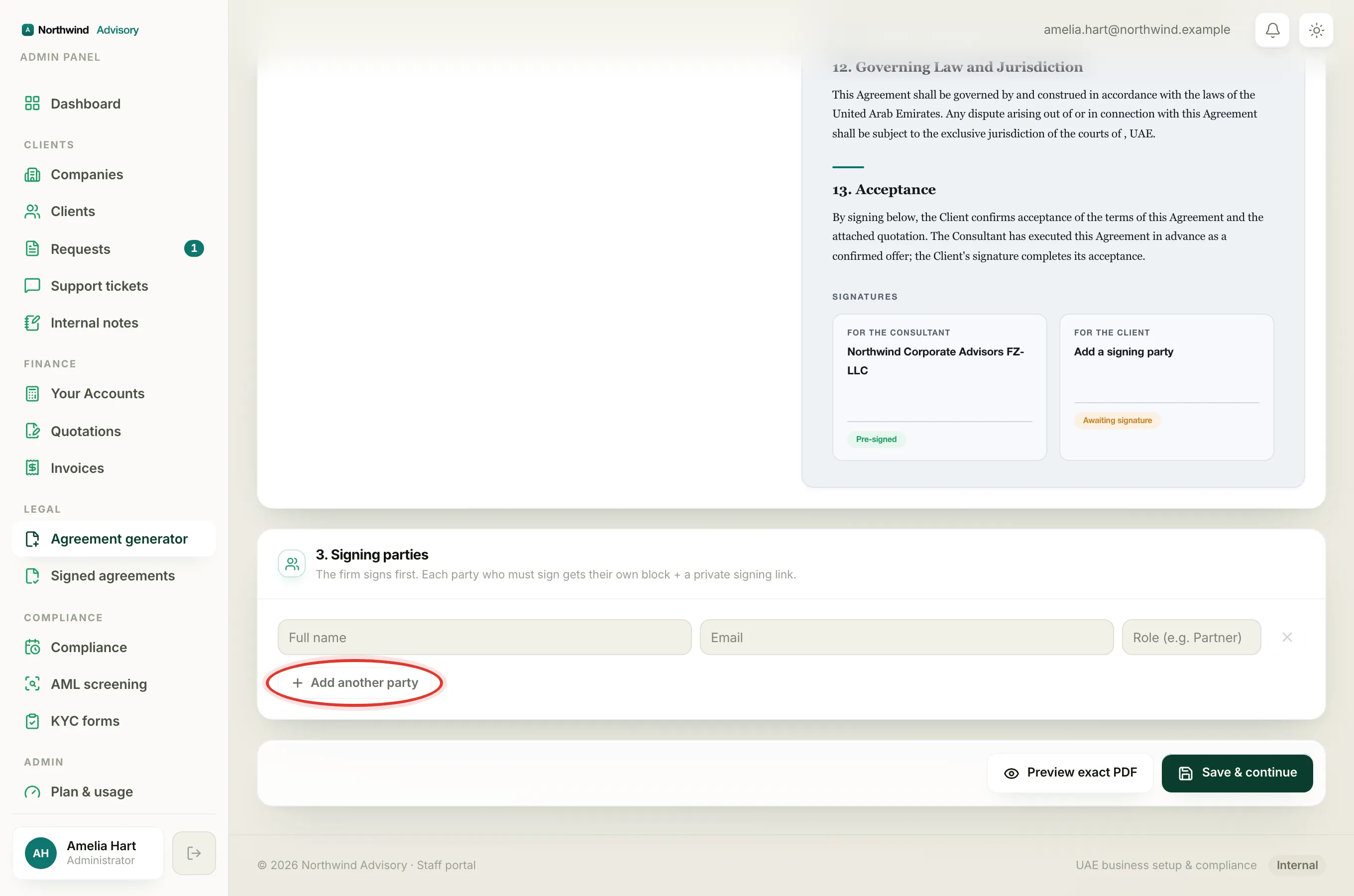
- Scroll to the section headed 3. Signing parties.
- In the first row, fill in Full name and Email. In the Role box, add their role if you like, for example "Partner" or "Managing Director". The role is optional.
- To add another signer, click Add another party and fill in the next row.
- To remove a signer, click the small X button at the end of their row. You cannot remove the last remaining row, since every agreement needs at least one signer.
Important
Each party needs both a name and an email to be counted. A row with only a name, or only an email, is ignored when you save. You need at least one complete party (name and email) before the agreement will save.
Each party gets their own private link
Every signing party you add gets their own signing block on the document and their own private link to sign. One person's link only signs for them. This is how a company formation with several partners can all sign the same agreement, each from their own email.
Note
Your firm always signs first, so you do not add yourself here. Only add the people on the other side of the agreement.
What happens next
Signing parties are added fresh each time you create an agreement, even when you start from a saved template. A template stores the wording and details, never the people, so you never accidentally send to the wrong person.
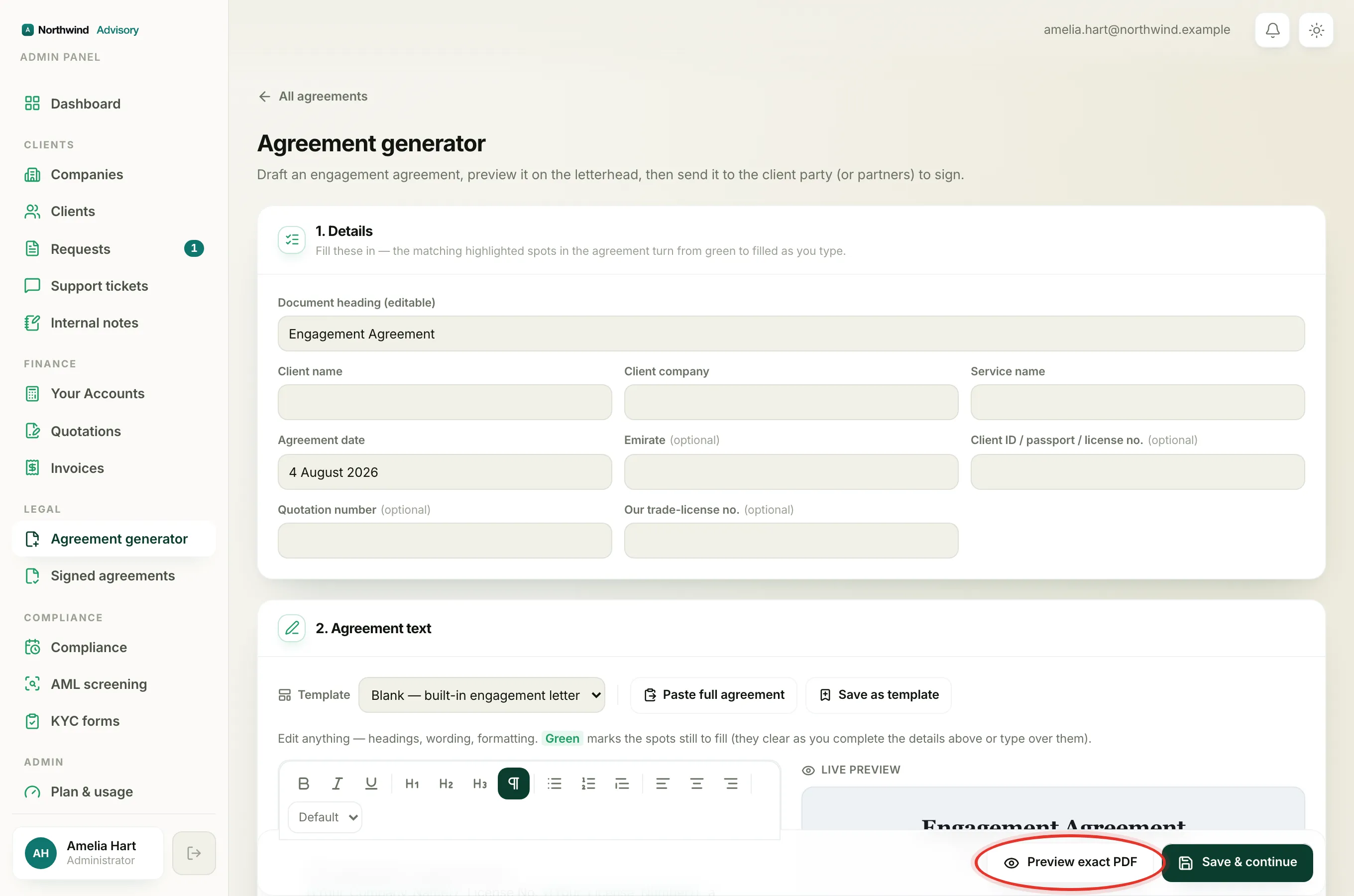
Once your parties are in, preview the document and send it out for signing: