A request in IzzyTap is a two way conversation. This article shows you how to reply to the client, how the messages are laid out, and how to keep a note that the client never sees.
Open the request
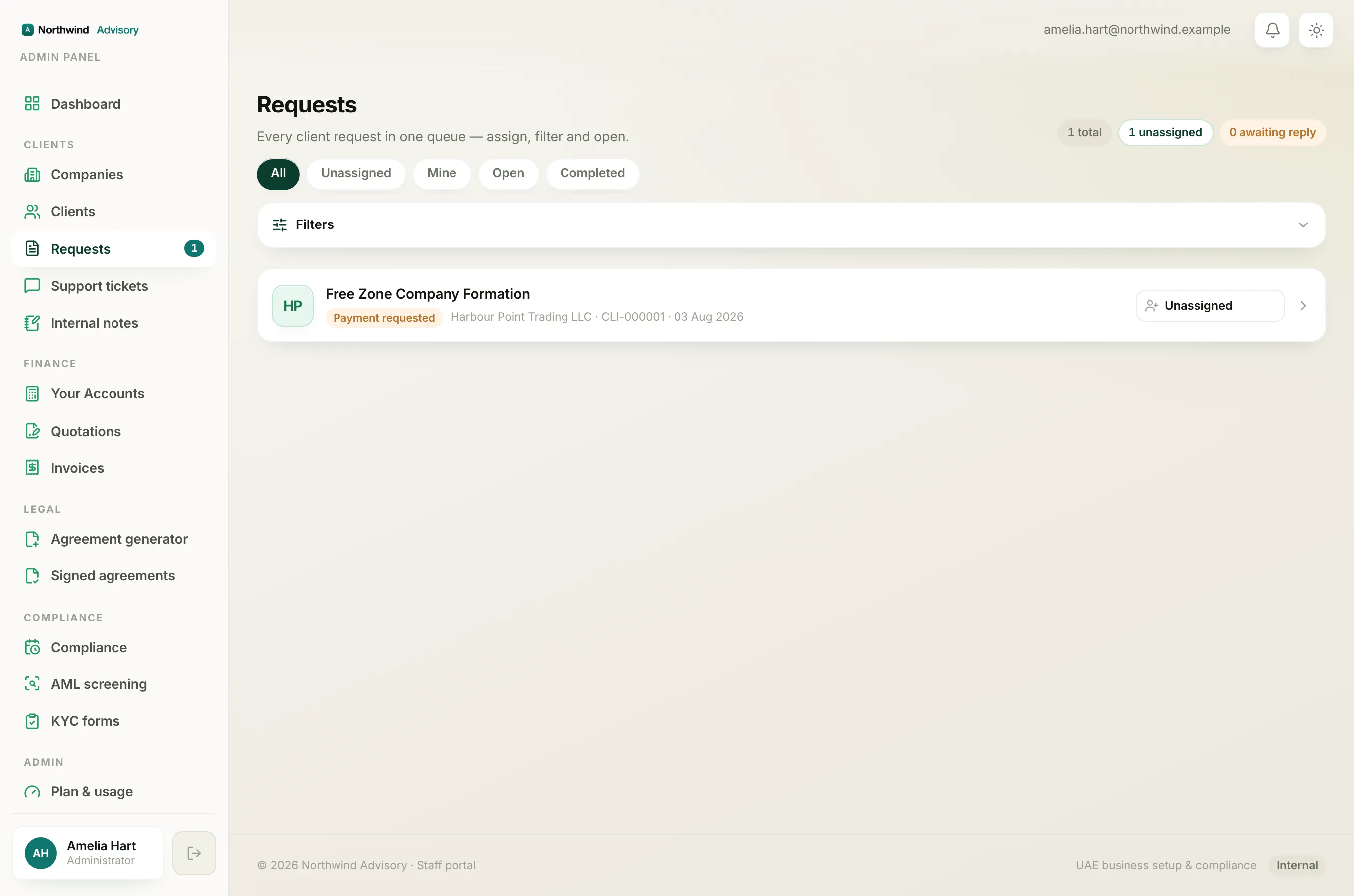
- Log in to your workspace.
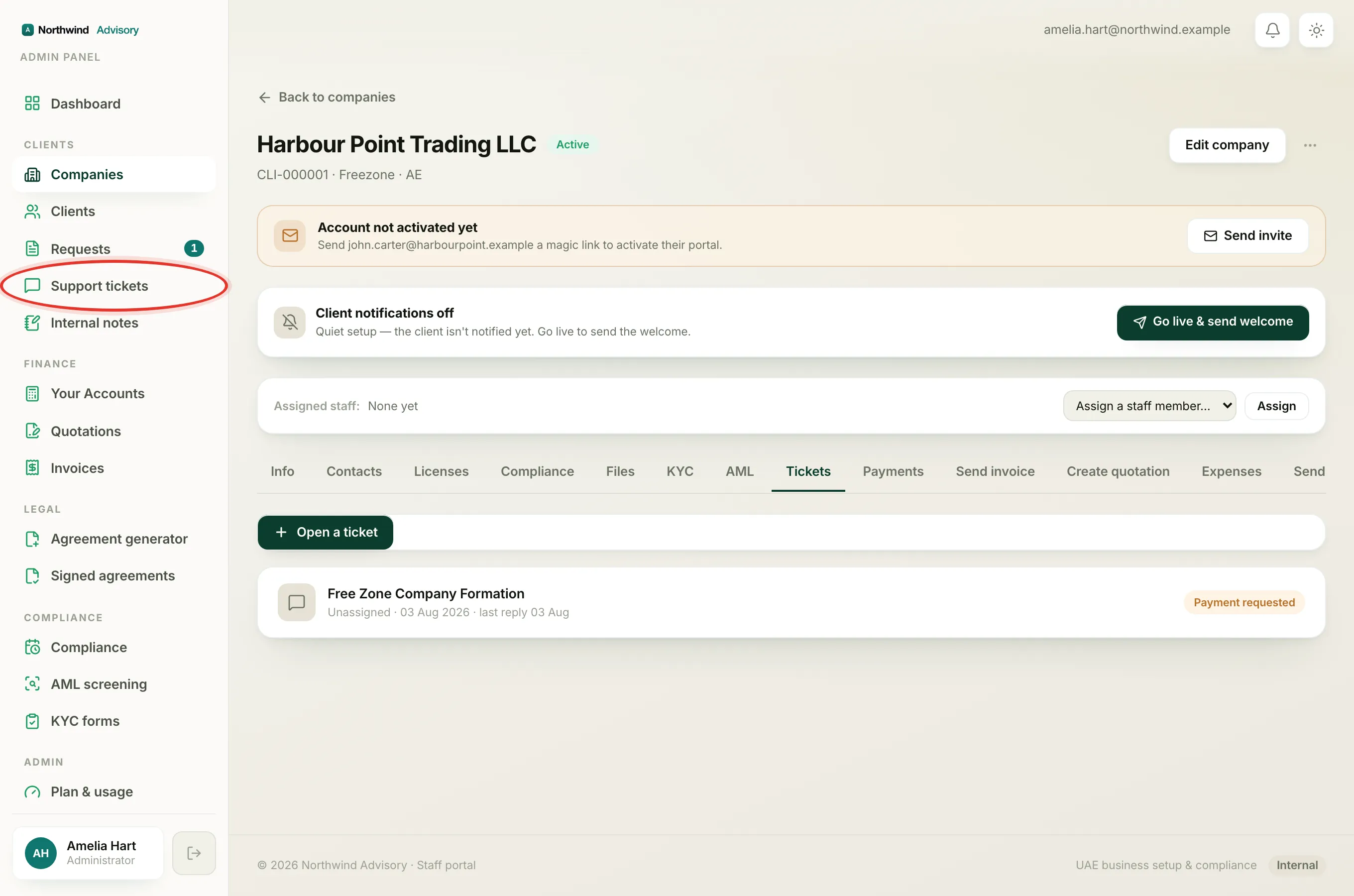
- In the left menu, under Clients, click Requests.
- Click the request you want to reply to.
Send a reply
- Scroll to the message box at the bottom of the request.
- Make sure the Reply to client tab is selected (it is the green tab, chosen by default).
- Type your message.
- Click Send.
Your message appears in the conversation straight away, and the client is notified in their portal and by email.
How the bubbles are laid out
Inside the thread the two sides are easy to tell apart:
- Your team's messages sit on the right on a dark forest green bubble.
- The client's messages sit on the left on a plain white bubble.
Each bubble shows the author's name and the time it was sent, and a small circle with their initials. The side, the colour and the initials all carry the same signal, so you can always tell who said what.
Sending a file
The reply box is for text. To send the client an actual document, use the Issue document tool further down the request instead of the reply box. The file then appears in the conversation as a card the client can open and download. See Issue a document to a client.
Files the client uploads to you also show up in the thread as cards on their side, so the whole exchange stays in one place.
Leave a note only your team can see
Sometimes you want to jot something for a colleague, not the client. Use the Internal note tab in the same message box:
- In the message box, click the Internal note tab (the amber one with the lock).
- Type your note.
- Click Add note.
The note appears in the thread in amber with a Internal note · staff only label. The client never sees it, and it never sends them an email. A reminder under the box reads Not visible to the client, staff & admin only.
Important
Always check which tab is selected before you type. Reply to client goes to the client. Internal note stays inside your team.
To browse every internal note across all your requests in one place, see Add and find internal notes.
Reaching a client outside a request
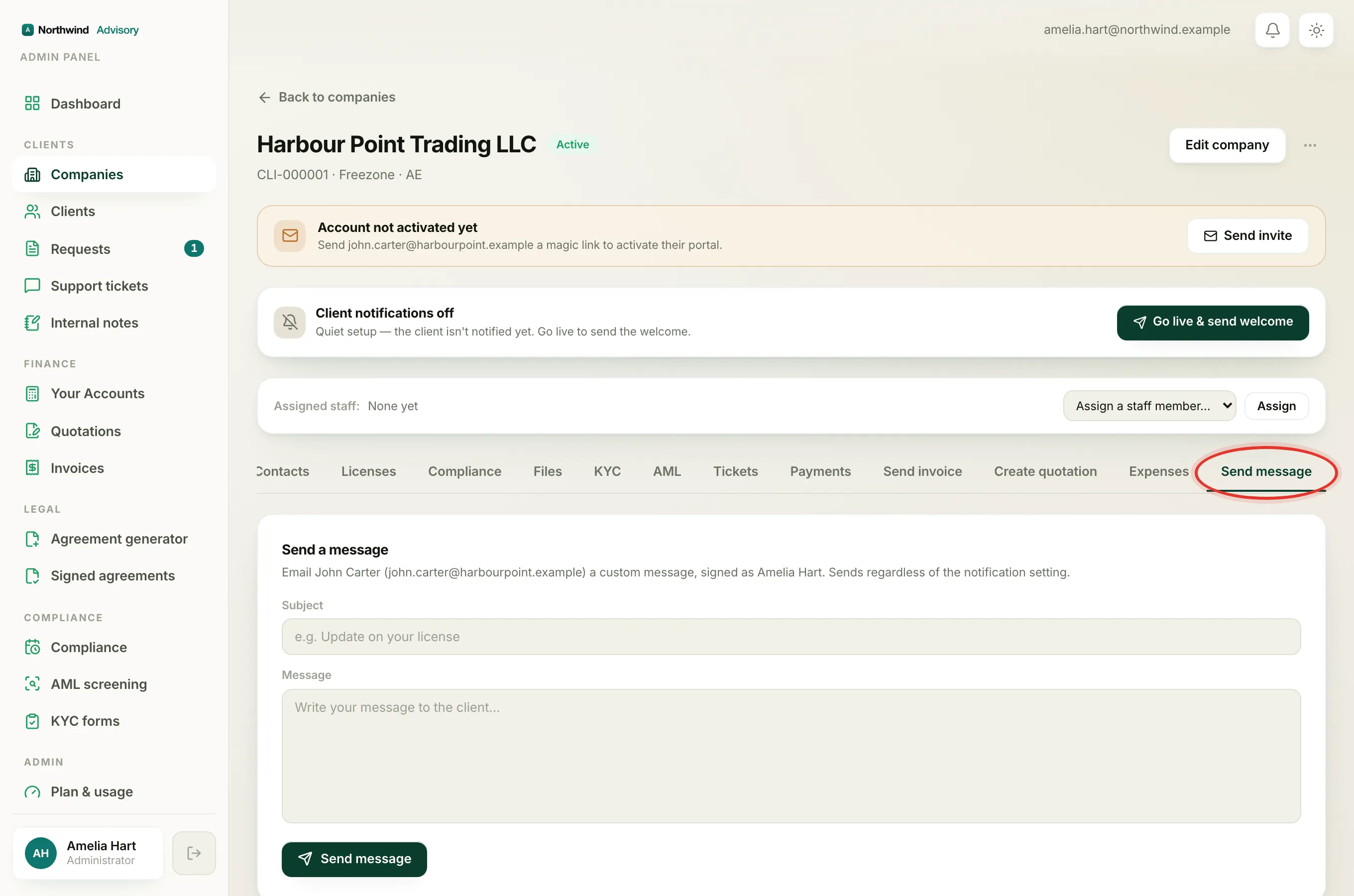
If you want to message a client but there is no open request, use the separate Send message tool on the company instead. See Send a message to a client.