When you download the VAT transaction listing, every line has a short Tax code: SR, ZR, EX, RC or OS. These are the standard FTA codes. This page explains what each one means and how each row on your sales and purchases gets the code it does.
Where the tax codes appear
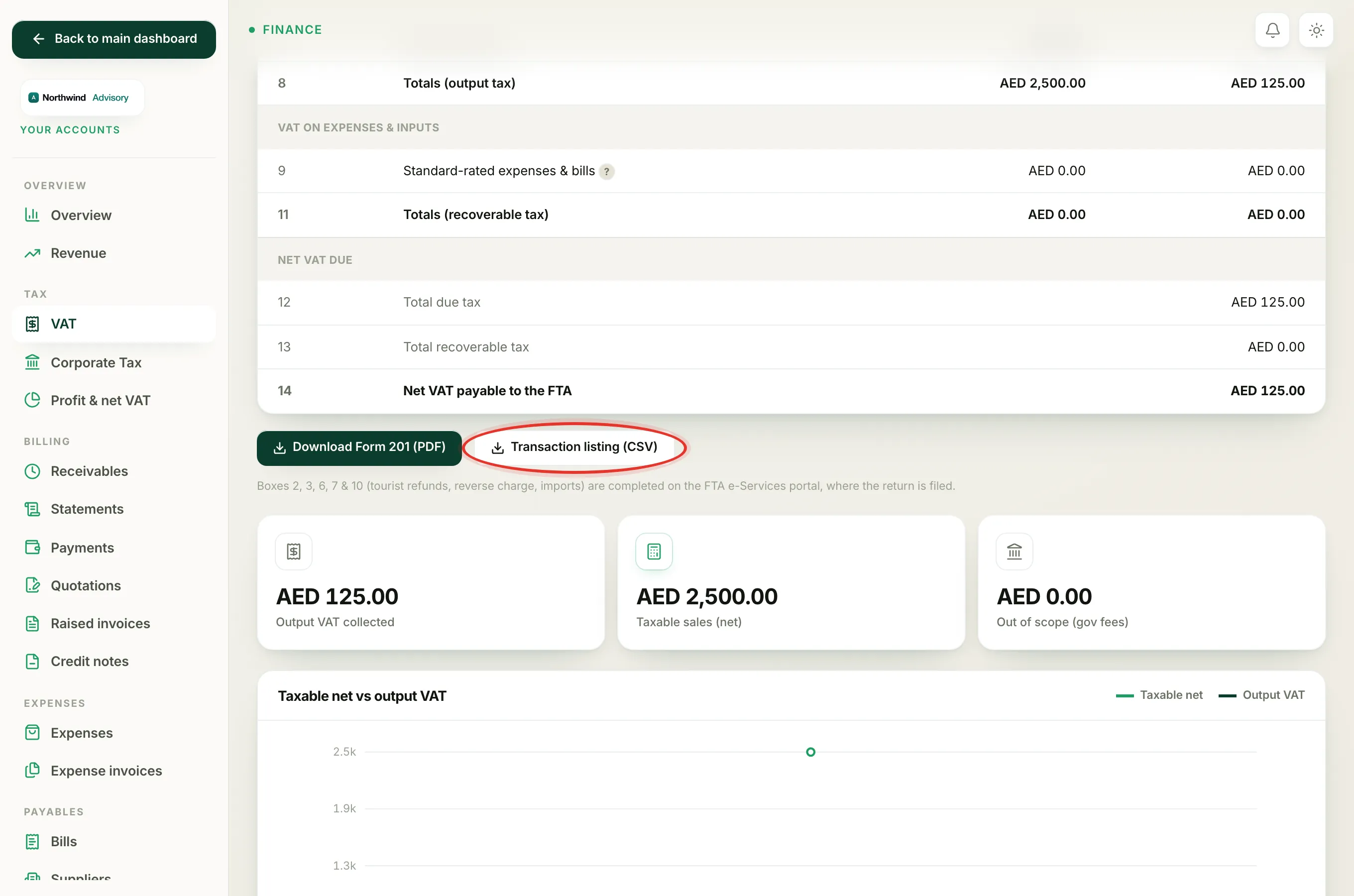
- Log in to your workspace.
- In the left menu, under Finance, click Your Accounts.
- In the accounts sidebar, under Tax, click VAT.
- Below the on-screen VAT Return, Form 201, click Transaction listing (CSV).
The file opens in Excel, Numbers or any spreadsheet. It has two parts: SUPPLIES (SALES), which is every invoice you raised, and PURCHASES (EXPENSES & BILLS), which is every expense and supplier bill you recorded. Both parts have a Tax code column.
Note
The listing is the audit trail behind your return. It is the file you hand your tax agent or the FTA if they ask to see the detail behind Form 201.
What each code means
- SR, Standard-rated. The normal 5% VAT supply. This is your fee work and most standard purchases.
- ZR, Zero-rated. A supply that is taxable but at 0%, for example certain exports.
- EX, Exempt. A supply that carries no VAT at all, for example certain financial services.
- RC, Reverse charge. A purchase where the VAT is accounted for by you, the buyer, instead of the supplier, for example some imported services.
- OS, Out of scope. Something that is not a VAT supply at all, for example a government or authority fee you pass straight through to the client.
How a sales row gets its code
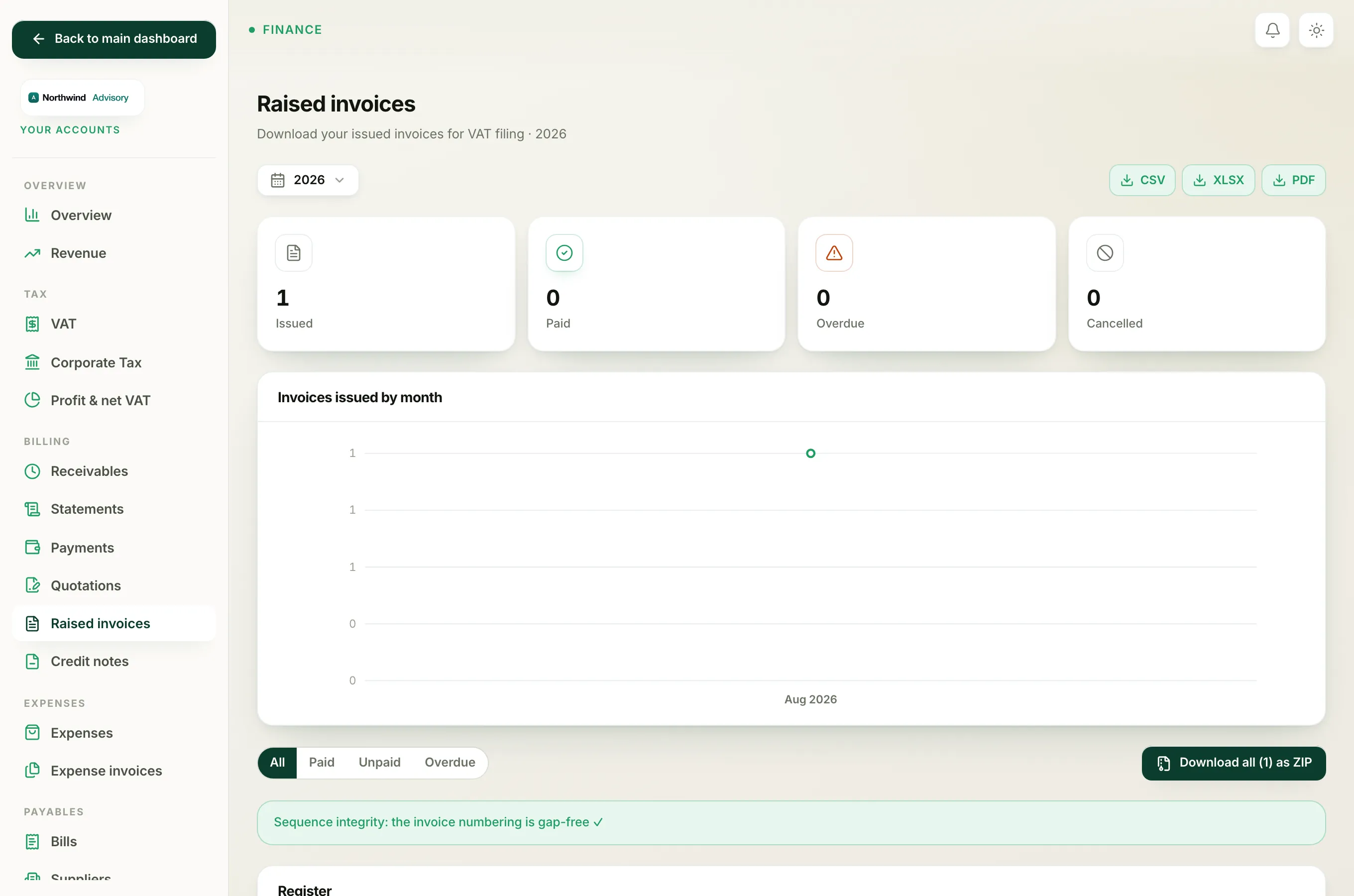
On the SUPPLIES (SALES) side, the code is set automatically from the invoice line types:
- Any standard-rated part of an invoice (the lines that carry 5% VAT) is listed as SR.
- A government-fee pass-through line is listed as OS, because a fee you simply collect and hand to an authority is out of scope of VAT.
So one invoice can appear as two rows: one SR row for your service charge, and one OS row for the government fee inside it. Draft and cancelled invoices are left out entirely.
How a purchase row gets its code
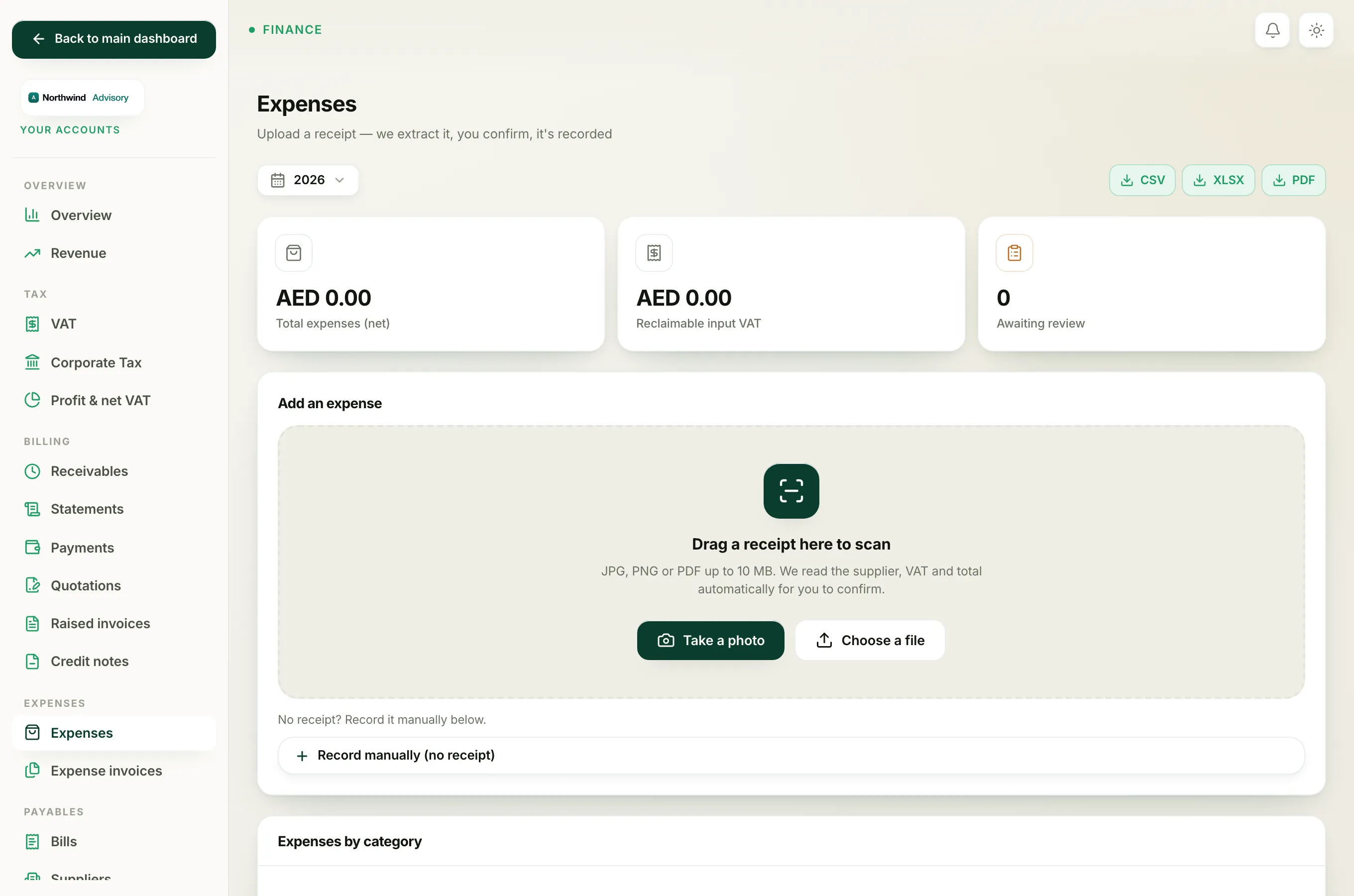
On the PURCHASES (EXPENSES & BILLS) side, the code comes from the VAT treatment you chose when you recorded that expense or bill. The choices map to codes like this:
- Standard 5% becomes SR
- Zero-rated becomes ZR
- Exempt becomes EX
- Out of scope becomes OS
- Reverse charge becomes RC
So if a purchase is showing the wrong code, the fix is to open that expense or bill and change its VAT treatment. The listing will pick up the new code the next time you download it.
Important
Only standard-rated (SR) purchases with reclaimable VAT recover their input VAT on the return. Rows tagged ZR, EX, OS or RC carry a VAT figure of zero in the listing, because there is no input VAT to reclaim on them.
For the reverse-charge and import boxes that are completed on the FTA portal rather than here, see Reverse charge and imports in your VAT return.