Where the statuses appear
AML uses two sets of labels. On a company's AML tab each contact carries a status pill. In the AML screening workspace register each screening carries a risk pill and an approval pill. This article explains all of them.
On the company AML tab (per contact)
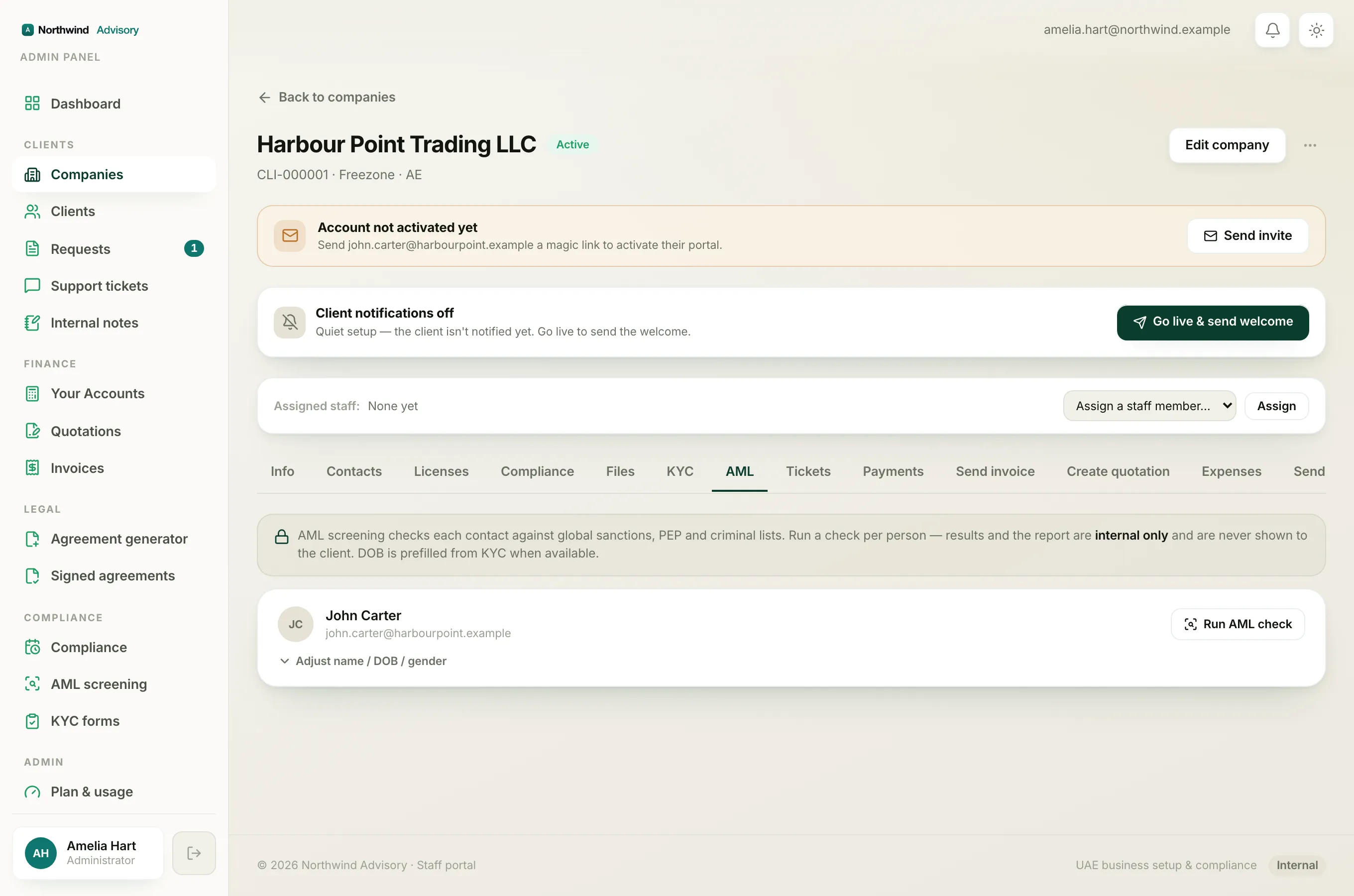
Open a company from Clients > Companies, then the AML tab. Each contact shows one of these:
- Not screened (grey). You have not run a check on this person yet. This is the starting state for everyone.
- Clear (green). The check ran and found no sanctions, PEP or criminal matches.
- Potential match (red). The check found one or more possible matches that a staff member still needs to review.
- Cleared (green). A staff member reviewed the matches and recorded them as a false positive, for example a different date of birth or nationality, so this is not the same person.
- Escalated (red). A staff member reviewed the matches and escalated the case rather than clearing it.
When there are matches, the pill also shows the number of hits next to the label.
Note
Potential match is waiting for a decision. Cleared and Escalated mean a decision has been recorded. The two red states, Potential match and Escalated, are the ones that still deserve your attention.
In the workspace register: the risk pill
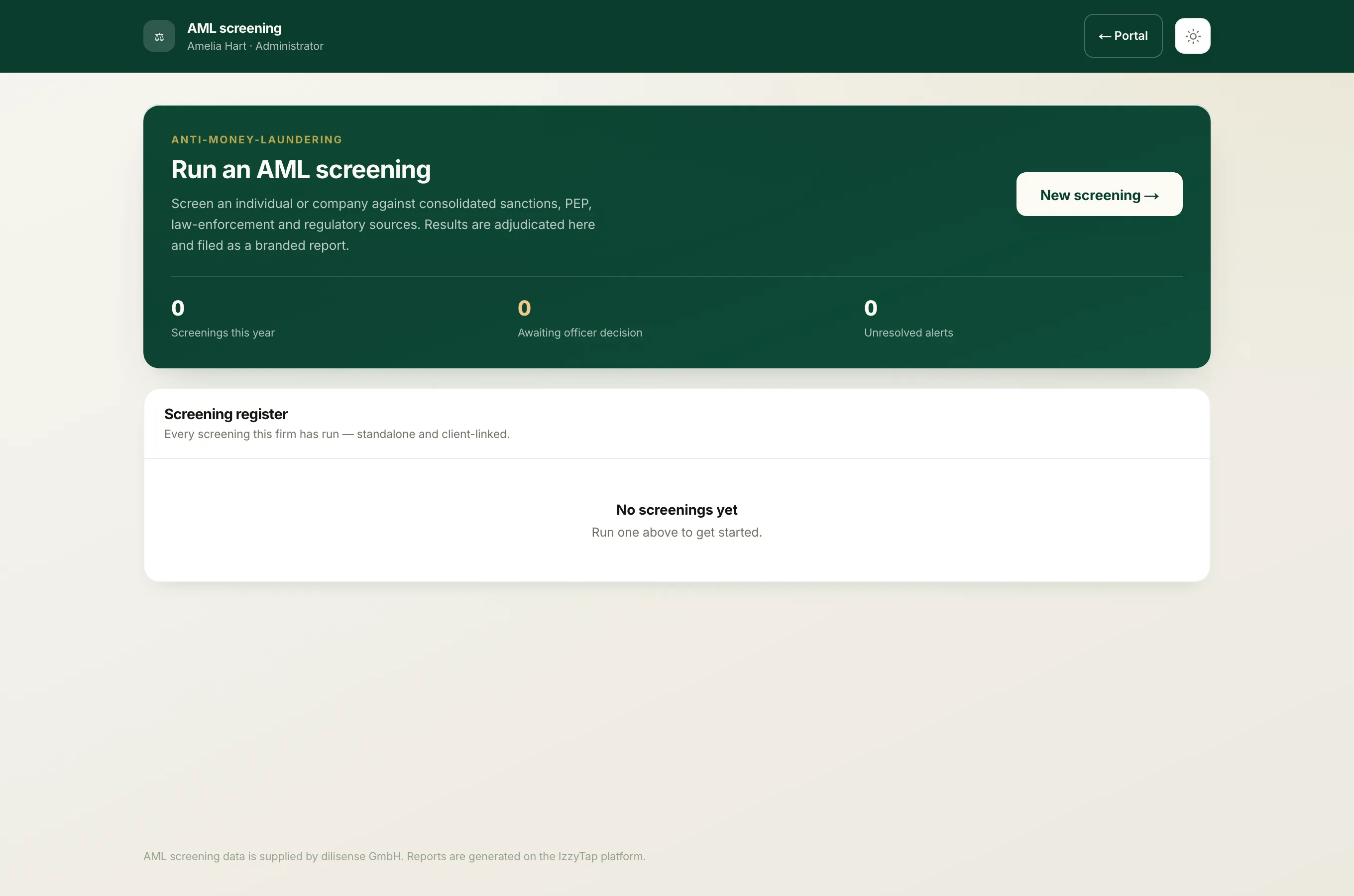
In the left menu, under Compliance, click AML screening. Each row in the Screening register shows a risk pill based on what the check returned:
- Clear (green). No alerts at all.
- Low (green). Alerts exist but the overall risk is low.
- Medium (amber). A moderate risk level.
- High (red). A high risk level.
The risk level is worked out from the kind of matches found, not just the count. See how IzzyTap sets the risk level.
In the workspace register: the approval pill
Alongside the risk pill, each screening shows where it is in the sign-off process:
- Not referred (grey). The screening has not been sent to a compliance officer.
- Awaiting officer (grey). It has been referred and is waiting for the officer's decision. See send a screening to an outside compliance officer.
- Approved (green). The compliance officer approved it.
- Declined (red). The compliance officer declined it.
Note
Once an officer approves or declines, the screening's alerts and decisions are frozen so the evidence behind the decision cannot change. See why a screening is locked after sign-off.
To choose the right label for an individual alert while reviewing, see the five alert dispositions.