Every quotation you send carries a small coloured status chip. The chip tells you, at a glance, where the quote is in its life. This article explains each one.
Where you see the status
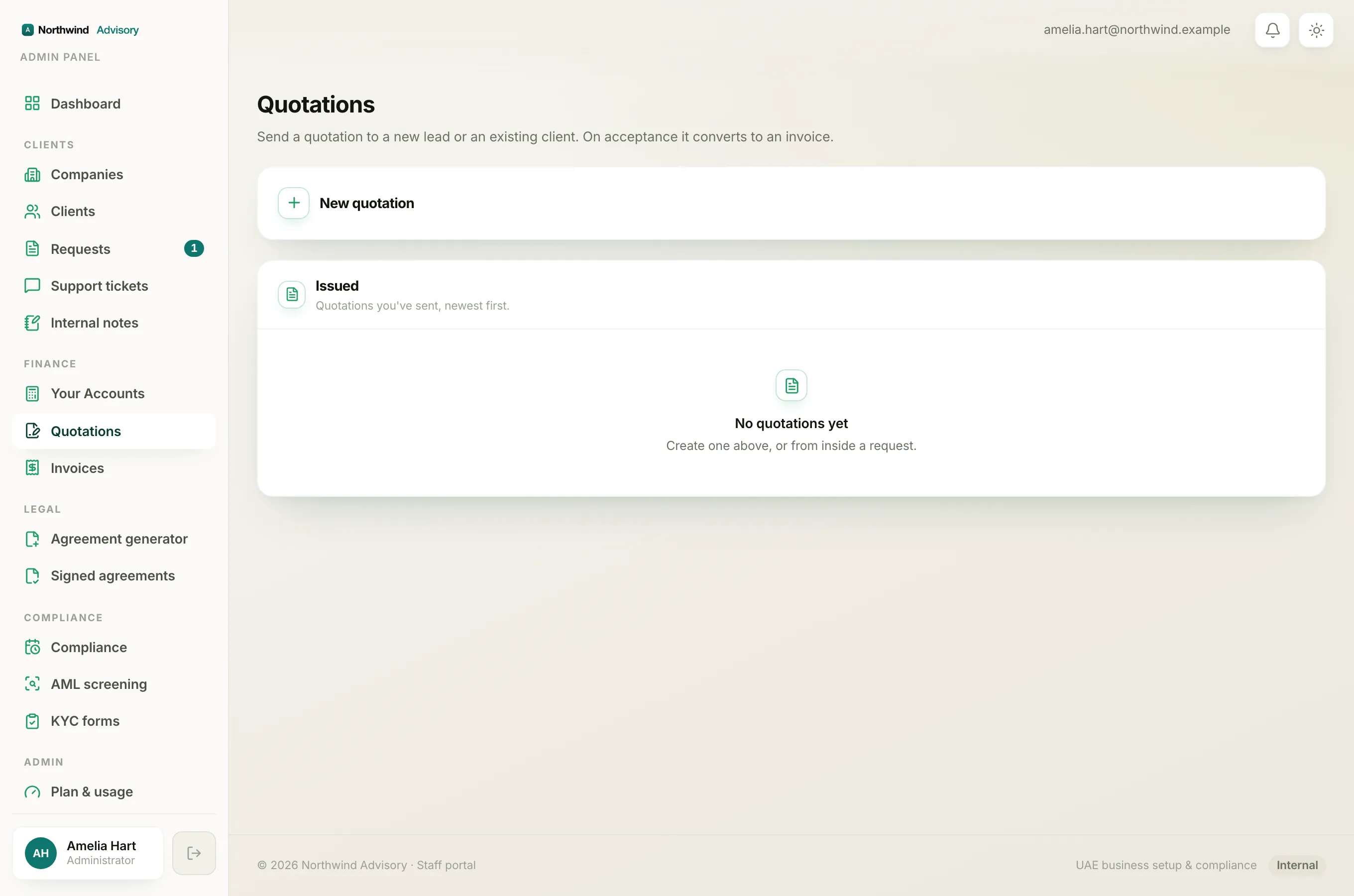
- Log in to your workspace.
- In the left menu, under Finance, click Quotations.
- Look at the Issued list. Each row shows the quotation number, then its status chip, then the amount. If a row also shows a small Lead chip, the quote went to someone who is not a client yet.
You will also see the same status on the quotation card inside a request thread, if the quote was raised from a ticket.
The statuses, one by one
Sent (amber). The quotation has gone to the recipient and is waiting for a decision. This is the only status where you can still withdraw the quote. See Withdraw a quotation you have sent.
Accepted (green). The client has opened the quote and accepted it. This status is brief. The moment a client accepts, IzzyTap turns the accepted quote into a real invoice on its own, so the status moves straight on to Converted.
Converted (green). The client accepted and an invoice has now been raised from the quote. This is the normal "won" state you will see on most successful quotes. From here you work the invoice, not the quote. See How an accepted quotation becomes an invoice.
Declined (red). The client opened the quote and chose to decline it. Nothing further happens automatically. If they change their mind, raise a fresh quote.
Expired (grey). The quote's 30-day validity window has passed without the client accepting or declining. The accept link no longer works. See When a quotation expires.
Cancelled (grey). You withdrew the quote yourself. The accept link is dead and the client has been told to disregard it.
Note
Quotations do not have a saved draft stage. When you create a quotation it is sent to the recipient straight away. That is why there is no "Draft" chip to worry about in normal use, and why it is worth checking the preview before you send.
Reading the colours
The colours group the statuses so you can scan the list fast:
- Green means the client said yes (Accepted or Converted).
- Amber means the quote is still out with the client and waiting (Sent).
- Red means the client said no (Declined).
- Grey means the quote is closed off without a sale (Expired or Cancelled).
None of these chips ever uses your firm's brand colour, so a status is never confused with your logo or accent.
How a quote moves from Sent to Converted on its own
You do not need to touch a quote after the client accepts it. The flow runs by itself:
- You send the quote. Status: Sent.
- The client opens the secure link and accepts. Status: Accepted for a moment.
- IzzyTap raises the invoice from the quote and files the signed copy. Status: Converted.
So in day-to-day use you will mostly see Sent on open quotes and Converted on the ones that closed.