What the Payments report shows
The Payments report is your record of cash received. Where Receivables shows what clients still owe you, Payments shows what has actually landed. Every time you mark an invoice paid, a receipt is added here.
Open the report
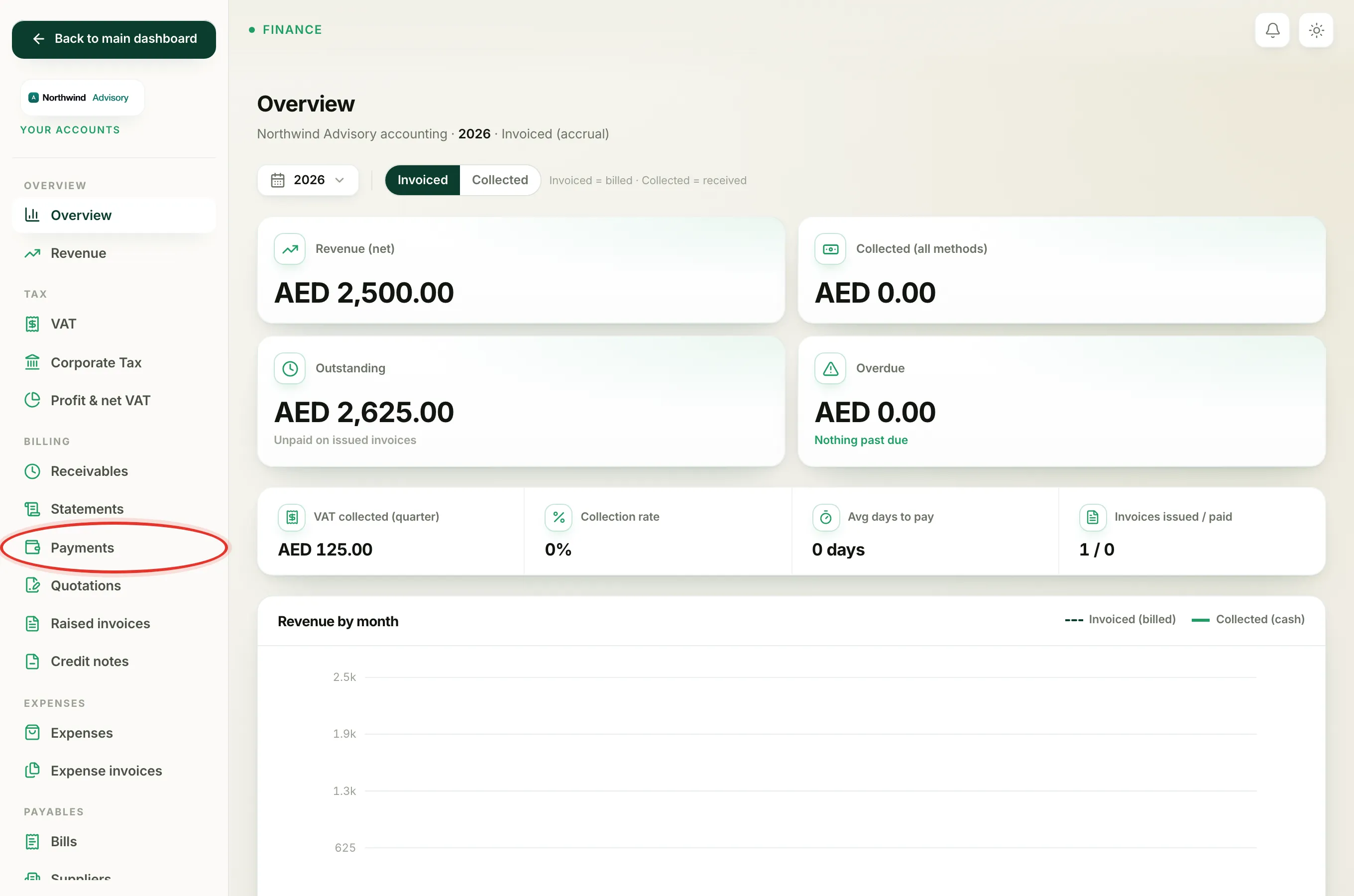
- Log in to your workspace.
- In the left menu, under Finance, click Your Accounts.
- In the accounts menu, under Billing, click Payments.
Choose the period
At the top of the page is a date range picker. Pick a preset period or set a custom range. The subtitle under the title, "Cash received", updates to show the period you are looking at, and every number and list on the page follows it.
The four tiles
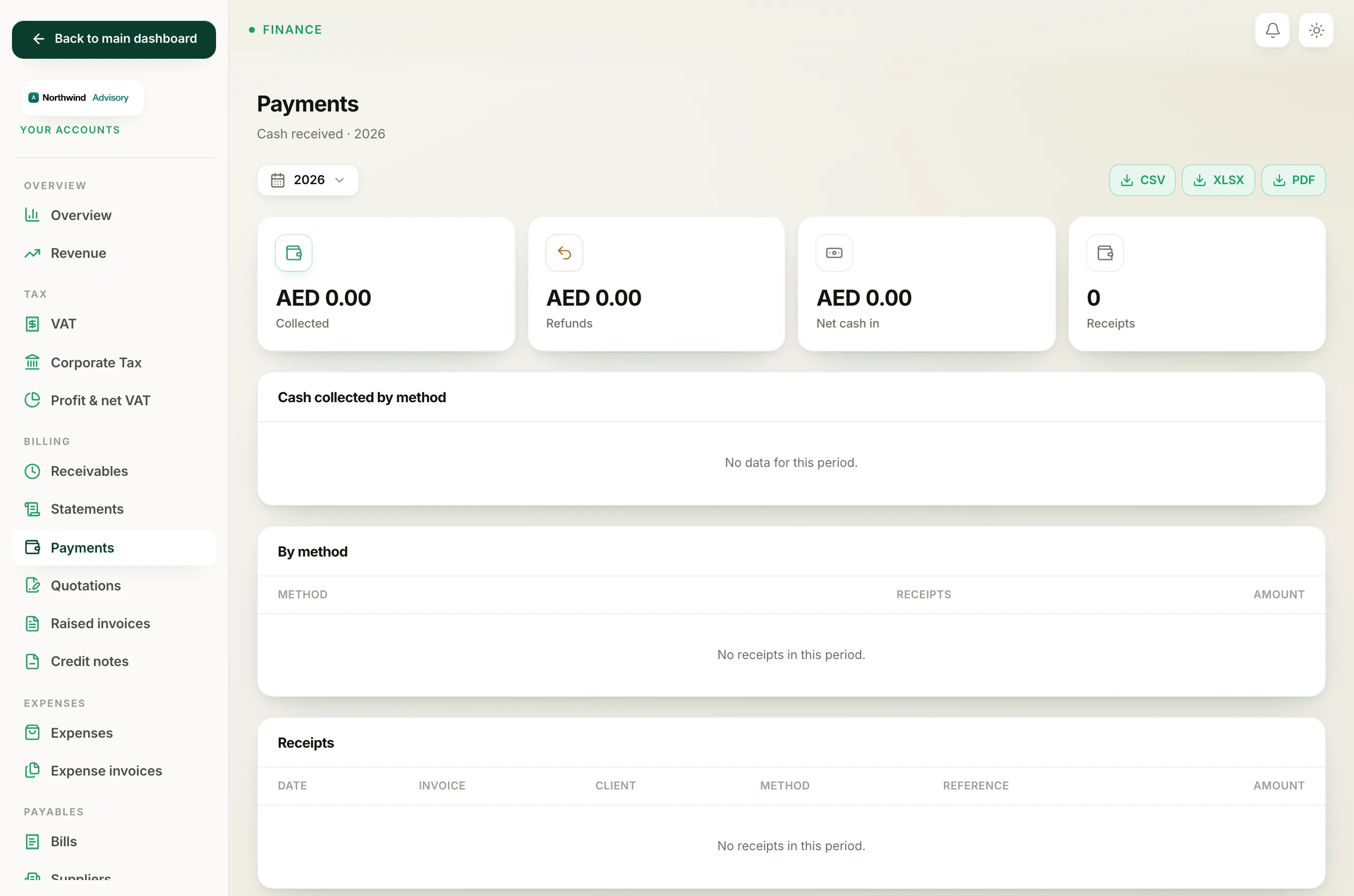
- Collected is the total cash received in the period from cleared payments.
- Refunds is the total you refunded in the period. It is shown separately, not mixed into Collected.
- Net cash in is Collected minus Refunds, the true money kept.
- Receipts is how many individual payments were recorded in the period.
Note
A refunded payment is not counted as collected. Its amount moves into the Refunds tile instead and it drops out of the receipts list below.
Cash collected by method
The Cash collected by method bar and the By method table below it break the money down by how it was received: Bank transfer, Cash, Card / POS, Cheque or Other. The table shows, for each method, how many receipts there were and the total amount. This is useful for reconciling against your bank and your cash box.
The Receipts list
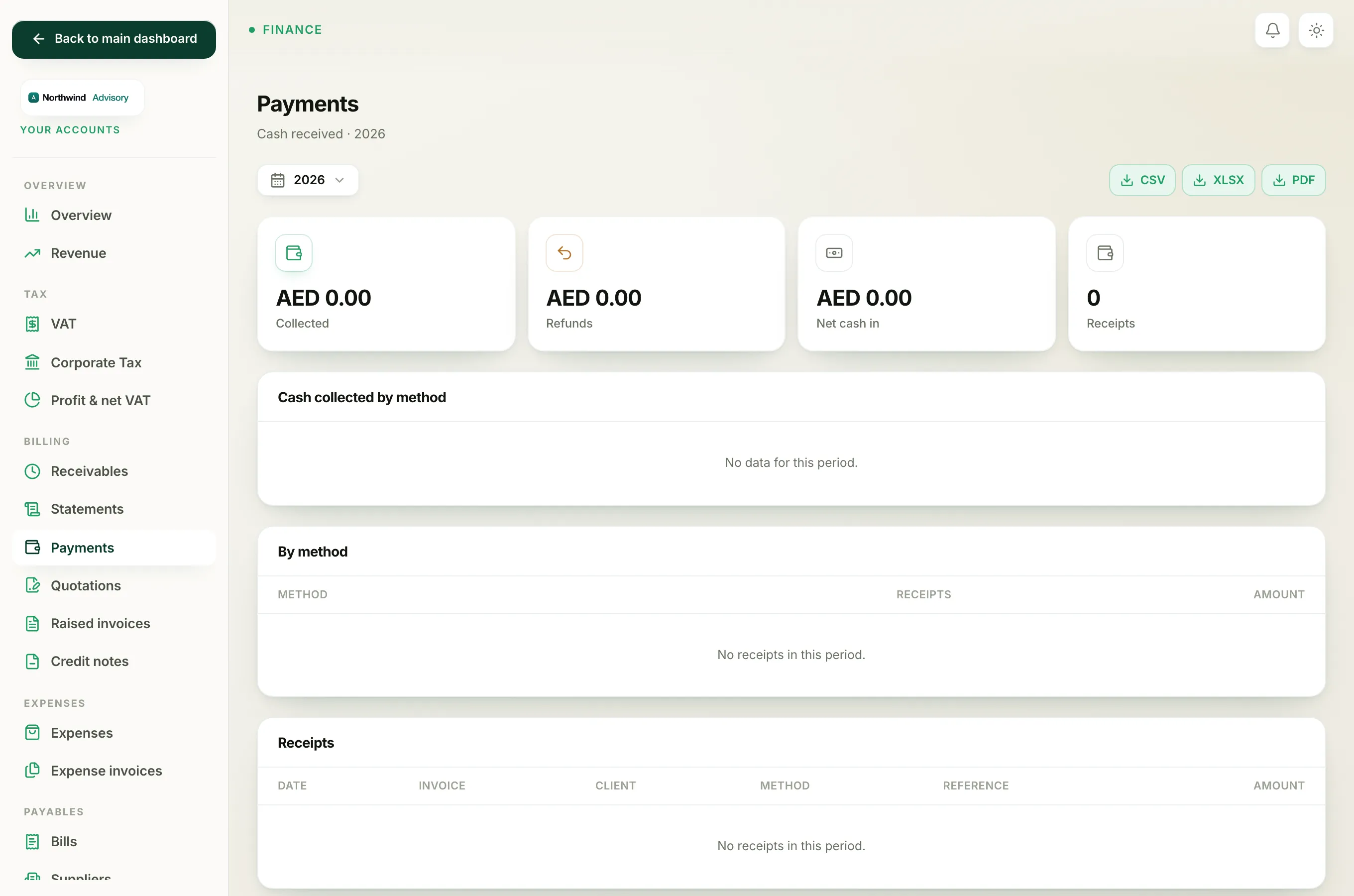
The Receipts table lists every individual payment in the period, newest first, with:
- Date the payment was received.
- Invoice number it was paid against.
- Client who paid.
- Method used.
- Reference, the note you typed when recording it, such as a transfer reference or cheque number. A dash means none was entered.
- Amount received.
Each line is one payment, so a client who paid one invoice in two instalments shows as two rows.
Export it
Use the export buttons at the top right to download the whole report as CSV, Excel or PDF for a chosen period. To learn how each payment gets here in the first place, see how to record a payment and choose which bank account a payment goes into.
Note
Your Accounts, including this report, is only available to the firm owner. See who can create invoices and record payments.