Where the switch is
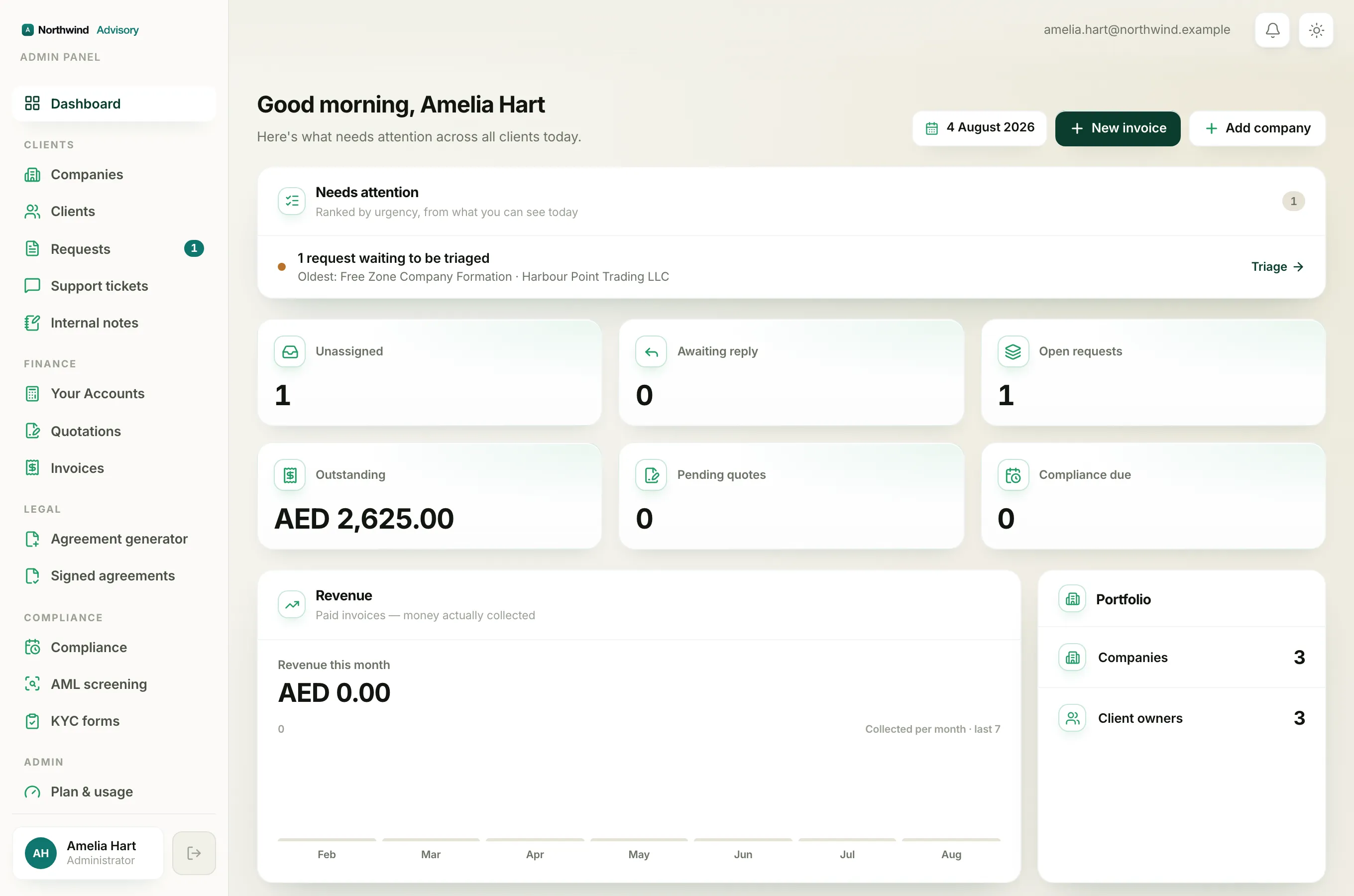
You can view your whole workspace in a light theme or a dark theme. The switch is a single button in the top bar.
- Log in to your workspace.
- Look at the top right of the screen, near the notification bell.
- You will see a small round button with either a sun or a moon on it.
- Tap or click it to switch. Light becomes dark, and dark becomes light. The whole screen changes at once.
The button always shows the theme you are currently in: a sun while you are in light mode, a moon while you are in dark mode.
Note
The same button is in the top bar everywhere, including inside your Your Accounts area, so you can change theme from any screen.
How your choice is remembered
The first time you sign in, IzzyTap follows your device's own system setting. If your phone or computer is set to dark mode, your workspace opens in dark mode. If it is set to light mode, it opens in light.
Once you tap the button yourself, IzzyTap remembers your choice and keeps using it every time you come back.
Note
The setting is saved in the browser on the device you are using. It is not tied to your account. So if you switch to dark on your laptop, your phone stays on whatever you last chose there. Each browser and device remembers its own preference. Using a private or incognito window, or clearing your browser data, resets it back to following your system setting.
Light or dark does not change what clients see
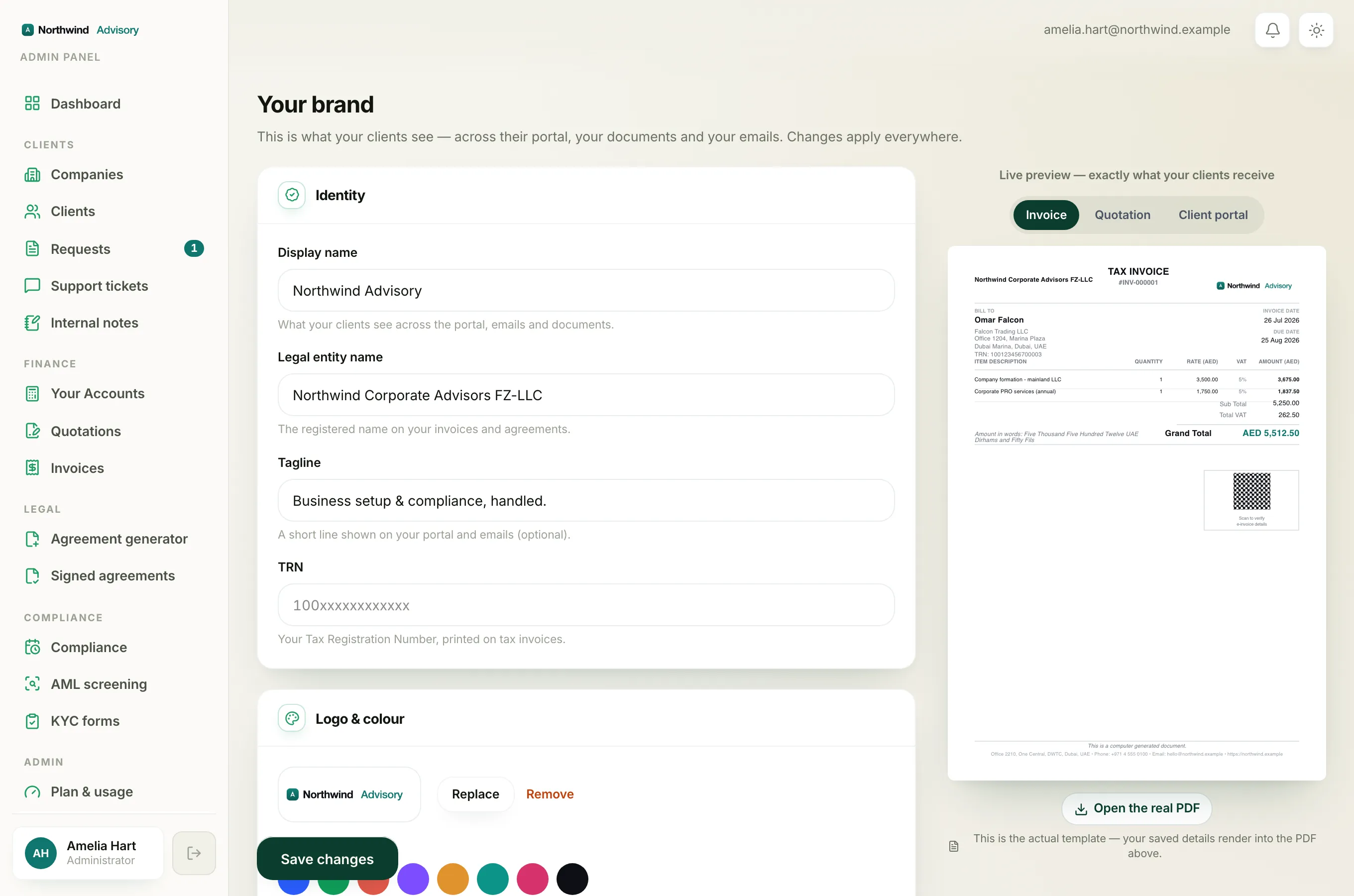
This setting only changes how the workspace looks to you. It is your personal comfort choice and nothing more.
It does not change your logo, your colours or anything a client sees on their side. Those come from your brand settings. To control what clients see, see Set your brand.