The Clients list is the people view of your customers. It shows one row for every customer login, which is different from the Companies list where each row is a workspace. One person can own more than one company, but they still have a single login, so they appear once here.
This article explains the tabs at the top, the coloured status chip on each card, and the small label that tells you how the person first joined.
Open the Clients list
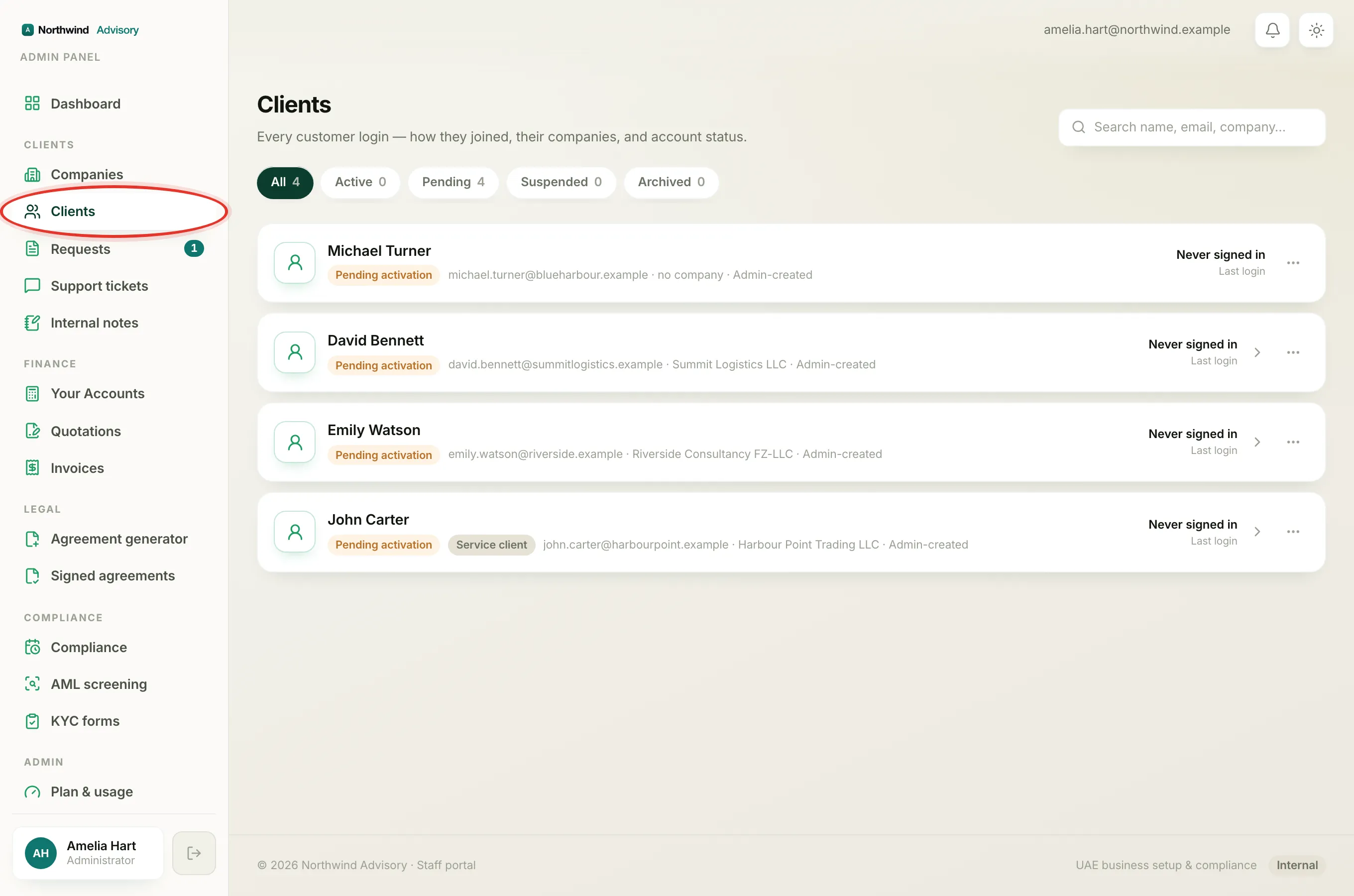
- Log in to your workspace.
- In the left menu, under Clients, click Clients.
You land on the full list. Each card shows the person's name, their status chip, their email, their main company, and when they last signed in.
The four status tabs
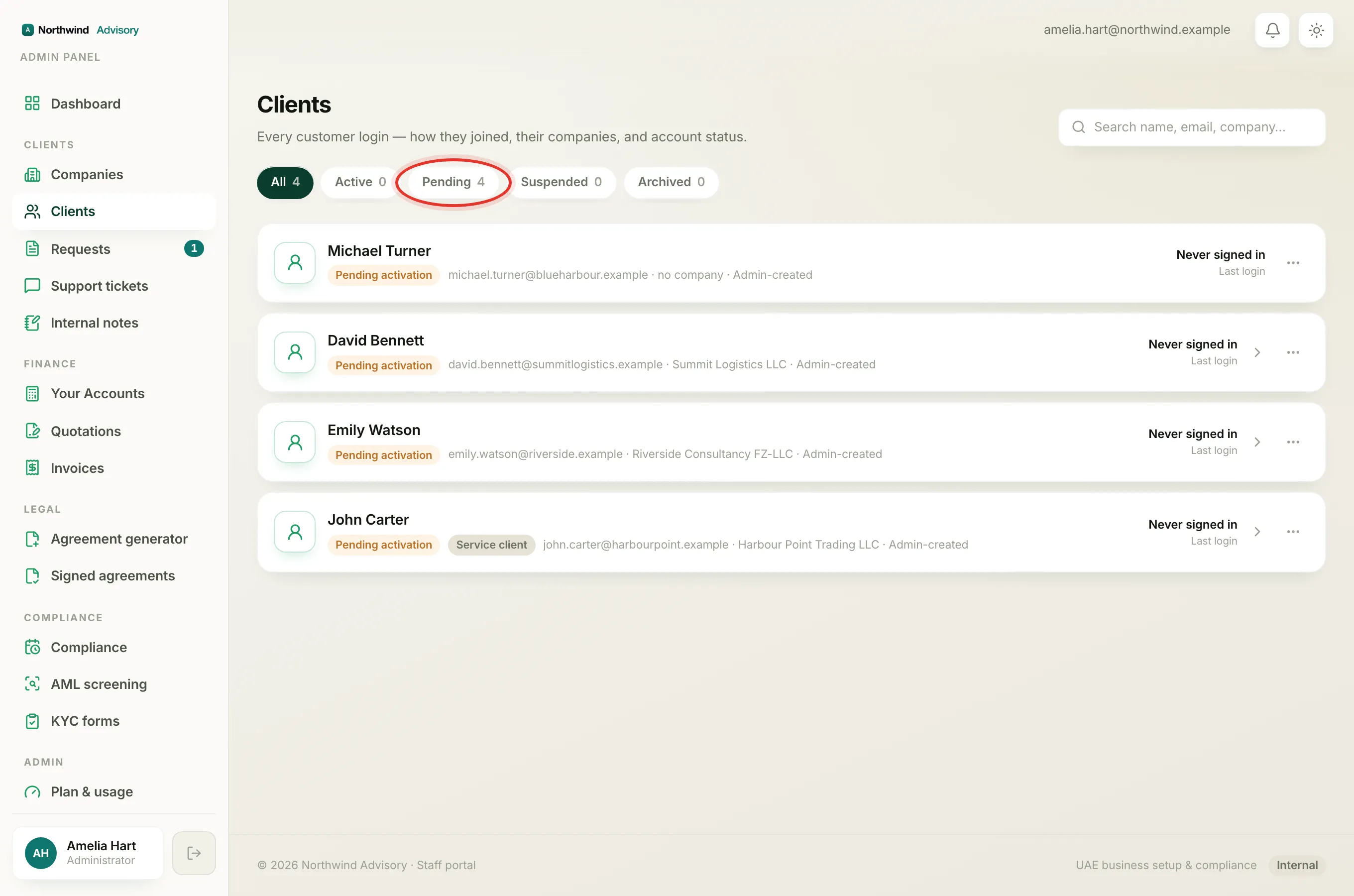
Across the top of the list you will see five pills: All, Active, Pending, Suspended and Archived. The number inside each pill is how many clients are in that group. Click a pill to show only those clients.
The status is worked out automatically from the account, so you never set it by hand. Here is what each one means and the colour of the chip you see on the card.
- Active (green chip, labelled Active). The person has activated their account and can sign in to their portal normally. This is the everyday, healthy state.
- Pending (amber chip, labelled Pending activation). The account exists but the person has never activated it, so they cannot log in yet. This is normal for a client you have just added or imported. See Activate a client's portal account.
- Suspended (red chip, labelled Suspended). Someone has blocked this person's login. Their data is kept, but they cannot sign in until an admin re-enables them. See Suspend or restore a client's login.
- Archived (grey chip, labelled Archived). The account has been retired. All records are kept, and the email is freed so the person could register again later.
Note
These statuses are about the person's login. A company can be suspended or archived on its own without touching the owner's login, and a person can be blocked without archiving their companies. See Company statuses: Active, Suspended and Archived.
How they joined: the source label
At the end of the grey line on each card you will see one of three source labels. This tells you where the client came from and never changes.
- Self-registered. The person signed themselves up from your portal or paid a standalone invoice or quotation, which created their account.
- Admin-created. You or a teammate added them by hand, for example with Add company.
- Imported. They came in through a bulk spreadsheet upload. See Import companies.
The extra client-value badges
Next to the status chip, a card may also carry a neutral badge that describes the relationship:
- Paying client. This person's company has at least one paid invoice.
- Service client. This person's company has at least one service request on file, but no paid invoice yet.
A brand-new client with no activity yet has neither badge.
Find a specific client
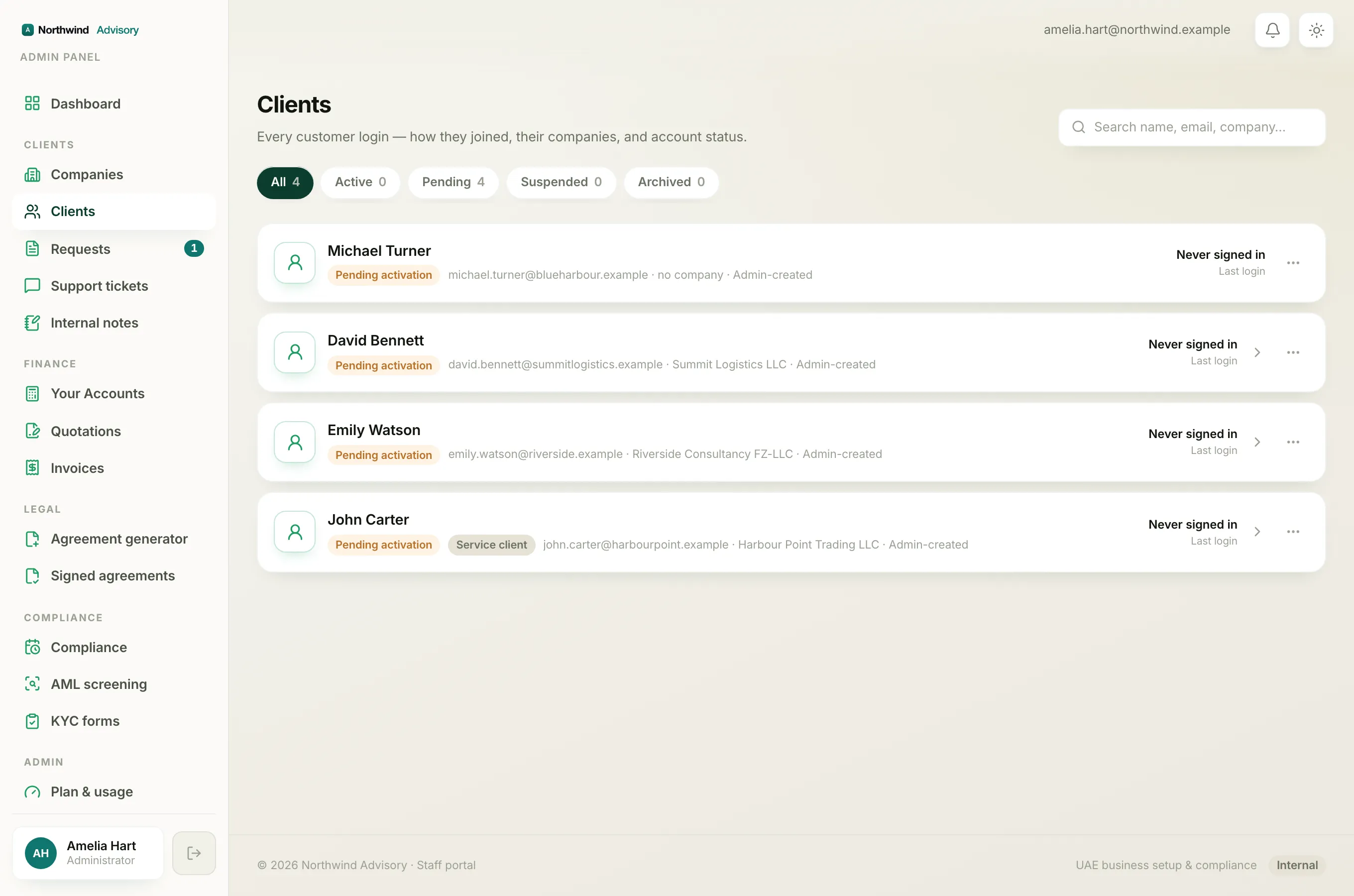
Use the search box at the top right and type a name, an email, or a company name or client code. The tab counts update to match what your search found. Clear the box to see everyone again.
Tip
If a client says they cannot log in, check their status chip first. A Pending activation or Suspended chip usually explains it straight away. See Why a client can't log in.