A bill is a cost your firm owes a supplier but has not paid yet. When you record a bill, IzzyTap adds it to what you owe, known as accounts payable, and captures the VAT so your figures stay correct. You pay it off later when it is due.
Note
A bill is money going out, owed to a supplier. It is not the same as an invoice you raise to a client to get paid.
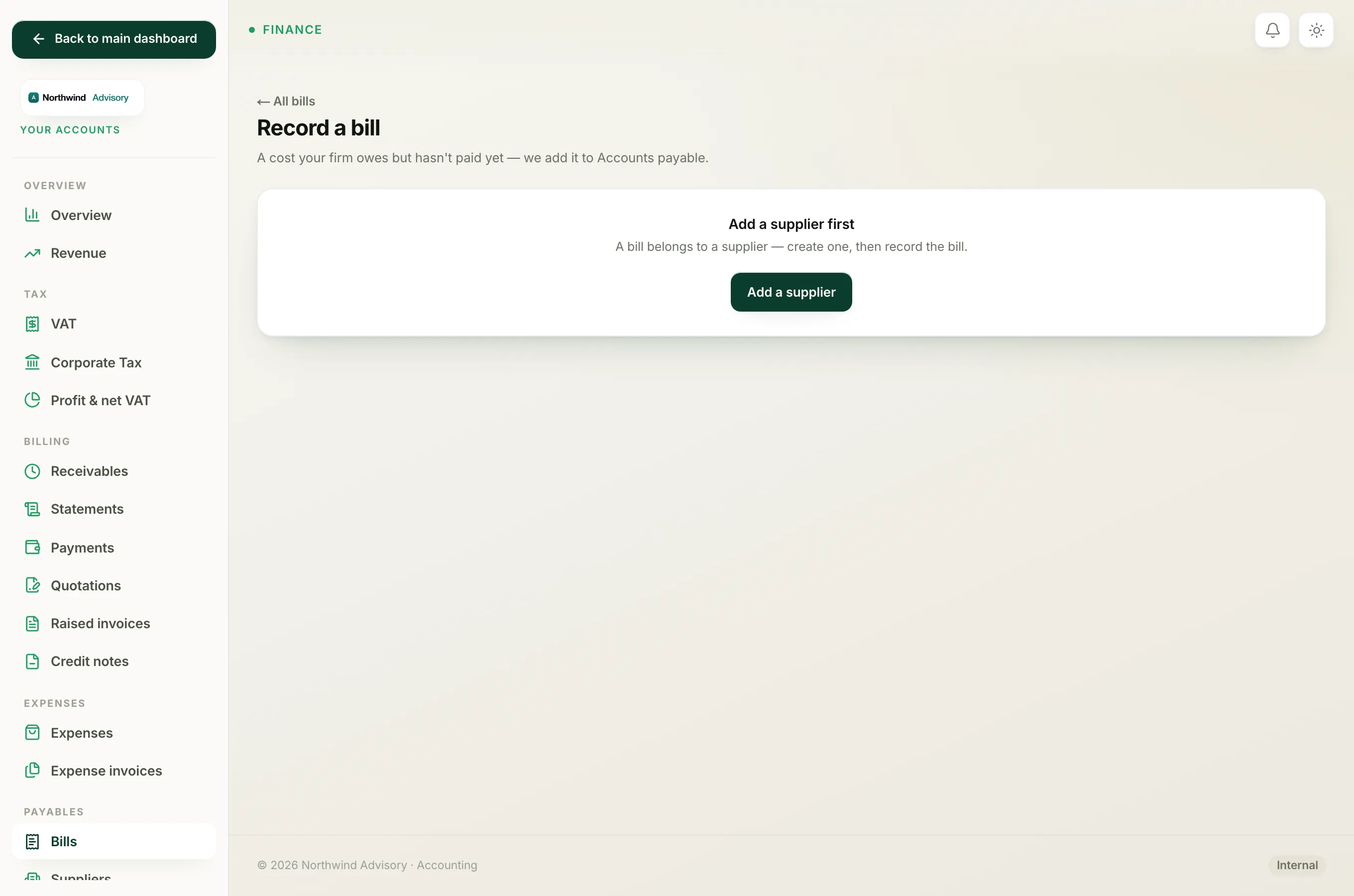
Add the supplier first
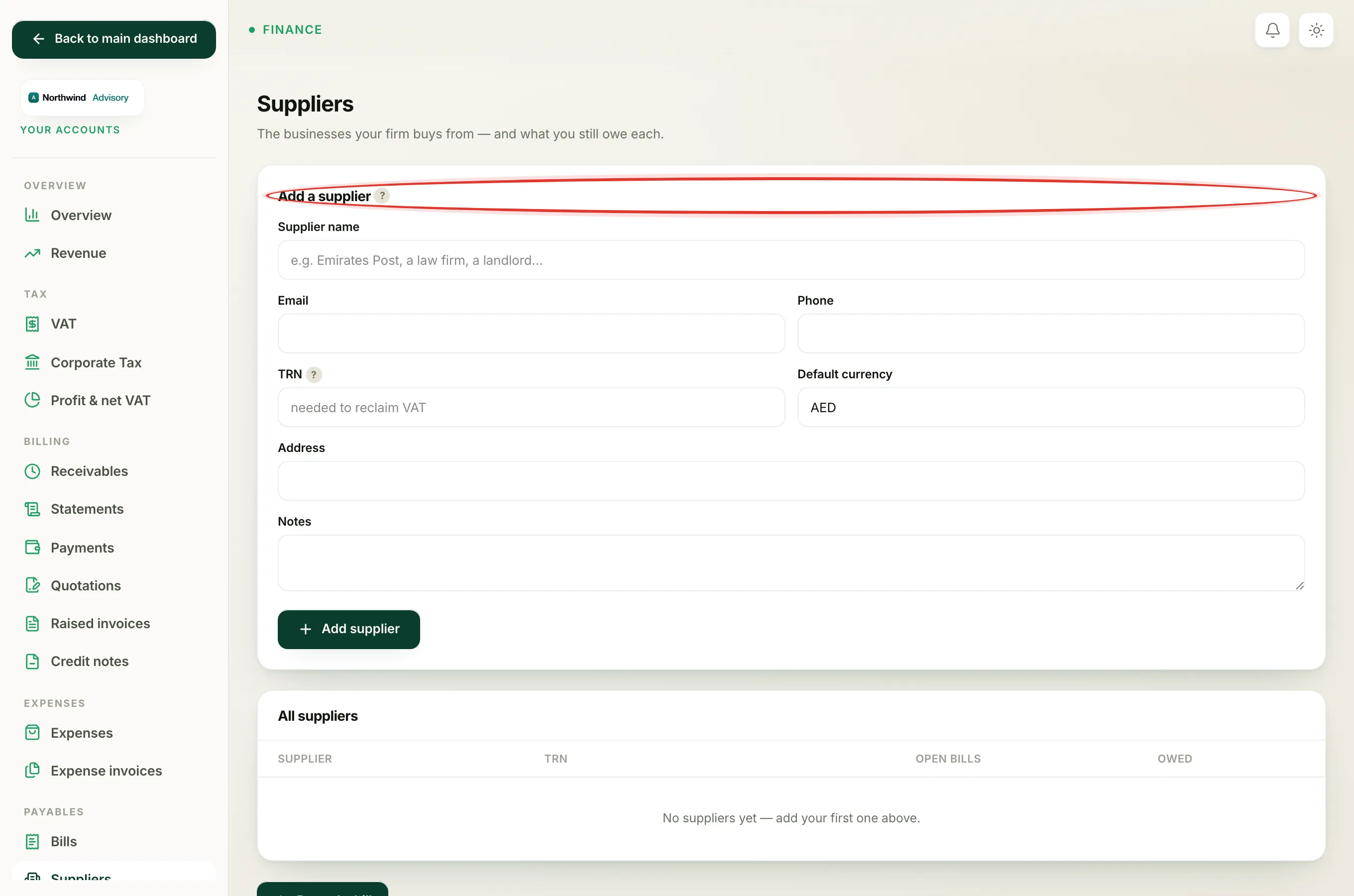
Every bill belongs to a supplier, so you need the supplier on file before you can record their bill.
- Log in to your workspace.
- In the left menu, under Finance, click Your Accounts.
- In the accounting menu, under Payables, click Suppliers.
- In the Add a supplier box, type the Supplier name. This can be a landlord, a law firm, a software provider, or a government authority.
- Fill in the Email, Phone, TRN, Default currency, and Address if you have them.
- Click Add supplier.
Important
The TRN is the supplier's Tax Registration Number. You can only reclaim the VAT on a bill when the supplier has a valid TRN, so add it if you have it.
If the supplier is already on the list, you can skip this and go straight to recording the bill.
Record the bill
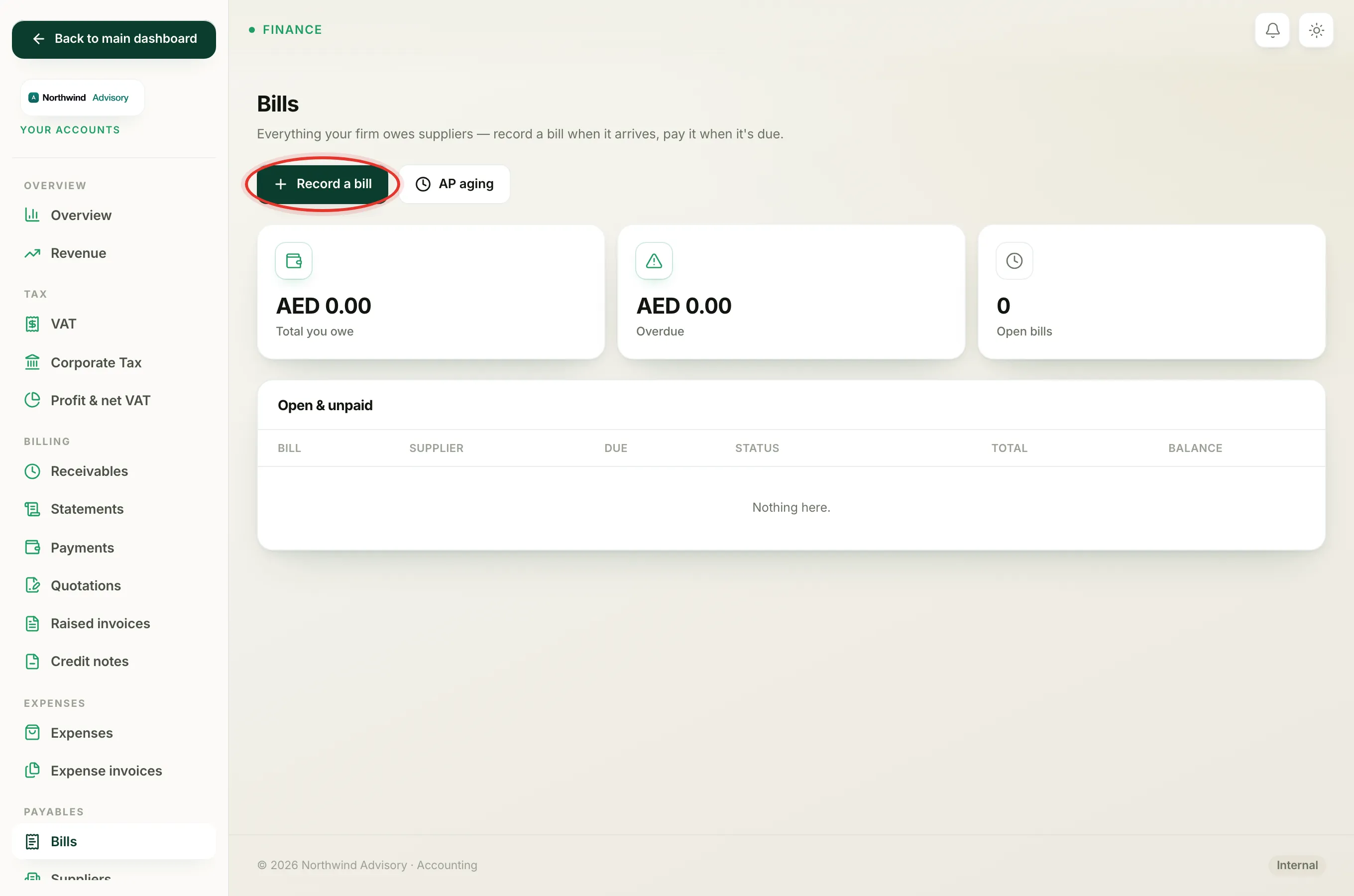
- In the accounting menu, under Payables, click Bills.
- Click Record a bill.
- On the Record a bill page, fill in the form:
- Supplier. Choose the supplier from the list.
- Supplier's reference. Type the invoice or reference number printed on the supplier's own bill, so you can match it later.
- Bill date. The date on the supplier's bill. This is the date the cost counts for VAT.
- Due date. When the supplier expects to be paid. IzzyTap uses this to show you what is overdue.
- Category. Pick what kind of cost it is.
- For which client?. Optional. If the cost was for serving one client, tag them here and it feeds per-client profit. Leave it as general overhead otherwise.
- Description. A short note on what the bill is for.
- Net (AED). The amount before VAT.
- VAT (AED). The VAT charged on the bill. This is usually 5% of the net for a standard-rated cost.
- VAT treatment. How the VAT is handled. Leave it as standard unless you know it differs.
- VAT reclaimable. Leave this ticked when the supplier has a valid TRN and the VAT can be claimed back. It reduces the net VAT you owe the FTA.
- Notes. Anything else worth keeping with the bill.
- Click Record bill.
The total owed is worked out for you as Net plus VAT. You do not type the total.
What happens after
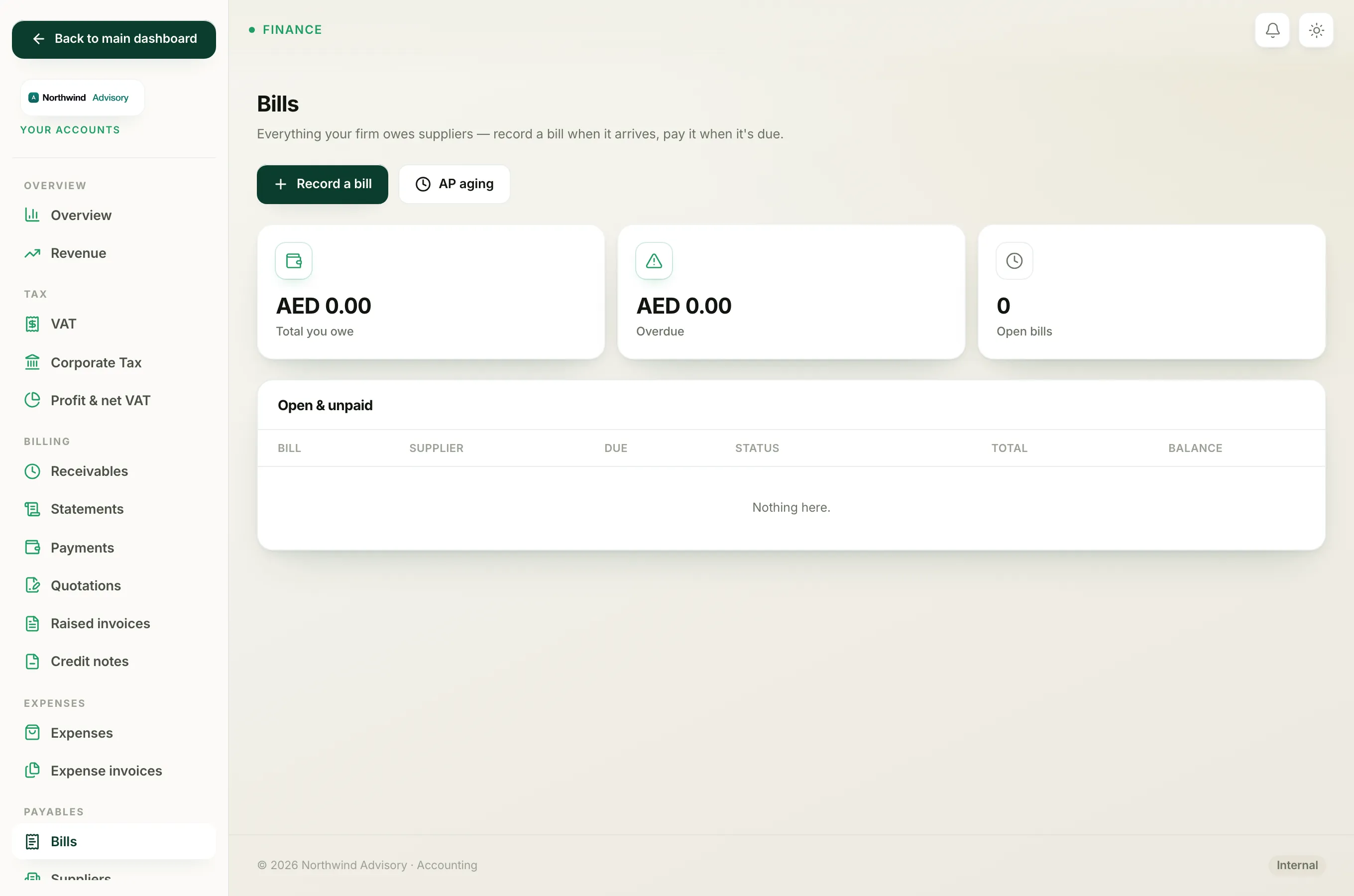
The bill is added to your accounts payable and now appears in the Bills list under Open & unpaid. The Total you owe figure at the top updates, and the amount flows into your Profit and Loss and Balance Sheet automatically.
When the time comes, follow how to record a bill payment to pay it off.
Tip
Entered a bill by mistake? Open it from the Bills list and use Cancel bill. This only works before any payment has been recorded against it.