When you invite a client, they get their own portal. It is separate from your admin side. It shows only their own company, and it carries your firm's brand, so to them it looks like your own software.
This guide walks through what the client sees, so you can answer their questions with confidence.
Your brand, not IzzyTap
The client never sees the name IzzyTap. Across their portal, their emails and their documents, they see your firm's display name, your logo and your brand colour. The top of their menu reads [Your firm] workspace.
You control all of this. See How to set your firm's brand.
How the client logs in
The client signs in with the email you set as the owner email, using the secure link from the invite you send. If you have not sent that yet, see How to invite a client to their portal. After the first time, they log in with the email and password they chose.
The client's menu
On the left of the client's portal is a panel headed [Your firm] workspace. It holds everything you do for them:
- Overview: their landing page, a summary of what is going on.
- Requests: the services and applications you are running for them, and their progress.
- Received quotes: quotations you have sent, which they can accept.
- Invoices: the invoices you have issued, with the amount due and how to pay.
- Compliance: their deadlines and filings you are tracking.
- Documents: their files, in the same folders you see on your side.
- KYC & AML: know-your-customer forms you send them to fill in.
- Tickets: the message threads between the client and your team.
Below that panel is a small section headed Manage your account with one item:
- Settings: where the client manages their own account details.
Note
The client can only see their own company. One client can never see another client's data. Your firm's revenue, your other clients and your staff pages are on the admin side and are never visible to any client.
What the client can and cannot do
The portal is mostly a window into the work you do for them. A few things they can do themselves:
- Read and reply on Tickets, and send you messages.
- View and accept a Received quote.
- View and pay an Invoice.
- Fill in a KYC & AML form you sent.
- Upload files into their Documents.
A client never raises their own invoice or quotation. Those come from you. That is why invoices sit inside the workspace list, as something your firm issues to them.
Quiet setup versus going live
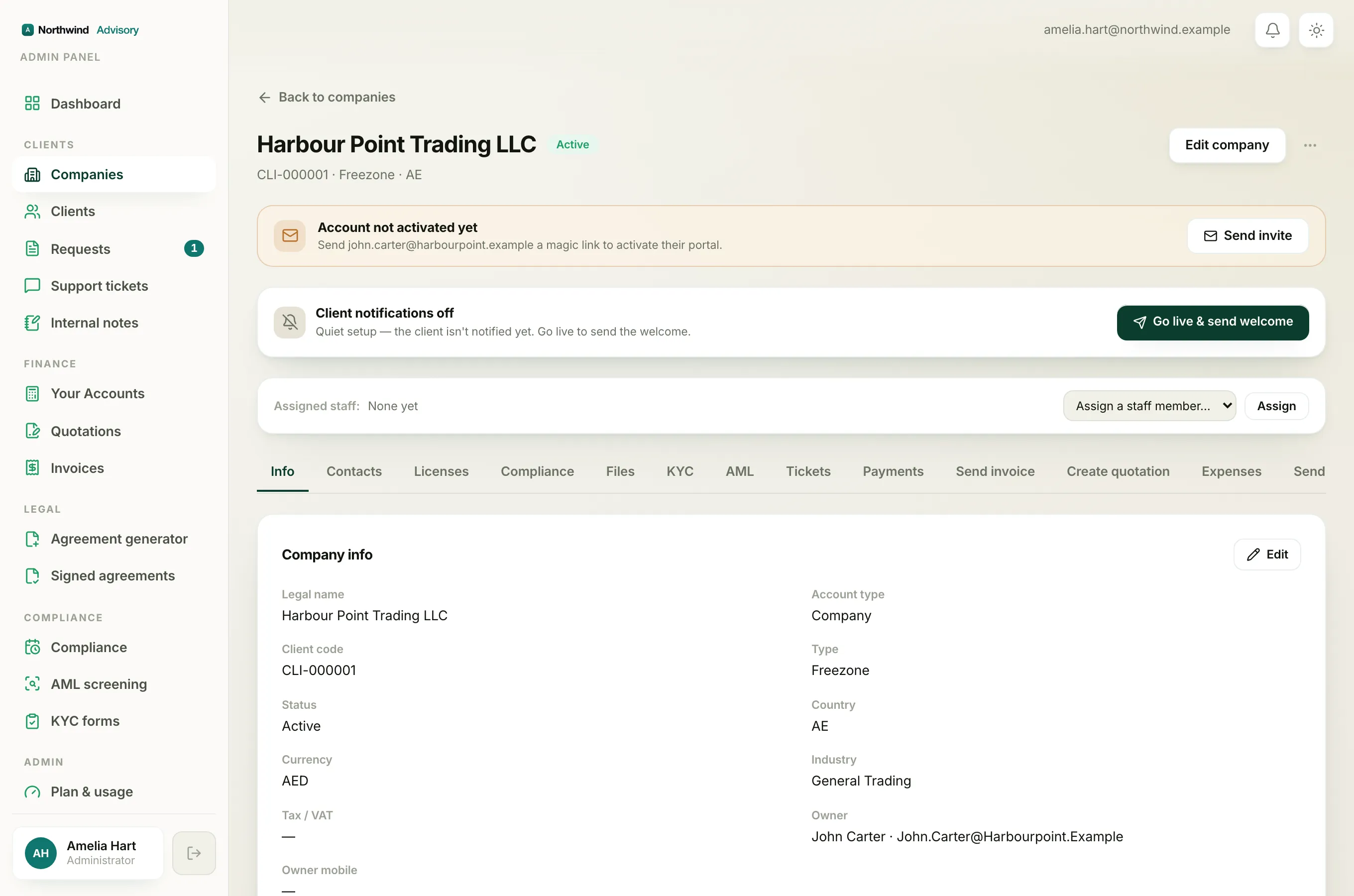
Until you go live, the client is not emailed about activity or reminders, even if they can log in. When you are ready for them to be notified, use the Go live & send welcome control on the company page. See How to invite a client to their portal for how that works.
Tip
To see the portal the way your client does, invite a test company using an email inbox you control, then log in with that link. It is the fastest way to check your brand looks right end to end.