An expense you have already recorded is not locked. You can reopen it to fix a detail, or remove it entirely if it should never have been logged. Both are done from the same place.
Open a recorded expense
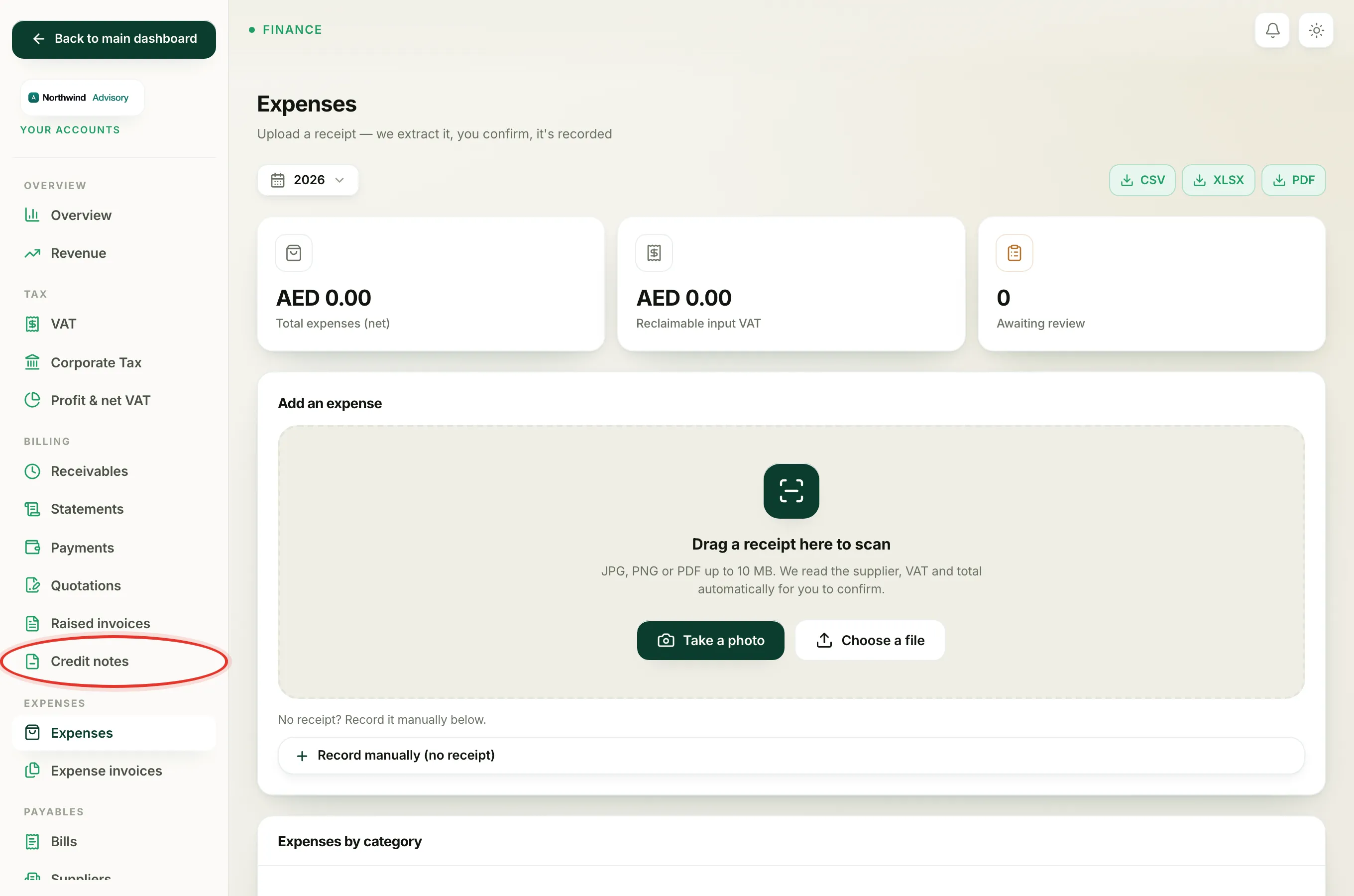
- Log in to your workspace.
- In the left menu, under Finance, click Your Accounts.
- In the accounting menu on the left, under Expenses, click Expenses.
- Scroll to the Recorded panel. It lists every expense in the chosen date range, with its supplier, category, date and amounts.
- Find the one you want and click Edit on its row.
The expense opens on a screen headed Edit expense.
Edit an expense
- Change any field you need: the Client it is attributed to, Supplier, Supplier TRN, Reference number, Date, Category, Net (AED), VAT (AED), VAT treatment, the VAT reclaimable tick box, or the Notes.
- Click Save changes.
The total is recalculated for you as Net plus VAT, and your reports recompute straight away. The subtitle on the screen says as much: update the details and the accounts recompute.
Note
If you switch the Client from General to a company, the receipt is filed into that company's private, admin-only Expenses folder as part of saving. This never becomes visible to the client.
Delete an expense
Use this when the whole entry is wrong, for example a bad scan or a cost that turned out not to be yours.
- Open the expense as above (click Edit on its row).
- At the bottom of the screen, next to Back to expenses, click Delete.
- A short confirmation appears: Delete this expense? It leaves the accounts. Click Delete again to go ahead, or Cancel to keep it.
The expense is removed and it disappears from your books immediately, because your reports are worked out from the live list of expenses.
Heads up
Deleting an expense cannot be undone. The entry is gone from your accounts for good. If you only need to change a number or a category, use Edit instead of deleting and re-adding.
Tip
The original receipt file you uploaded is kept even after you delete the expense, because IzzyTap holds source documents for five years. Deleting removes the accounting entry, not the stored scan.
If the expense should stay but was recorded against the wrong company, you do not need to delete it. Just open it, change the Client, and click Save changes. That keeps your per-client figures honest, which is what feeds See what a client is really worth.