Two ways to preview
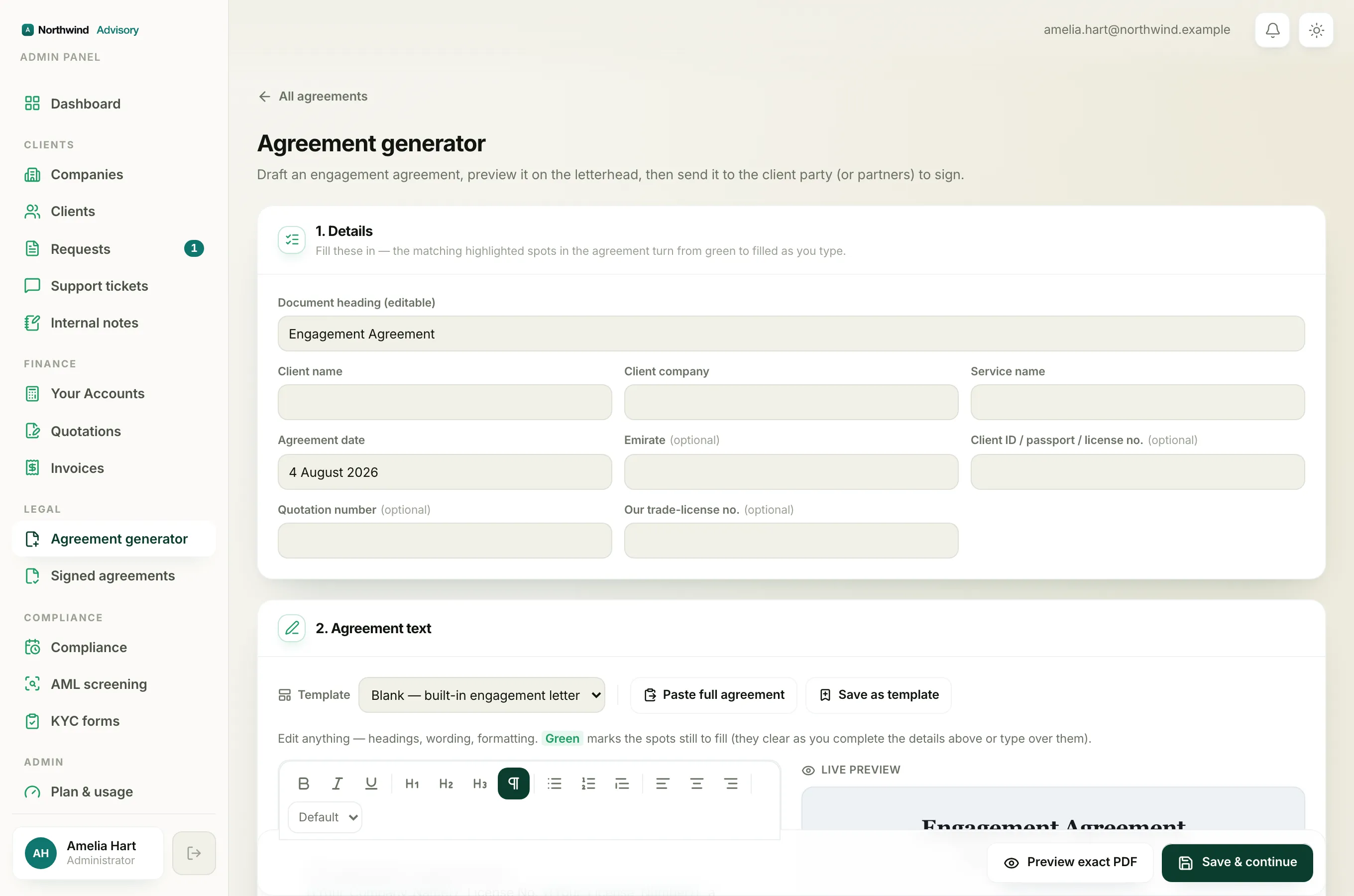
The agreement builder gives you two previews so there are no surprises when the client opens the document.
- The Live preview on the right of the editor updates as you type. It shows the layout, headings, lists and callouts in real time.
- Preview exact PDF builds the true PDF, on your firm letterhead, exactly as the signer will receive it.
Use the live preview while you write, and the exact PDF as your final check before sending.
Open the exact PDF
- Log in to your workspace.
- In the left menu, under Legal, click Agreement generator, and open the agreement you are working on.
- Fill in the details, edit the wording, and add your signing parties.
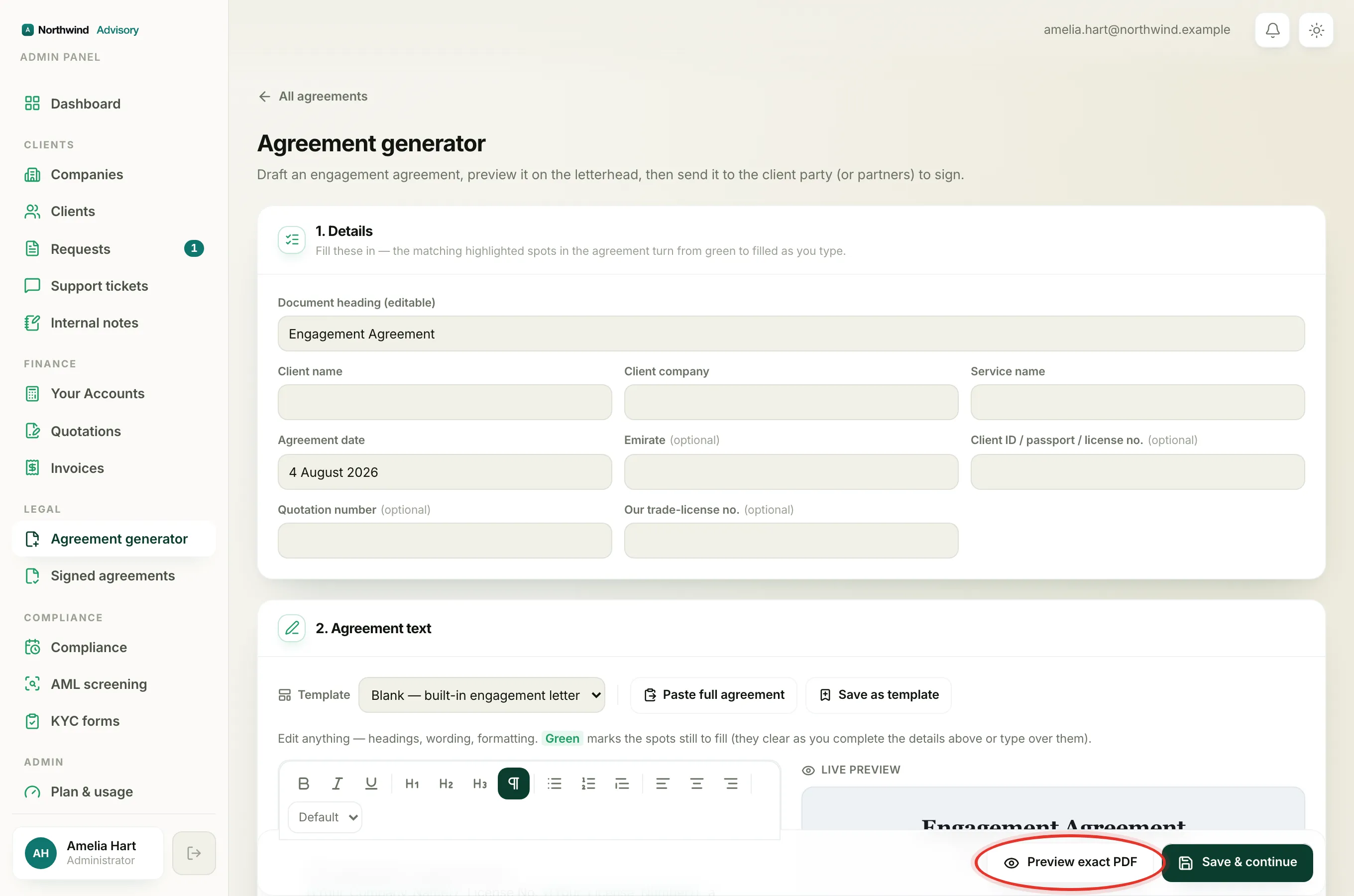
- Scroll to the bottom action bar and click Preview exact PDF.
- The finished document opens in a window on top of the builder. Read through it, then close the window to go back and keep editing.
Tip
Previewing does not save or send anything. It is a safe, no-commitment check. You can preview as many times as you like.
What to check
- The letterhead. Your firm name, logo and brand colour should be on the page. This is what makes the document speak in your own company's name.
- The details. Make sure the client name, date and any fees have filled in, with no green highlighted spots left behind.
- The layout. Check headings, numbered clauses, bullet lists and any highlight callouts read cleanly and in the right order.
- The signing blocks. Confirm every party you added appears with a place to sign.
If something is wrong, close the preview, fix it in the editor, and preview again. See Edit the agreement wording and formatting.
If the letterhead is missing
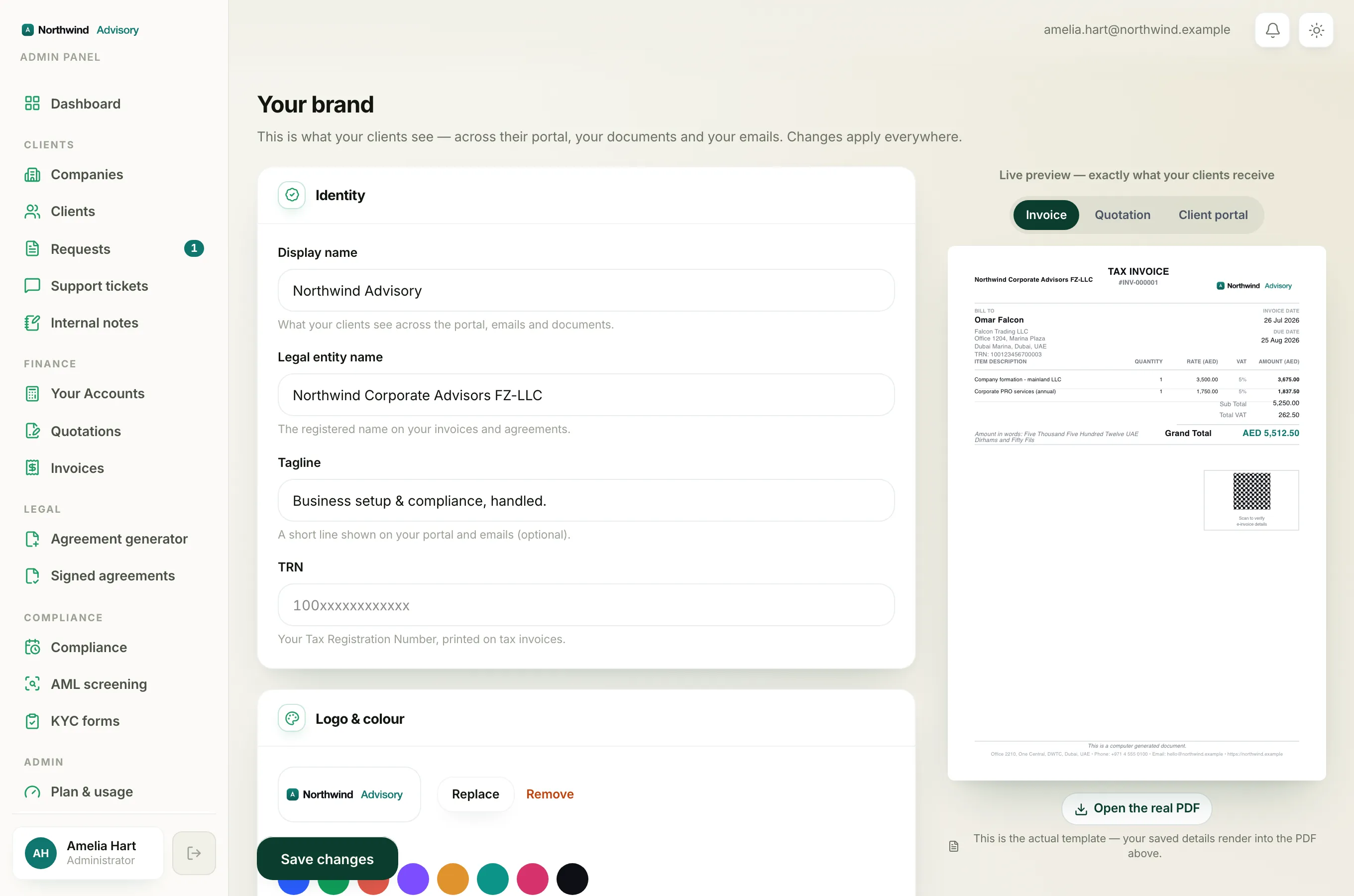
The PDF is built on your firm letterhead. If Preview exact PDF is blocked, or the page has no firm name on it, your brand profile is not set up yet. Set your firm's legal name and branding first. See Set your brand.
After previewing
When the PDF looks right, you are ready to save the agreement and send it out. Previewing is your last chance to catch anything, since sending puts the document in front of the client to sign.