An Overdue chip is red, and it can be a surprise the first time you see it. It does not mean anything has gone wrong. It simply means the invoice has passed its due date and has not been paid in full yet. This article explains where the due date comes from and what to do next.
How the due date is worked out
Every invoice you send is on 30-day terms (net-30). The due date is always the invoice date plus 30 days. You never type the due date yourself. It follows the invoice date automatically.
Because the due date always follows the invoice date, changing the invoice date moves the due date with it. If you back-date an invoice, its due date is back-dated by the same amount. See Set or back-date the invoice date for how that works.
Tip
Back-dating an invoice shortens the time the client has to pay. If you set the invoice date to three weeks ago, the client effectively has only about one week left before it becomes overdue.
When a Sent invoice becomes Overdue
While an invoice is out with the client and still within its 30 days, its status is Sent and the chip is amber. Once the due date has passed and the invoice still has not been paid, IzzyTap moves the status to Overdue and the chip turns red.
Nothing else changes. Overdue is a Sent invoice that is now late. It is not cancelled, and it is not written off.
Where you see the Overdue chip
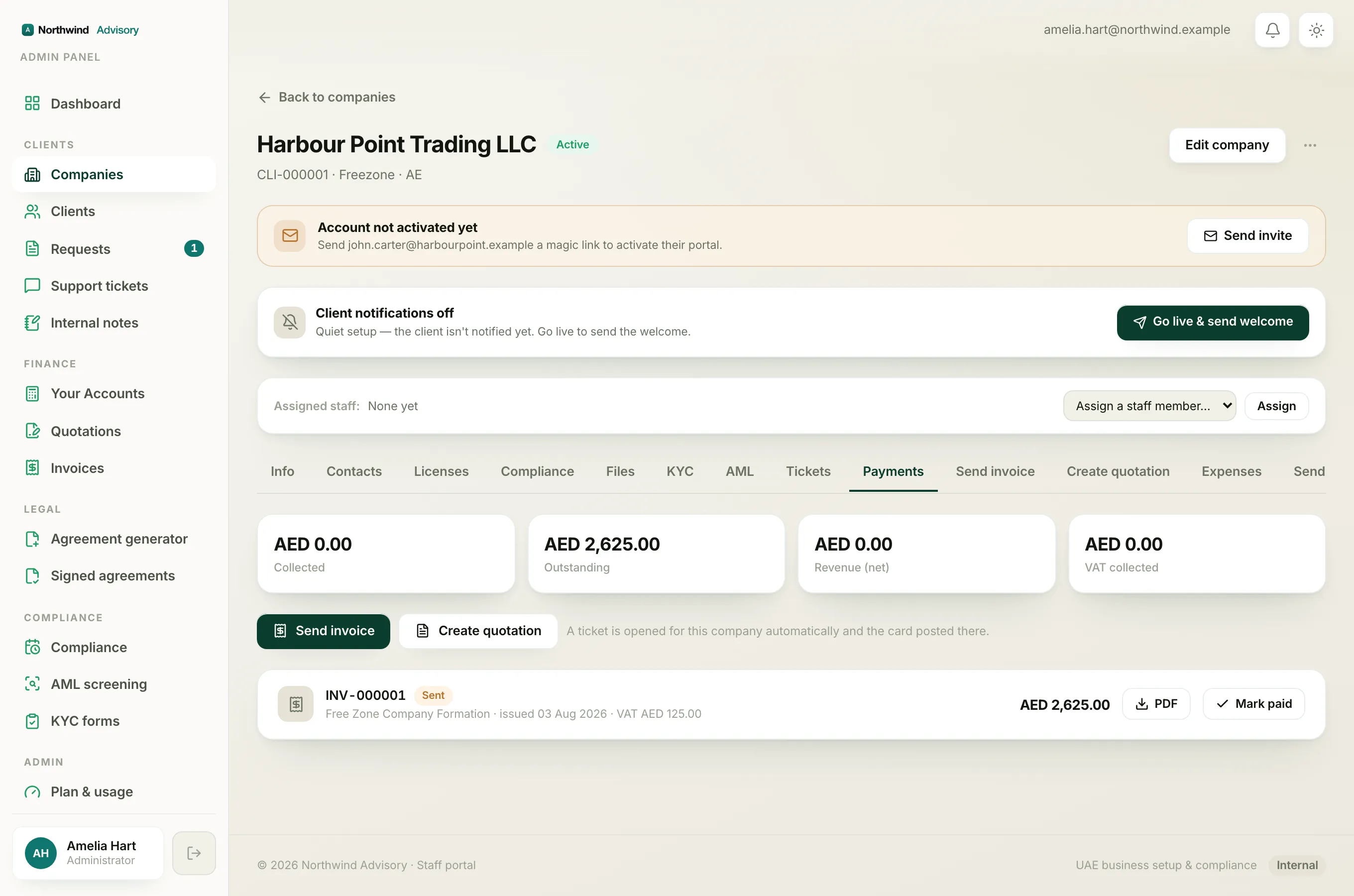
- Log in to your workspace.
- In the left menu, under Finance, click Invoices to see invoices you have sent to leads, or open a company and go to its Payments tab to see that client's invoices.
An overdue invoice sits in the list with its red Overdue chip next to the invoice number.
Being overdue does not lock the invoice
An overdue invoice is still completely live:
- The client can still pay it.
- You can still record a payment against it with Mark as paid (or Mark as received).
- You can still cancel it if it was raised in error.
It also still counts as money owed to you. It stays in your outstanding total and appears in your receivables. See Track what clients owe you to chase late invoices with their aging buckets.
How to clear an overdue invoice
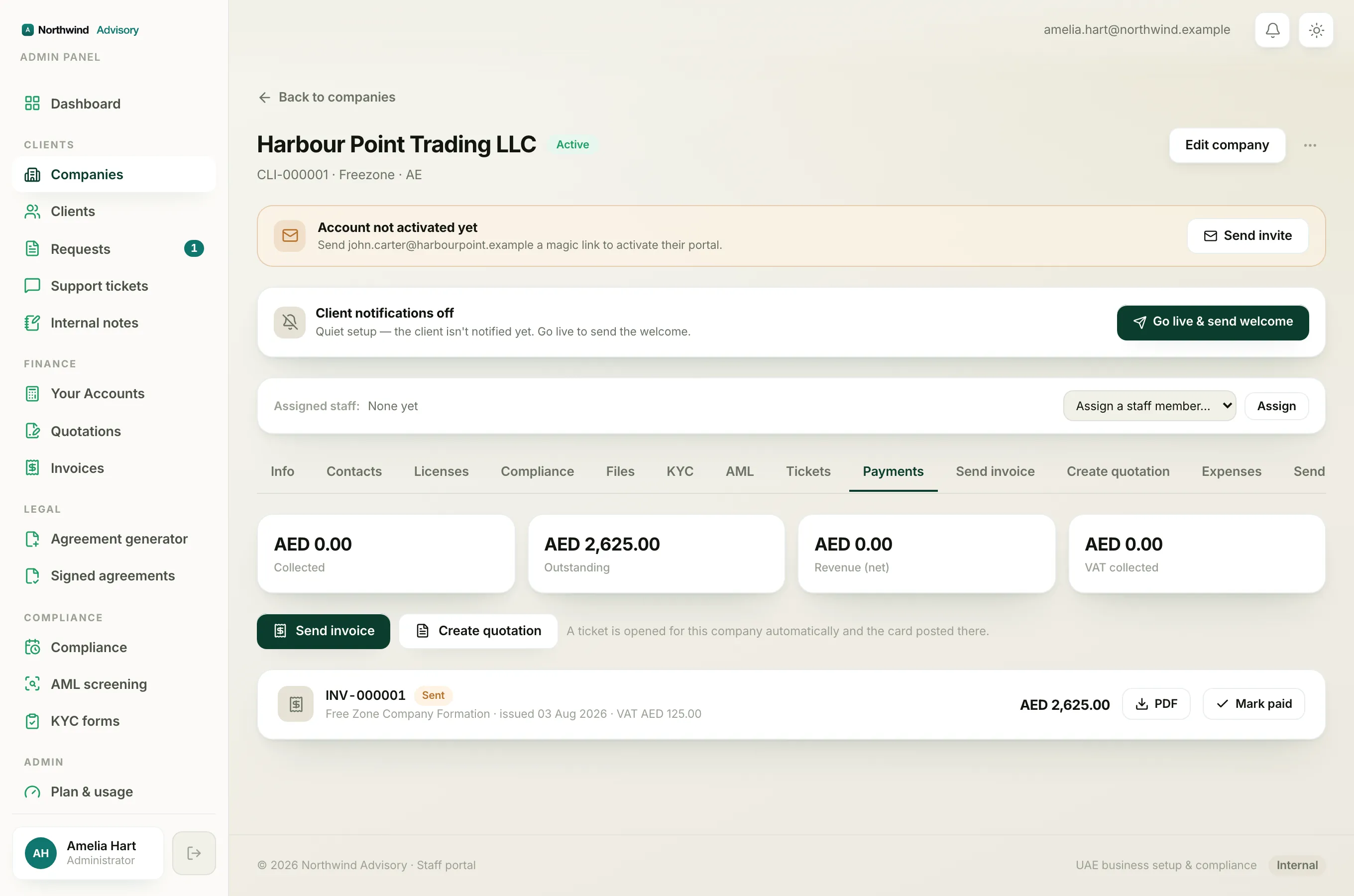
The normal way to clear it is simply to record the payment when the money arrives. The moment an invoice is paid in full, its status becomes Paid and the chip turns green. The lateness no longer matters.
If the invoice was a mistake and should never be paid, cancel it instead. For a full list of what each colour and label means, see What each invoice status means.