What this tab tells you
A client who pays you a lot is not always your best client. If most of what they pay goes straight back out again in government fees and supplier costs, the real profit can be small. The Expenses tab on a company puts the two sides next to each other, so you can see what a client is actually worth to your firm.
Note
The Expenses tab is a money screen. It only appears for people who are allowed to see revenue, which in practice means the firm administrator. If you cannot see the tab, that is by design. See Why some teammates can't see it below.
Open the Expenses tab
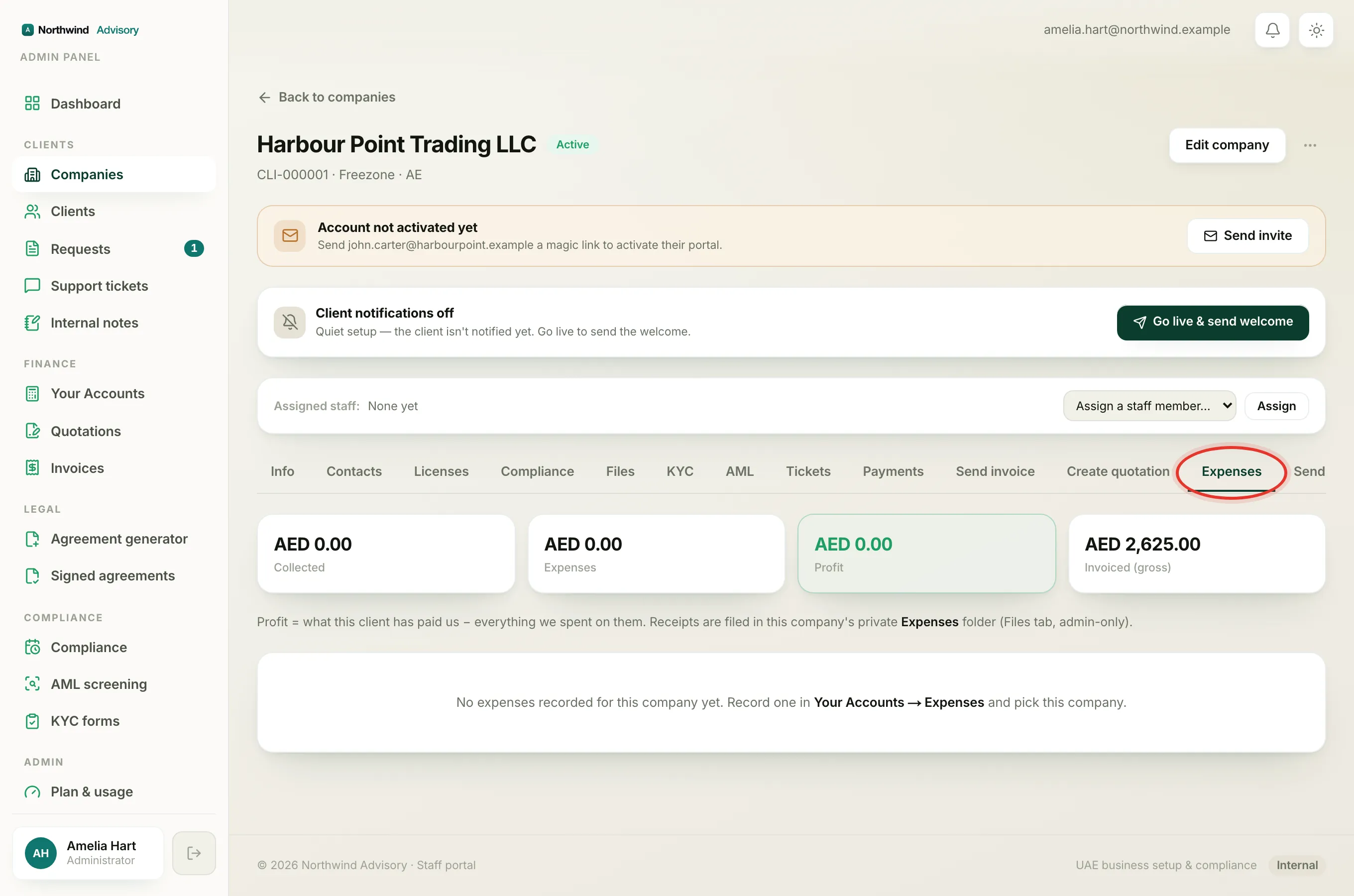
- Log in to your workspace.
- In the left menu, under Clients, click Companies.
- Click the company you want to look at.
- On the company page, click the Expenses tab.
Read the four cards
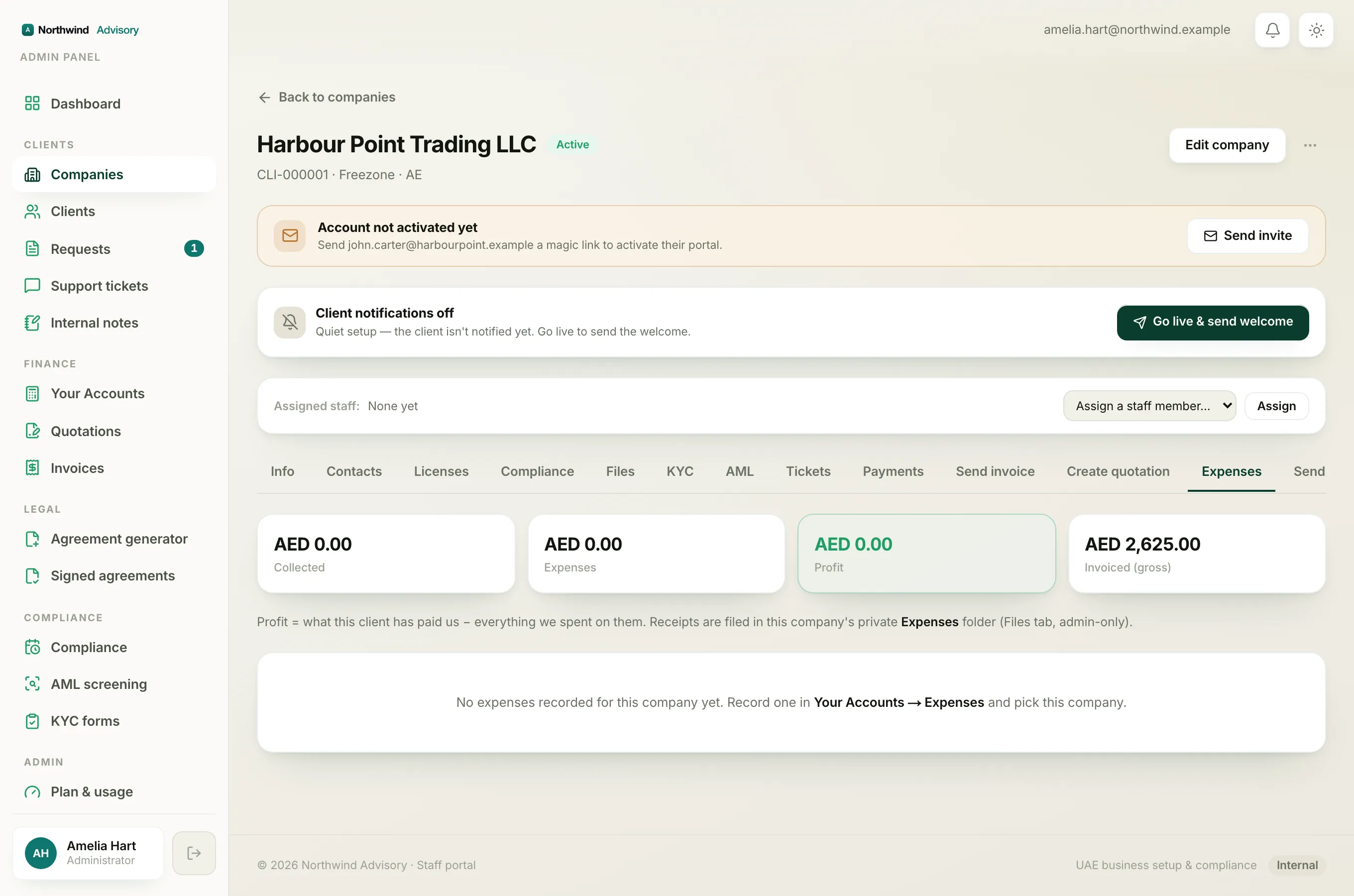
Across the top you will see four figures for this one client:
- Collected is the money this client has actually paid you so far. This is real cash received, not what you have billed.
- Expenses is everything you have spent on this client, added up from their recorded expenses.
- Profit is Collected minus Expenses. When it is positive the card is green. When you have spent more than you have collected, the number goes red so a loss-making client stands out. When the client has paid you something, this card also shows the margin as a percentage, for example
42% margin. - Invoiced (gross) is the total you have billed this client, including anything still unpaid. Comparing this with Collected shows how much is still to come in.
Tip
Profit counts money you have actually collected, not money you have merely invoiced. A big Invoiced (gross) number with a small Collected number means most of the value is still sitting in unpaid invoices. To chase those, use the Payments tab.
The list of expenses below
Under the cards is every expense recorded against this company. Each row shows the supplier name, the date, the expense category, and the amount. Where a receipt was attached, a small file icon on the right opens it in a new tab so you can check the original.
If nothing has been recorded yet, the tab tells you so and points you to where expenses are added.
Where the expenses come from
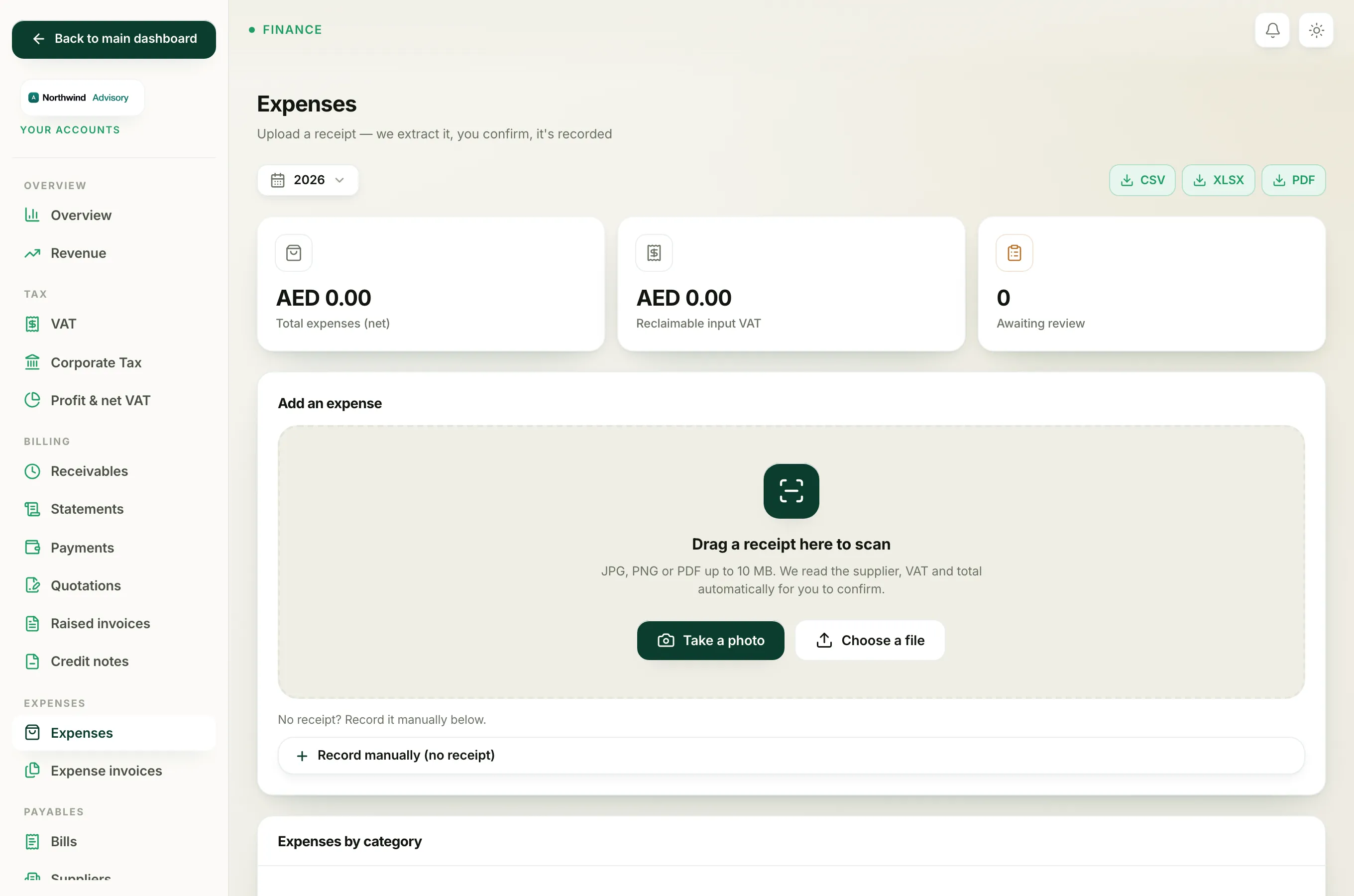
The figures on this tab are not typed in here. They are pulled from expenses you record in your books and tag to this company.
- In the left menu, under Finance, open Your Accounts.
- Go to Expenses.
- When you record an expense, pick this company as the one it belongs to.
Once an expense is tagged to a company, it flows straight onto that company's Expenses tab and into the profit sum. The receipt itself is also filed in that company's private Expenses folder, which sits on the Files tab and is admin-only, so a client never sees what you spent on them.
Why some teammates can't see it
Profit, cost and margin are sensitive numbers. The Expenses tab is only shown to staff who hold the permission to view revenue. That is normally the administrator. A support agent, document officer, case manager or billing officer opening the same company will simply not see the Expenses tab in the row of tabs at all, so there is nothing for them to stumble into. Who can see money screens is set by a person's role. For more on that, see Staff roles.