Your firm's settings shape how the whole app works for you: what country you are in, the currency you work in, how tax appears on your prices, and how your invoices are numbered. This guide walks you through them from login.
Open your settings
- Log in to your workspace.
- In the left menu, under Admin, click Settings.
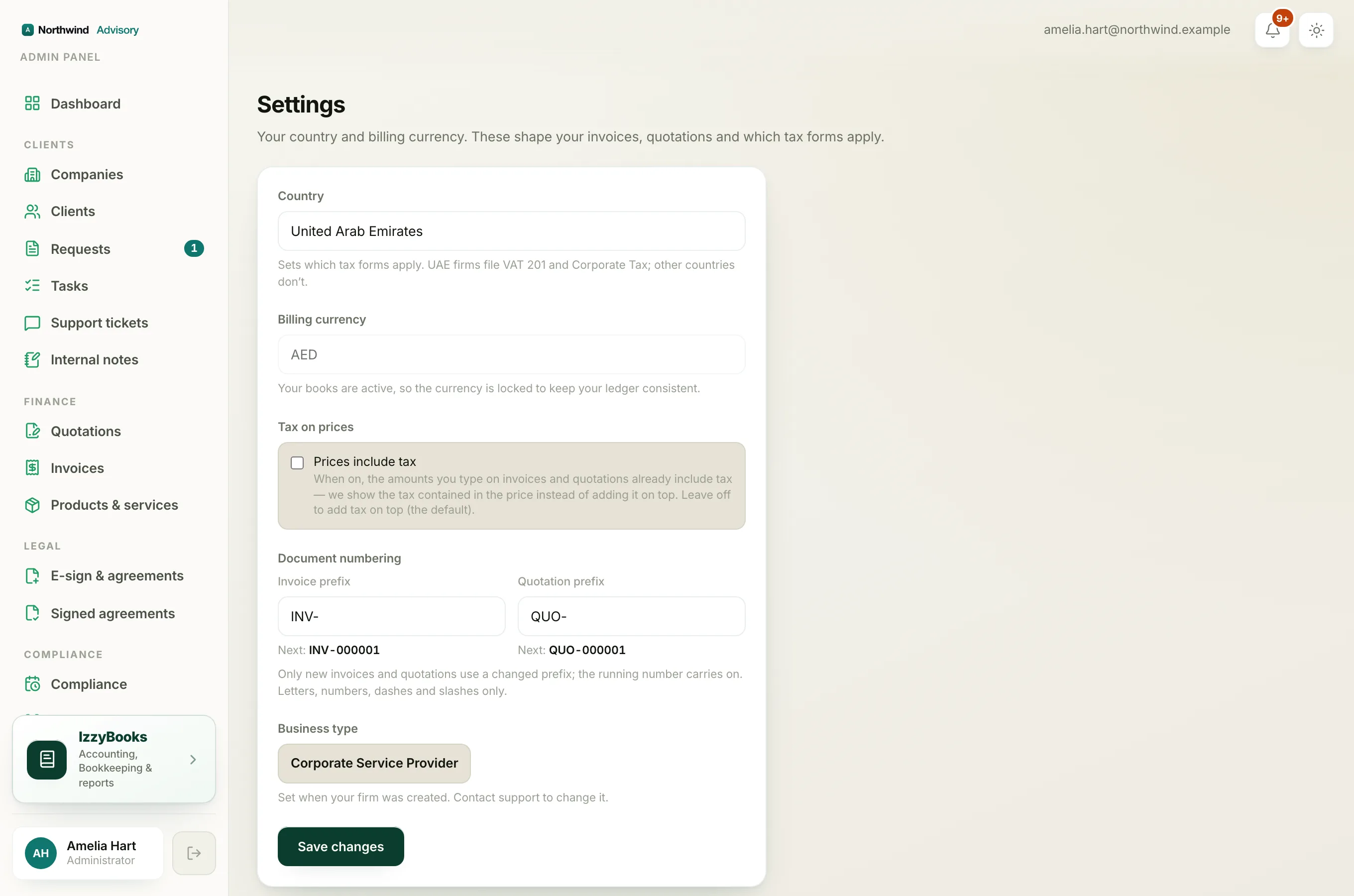
Country and currency
- Country sets your firm's home country. This decides the right tax wording for your region. For example, the tax number field on a client shows as TRN in the UAE, GSTIN in India, or VAT number in the UK.
- Billing currency is your firm's own currency. Your books and totals are kept in this currency. You can still bill a client in their own currency. See Bill a client in their own currency.
Business type
Business type describes what your firm does. It tailors the app to your work, for example showing company-setup options for a firm that offers business setup, and keeping them out of the way for a firm that does not.
Tax on prices
Tax on prices decides whether the prices you type already include tax or have tax added on top. See Tax-inclusive pricing for what each choice means on an invoice.
Document numbering
Under Document numbering you can set the Invoice prefix and the Quotation prefix, for example INV- and QUO-. The page shows the next number that will be used, so your documents stay in a clean, ordered series.
Note
Only firm administrators can open Settings. If you do not see it in your menu, ask an administrator at your firm.
Tip
Set your country and currency correctly when you first set up your firm. They affect tax wording and your books, so it is best to get them right from the start.