When a bill turns red and reads Overdue, it means you still owe money on it and its due date has already passed. This page explains where that flag comes from and how to clear it.
Where you see it
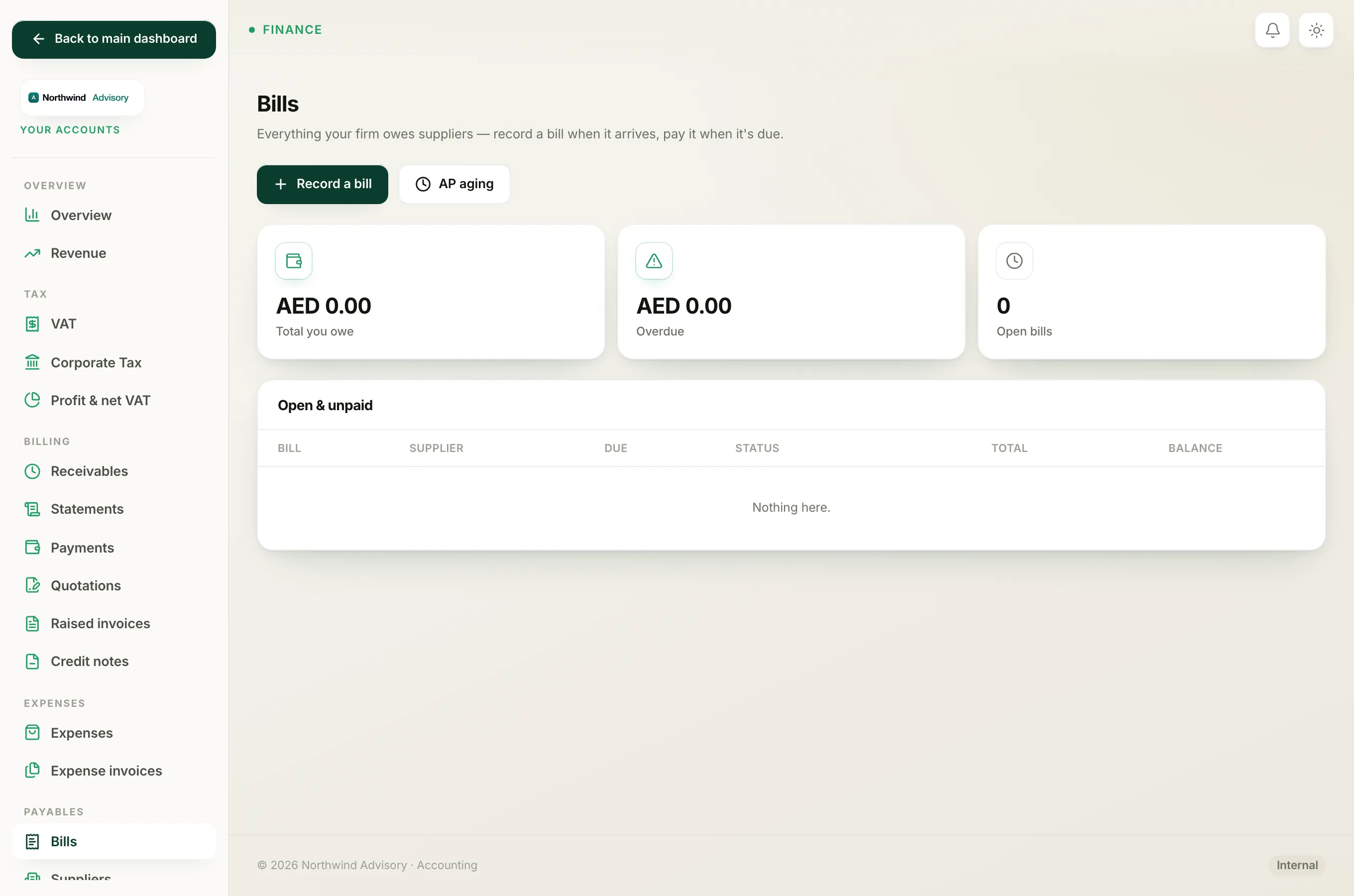
- Log in to your workspace.
- In the left menu, under Finance, click Your Accounts.
- In the Accounts menu on the left, under Payables, click Bills.
Any overdue bill shows a red Overdue pill in the Open & unpaid list. The total of everything past due is shown in the Overdue card at the top of the page.
What makes a bill overdue
Overdue is not a status you set by hand. IzzyTap works it out for you from two things:
- The bill still has money owing (it is Open or Part-paid, not fully paid or cancelled).
- The Due date on the bill is in the past.
When both are true, the bill reads as Overdue. It flips on its own the day after the due date, so you never have to mark it. You set the due date when you record the bill.
Note
A bill with no due date never turns overdue. If you leave the due date blank when recording a bill, it stays as plain Open until you pay it, and it will not appear in the Overdue total.
How to clear the overdue flag
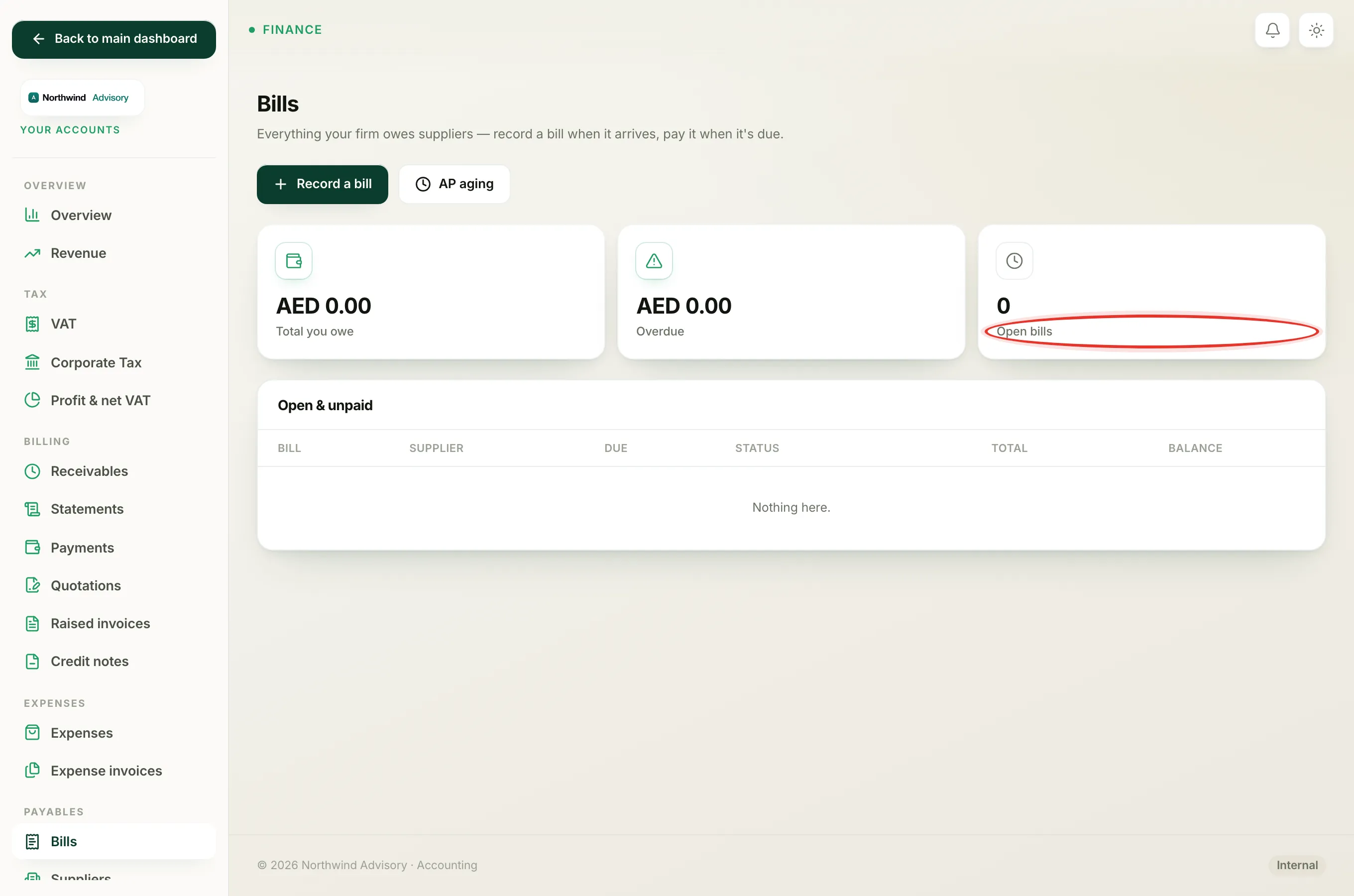
The only way to clear it is to settle what is owed:
- On the Bills page, click Open on the overdue bill.
- In the Pay this bill box, record the payment. See Pay a bill.
Once the balance reaches zero the bill becomes Paid, moves to the Paid list, and drops out of the Overdue total. If you record only part of the amount, the bill stays overdue for the remaining balance until you pay the rest.
If the bill should not have been recorded at all, and no payment has been made against it, you can cancel it instead. That also removes it from the Overdue total.
See everything past due in one place
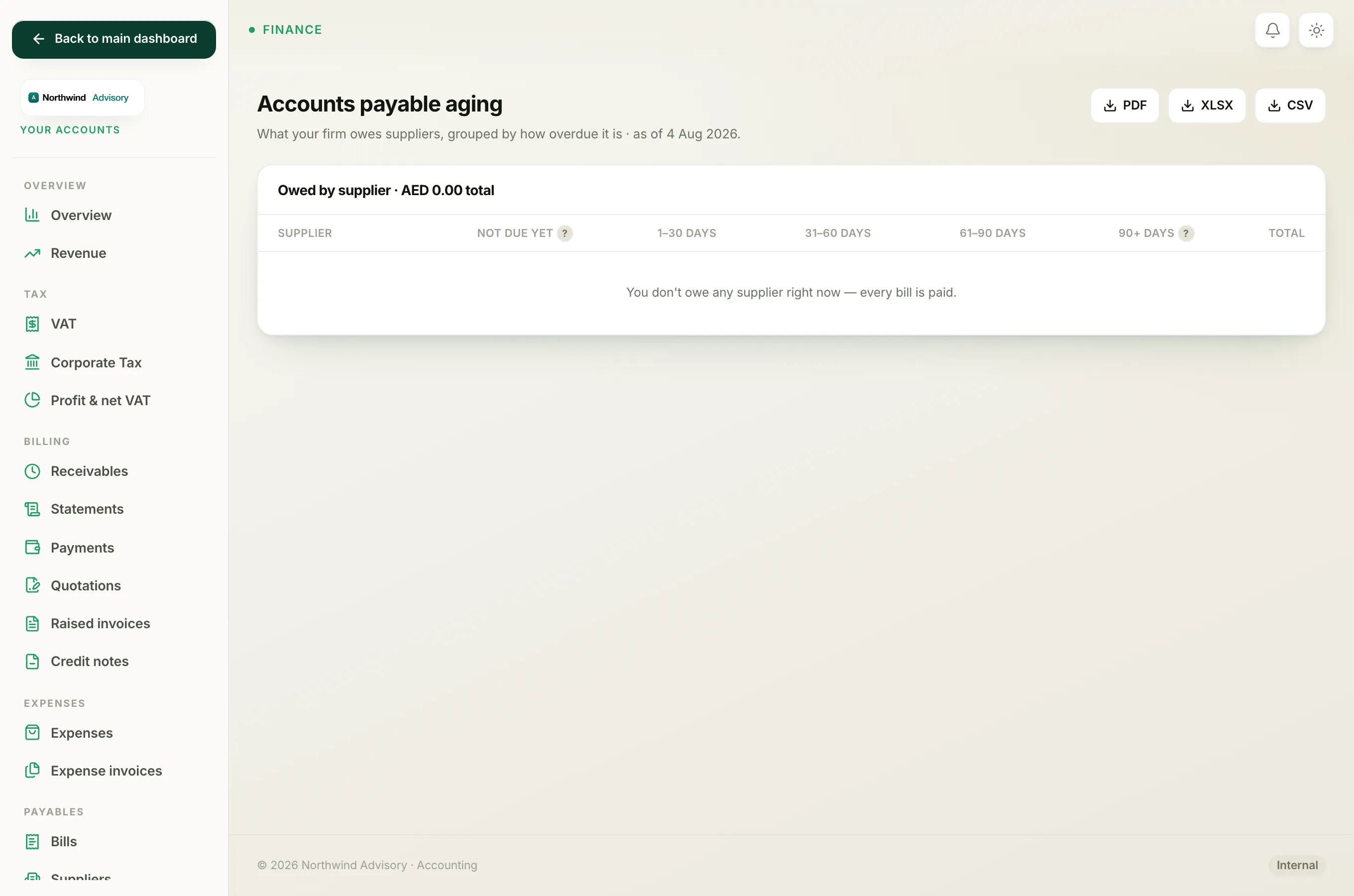
To see all your overdue bills grouped by how late they are, and by supplier, open the AP aging report. In the Accounts menu, under Payables, click AP aging. See Read the AP aging report.