You can change a supplier's details any time, and if you stop dealing with a supplier you can hide it without losing its history.
Open the supplier
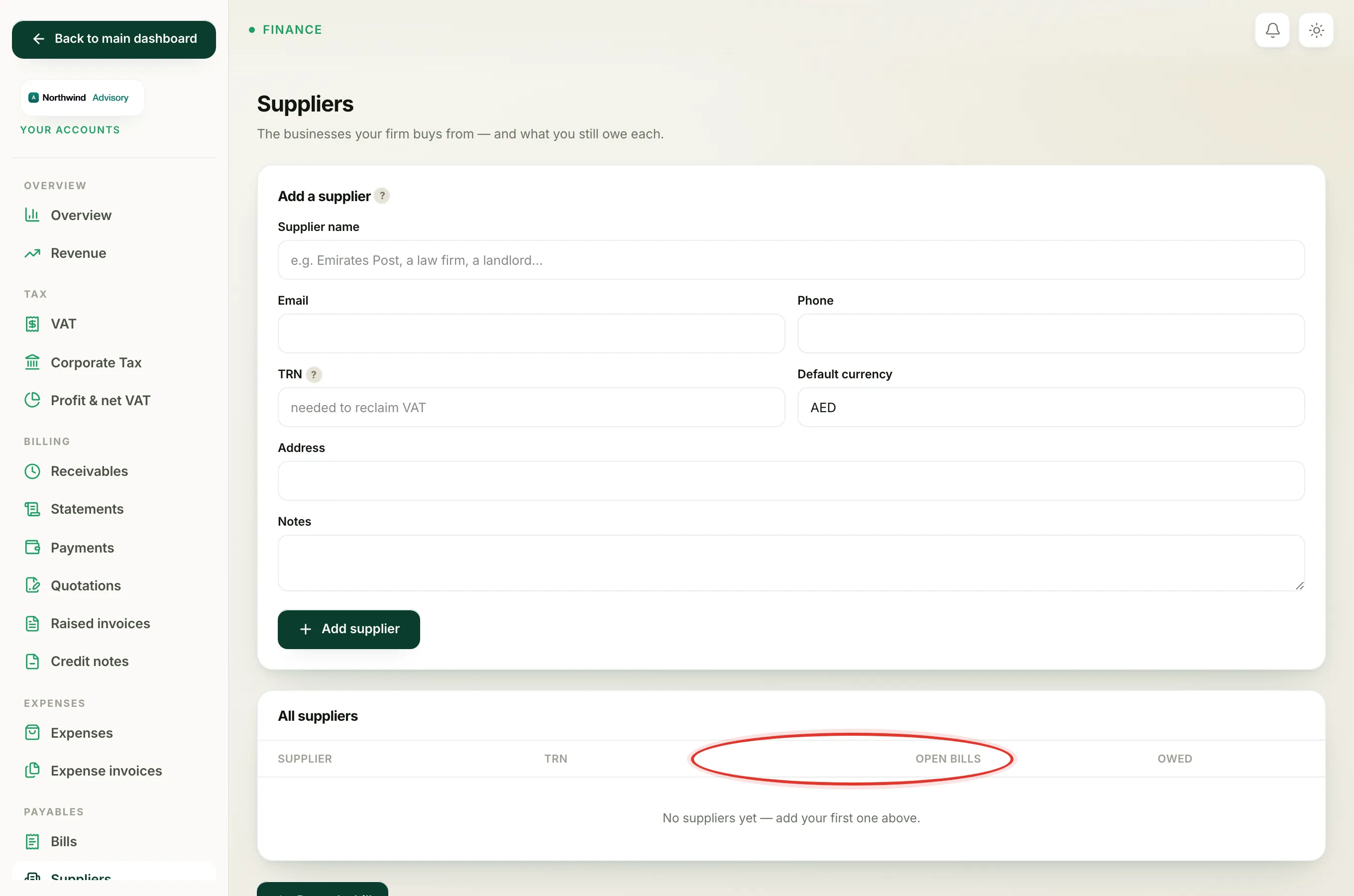
- Log in to your workspace.
- In the left menu, under Finance, click Your Accounts.
- In the accounts menu, under Payables, click Suppliers.
- Find the supplier in the list and click Open.
The supplier's page shows their bills at the top and an Edit supplier box at the bottom.
Edit their details
- Scroll to the Edit supplier box.
- Change any field you need: Supplier name, Email, Phone, TRN, Default currency, Address or Notes.
- Click Save changes.
Tip
If you are updating a supplier so you can reclaim VAT, make sure their TRN is filled in and correct. VAT can only be reclaimed on a bill when the supplier has a valid TRN. See reclaim VAT on a bill.
Deactivate a supplier
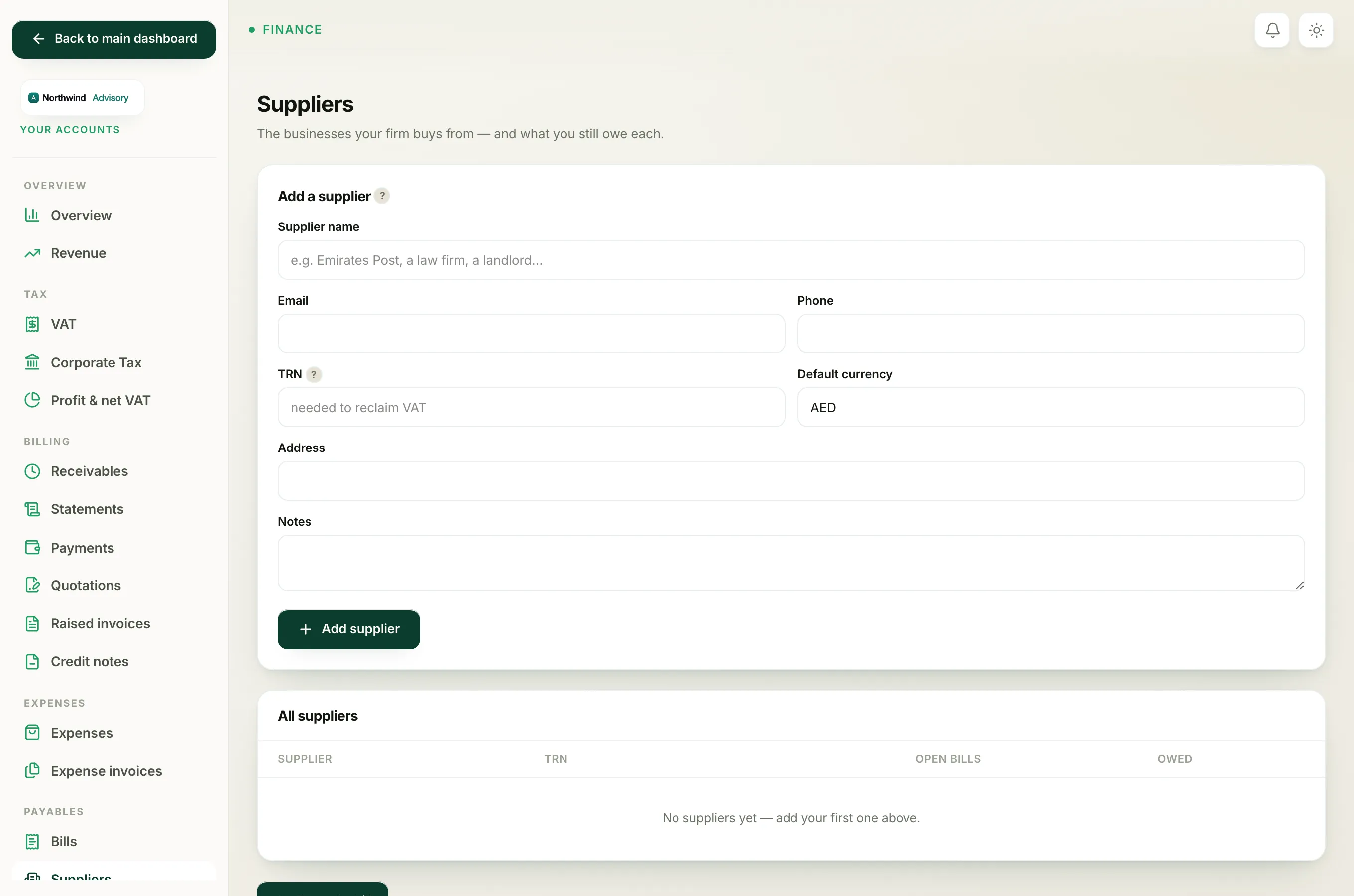
When you no longer buy from a supplier, you can mark it inactive rather than deleting it. This keeps all its past bills and records intact but tidies it out of the way.
- In the Edit supplier box, find the Active checkbox near the bottom.
- Untick it.
- Click Save changes.
An inactive supplier is hidden from the supplier picker when you record a new bill, so you won't pick it by mistake. In the Suppliers list it keeps a small grey Inactive tag next to its name.
Note
Deactivating never deletes anything. All the supplier's bills, payments and totals stay exactly as they were, and they still count in your reports. You are only hiding the supplier from the new-bill list.
Turn a supplier back on
Changed your mind, or started dealing with them again? Open the supplier the same way, tick Active again in the Edit supplier box, and click Save changes. It reappears in the new-bill picker straight away.
To set up a brand-new supplier instead, see add a supplier.