Reading an invoice status
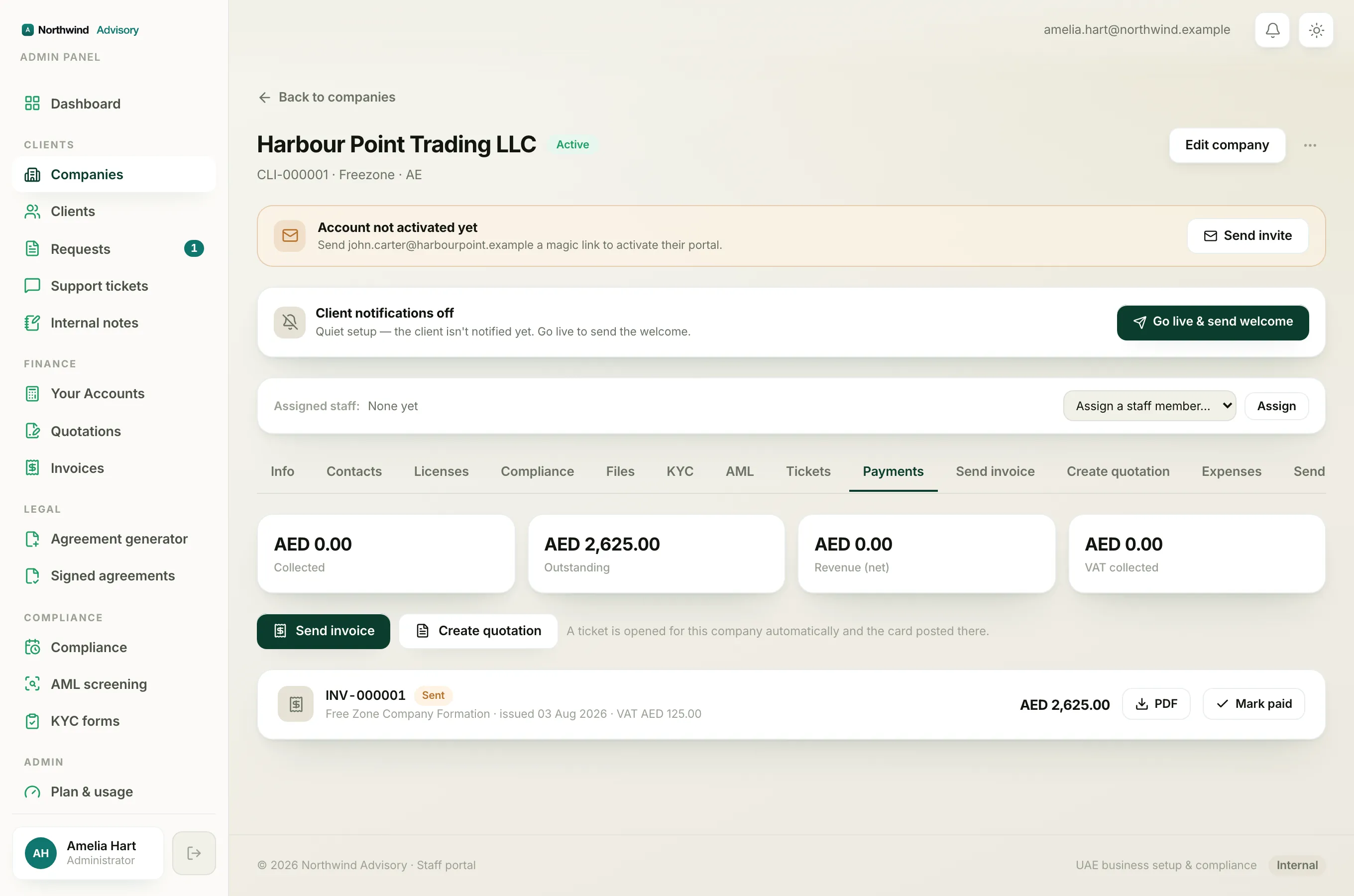
Every invoice carries a coloured status chip that tells you, at a glance, where it stands. Here is what each one means and what you would normally do about it.
The statuses
- Draft (grey), the invoice exists but has not been sent to the client. Nobody has been billed yet. You can still edit every line. Send it when it is ready.
- Sent (amber), the invoice has gone to the client and is waiting to be paid. It is not yet due for chasing unless the due date has passed.
- Partially paid (amber, with a balance shown), the client has paid some, but not all, of the invoice. The chip shows the remaining balance owed. The invoice stays open until the balance reaches zero. See Record a part-payment.
- Paid (green), the full amount has been received. Nothing more is owed. The client has been sent their receipt.
- Overdue (red), the invoice was sent, the due date has passed, and it is still not fully paid. This is the one to chase.
- Cancelled (grey), the invoice was voided. No money is owed and it no longer counts towards what the client owes you. A cancelled invoice keeps its number for the record.
Note
Partially paid is a state IzzyTap works out for you. Behind the scenes the invoice is still Sent or Overdue until every fils is settled, but you see the clearer partially paid label with the balance so you always know what is left.
How an invoice moves from Sent to Overdue
Each invoice has a due date set to 30 days from its issue date (net-30). While it is unpaid and the due date is still in the future, it shows as Sent. Once that date passes with money still owed, it flips to Overdue on its own. For the full detail see Why an invoice shows as overdue.
What to do for each
- Draft: finish it and send it.
- Sent: wait, or send a gentle reminder as the due date nears.
- Overdue: chase the client for payment.
- Partially paid: record the rest when it arrives; the balance clears automatically once it is settled in full.
- Paid: nothing to do.
- Cancelled: nothing to do; raise a fresh invoice if you still need to bill.
Related: How to record a payment.