Before you start
A statement is produced from the same Statements page where you read it on screen. IzzyTap builds the file for you to download. It does not email the statement to the client on its own, so you send it yourself by attaching the PDF to an email or message. To understand what the statement shows first, see read a customer statement.
Produce the statement
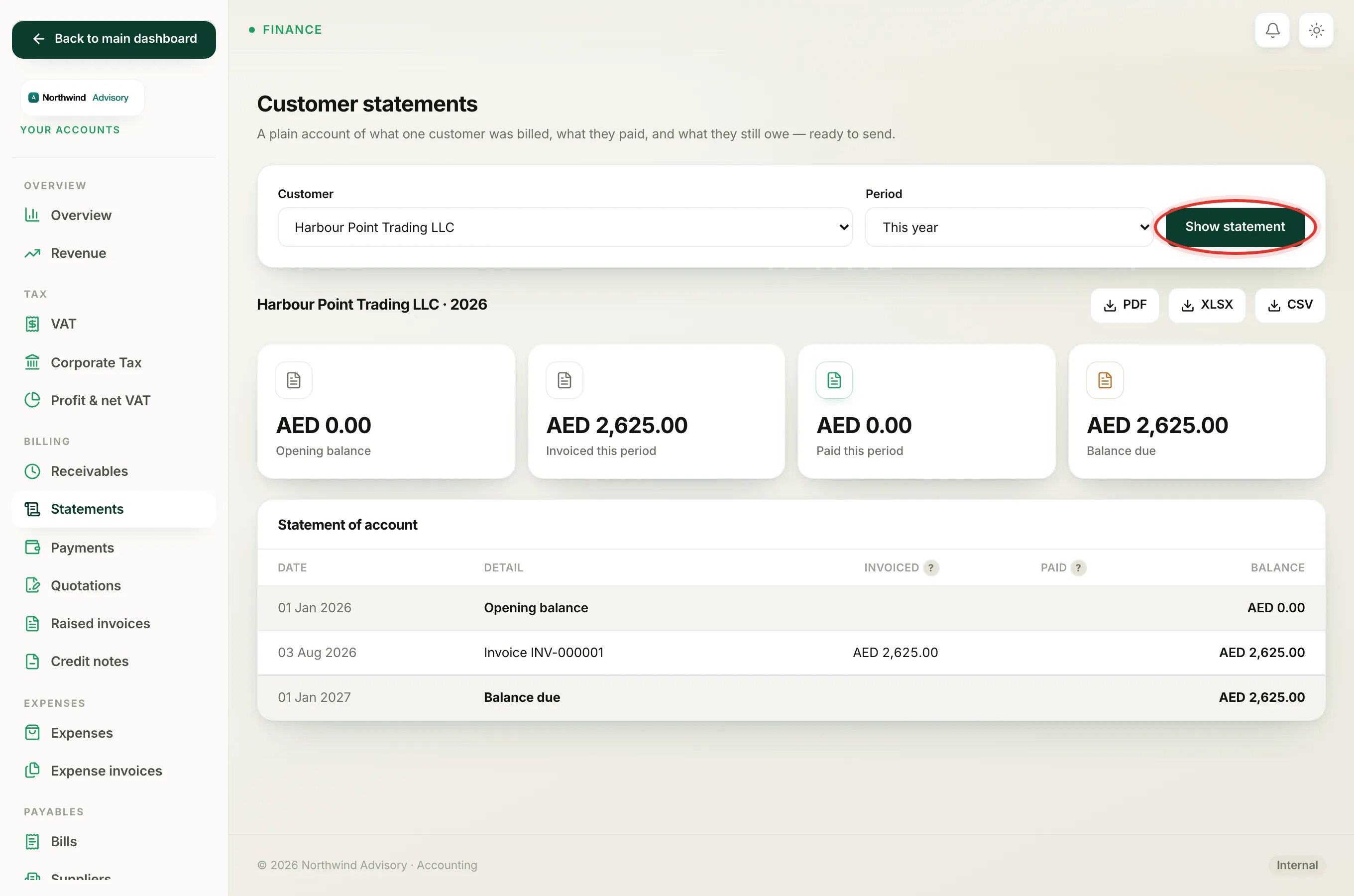
- Log in to your workspace.
- In the left menu, under Finance, click Your Accounts.
- In the accounts menu, under Billing, click Statements.
- Choose the client from the Customer list and the period from the Period list.
- Click Show statement.
Check the figures on screen before you export, especially the Balance due, so you send the client the right period.
Export it
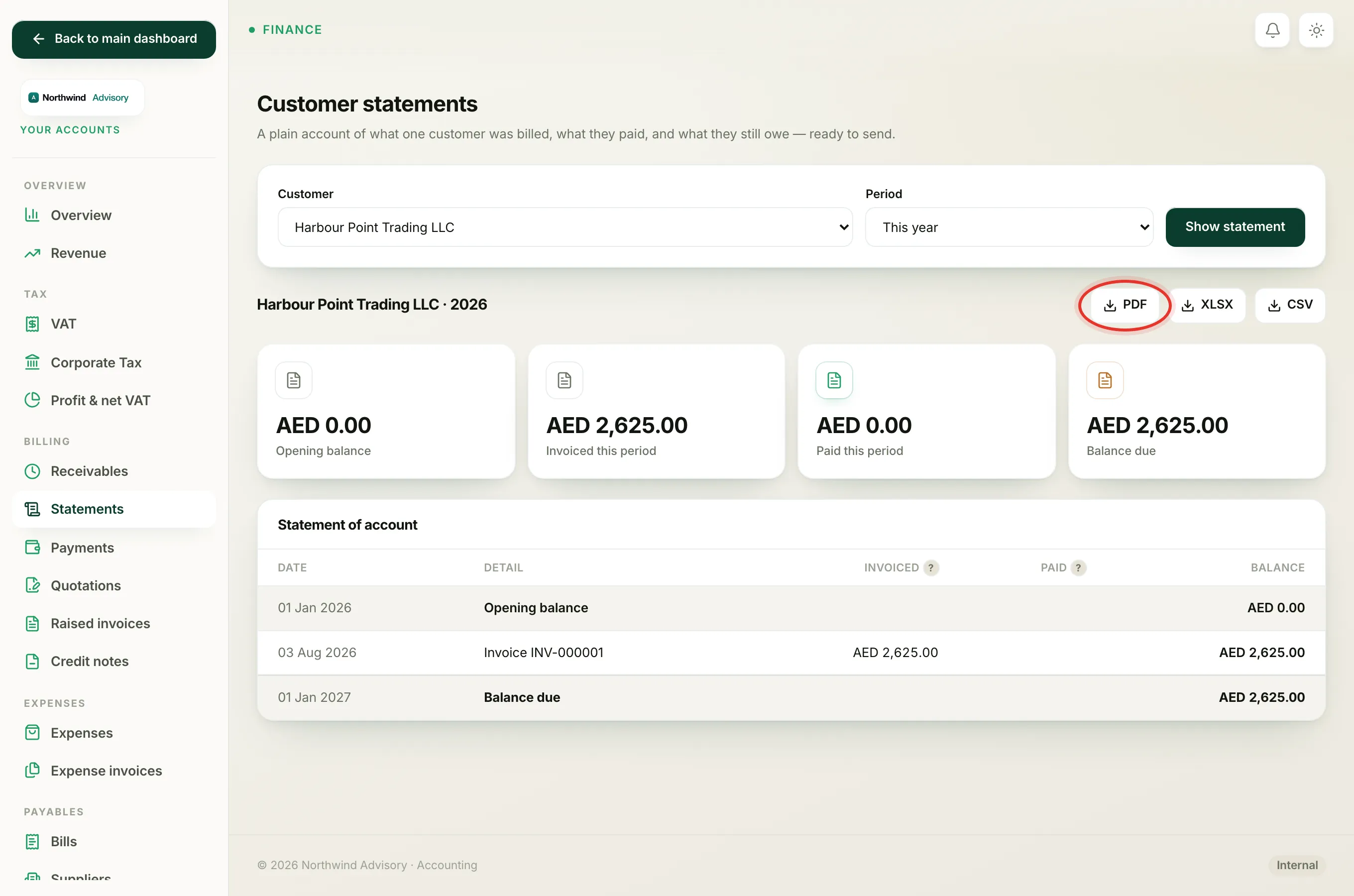
Once the statement is showing, three buttons sit at the top right next to the client's name:
- PDF is the tidy, branded document to send to the client. It carries your firm's letterhead and is the one to attach to an email.
- XLSX opens in Excel. Use it if you or the client want to work with the numbers.
- CSV is a plain data file for importing elsewhere.
Click the format you want and your browser downloads the file for the customer and period on screen.
Send it to the client
- Download the PDF.
- Attach it to an email or message to the client in the usual way.
- If the account has a balance, say clearly what is due and how they can pay.
Tip
Match the period to what the client asked for. A client querying one unpaid invoice usually just needs the current year, while a client reconciling their own books may want a full year or a custom range.
Related
To produce a similar file for any other accounts report, see export a report to Excel or PDF.
Note
Your Accounts, including statements, is only available to the firm owner. See who can create invoices and record payments.