You went to cancel a supplier bill and the Cancel bill button was not there, or you saw the message "This bill has payments against it, reverse those first." This is working as intended. Here is why, and what your options are.
The rule
A bill can only be cancelled while no payment has been recorded against it. The moment you record any payment, even a small part payment, the option to cancel disappears.
This is deliberate. A payment is real money leaving your bank or petty cash, and it is written into your books and the ledger. Simply cancelling the bill would leave that money movement with nothing to sit against, which would throw your accounts out.
How to tell why it is blocked
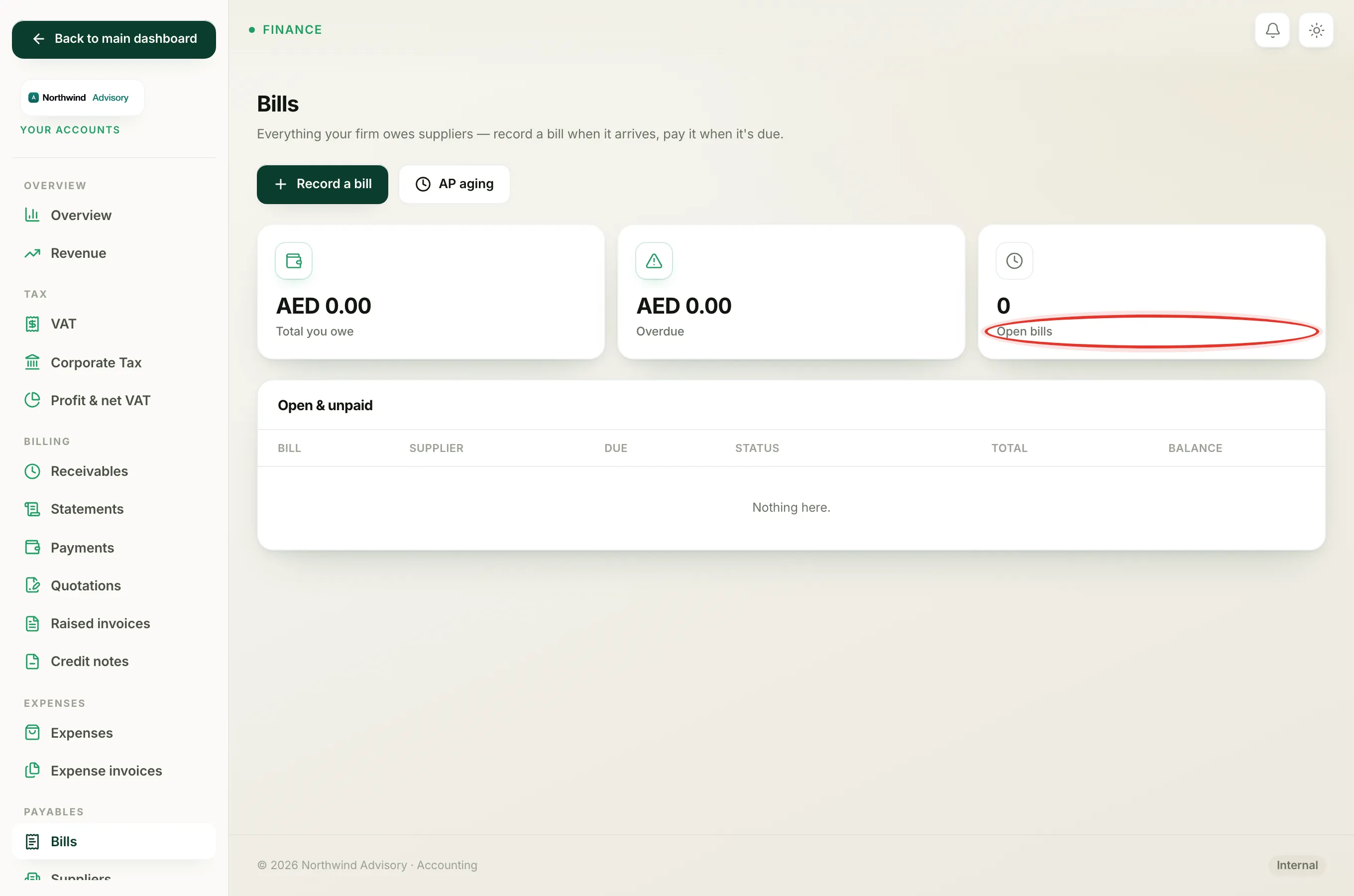
- Log in to your workspace.
- In the left menu, under Finance, click Your Accounts.
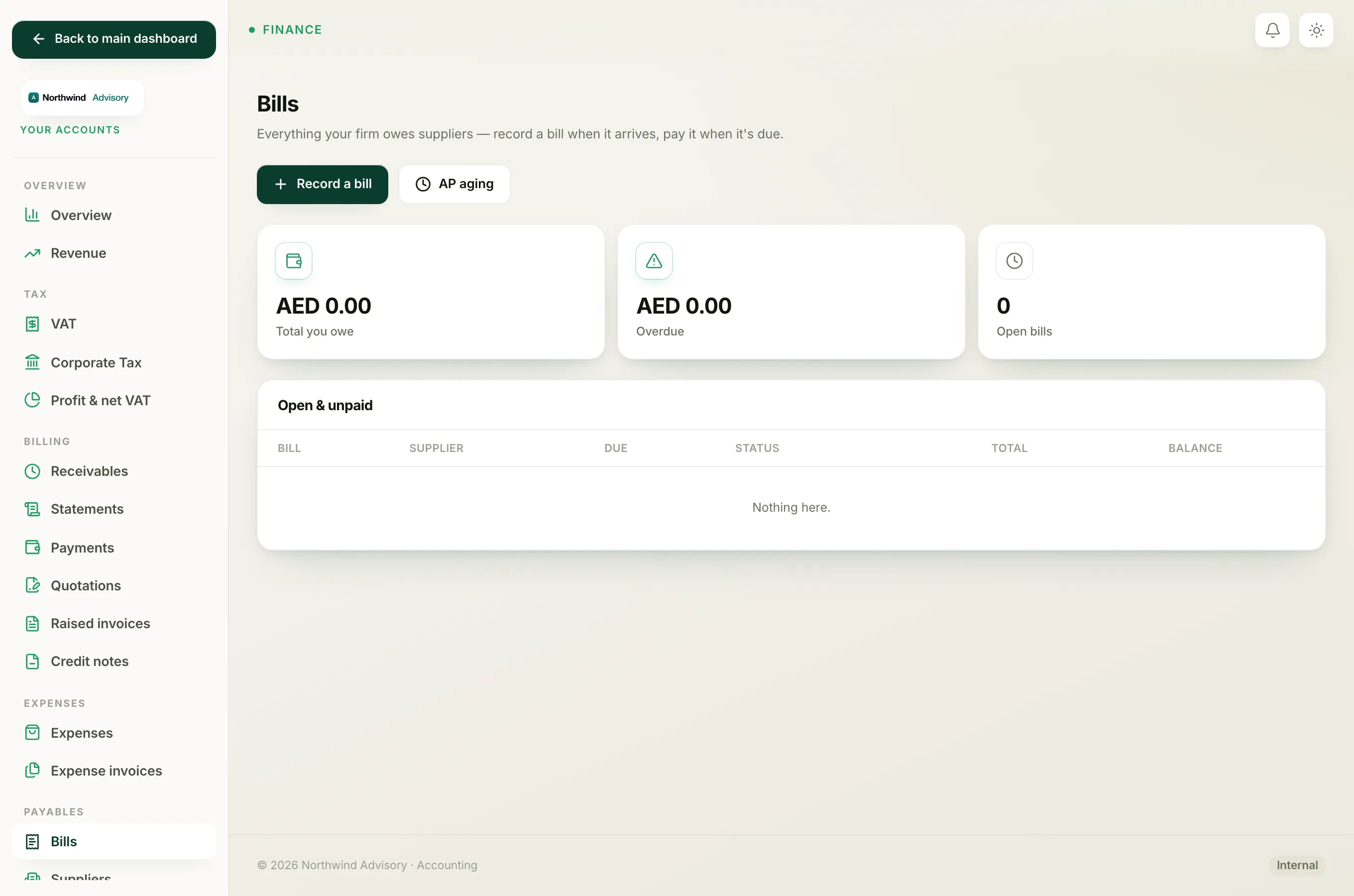
- In the Accounts sidebar, under Payables, click Bills.
- Open the bill and look at the Bill details panel.
Check the Paid so far line. If it shows anything above zero, the bill has a payment against it and cannot be cancelled. The Payments table lower down lists each payment recorded.
Also note the status pill at the top:
- If it already reads Cancelled, there is nothing more to do.
- If it reads Partial or Paid, money has been received against it, so cancelling is blocked.
What to do instead
- The bill and the payment are both wrong. You need to reverse the payment first before the bill can be cancelled. Recorded payments are permanent for audit reasons, so this is best handled with your bookkeeper.
- The bill was genuine but the amount is off. Do not cancel it. Leave the record as it is so it matches what actually happened.
- You just want to stop chasing it. If it is fully paid there is nothing to chase. A part-paid bill will simply show its remaining balance until you pay the rest.
Note
If the bill has no payment at all and you still cannot cancel it, refresh the page. If it now shows Cancelled, it was already cancelled, perhaps by a teammate.