What the Payments tab shows
The Payments tab on a company gives you that client's whole billing picture: how much they have paid, how much they still owe, and every invoice you have raised for them. It is where you record a payment when a client pays you offline, by bank transfer, cash or cheque.
Open the Payments tab
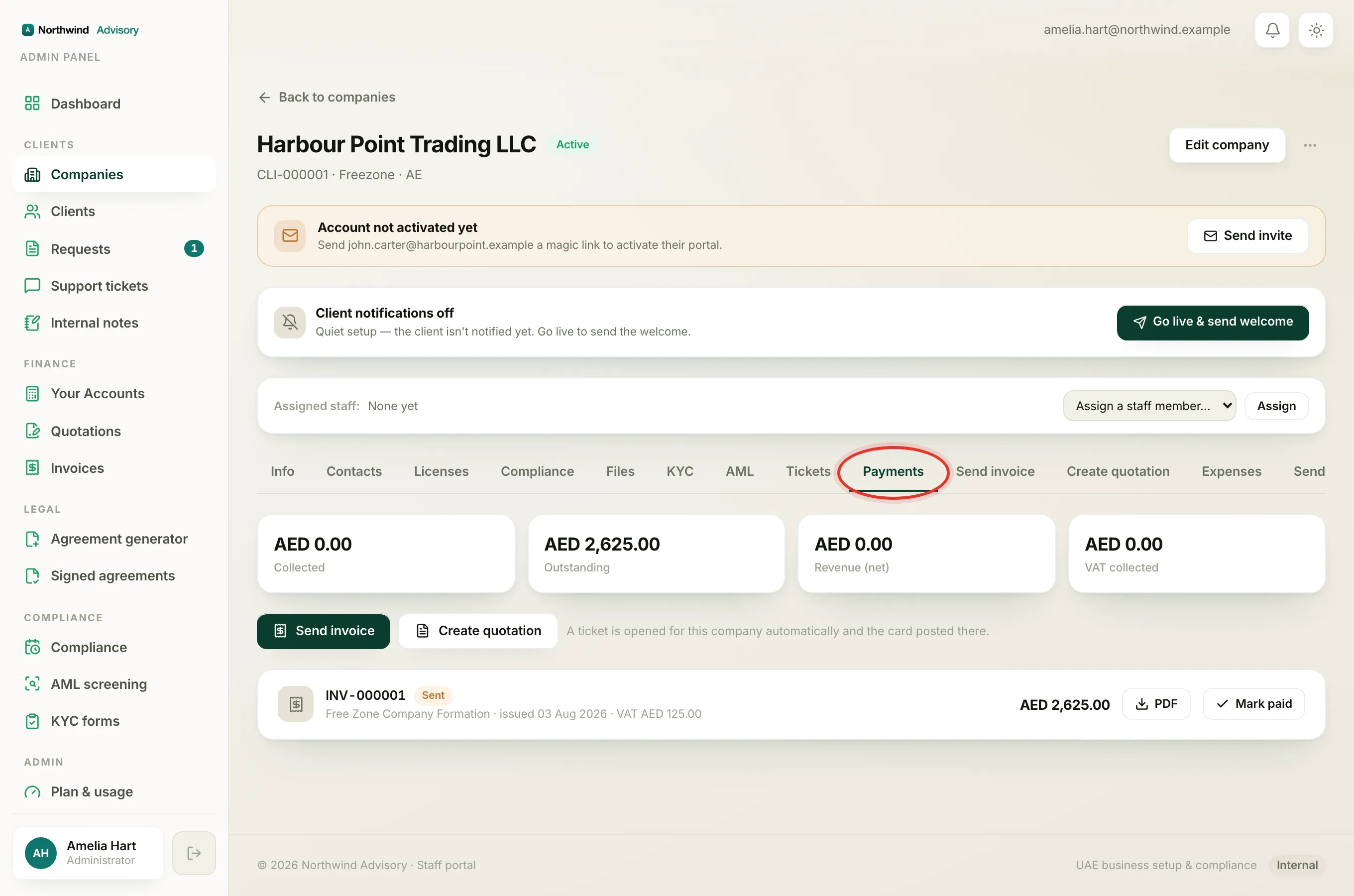
- Log in to your workspace.
- In the left menu, under Clients, click Companies.
- Click the company you want to open.
- Click the Payments tab along the top of the profile.
The four tiles at the top
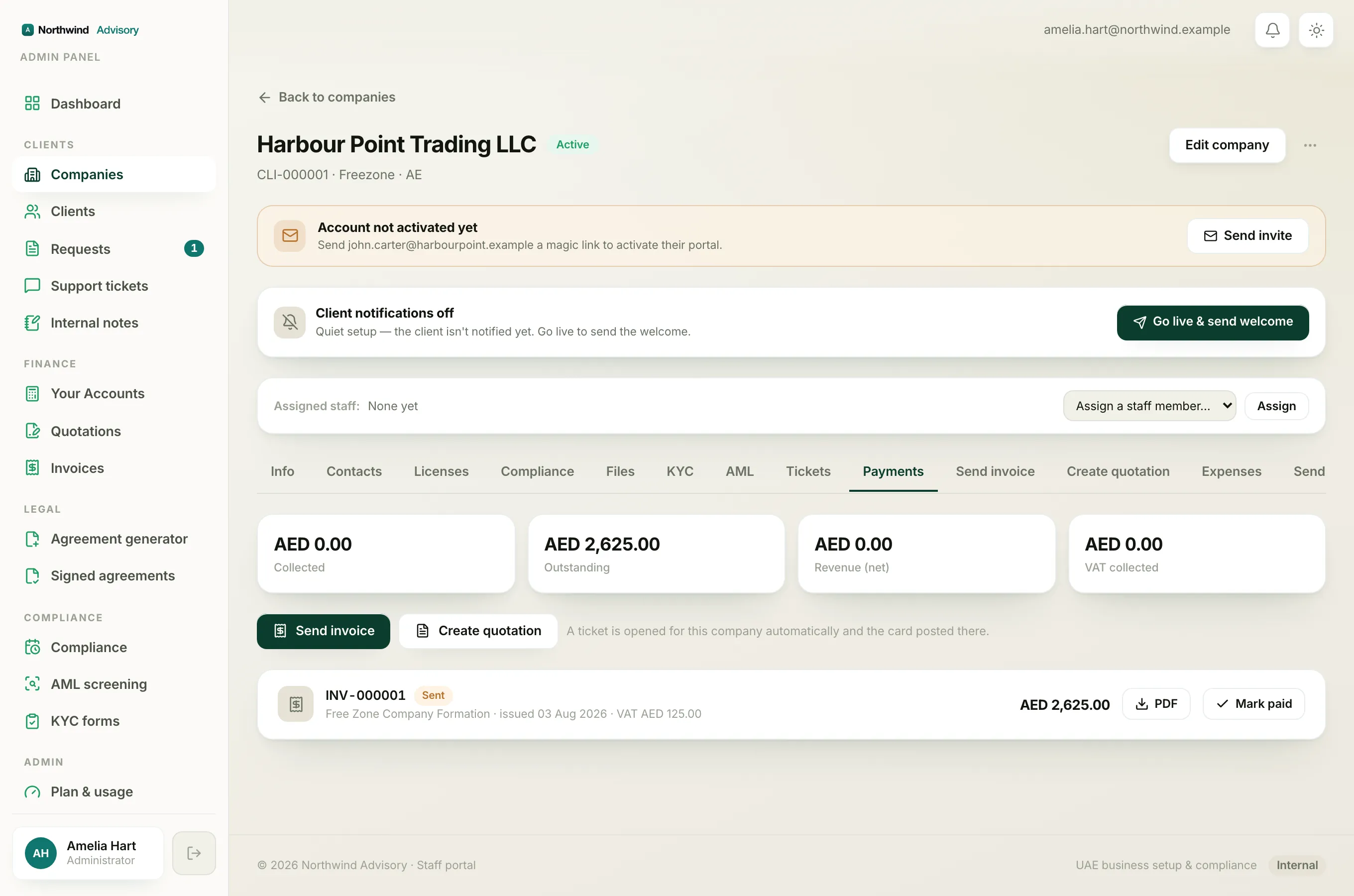
Across the top are four totals for this company:
- Collected: the money actually received across all their invoices, including part-payments. This is cash in.
- Outstanding: the balance still owed on invoices that are not cancelled. This is what you are waiting to be paid.
- Revenue (net): your earnings from paid invoices, excluding VAT. This is the fee income, not the tax.
- VAT collected: the VAT portion of paid invoices, the 5% you are holding for the FTA.
Cancelled invoices are left out of these totals.
Raise a new invoice or quotation
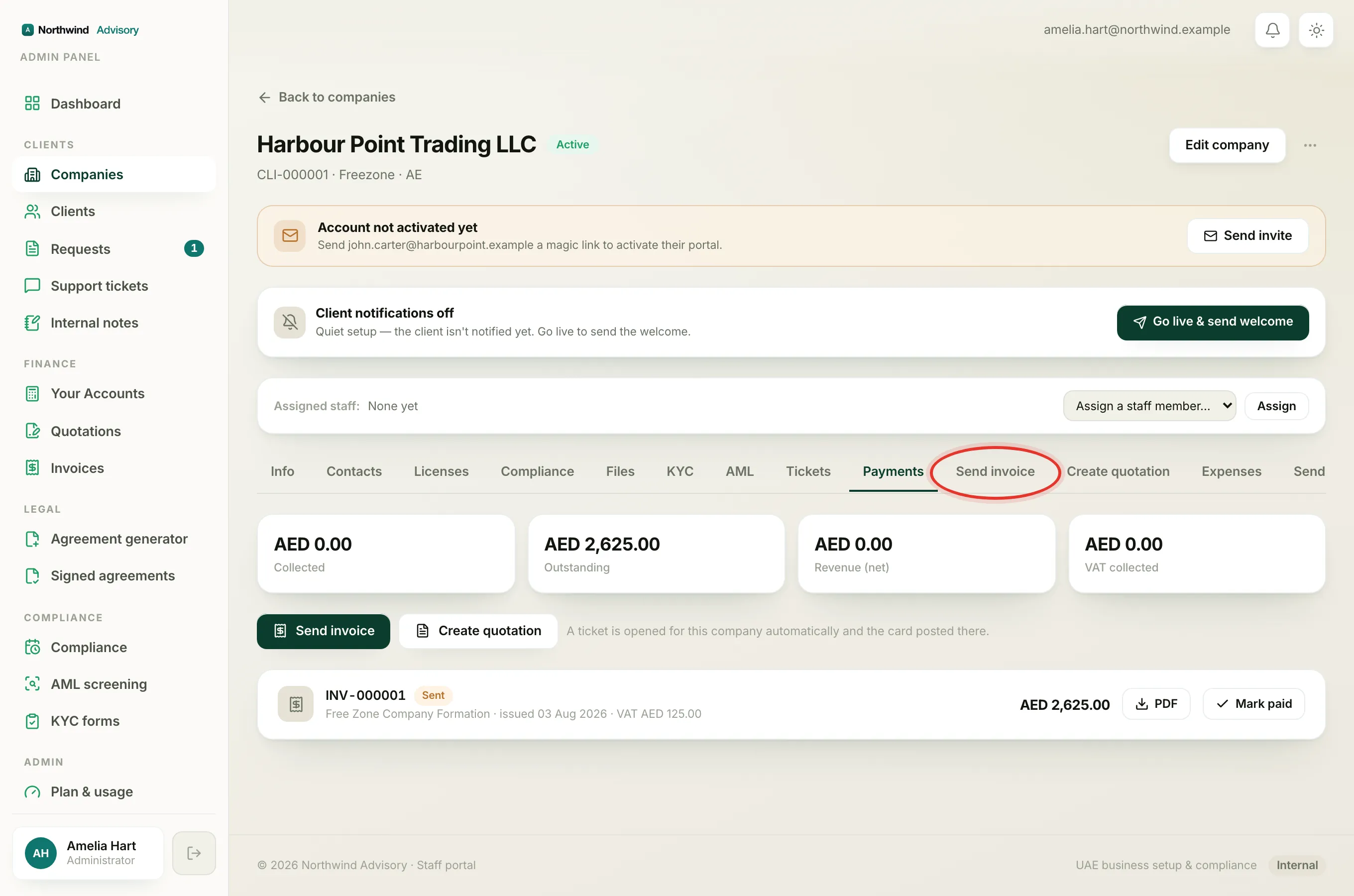
Below the tiles are two buttons, Send invoice and Create quotation. Each opens the dedicated tab for that job. When you use them, IzzyTap automatically opens a ticket for this company and posts the invoice or quote card into it, so the whole exchange is tracked in one thread.
The invoice list
Under the buttons is every invoice for this company, newest first. Each row shows:
- The invoice number and a coloured status chip (Draft, Sent, Overdue, Paid, Partially paid or Cancelled).
- The service it was for, the issue date, any remaining balance, and the date it was paid.
- The VAT amount and the total on the right, with a PDF button to open or download the invoice.
For what each chip colour means, see Why an invoice shows as overdue.
Mark an invoice paid
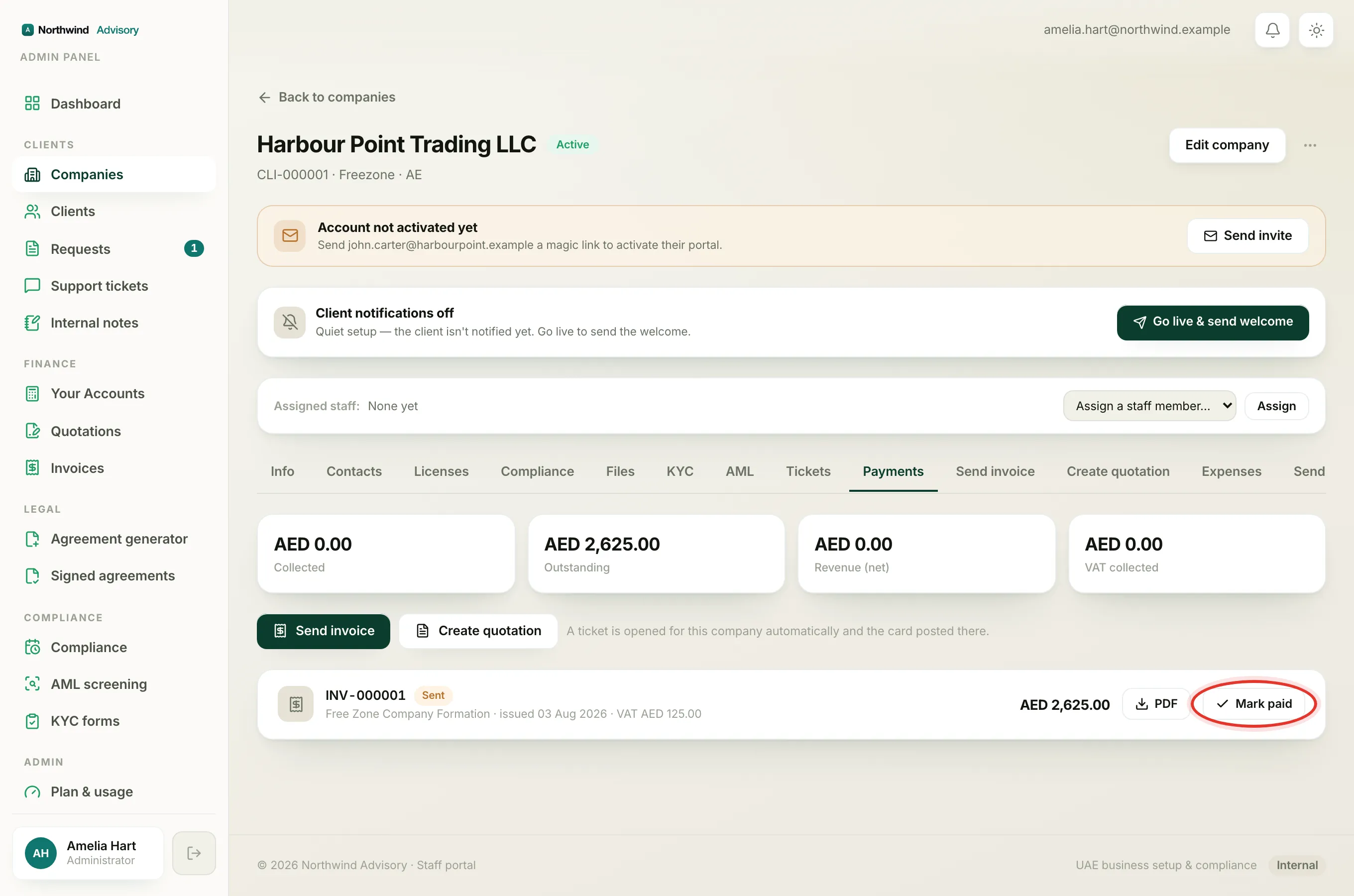
Any invoice that is not already paid or cancelled has a Mark paid button on its row. Use it when a client has paid you outside the portal.
- Click Mark paid on the invoice row.
- Choose the Payment method: Bank transfer, Cash, Card / POS, Cheque or Other.
- In Where / reference, note how and where the money arrived, for example the bank account and a transfer reference.
- If your firm has more than one bank or cash account set up, a Deposit to picker appears. Choose the account the money went into so your books stay accurate. If you only have one account, this picker does not show and the payment goes to your primary account.
- Submit the form.
The invoice flips to Paid, the tiles update, and the client is sent their receipt. For the full walk-through, see How to record a payment.
Note
Recording a payment cannot be undone. Double-check the amount, method and deposit account before you submit.