A supplier is any business your firm buys from and receives bills from: a landlord, a law firm, a software provider, a government authority, and so on. You add a supplier once, then record every bill from them against that record.
Note
Suppliers live inside your books. If you haven't switched your books on yet, this area shows a setup prompt instead. See activate your books first.
Open the Suppliers page
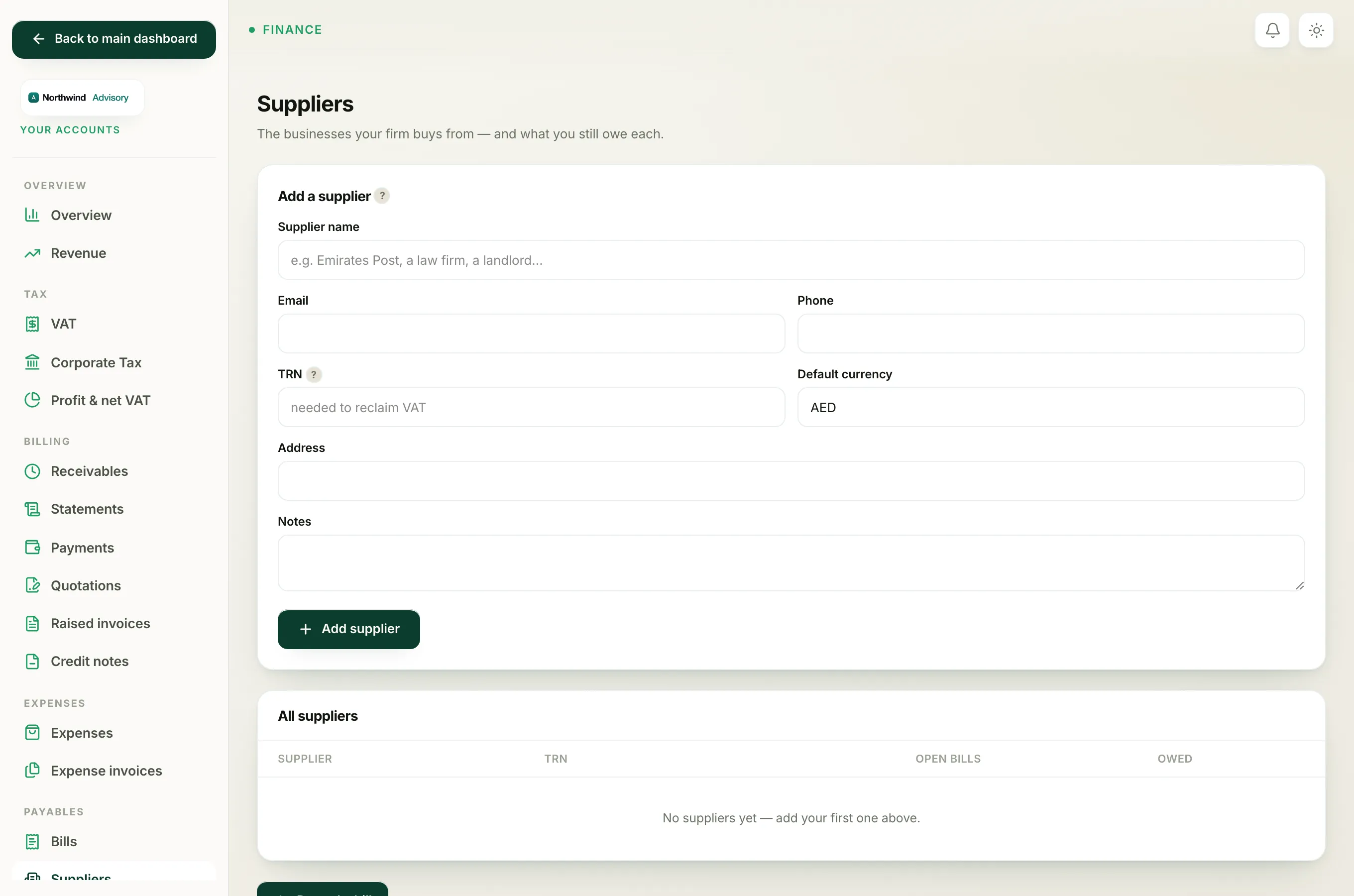
- Log in to your workspace.
- In the left menu, under Finance, click Your Accounts.
- In the accounts menu, under Payables, click Suppliers.
This page lists everyone you buy from and how much you still owe each of them.
Add the supplier
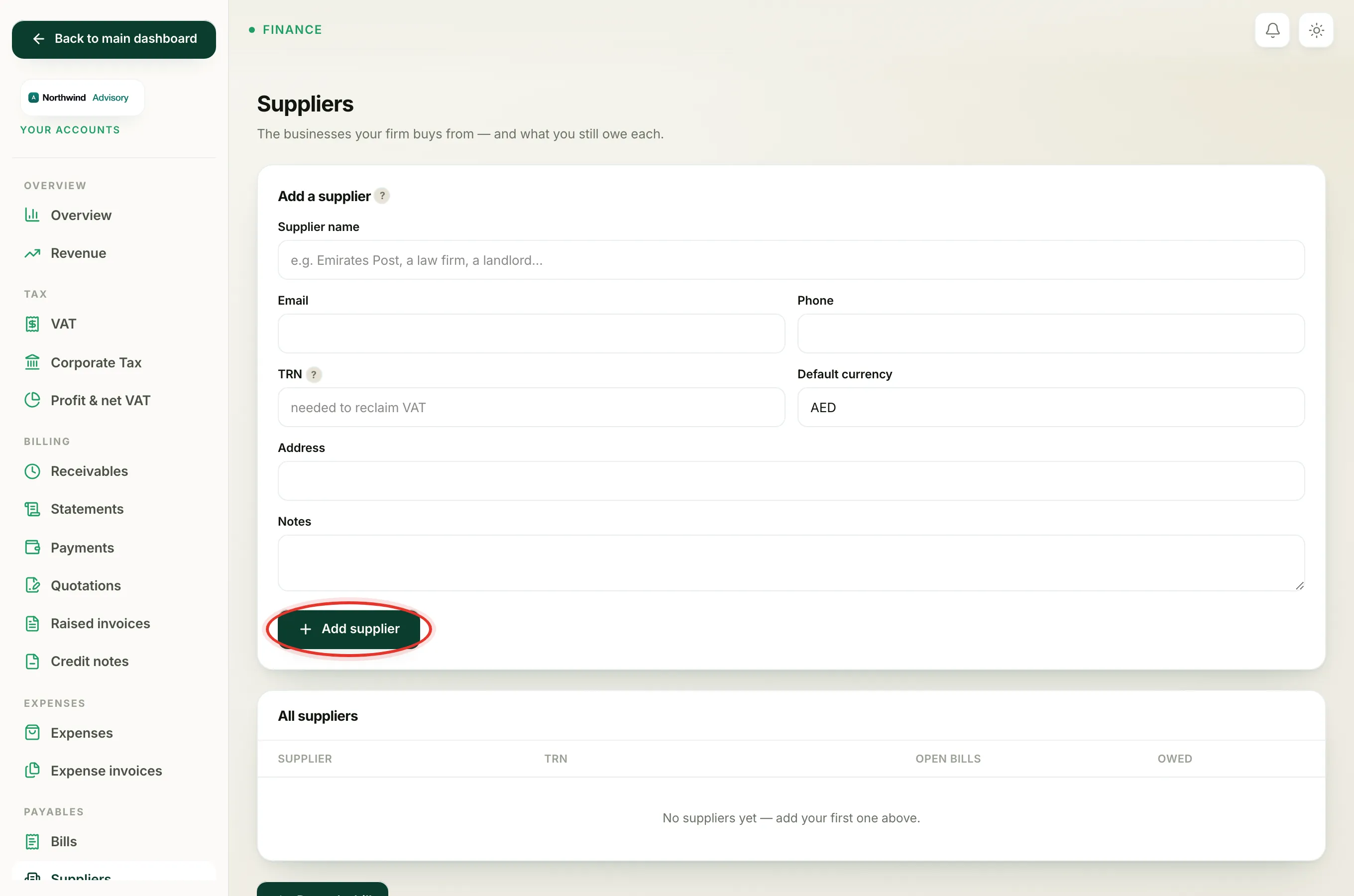
At the top of the page, in the Add a supplier box, fill in the form:
- Supplier name - the business name (for example Emirates Post, a law firm, or a landlord). This is the only field you must fill in.
- Email and Phone - the supplier's contact details, if you have them.
- TRN - the supplier's Tax Registration Number.
- Default currency - starts at AED. Change it only if this supplier bills you in another currency.
- Address and Notes - anything else you want on file.
- Click Add supplier.
The supplier is saved and their own page opens, ready for you to record their first bill.
Tip
Add the TRN whenever the supplier has one. You can only reclaim the VAT on a bill when the supplier has a valid TRN on file, so filling it in now saves you money later. See reclaim VAT on a bill.
What happens next
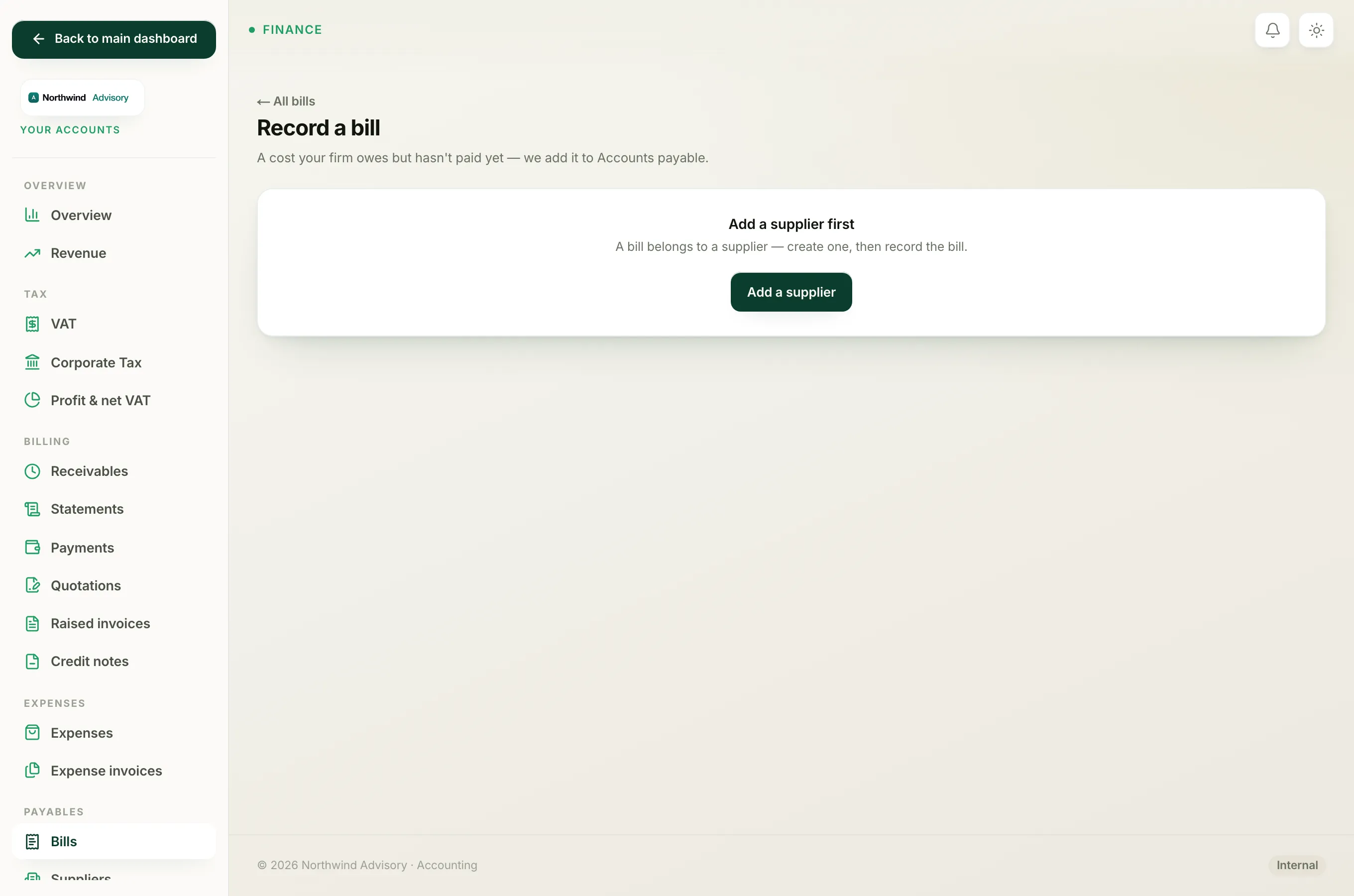
Once a supplier exists you can record bills against them. From the supplier's page, click Record a bill, or record one from the Bills area and pick the supplier from the list. See record a supplier bill.
Back on the Suppliers list, each supplier shows how many bills are still open and the total you owe them, so you always know where you stand. To change a supplier's details later, see edit or deactivate a supplier.