When your firm needs paperwork from you, they add a request for it inside the request thread. You send the files straight back in the same conversation. Nothing to email, nothing to print.
Where the request appears
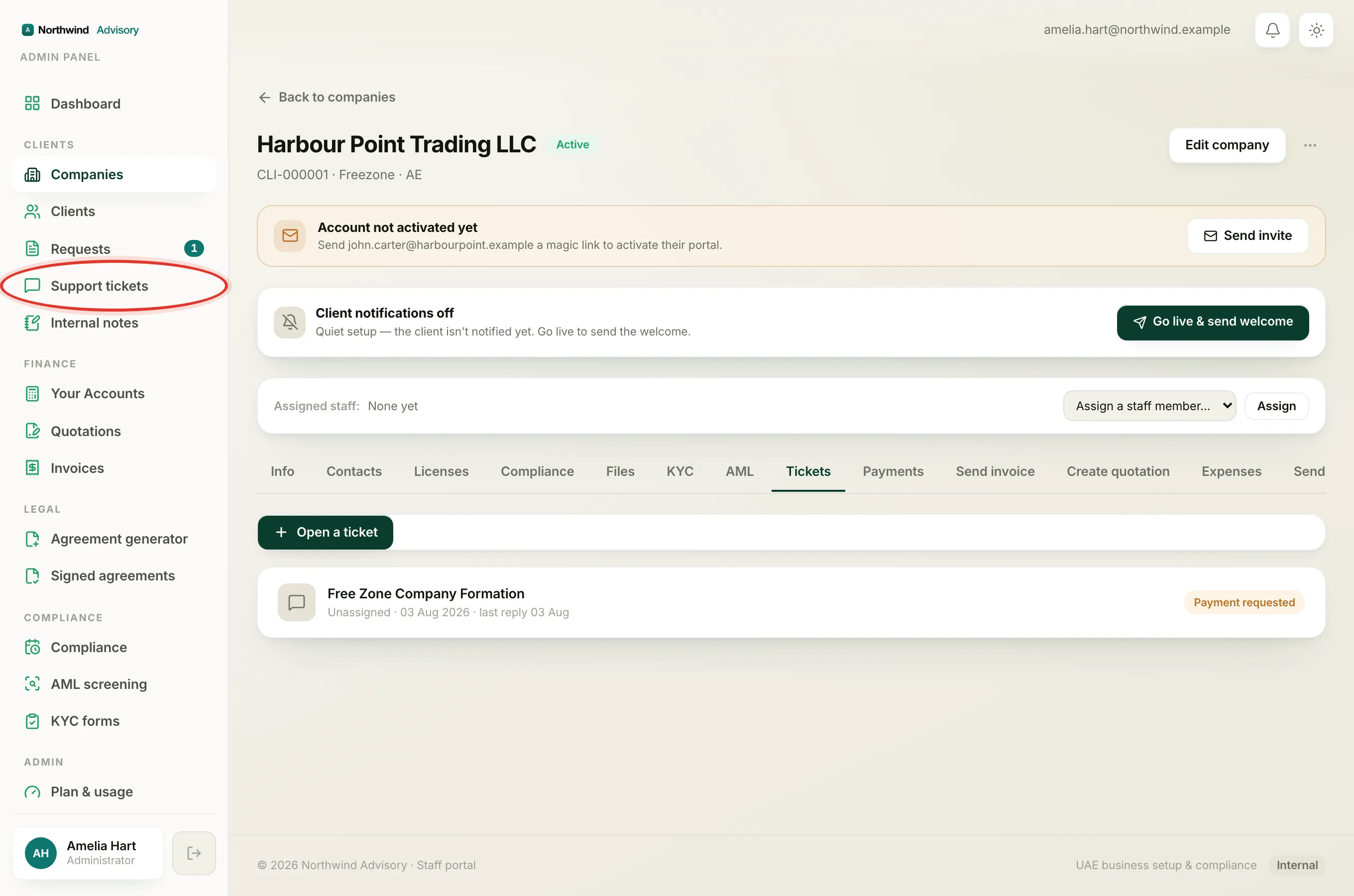
- Log in to your portal.
- In the left menu, under your firm's workspace, click Requests.
- Click the request you are working on to open it.
- Scroll down the conversation to find the amber card titled Documents requested.
The card shows who asked and when. If your firm added a note, it appears just below the title. Under that is a short bulleted list of exactly which documents they need, for example a passport copy, a trade licence, or a proof of address.
Note
The card ends with the line "Use the reply box below to attach them." That reply box is at the very bottom of the conversation.
Send the documents
- Scroll to the reply box at the bottom of the request.
- Click Attach (the paperclip). Your device's file picker opens.
- Choose the file you want to send.
- The file appears as a small chip showing its name and size. If you picked the wrong one, click the small x on the chip to remove it and try again.
- If you want to add a note, type it in the Write a reply… box (for example, "Passport copy attached, licence to follow").
- Click Send.
Your reply, with the file attached, is now posted to the thread and your firm can see it right away.
Sending several documents
Each reply carries one file. If your firm asked for more than one document, send them one at a time: attach the first file and click Send, then attach the next and click Send again. Repeat until every item on the list has been sent.
What you can attach
You can send a PDF, an image (JPG, PNG or WebP), or a Word document, up to 10 MB per file. If a file is the wrong type or too big, the box shows a short message and will not let you send it. For the full list and tips on shrinking a large file, see Supported file types and upload limits.
After you have sent everything
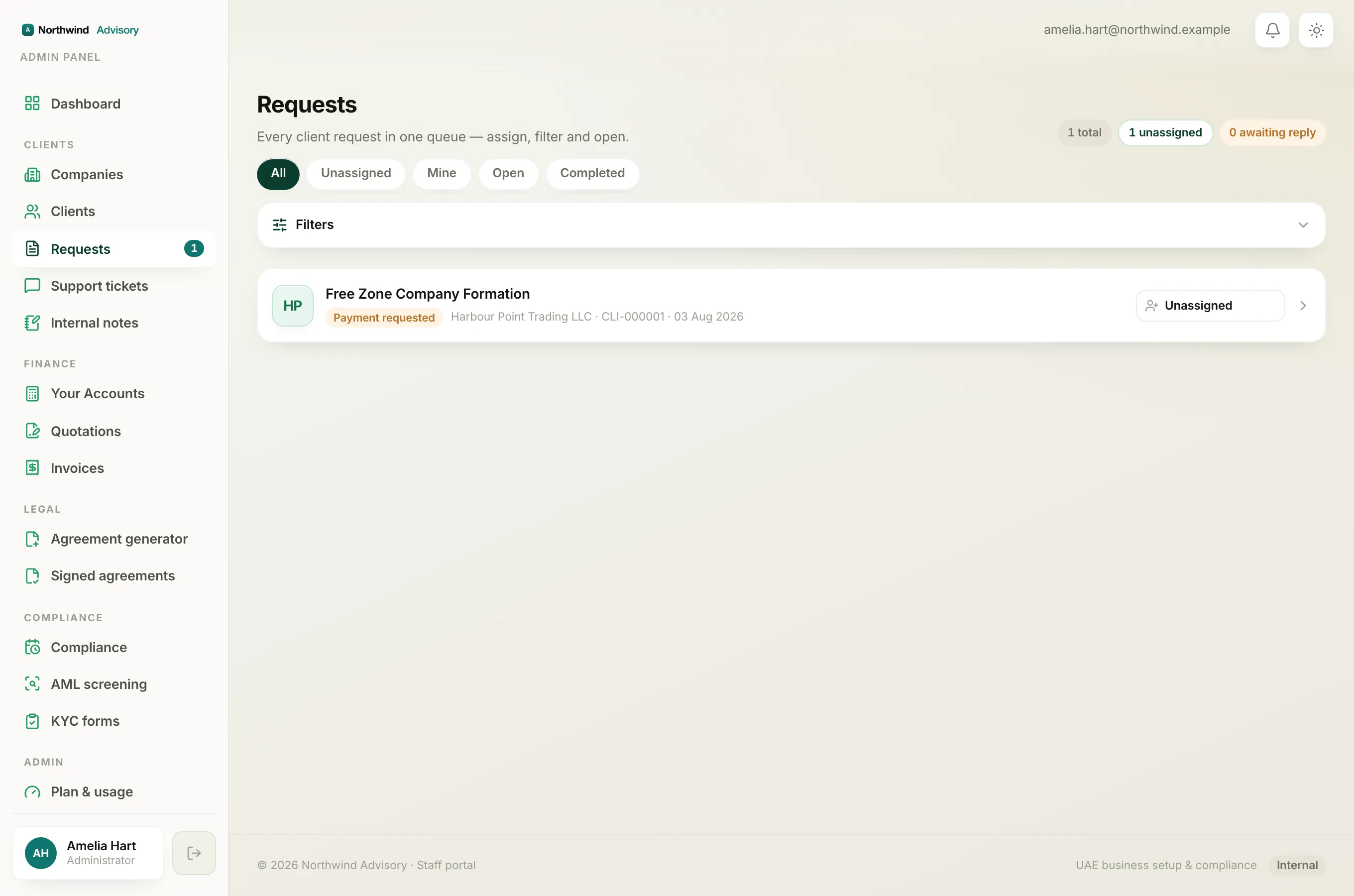
Once your firm has what they need, they move the request forward to the next stage. You can follow that progress on the stepper near the top of the request. To understand each stage, see What each request status means.
If you need to say more or send another file later, just reply again in the thread.