Sometimes you send an invoice and then spot a typo, or the client says they never received it. You can fix an invoice or send it again from the Invoices page. This guide walks you through both from login.
Resend an invoice
Use this when the invoice is correct but the client needs another copy.
- Log in to your workspace.
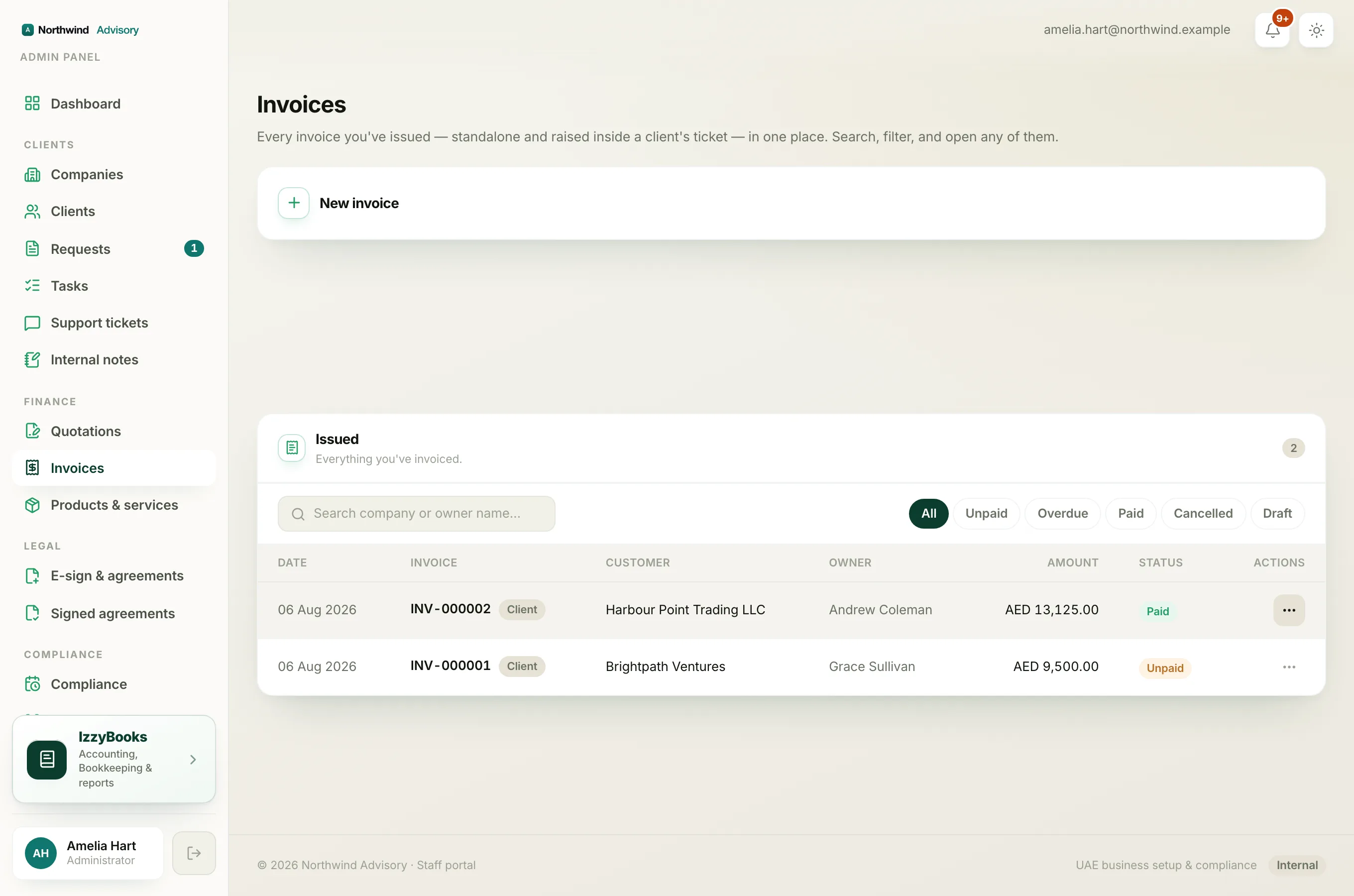
- In the left menu, under Finance, click Invoices.
- Find the invoice and click the three dots on its row.
- Click Resend.
The client gets the same invoice by email again, with a fresh link to view and pay it. Nothing about the invoice changes.
Edit an invoice
Use this when something on the invoice is wrong.
- On the invoice's row, click the three dots, then click Edit.
- Change the lines, the amounts, the dates, or the terms.
- Click Preview invoice, check it, then Save changes.
What happens next depends on where the invoice is in your books:
- Not yet in your accounts. The invoice is updated in place and keeps its number. The client sees the corrected version.
- Already in your accounts. The app cancels the old invoice and issues a corrected one with a new number, so your books stay right. The old number is kept as cancelled for your records.
Important
Once an invoice has a payment against it, you cannot edit it. To correct a paid invoice, issue a credit note instead. You can start that from the same actions menu.
Note
An invoice whose accounting period is closed cannot be edited either. Use a credit note for that too.
Which one do I need?
- Client lost the email, invoice is fine: Resend.
- Wrong amount or detail, not paid yet: Edit.
- Wrong amount, already paid: Credit note.