What the Expense invoices page is for
When your accountant prepares your VAT return, they usually want the original receipts behind every expense, not just the totals. The Expense invoices page keeps all of those source documents in one place and lets you download them in a single ZIP file for a chosen period.
Every receipt you upload on the Expenses page is filed here automatically. An expense you typed in by hand with no receipt attached will not appear, because there is no document to download.
Open the page
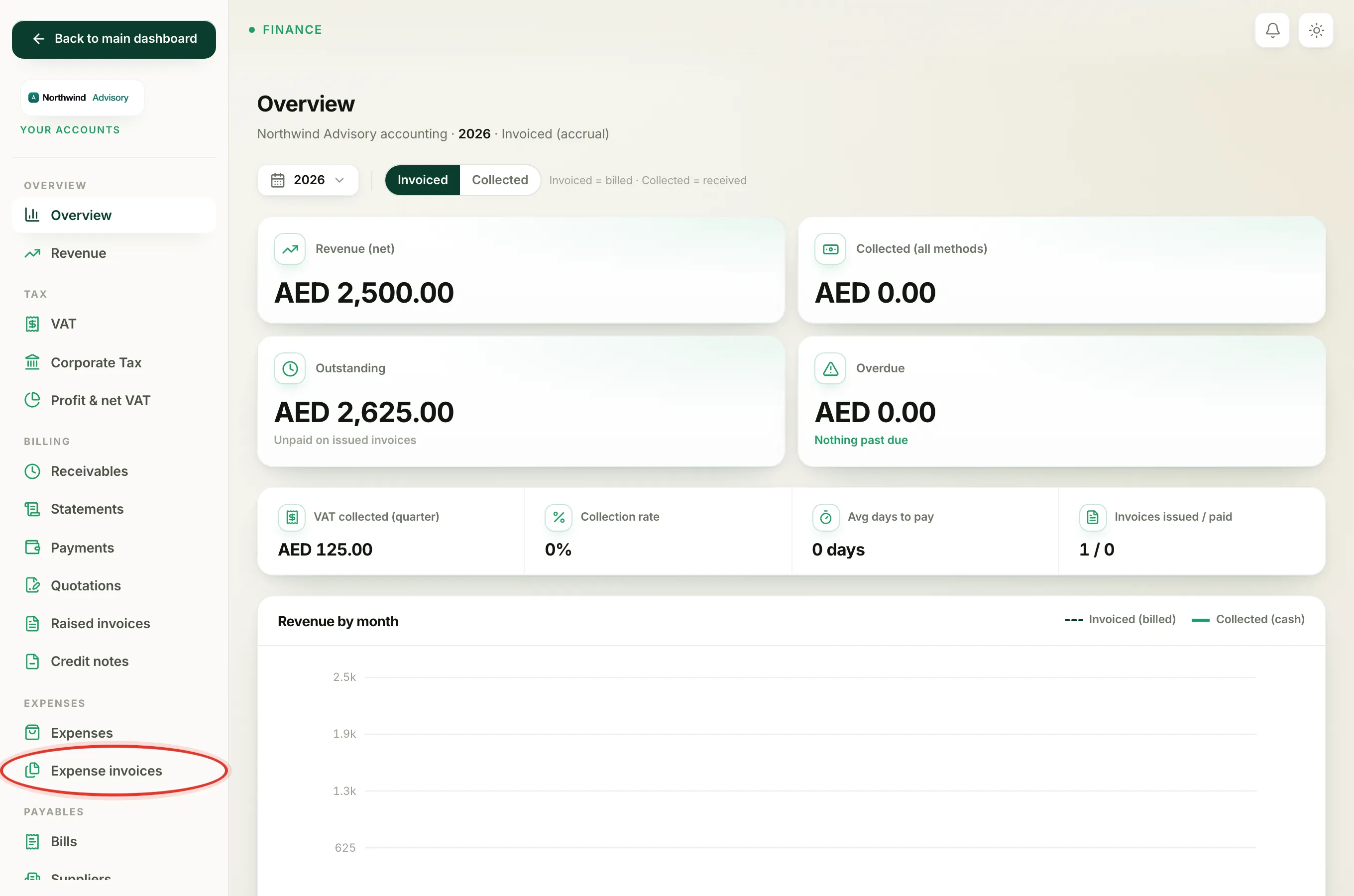
- Log in to your workspace.
- In the left menu, under Finance, click Your Accounts.
- In the accounts menu, under Expenses, click Expense invoices.
Choose the period
At the top of the page is a date range picker. Pick a preset such as This quarter or This year, or set a Custom range. Everything on the page, the tiles, the chart and the list, follows the period you choose. For VAT, pick the same quarter as the return you are filing.
The four tiles
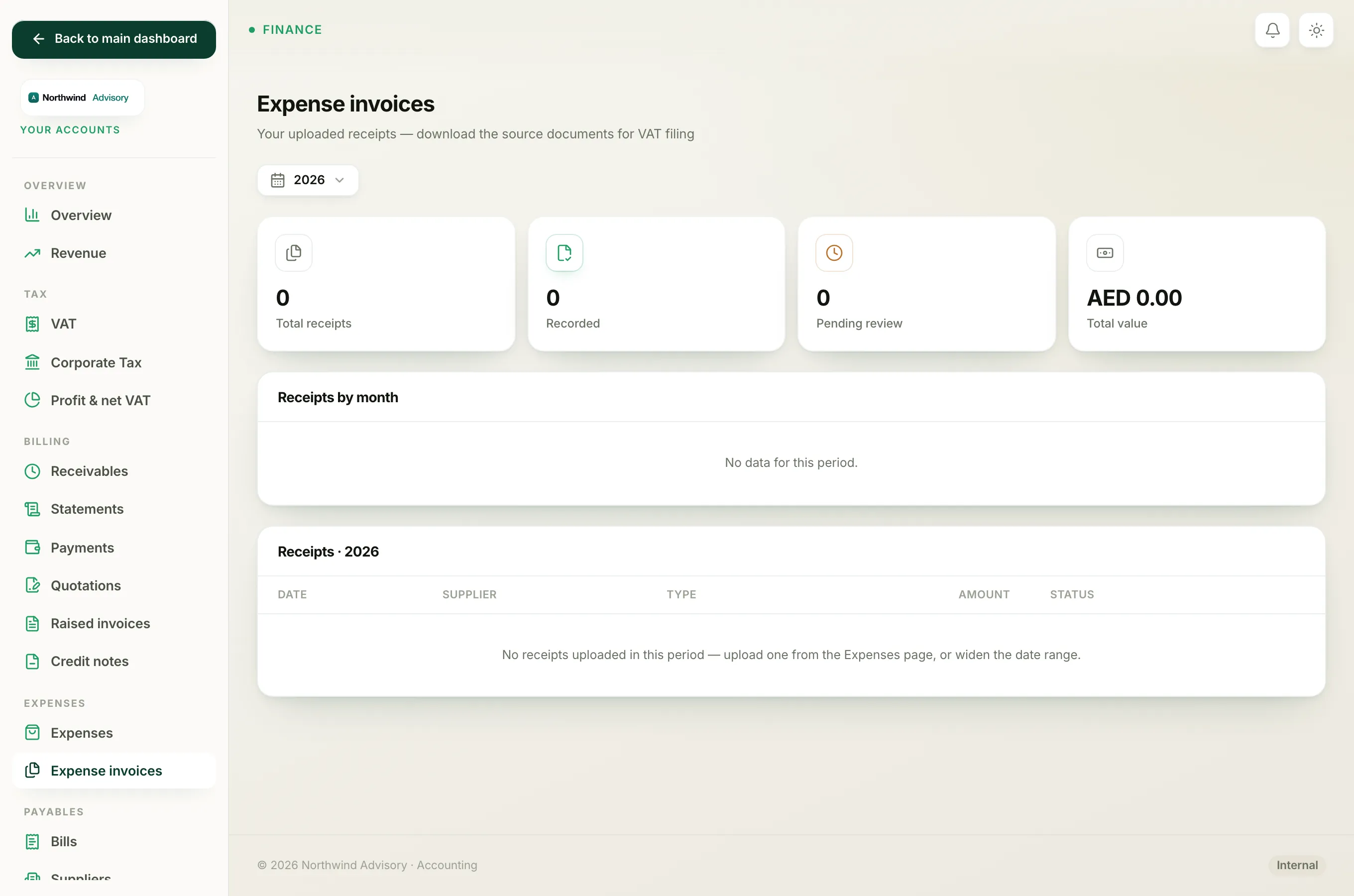
- Total receipts is how many uploaded documents fall in the period.
- Recorded is how many of those have been confirmed and posted to your books.
- Pending review is how many are still waiting for you to confirm on the Expenses page.
- Total value is the combined amount on all the receipts in the period.
The receipts list
The Receipts table lists every document in the period with its Date, Supplier, file Type (for example PDF or JPG), Amount and Status (Recorded or Pending review). Each row has a Download link to save that one receipt on its own.
Download everything as a ZIP
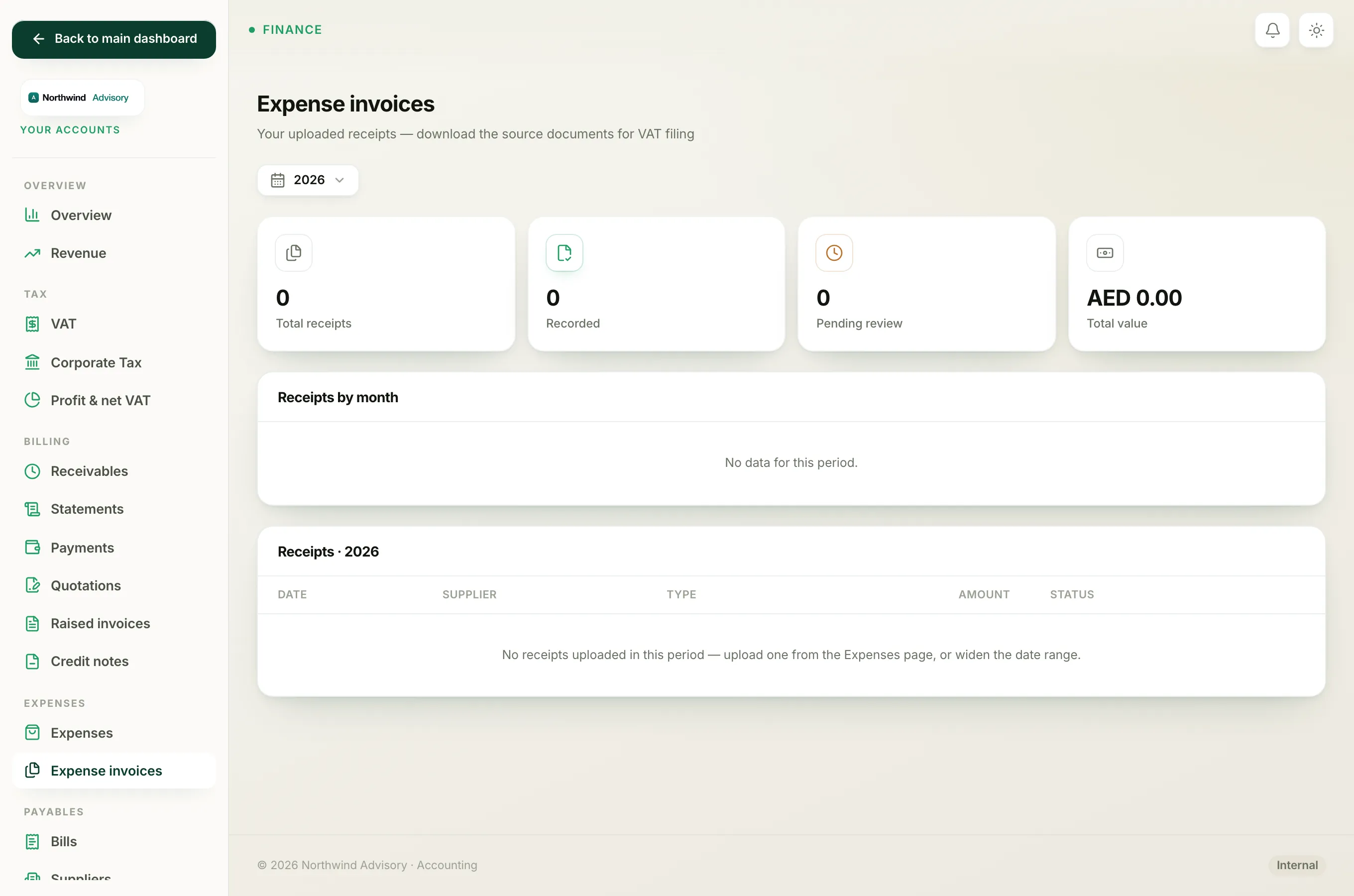
When there is at least one receipt in the period, a green Download all (N) as ZIP button appears at the top right, where N is the number of receipts.
- Set the date range to the period you are filing for.
- Click Download all (N) as ZIP.
- Your browser saves one ZIP file named after the date range, for example expense-invoices-2026-01-01_to_2026-03-31.zip.
Inside the ZIP, each file is named with its date, the supplier and a short code, so the documents stay in order and none overwrite each other. You can hand this single file straight to your accountant.
Note
The ZIP holds only the receipts uploaded in the selected period. If one is missing, check that the expense was added with its document attached on the Expenses page.
Filing your VAT return
The receipts here are the evidence behind the figures. For the return itself, see prepare your VAT return. For the full transaction listing the FTA expects, see the VAT audit file.
Note
Your Accounts, including this page, is only available to the firm owner. See who can create invoices and record payments.