You can add as many colleagues to your firm as you need. Each person gets their own login and a role that decides what they can do. Adding someone takes less than a minute.
This guide shows you the two ways to add a team member.
Note
Only administrators can add staff. If you do not see the Staff page in your menu, you do not have admin access. Ask an administrator at your firm.
Step 1: Open the Staff page
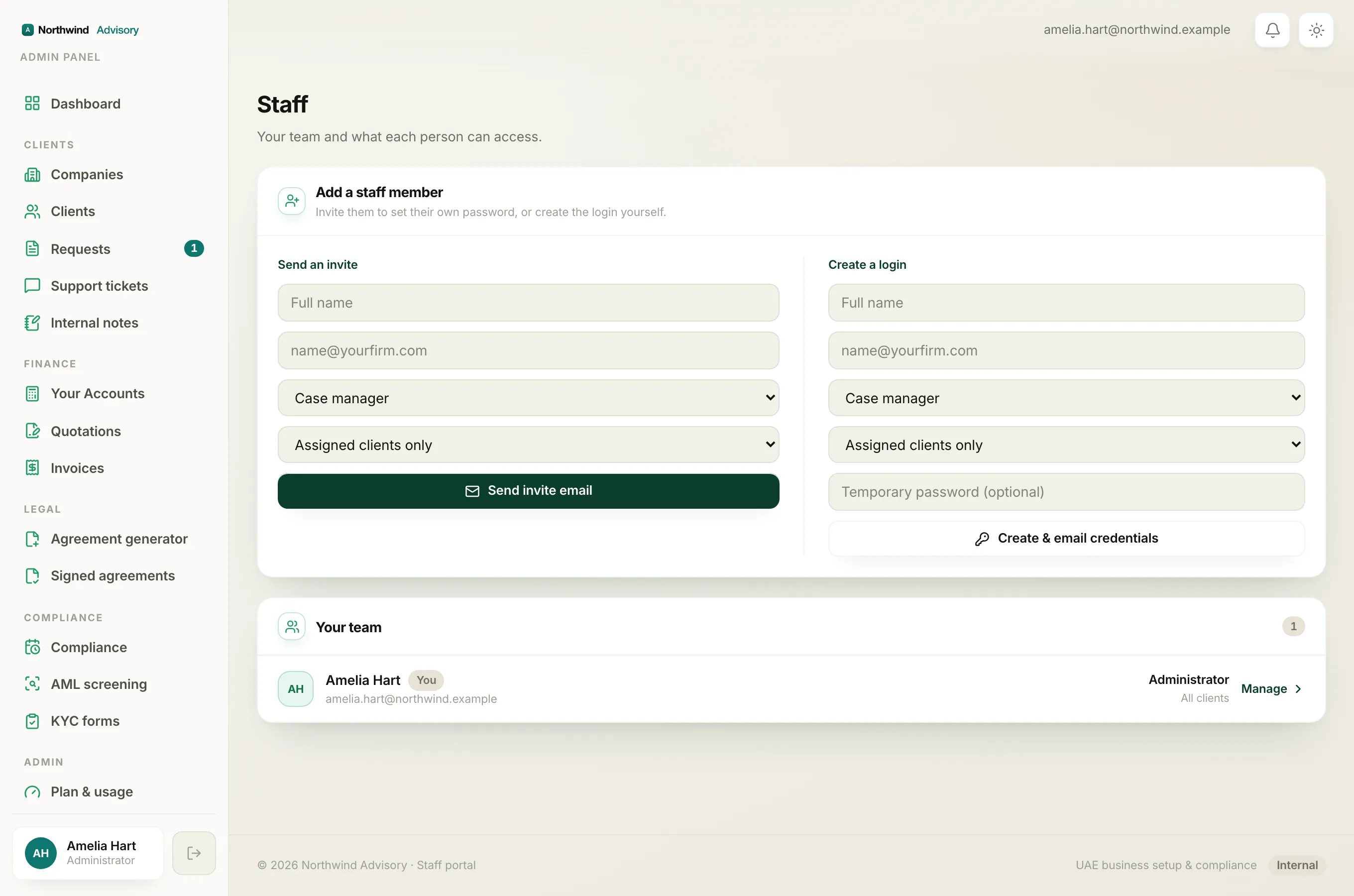
- Log in to your workspace.
- In the left menu, under Admin, click Staff.
At the top of the page you see how many seats you are using, and below it a panel headed Add a staff member. It gives you two ways to add someone, side by side. Pick whichever suits you.
Note
You need a free seat before you can add someone. Your plan is priced per seat, so if every seat is in use the seat count shows Full. Buy a seat first, then add the person. See Buy or reduce staff seats.
Option A: Send an invite
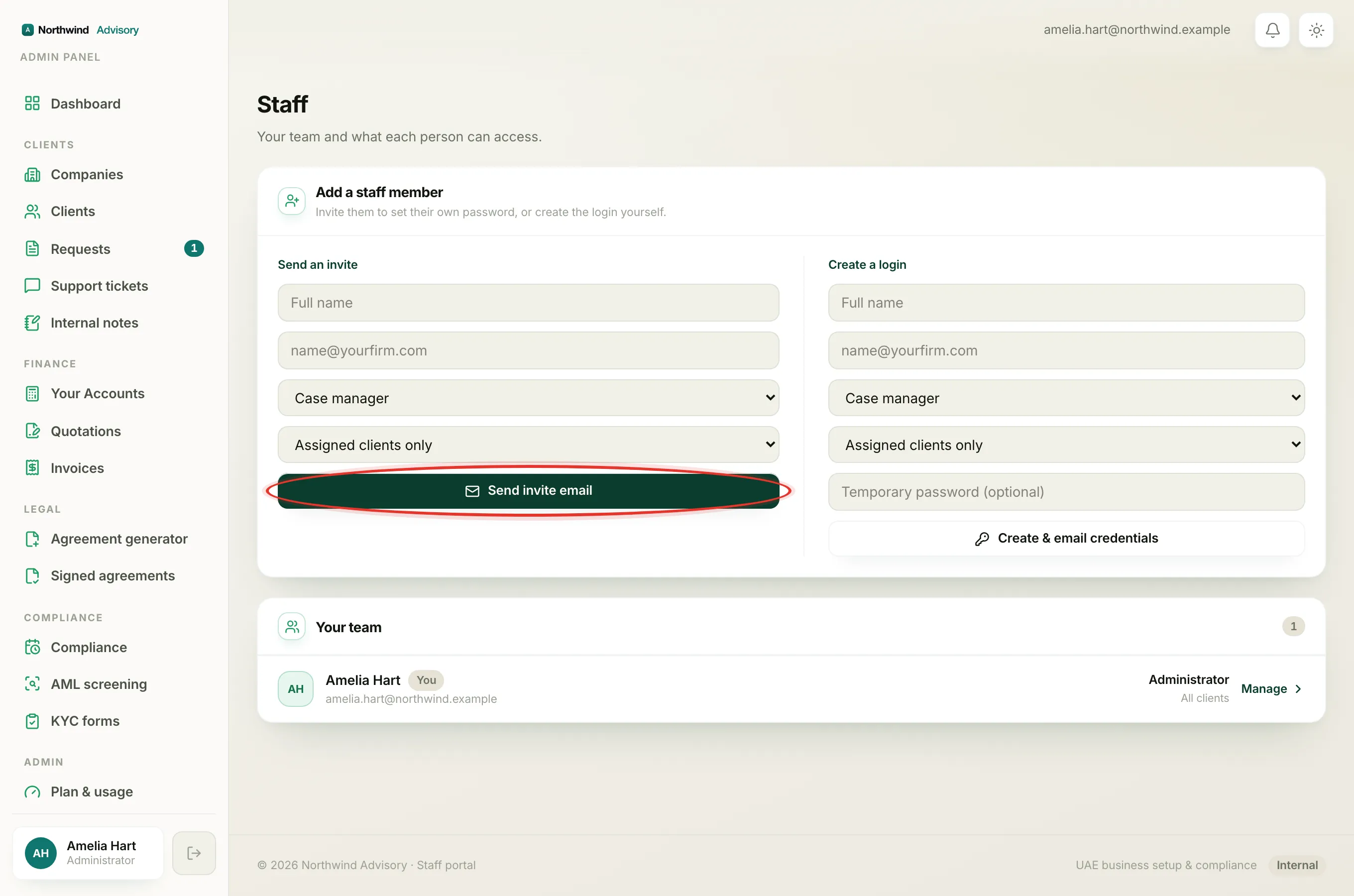
Use this when you want the person to set their own password. It is the tidier option, because you never handle their password.
- In the Send an invite column, type their Full name.
- Type their work email.
- Choose their role from the dropdown. To understand the choices, see Understanding staff roles and permissions.
- Choose their access scope: Assigned clients only or All clients.
- Click Send invite email.
They get an email with a secure link to set their own password and log in. Until they do, they show in your team list with an Invited tag.
Option B: Create a login
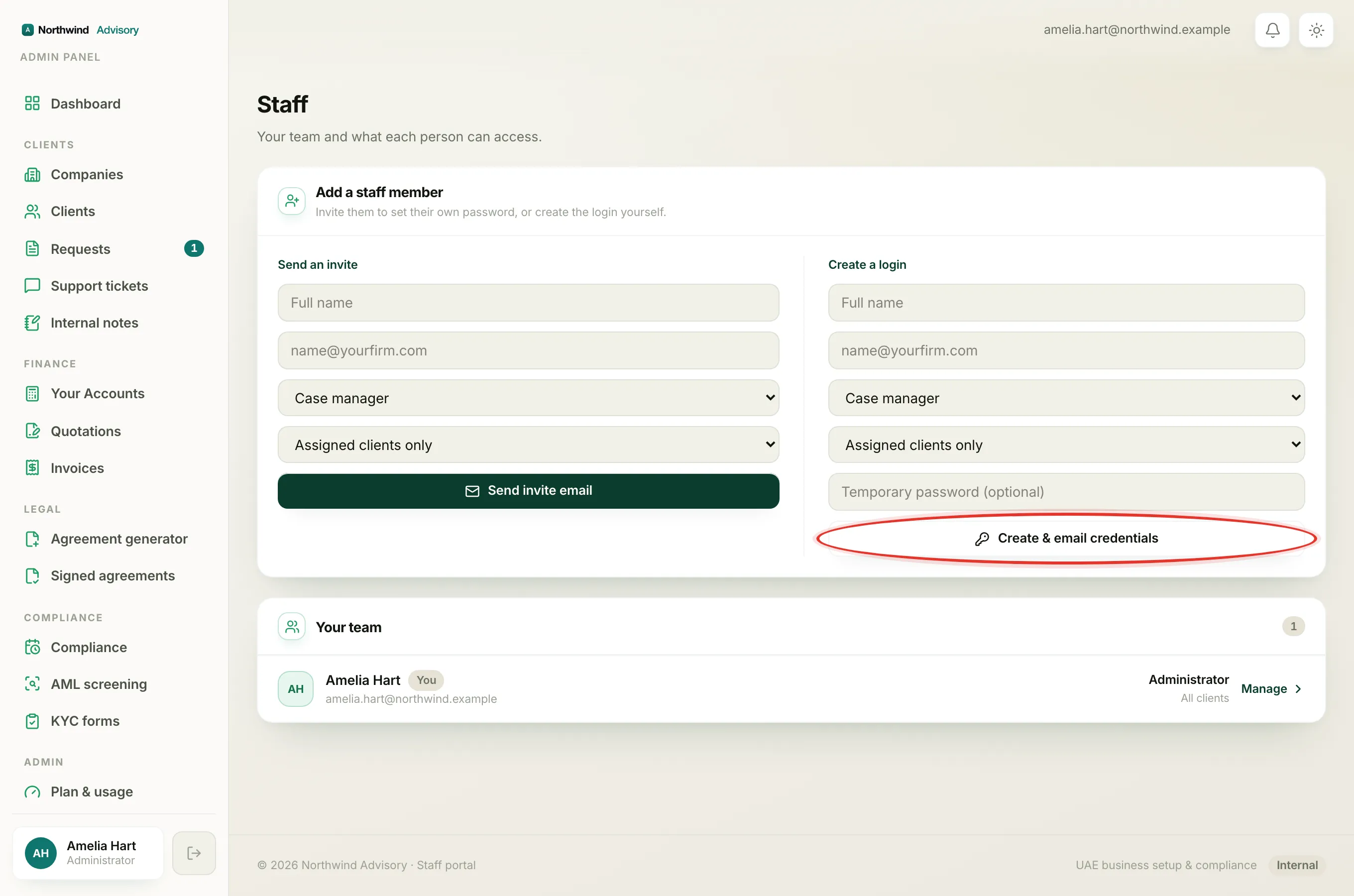
Use this when you would rather set the account up for them, for example if you are sitting together.
- In the Create a login column, type their Full name.
- Type their work email.
- Choose their role and their access scope, as above.
- Optionally type a Temporary password. If you leave it blank, IzzyTap picks one.
- Click Create & email credentials.
The account is created and their login details are emailed to them. Ask them to change the temporary password after their first sign-in.
Important
Administrators cannot be added from here. The role list covers every role except Administrator on purpose. Existing admins manage admin access directly.
Step 3: Check they appear
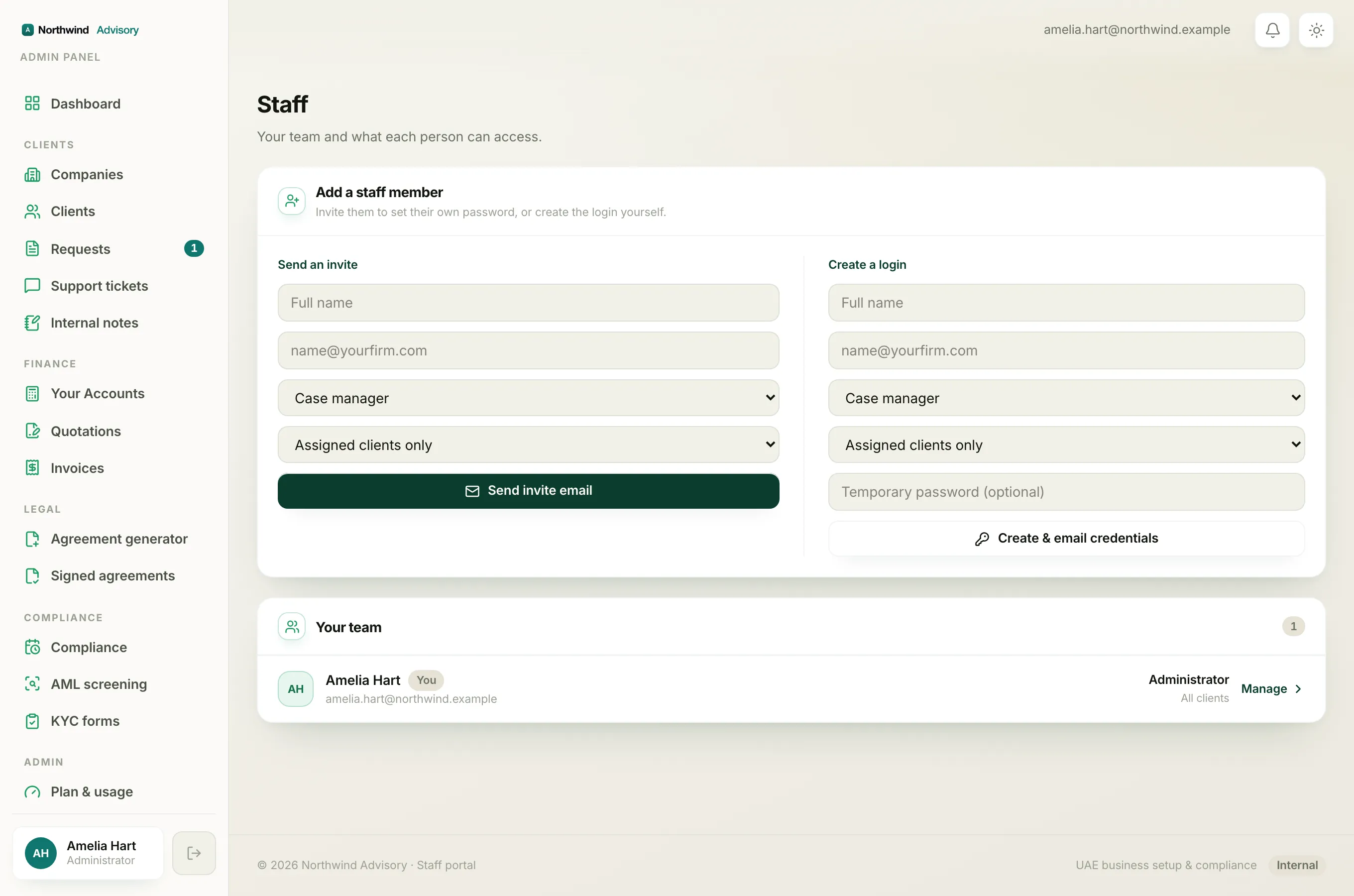
Scroll down to the Your team card. Your new colleague is now in the list, with their role and scope shown on the right. Someone who was invited but has not signed in yet shows an amber Invited tag.
Changing a role later
You can change a person's role or scope any time from the same Your team list. Each row has a role dropdown and a scope dropdown. Change them and click Save. To learn what each role and scope means, and how to deactivate or remove someone, see Understanding staff roles and permissions.