What this does
You store a company's trade licence by issuing it into the company's document vault. When you add the licence with its expiry date, IzzyTap starts a renewal countdown and reminds you before it runs out. The licence also appears in the company's Licenses tab and in the client's own portal.
Open the Files tab
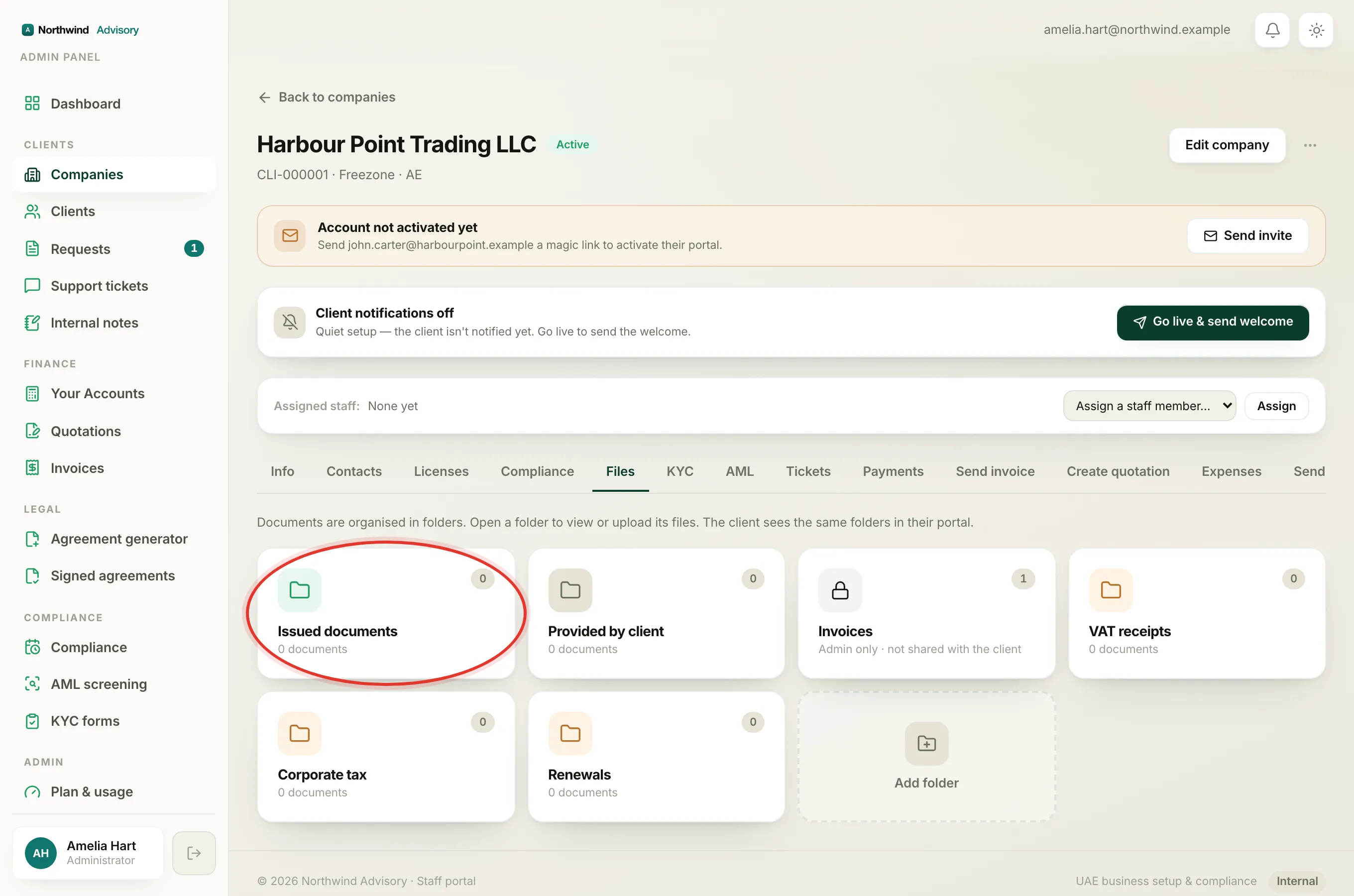
- Log in to your workspace.
- In the left menu, under Clients, click Companies.
- Click the company to open its profile.
- Click the Files tab.
- Click the Issued documents folder.
Issue the licence
- Inside the folder, click Issue a document to open the form.
- In Document type, choose the licence type from the list.
- Under File, drag and drop the licence file, or click the box to browse and pick it. You can use a PDF, image, or Word file up to 10 MB.
- Set the Issue date to the date the licence was issued.
- Set the Expiry date to the date printed on the licence. IzzyTap suggests a date, so check it against the document and correct it if needed.
- If the licence relates to a specific request, you can pick it under Link to request (optional). Otherwise leave it as a general company file.
- To let the client know, tick Notify the client by email + in-app.
- Click Issue document.
Tip
IzzyTap sets up the renewal reminder for you from the expiry date. It starts reminding you 30 days before the licence expires.
Check the licence and its expiry
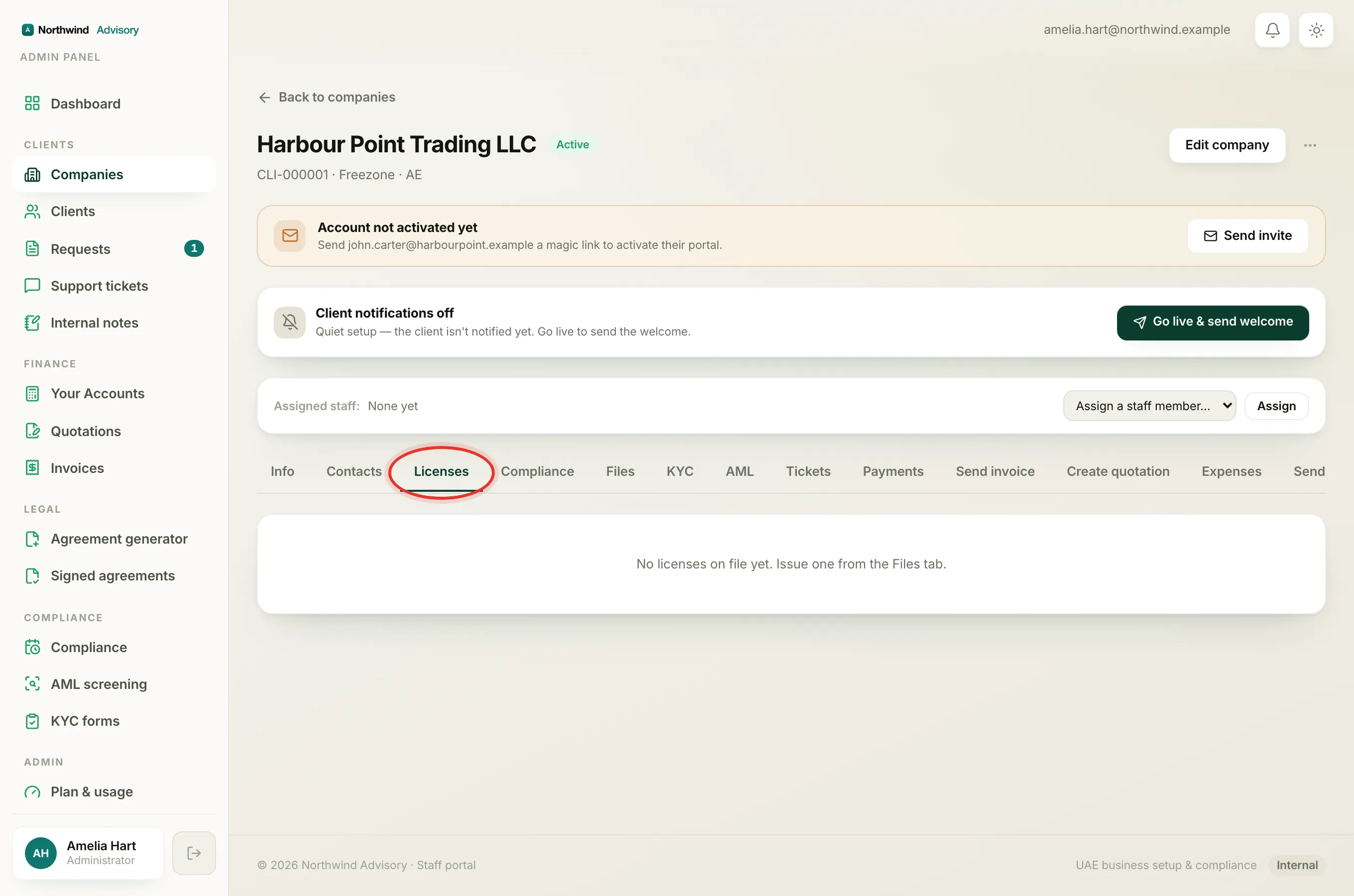
- On the company profile, click the Licenses tab.
- You see the licence with its issue and expiry dates, and a countdown chip showing how many days are left. A licence that is close to expiry or already expired is flagged.
- Click a licence row to open the file.
What to do next
- See every deadline IzzyTap tracks for this company, including the licence renewal, on the Compliance tab.
- Make sure the right people get renewal reminders. See How to manage a company's contacts.