KYC is tracked per contact, not per company. On a company's KYC tab every contact you have added shows a small coloured chip telling you where their form stands. There are three states, and they always move in the same order: Not sent, then Sent, then Submitted. This page explains each one.
Where you see the statuses
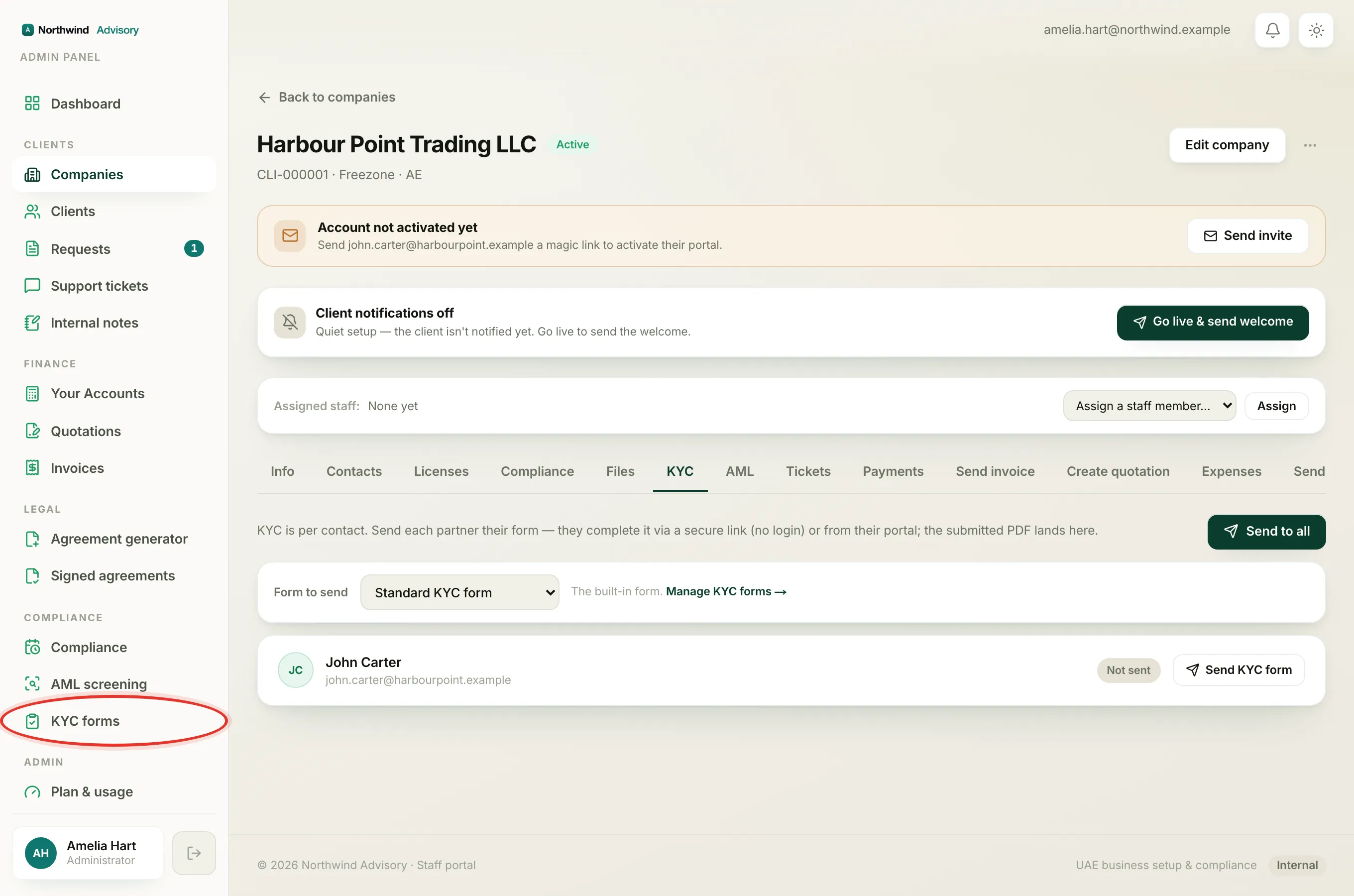
- Log in to your workspace.
- In the left menu, under Clients, click Companies.
- Open the company you want.
- Click the KYC tab.
Each contact is listed with their name, their email, a status chip and an action button. If the company has no contacts yet, add them first, because KYC is sent per contact. See Manage company contacts.
Not sent
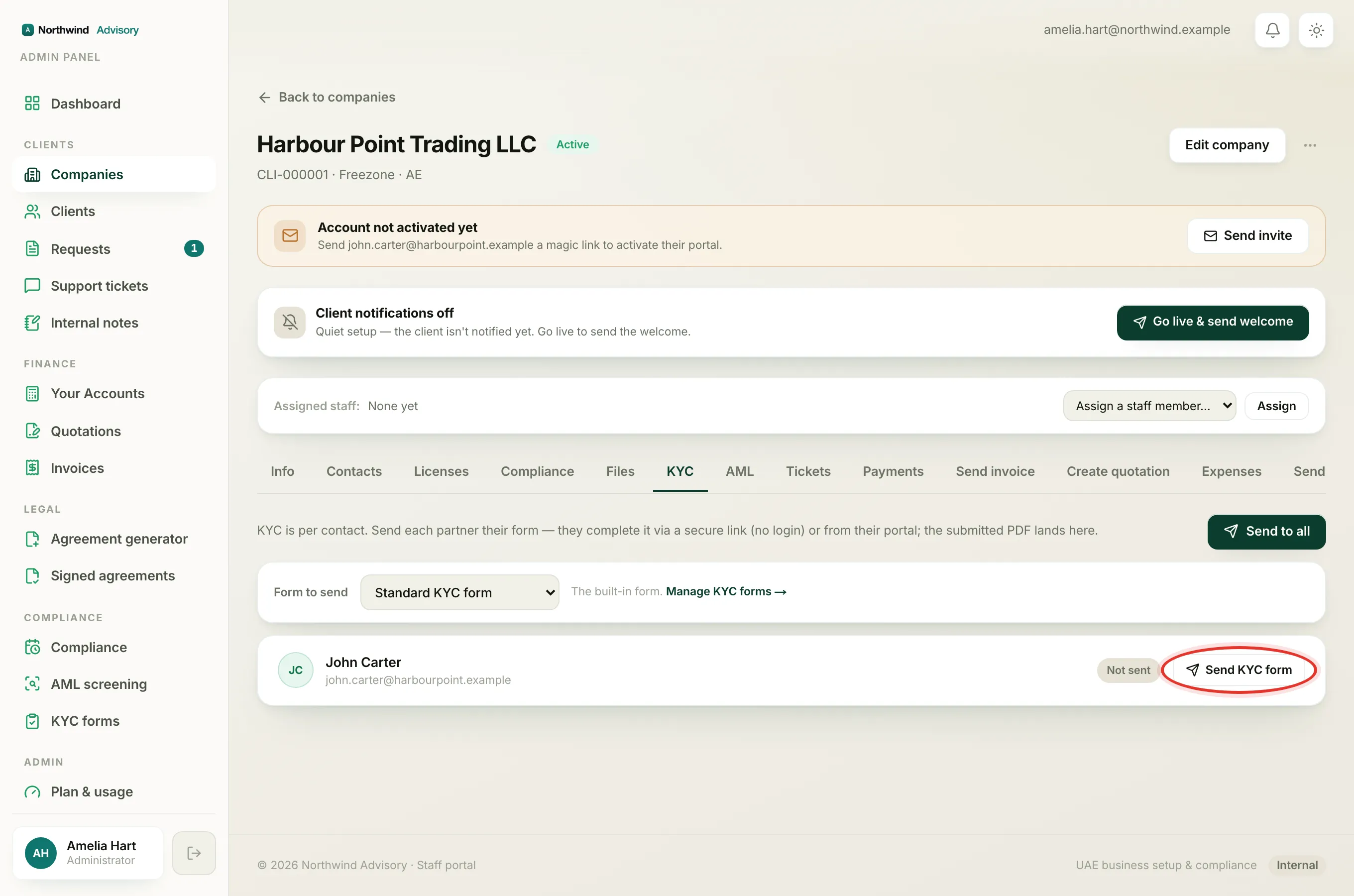
A grey Not sent chip means you have not sent this contact a KYC form yet. Nothing has gone out to them.
- The button next to them reads Send KYC form.
- Pick which form to send from the Form to send selector at the top of the tab, then press the button to send it. See Send a KYC form.
Sent
An amber Sent chip means the form has gone out and the contact has a live, secure link, but they have not finished it yet.
- The button now reads Resend. Use it if they never received the email or the link has lapsed, which issues them a fresh link. See Resend a KYC form and refresh the link.
- IzzyTap also shows the contact's Public link on their row. If they have no email on file, you can copy that link and share it another way, for example over WhatsApp.
Submitted
A green Submitted chip means the contact has completed and signed their form, and their answers have come back to you.
- The date they submitted is shown next to their name.
- A PDF button appears so you can open or download their signed form.
- Below the row you can expand View submitted data to read their answers without opening the PDF.
- The Send button is gone. You cannot resend a form to someone who has already submitted. To check their answers or ask them to redo it, see Review a KYC submission.
Sending to everyone at once
Tip
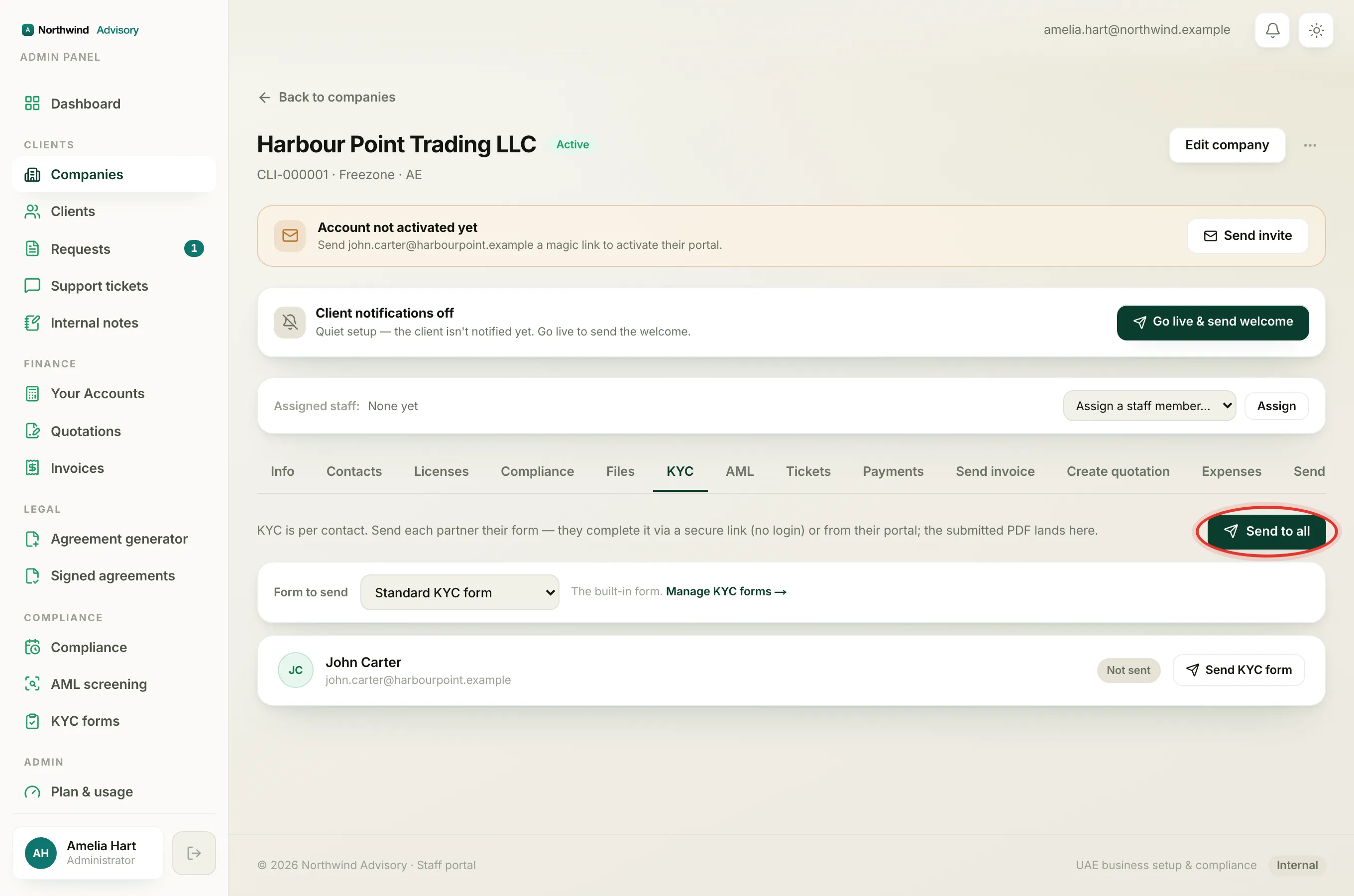
When a company has several contacts still to complete their forms, a Send to all button appears at the top of the tab. It sends the chosen form to every contact who has not yet submitted, and skips anyone already on Submitted, so nobody is asked twice.