What this does
When a company has several people who all need to complete KYC, such as partners, directors and shareholders, you do not have to send to them one at a time. Send to all sends the same form to every contact on the company in one click. Anyone who has already submitted is left alone.
Send to everyone at once
- Log in to your workspace.
- In the left menu, under Clients, click Companies.
- Click the company you want.
- On the company page, click the KYC tab.
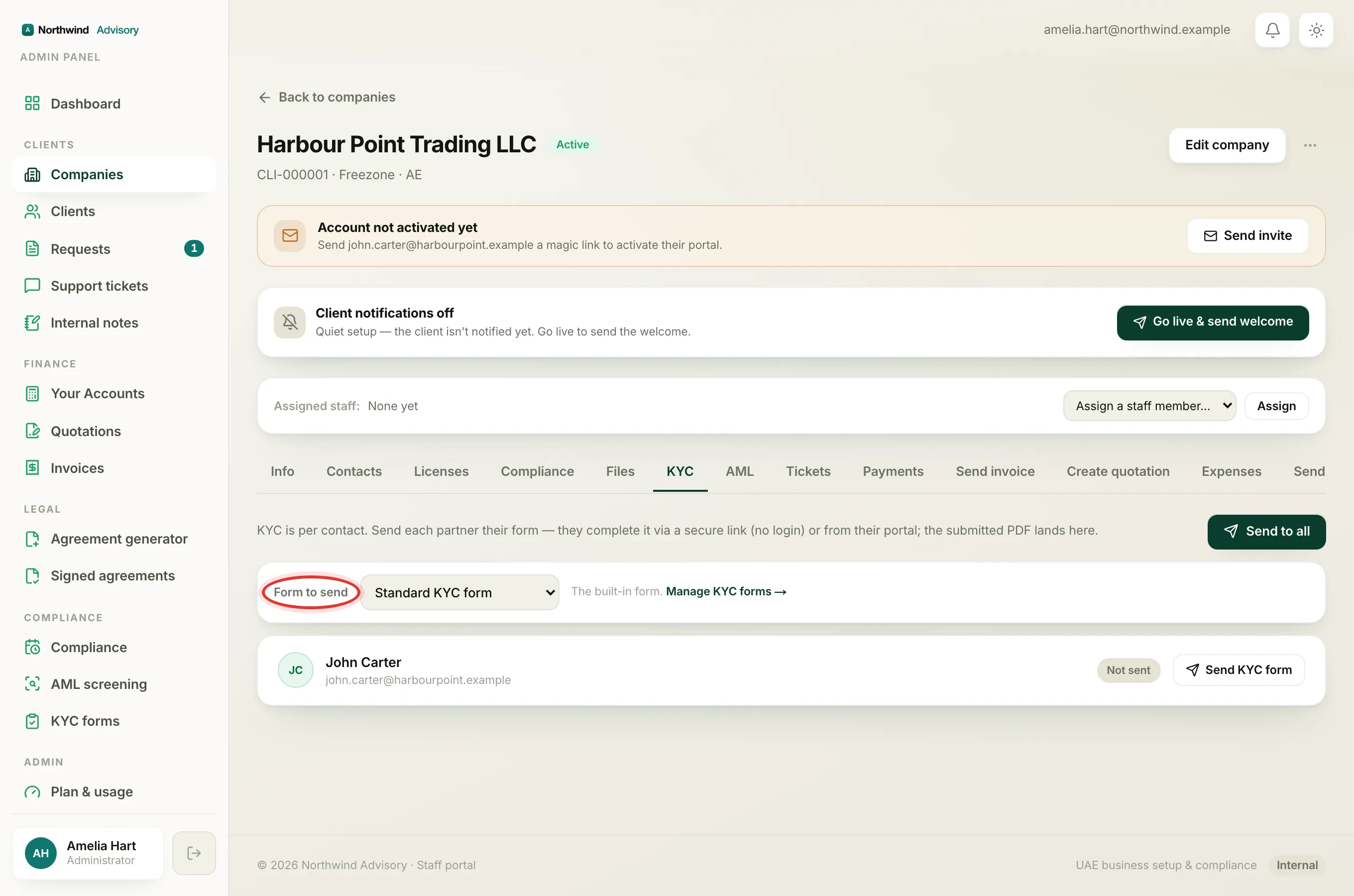
- In the Form to send box near the top, pick which form everyone should get. See choose which KYC form to send.
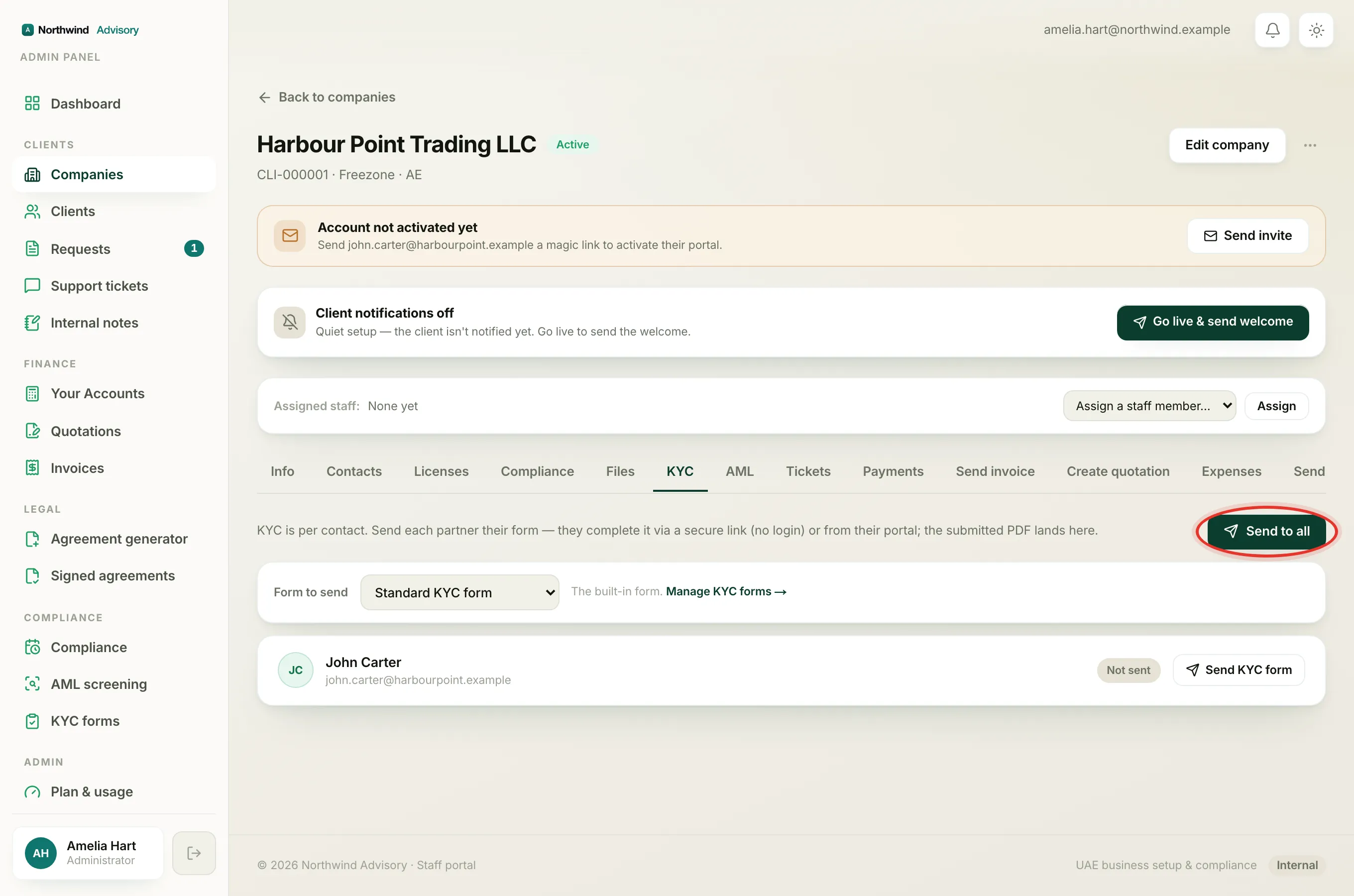
- Click Send to all at the top right of the tab.
Each contact with an email on file is sent their own secure link by email. Their status chip moves from Not sent to Sent. For contacts with no email, a Public link appears under their row for you to copy and share.
Important
Send to all sends the form that is chosen in the Form to send box. Every person gets the same form. Choose the right form before you click.
Who gets skipped
Send to all is safe to use even when some people are already done:
- Contacts who have already submitted their KYC are skipped. Their completed form and PDF are left untouched, and no new link is sent to them.
- Everyone else, whether they were never sent a form or were sent one but have not finished, gets a fresh link.
Because of this, you can click Send to all again later to chase whoever is still outstanding, without disturbing the people who have finished.
Note
The Send to all button only appears when at least one contact still needs to complete KYC. If everyone on the company has already submitted, the button is hidden because there is no one left to send to.
Before you send
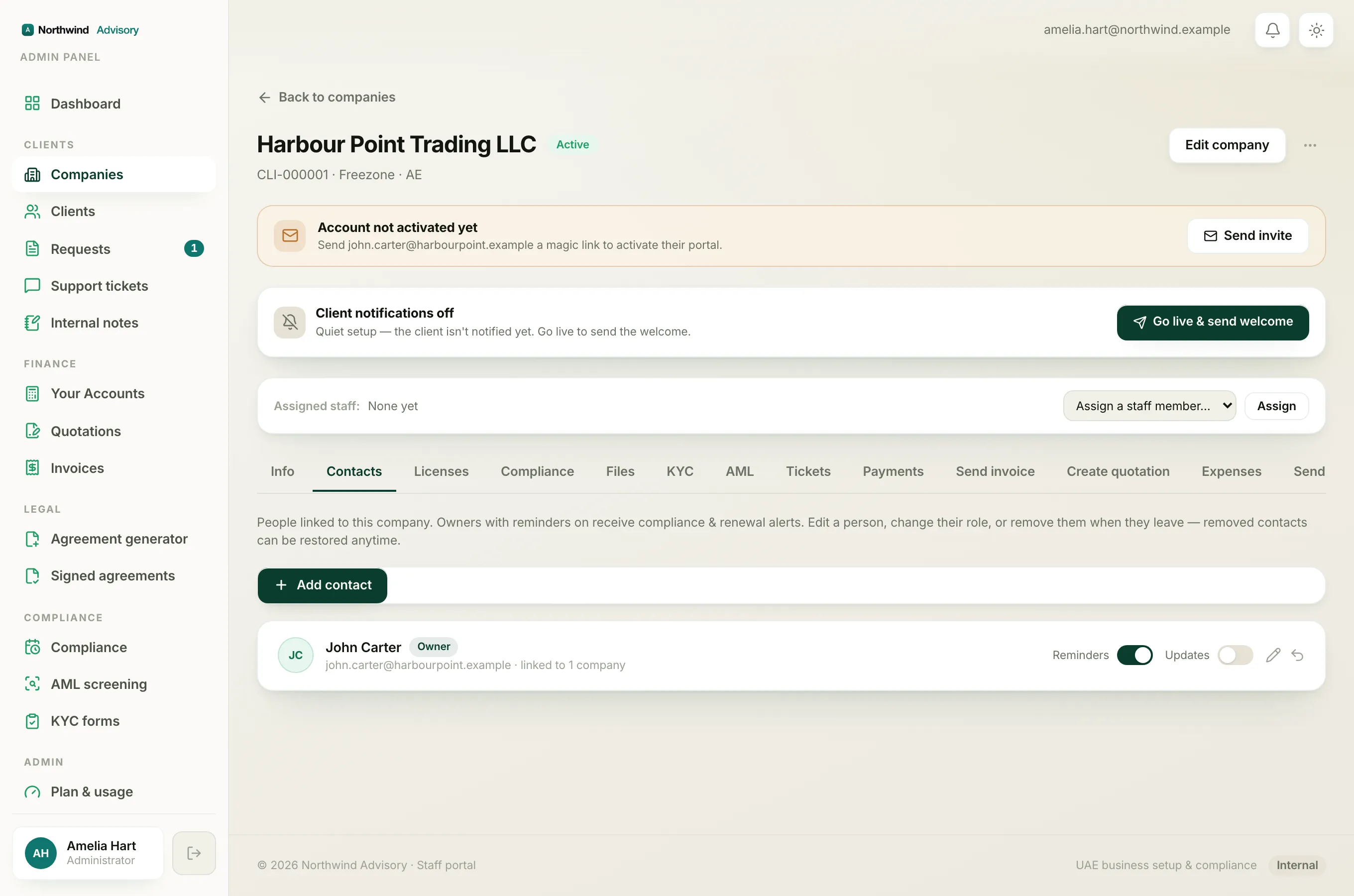
KYC is sent per contact, so the people you want must already be listed on the company. If someone is missing, add them first. See manage the contacts on a company.