When someone leaves your firm, you remove them from the workspace. Removing does two important jobs at once: it blocks their access and archives their account for your audit trail, and it hands their work over so nothing falls through the cracks. This article shows how to remove a teammate and choose who takes over their clients and tickets.
What removing does
- The account is archived, not deleted. Its status becomes Removed and it is kept for your records and audit trail.
- The person can no longer sign in, and any session they have open ends straight away.
- Their companies and tickets are moved to a colleague you pick, or left unassigned if you prefer.
Because it is a soft archive, you keep a full history of who did what. Removing is for people who are gone for good. If someone is only away for a while, use Block and later restore a teammate's sign-in instead.
Remove a teammate and hand over their work
- Log in to your workspace.
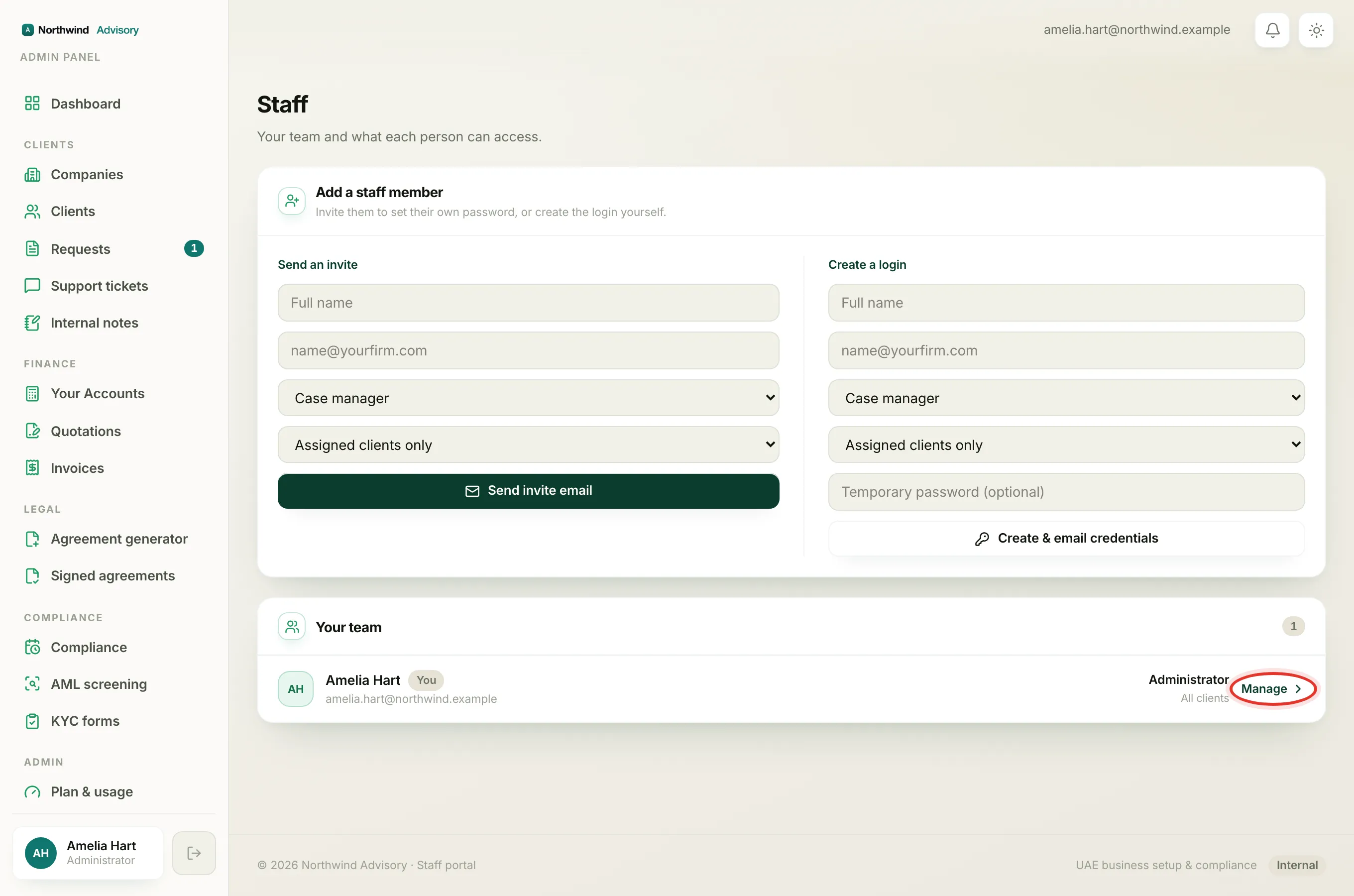
- In the left menu, under Admin, click Staff.
- In the Your team list, find the person and click Manage.
- In the Access panel, find Reassign their work to.
- From the dropdown, choose the active teammate who should take over their companies and tickets. To leave the work unassigned for now, keep Leave unassigned selected.
- Click Remove staff.
Their status changes to Removed, their sessions end, and their companies and requests move to your chosen colleague (or become unassigned).
Important
The person you reassign to must be an active teammate. If you pick someone who is deactivated or removed, the action is blocked and asks you to choose an active staff member.
Tip
If you are not sure who should take over yet, choose Leave unassigned and remove the person now. You can assign their old companies and requests to the right colleague afterwards. This is safer than leaving a departed teammate with access.
Things to know
- You cannot remove your own account or another administrator from here.
- Removing does not delete any client records, files, invoices or history. It only archives the staff member and moves their assignments.
- Because the account is archived rather than deleted, its email still counts as "already a staff member" if you ever try to add it again.