What the number badge is
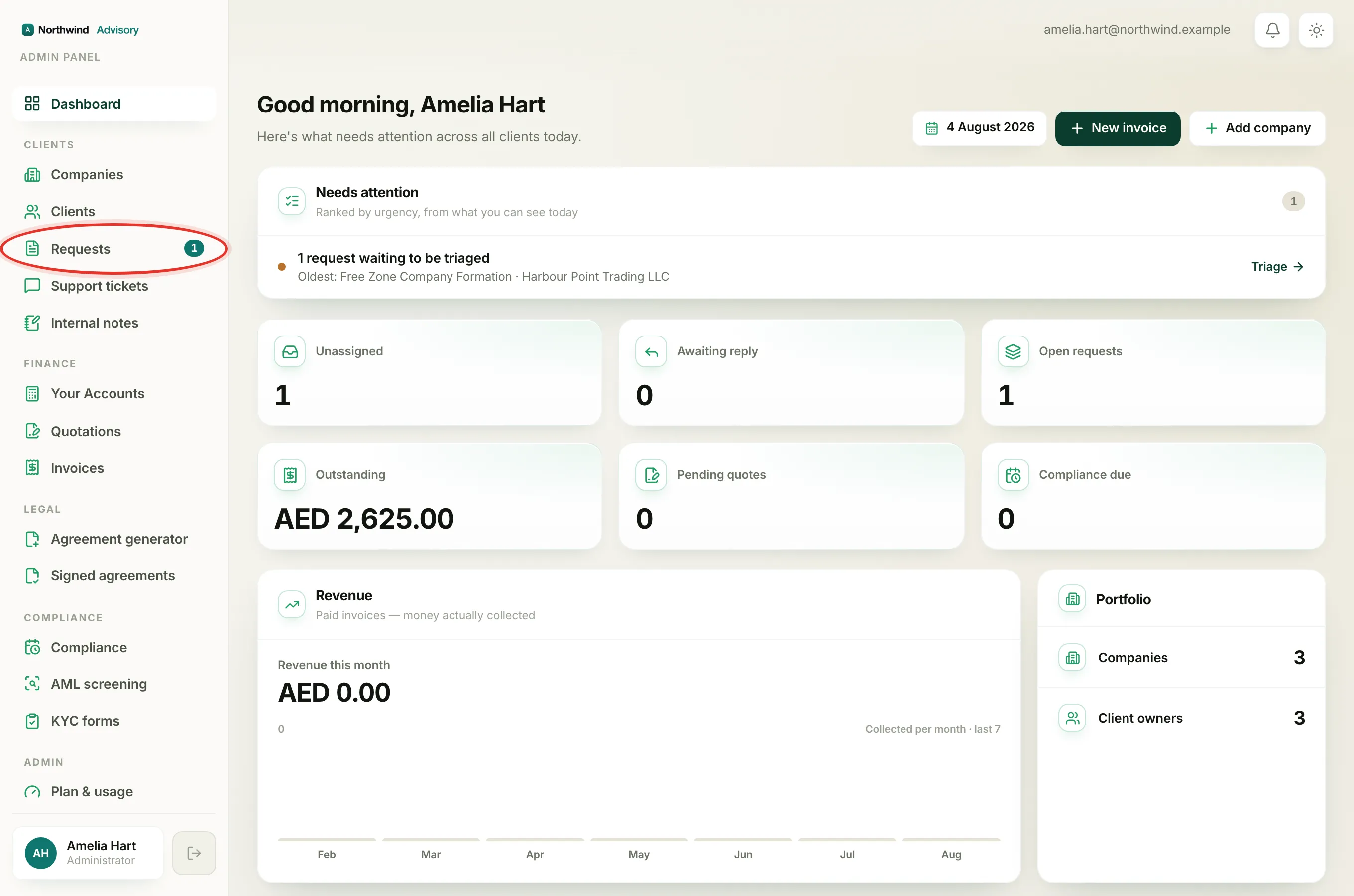
In the left menu, under Clients, the Requests item sometimes shows a small number next to it. That number is a count of service requests that have not been assigned to anyone yet. It is your firm's "nobody has picked this up" pile, shown right in the menu so it is hard to miss.
The same number appears on the phone tab bar. On a small screen the Requests tab at the bottom carries a little dot with the same count.
Note
This badge is about unassigned work only. It is not the same as the red count on the notification bell at the top right, which is about messages and updates meant for you. See Check your notifications.
What it counts
The badge counts every service request in your view that has no staff member assigned to it. As soon as a request is handed to someone, it drops out of the count.
- On the desktop menu, you see the exact number.
- On the phone tab, the number is shown up to nine. Above that it shows 9+ to keep the tab tidy.
- When the count is zero, the badge is hidden completely. No badge means there is nothing waiting to be picked up.
Who sees the badge
Not everyone sees this number, and that is on purpose. It is meant for the people who hand work out.
- Firm owners and admins always see it.
- Staff who can see all companies see it too.
- Staff who only see their own assigned companies never see this badge. For them it stays hidden, because sorting the unassigned pile is not their job.
So if a teammate has a number on Requests and you do not, that is usually the difference in what each of you is allowed to see. There is more on this in Why your dashboard differs from a teammate's.
When it clears
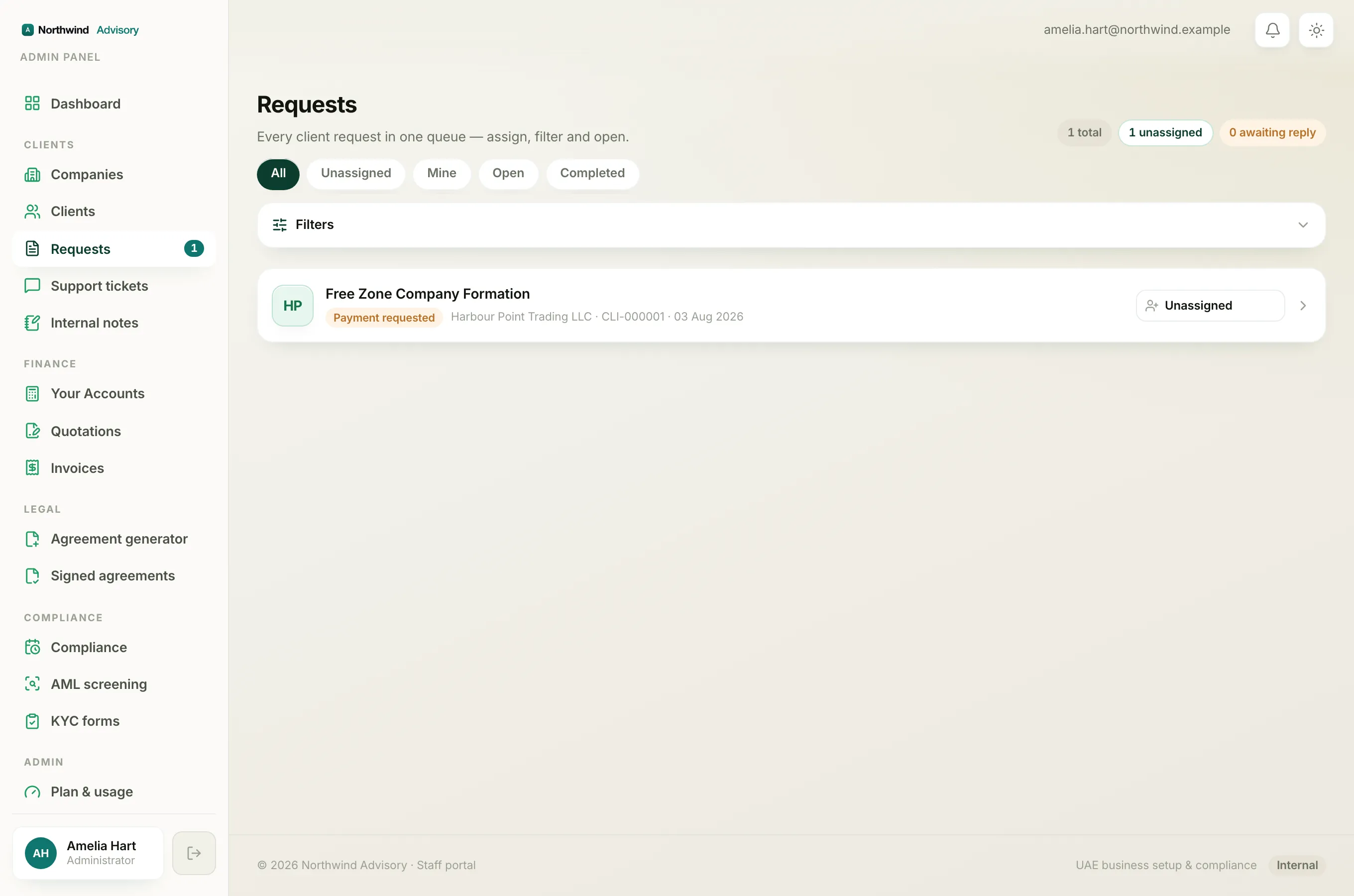
The badge goes down by one each time an unassigned request is given to a staff member, and it disappears entirely once every request has an owner.
- Log in to your workspace.
- In the left menu, under Clients, click Requests.
- Assign the waiting requests to yourself or a teammate.
- As each one is assigned, the count drops. When the last one is picked up, the badge vanishes.
To learn how to hand a request to the right person, see Assign a request to a teammate. For the full picture of the queue, see The Requests inbox explained.
Tip
Treat a stubborn number on Requests as a daily to-do. It means a client is waiting and nobody has been put on the job yet.