Why preview first
Sending an invoice is instant and cannot be undone, so it is always worth a last look. The Preview step builds the real, branded PDF, the exact document your client will receive, without saving anything and without sending anything. It is your safety net. You read it, and then you either go back and fix something or send it.
This works the same whether you are invoicing a brand-new lead from the Invoices page or raising an invoice for an existing company.
Preview an invoice
- Log in to your workspace.
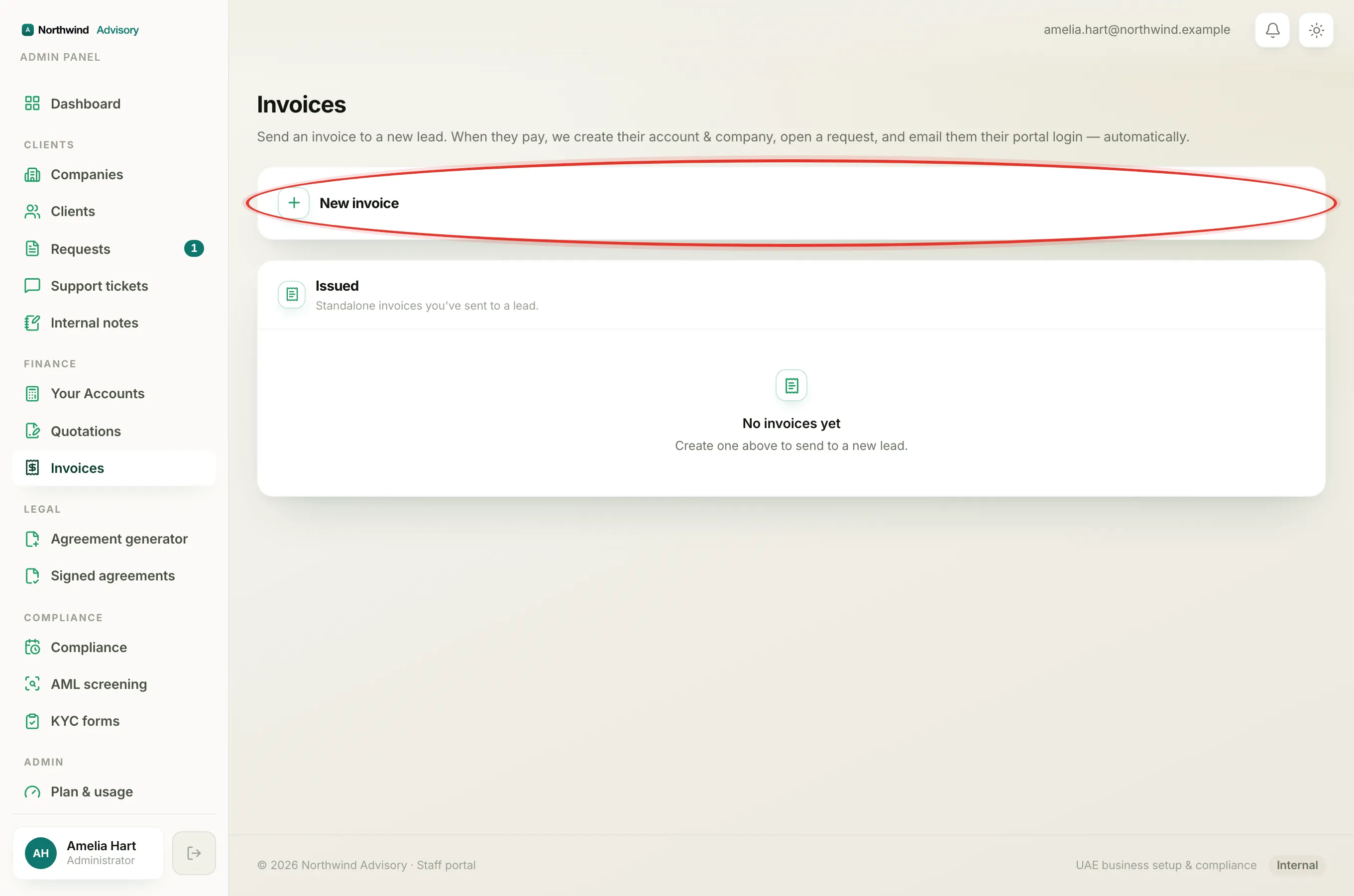
- In the left menu, under Finance, click Invoices.
- Click New invoice and fill in the recipient details and your line items.
- When it looks right, click Preview invoice at the bottom. It shows Generating… for a moment while it builds the PDF.
- The finished invoice appears right there on the page. Read it as your client would: the figures, the VAT, the totals, the recipient's name and the dates.
- To see it full size, click Open in new tab. To save a copy, click Download PDF.
Tip
Preview does not save a draft and does not send anything. You can preview as many times as you like. Nothing reaches the client until you press Send.
Fix something, or send
The builder stays open below the preview, so you can change a line, a figure, the date or the recipient and click Preview invoice again to see the update. When it is right, click Send invoice to issue it. The Send button shows the total amount, so you get one final check of the figure before you commit.
Important
Once you click Send, the invoice is issued and the email goes out immediately. There is no draft stage to hold it and no undo. If you do spot a mistake after sending, you can still cancel the invoice while it is unpaid and raise a fresh one. See Cancel an invoice.
If the preview will not generate
The preview needs the basics filled in first. If nothing happens, check that you have entered a recipient name or company, an email address, and at least one line item with a description and a rate. Fill in whatever is missing and try Preview invoice again.
Getting the PDF later
Once an invoice has been sent, you no longer need the preview. Every issued invoice has a PDF button on its row that downloads the same document at any time. See Download an invoice PDF.