Once you have generated an agreement and are happy with the wording, the last step is to send it out so everyone can sign. This is done from the agreement's own page.
Open the agreement
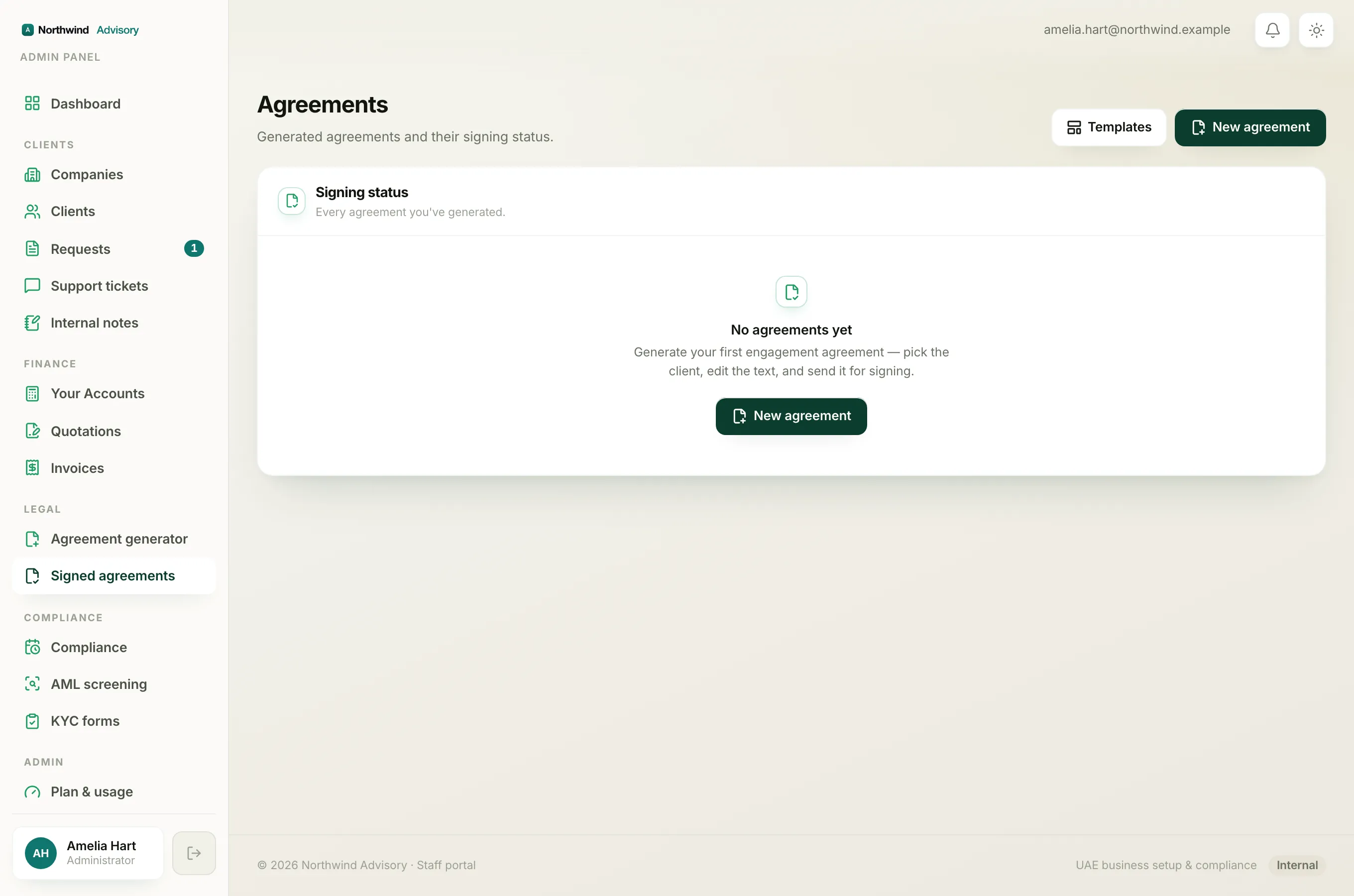
- Log in to your workspace.
- In the left menu, under Legal, click Signed agreements.
- In the list, click the agreement you want to send. It will show a Draft chip next to its title.
If you have only just created the agreement, you are already on this page.
Check it one last time
The agreement page shows a live preview of the PDF on the left, exactly as each party will receive it. On the right, under Signing, you can see who will sign:
- The first row is your own firm. It is already marked Signed, because your firm pre-signs when you send.
- Below that is each party you added, each showing Awaiting until they sign.
Read the preview through and make sure the parties, the service and the client details are correct.
Heads up
Sending is final. There is no draft recall once the emails go out. If anything is wrong, fix it before you send. You can still withdraw the agreement afterwards, but the parties will already have received it.
Send it
- On the right, find the green Ready to send card.
- Click Send for signing.
That is all. Here is what happens the moment you click:
- Your firm signs first (this is the pre-sign shown in the Signing panel).
- Every party is emailed their own private signing link plus a copy of the agreement PDF.
- Each party is also sent a one-time code by email when they open their link, so only they can sign. See How your client signs the agreement.
- A copy of the agreement is filed to your firm's own inbox for your records.
The status chip changes from Draft to Out for signing.
After you have sent
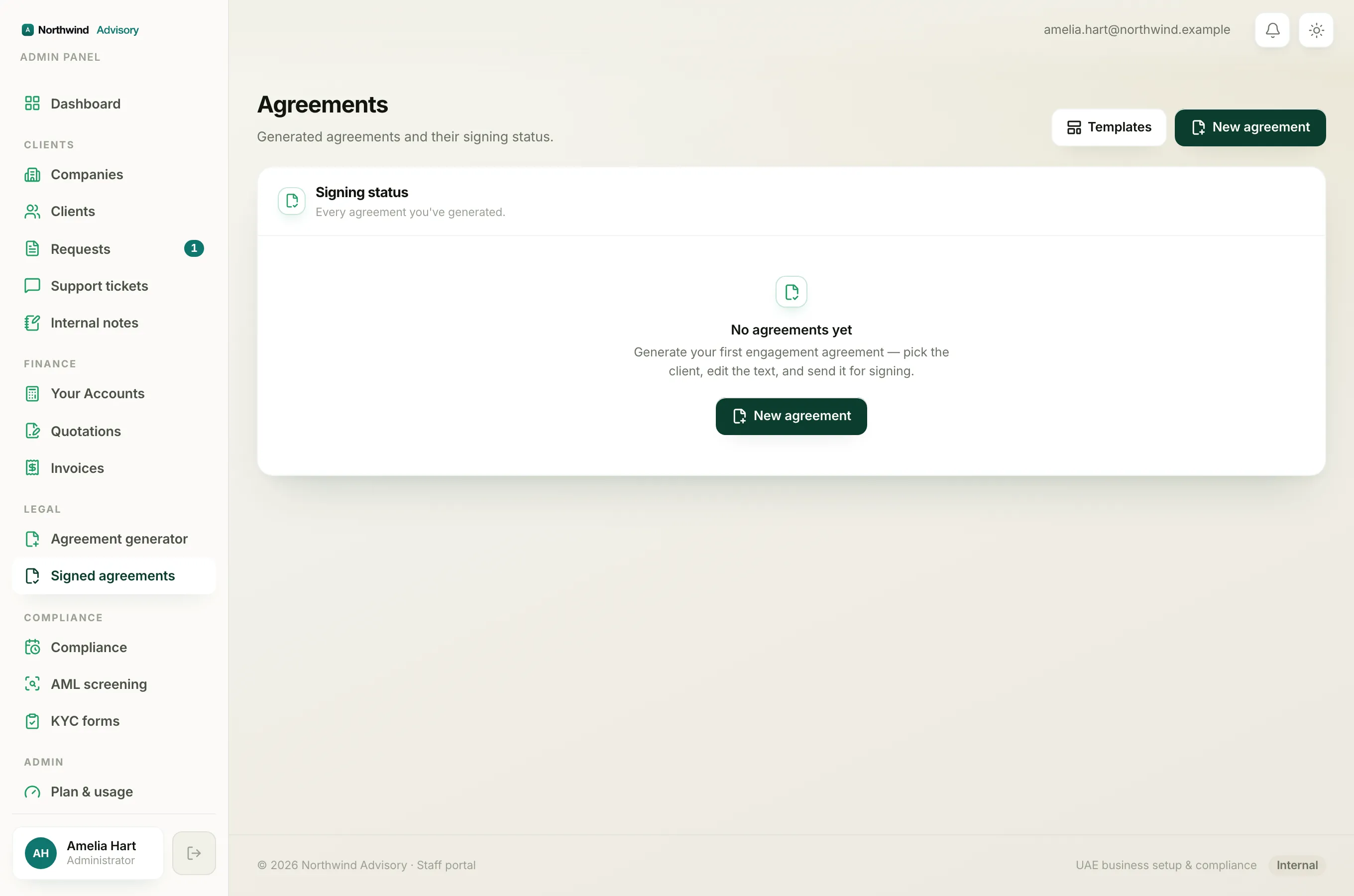
Once sent, the agreement page shows a Signing links panel listing every party and their link. You can copy any link and share it another way, for example over WhatsApp, if a party says the email did not arrive. See Copy or resend a party's signing link.
Note
Each signing link stays valid for 14 days. If a party has not signed in that time, the link stops working and you will need to send the agreement again.
As each party signs, their row in the Signing panel turns from Awaiting to Signed. When everyone has signed, the status becomes Signed and a fully-signed copy is emailed to all parties. You can then download the signed PDF.