Your plan gives you unlimited clients, invoices, quotations, accounting, documents and tasks, so you are never blocked from doing your normal work. Only a few things can run low, and each is easy to top up. This guide explains what happens and what to do.
Only two things are counted
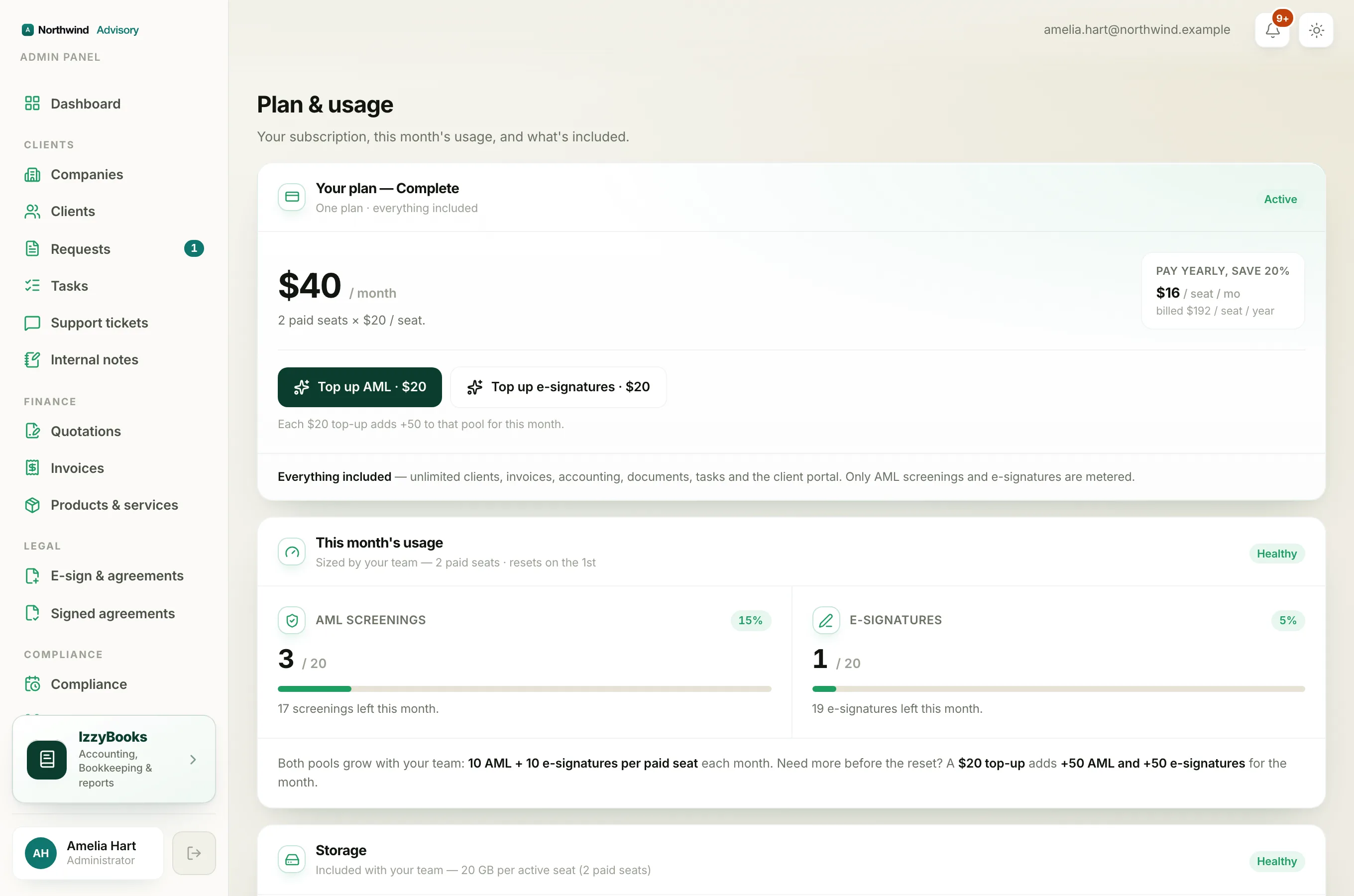
Each month you get a pool of AML screenings and a pool of e-signatures, sized by your team. If you use them all before the first of the month, new ones pause until the pool resets.
To carry on straight away, buy a one-off top-up. A $20 top-up adds 50 more to that pool for the month. See Understand usage and top-ups.
Adding a team member
Your plan is priced per seat, so to add a new staff member you need a free seat. If all your seats are in use, the seat count shows Full. Buy a seat, then add the person. See Buy or reduce staff seats.
During a free trial
Running low or out of your two monthly pools is different from your trial ending. If your free trial ends and you have not started a plan, your paid features pause, not only AML screenings and e-signatures. You cannot create new invoices, quotations, KYC forms, AML screenings, e-signatures or tasks until you start a plan. Nothing is deleted, and everything comes back the moment you subscribe. See What happens when your trial ends.
What is always free
Adding clients and storing documents are always free and never pause, even between plans. While your plan is active, raising invoices and quotations, running your books, and your other packages are all unlimited too, so the only things that can run low on a live plan are your two monthly pools and your staff seats.
Tip
If you find yourself topping up often, adding a seat or moving to the full bundle raises your monthly pools. See Choose or change your plan.