Cancelling a credit note is the clean way to undo one that was issued by mistake. It reopens the invoice the credit note voided and reverses the credit out of your books. Nothing is deleted, so your records show both the original credit note and its cancellation, which keeps a full audit trail.
When to cancel a credit note
Cancel a credit note when it was raised in error, for example against the wrong invoice, or when you decide the invoice should stand after all. Cancelling puts everything back the way it was before the credit note, so you can start again.
Open the credit note
- Log in to your workspace.
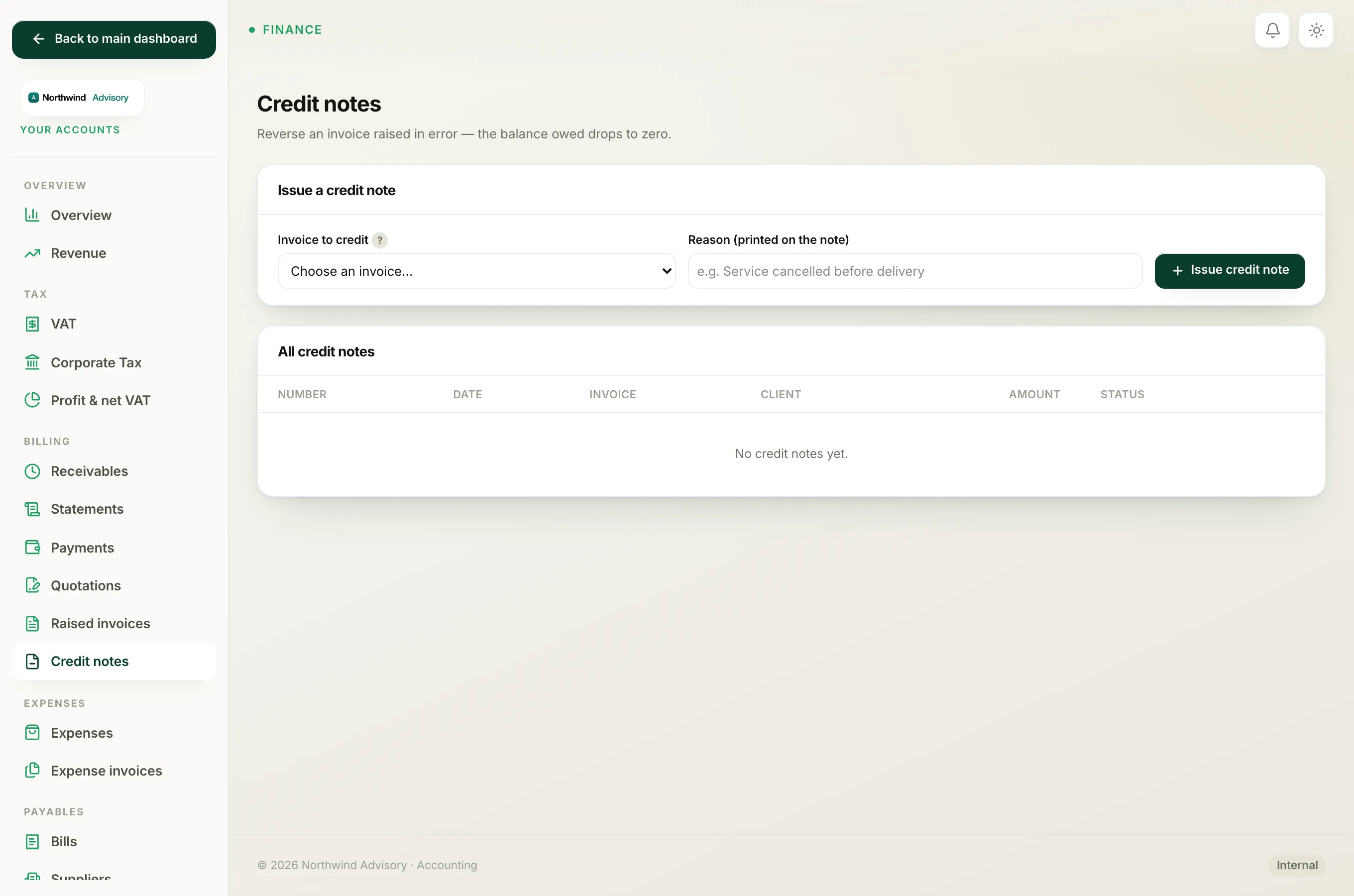
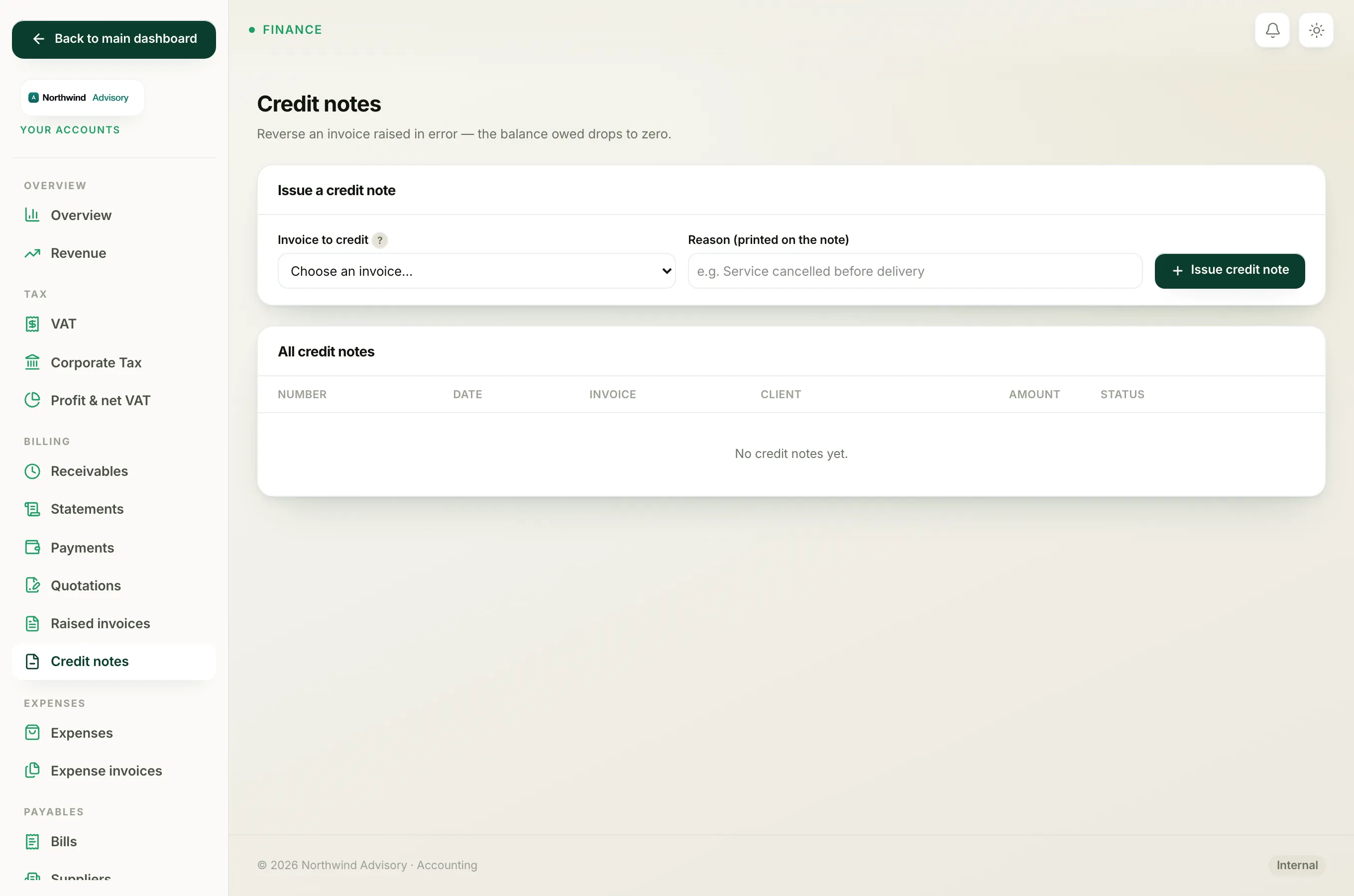
- In the left menu, under Finance, click Your Accounts.
- In the accounts menu, click Credit notes.
- In the list, click the credit note number (for example CRN-000001) to open it.
Cancel it
On the credit note's page, find the Issued in error? panel on the right. It explains that cancelling reopens the invoice and unwinds the credit from your books. Click Cancel credit note.
What happens next
- The invoice the credit note voided is reopened. Its status returns to Sent, or to Overdue if its due date has already passed. See What each invoice status means.
- The credit is reversed out of your books with a matching entry, so the books still balance.
- The credit note itself is marked Cancelled. It is not deleted, and its record and PDF are kept.
The page updates to confirm the credit note was cancelled and the invoice was reopened.
Only issued credit notes can be cancelled
The Cancel credit note button appears only on a credit note whose status is Issued. A credit note that has already been cancelled shows a note saying so instead, and cannot be cancelled again.
Note
If you are weighing up cancelling versus other ways to reverse a charge, see Cancel, credit note or refund: which one to use. To raise a new credit note after cancelling this one, see Issue a credit note against an invoice.