Every client has a one-page overview that shows where they stand right now. It is the first thing you see when you open a company, so you never have to hunt through tabs to answer "how much do they owe" or "what is open for them". This guide walks you through it from login.
Open the overview
- Log in to your workspace.
- In the left menu, under Clients, click Companies.
- Click the client you want to open.
- You land on the Info tab, with the Overview at the top.
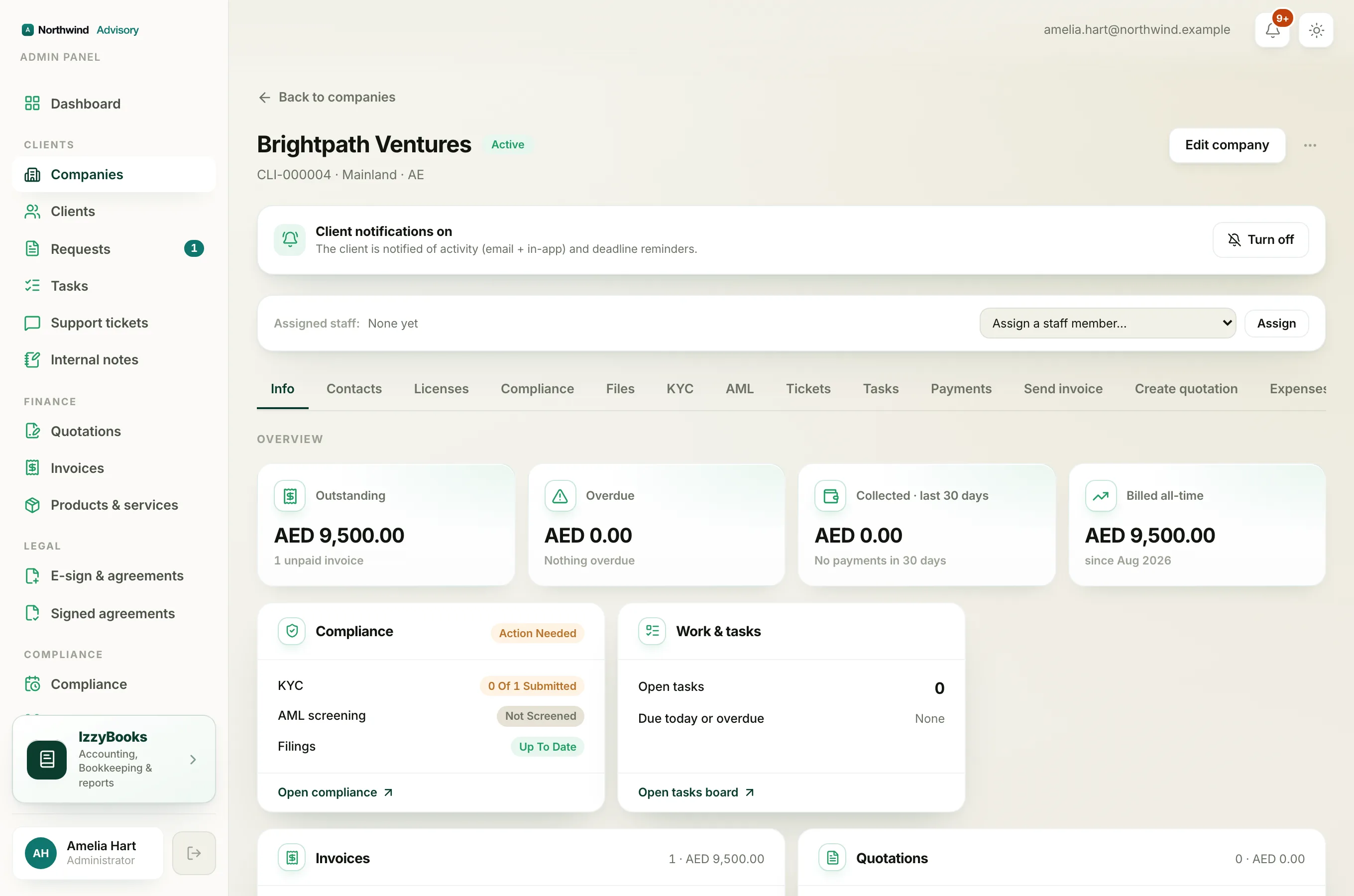
The money figures
Four figures sit across the top, all in this client's own currency:
- Billed all-time. Everything you have ever invoiced this client.
- Collected, last 30 days. What they have paid you in the past month.
- Outstanding. What they still owe you across all unpaid invoices.
- Overdue. How much of that outstanding total is past its due date.
The cards below
Under the figures, a set of cards each show what is open for this client and link straight to it:
- Compliance. Any open compliance items for the client, so nothing is missed.
- Latest ticket. Their most recent support ticket, with a link to view all tickets.
- Work and tasks. Open tasks for this client, including anything due today or overdue, with a link to the tasks board.
- Invoices. Their recent invoices. If there are none yet it reads No invoices yet.
- Quotations. Their recent quotations, or No quotations yet.
Note
A card only appears if your plan includes that part of the app. For example, the tasks card shows when your plan includes the work and tasks module.
Tip
The figures and cards update on their own as you raise invoices, take payments and close tasks, so the overview always shows the live picture.
Where to go next
- Raise a bill for this client. See How to create an invoice.
- See their full billing history. See A company's billing summary.