Open the Subscriptions dashboard
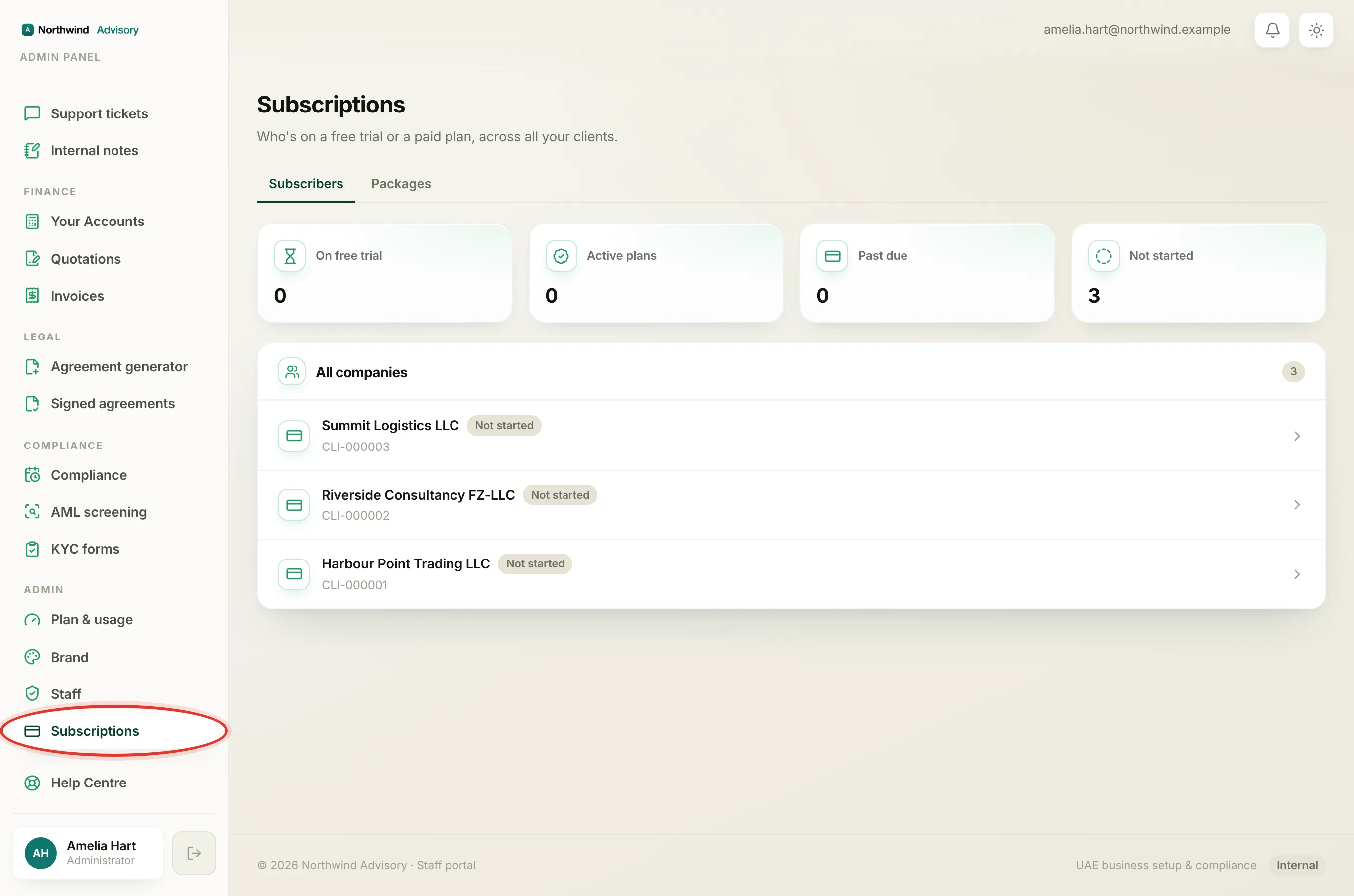
The Subscriptions dashboard is the one place that shows, across every one of your clients, who is on a free trial, who is on a paid plan, and who has not started yet.
- Log in to your workspace.
- In the left menu, under Admin, click Subscriptions.
Note
If you do not see Subscriptions in the menu, your staff role does not include the subscriptions permission. Ask an admin at your firm to open it up for you.
The four tiles at the top
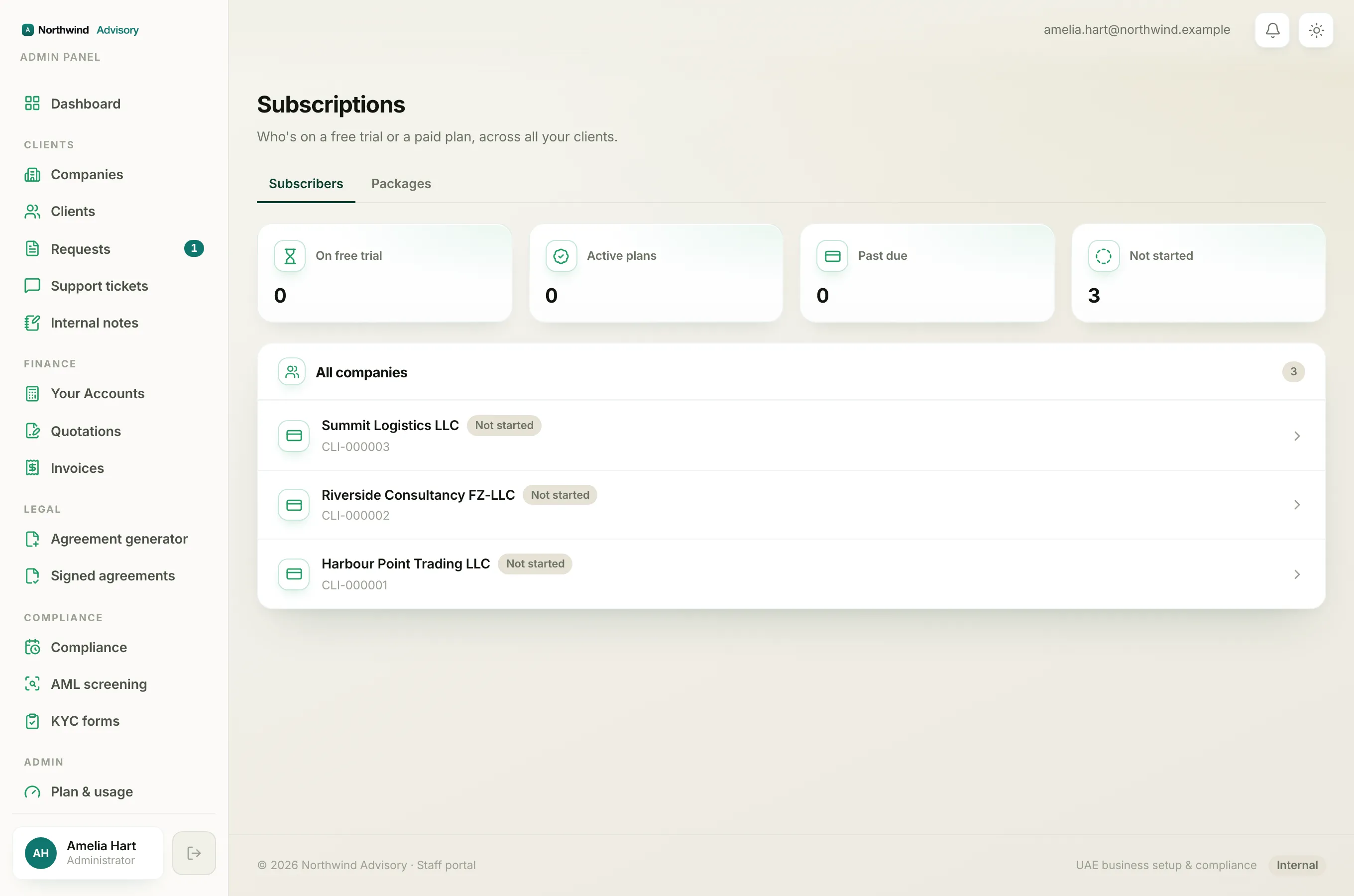
Across the top of the page are four count tiles. Each one is a running total across all your clients:
- On free trial counts the clients who are inside their free trial period.
- Active plans counts the clients on a live paid plan.
- Past due counts the clients whose payment has fallen behind. If this is above zero it shows a small Chase payment note, because these need a nudge.
- Not started counts the companies that exist in your workspace but have never begun a trial or a plan.
These tiles are a quick health check. A healthy book has most clients under Active plans, a handful On free trial, and nothing sitting in Past due.
The company list
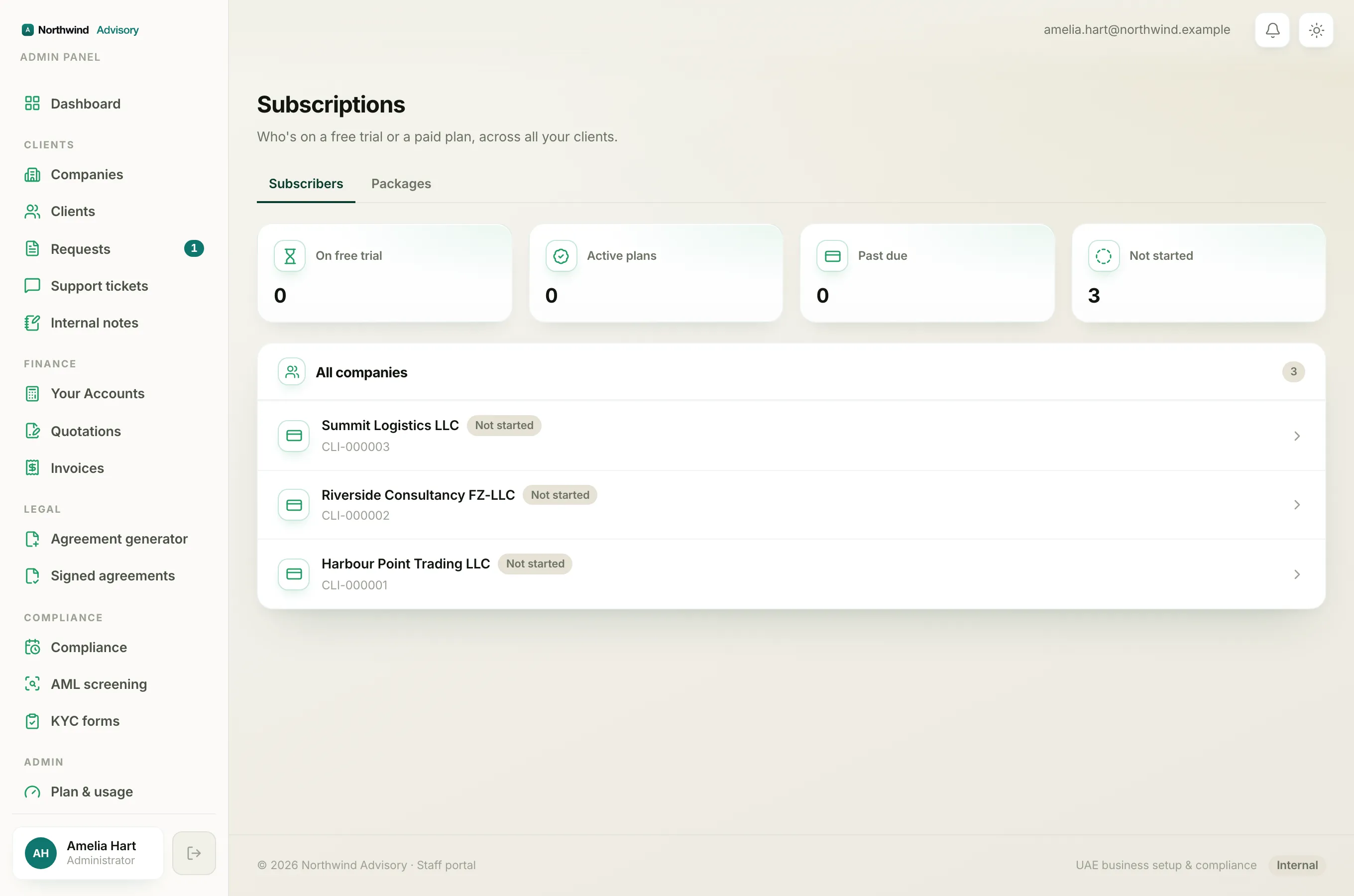
Below the tiles is an All companies list with one row per client. Reading a row from left to right:
- The company name.
- A coloured status chip (for example Trialing, Active or Past due). For the full meaning of each one, see What each client subscription status means.
- An amber Change requested chip, shown only when that client has asked to change their plan and is waiting on you. See Approve a plan change request.
- Underneath, the client's client code, and where a plan exists, the plan name, the billing cycle, and whether it is paid by card or manual (bank transfer).
- On the right, either Trial ends with a date or Renews with a date, so you can see what is coming up.
Click any row to open that client's full subscription page, where you can see their usage this period and take action, such as activating a plan or cancelling one.
Tip
Work the amber items first. A Past due chip or a Change requested chip means a client is waiting on you or owes you money, so those rows should never sit untouched.
Where to go next
- To turn a bank-transfer payer into a live paid plan, see Activate a client's plan paid by bank transfer.
- To understand why a client cannot use their tools, see Why a client is locked.