What a plan-change request is
A client can ask to move to a different plan from their side. When they do, IzzyTap does not switch them over on its own. It waits for you to approve it. Until you act, the request sits on that client's subscription as an amber Change requested flag.
This article shows you how to find that request and deal with it.
Note
Only staff with the subscriptions permission can see and manage this. If you cannot see the Subscriptions area at all, ask an admin. See Which staff roles can build and send KYC for how roles work in general, or ask whoever set up your team.
Step by step
- Log in to your workspace.
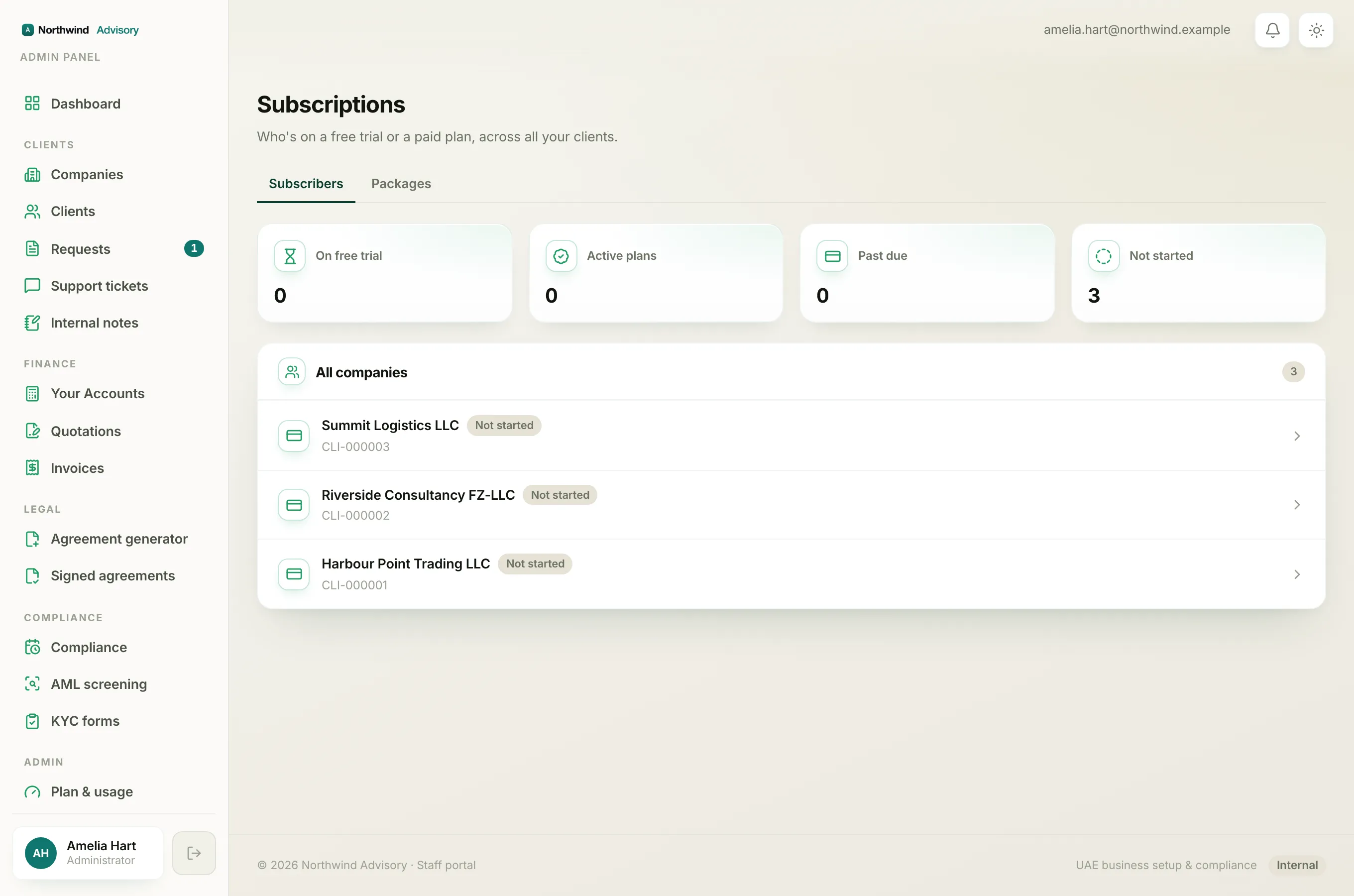
- In the left menu, under Admin, click Subscriptions.
- On the list, look for the row with the amber Change requested chip. That is the client waiting on you. Click the row to open their subscription.
- At the top of the page you will see an amber box titled Plan change requested. It tells you exactly what they asked for, for example the plan name, the billing cycle (monthly or annual), and the date they requested it.
- Decide what to do:
- To grant it, click the green Activate button (it shows the plan name, for example Activate Growth).
- To turn it down or handle it another way, click Dismiss.
What Activate does
Clicking Activate sets the requested plan live straight away. It is treated as a bank-transfer (manual) activation, so no card is charged. The Change requested flag clears, and the client is notified that their new plan is now active.
Use this when you are happy for them to move, and any payment side of it has been sorted out between you.
What Dismiss does
Clicking Dismiss clears the request without changing their plan. The client is sent a short note saying you have reviewed their request and they should contact you to proceed.
Use this when you do not want to switch them automatically, for example you need to collect payment first, or you want to talk to them before anything changes. Their current plan stays exactly as it was.
Tip
Dismiss does not cancel or downgrade anything. It only clears the pending request. The client keeps whatever plan they are already on.
After you act
The amber box disappears once you Activate or Dismiss, and the Change requested chip clears from the Subscriptions list. If you activated, the new plan and billing cycle now show on the subscription page.
To set a plan live from scratch (not from a client request), see Activate a client's plan by bank transfer. To understand the numbers on the main Subscriptions screen, see Understand the Subscriptions dashboard.