Two things tell you where a request stands
Every request shows a coloured status label in your list, and a progress stepper once you open it. Together they tell you which stage the work has reached and whether anything is waiting on you.
The status label in your list
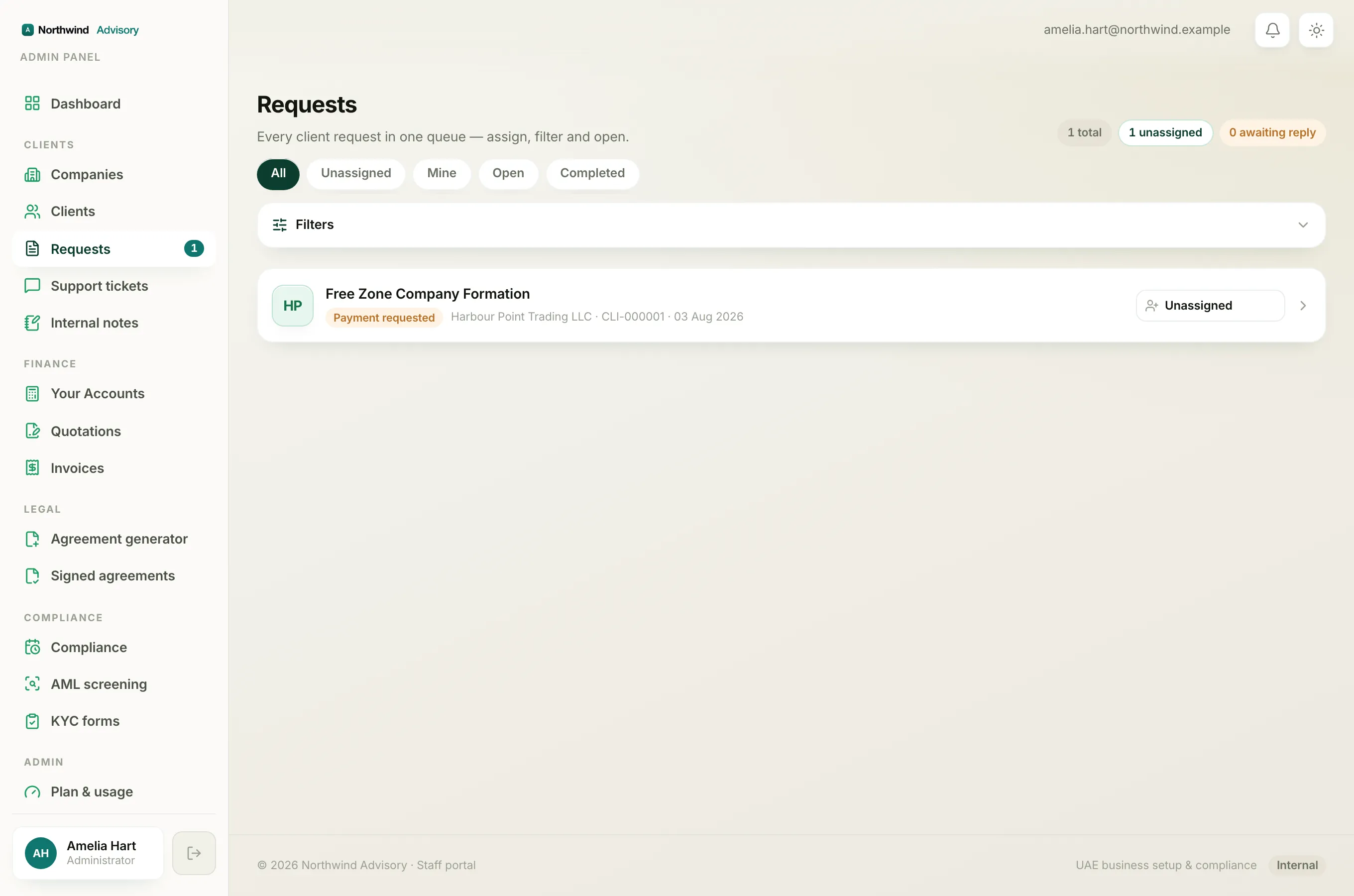
- Sign in to your portal.
- In the left menu, under your firm's workspace, click Requests.
- Each request shows a coloured pill on the right. The label tells you the stage:
- Action needed (amber): your firm has asked you for documents. Open the request and reply with the files.
- Payment due (amber): a payment has been requested. Open the request to see the amount and pay.
- In review (grey): your firm is working on it. Nothing is needed from you right now.
- Completed (green): the work is finished.
Amber always means the ball is in your court. Grey means it is with your firm.
The progress stepper inside a request
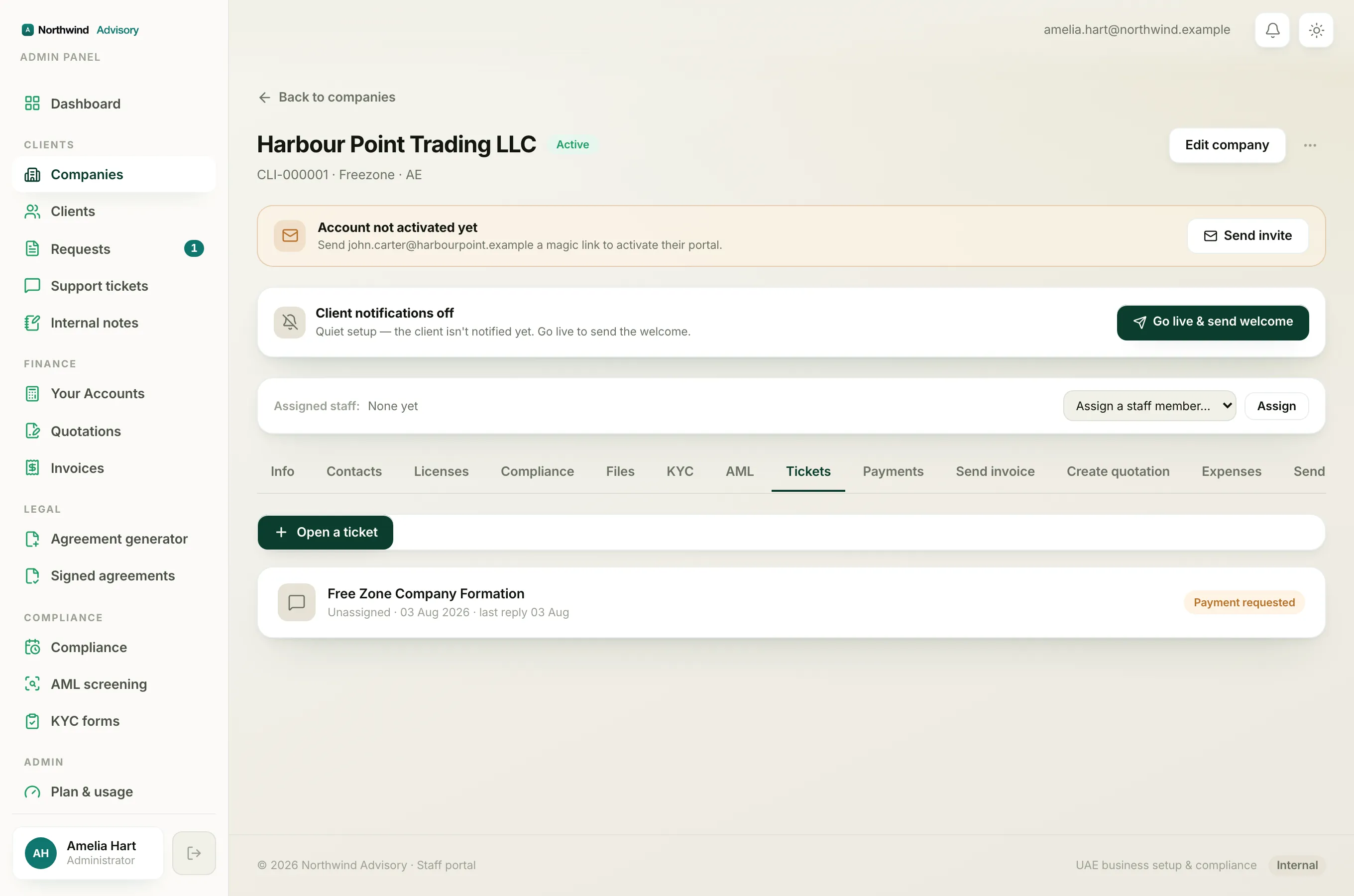
- Click a request to open it.
- Below the title you will see the stepper with four stages: Documents, Payment, Review and Completed.
Each stage lights up as the work moves along:
- A blue circle is the stage you are on now.
- A green tick is a stage that is done.
- A grey circle is a stage still to come.
The request moves through the stages in order: your firm gathers any Documents, then handles Payment if there is a fee, then does the Review work, and finally marks it Completed.
Reading the top of the request
At the top you will see when it was Submitted and either the name of the staff member it is Assigned to or Awaiting assignment. Click Submitted details to reopen the answers you sent when you raised the request.
What the messages tell you
As your request moves along, notes appear in the conversation:
- A small centred note reads Status updated to the new stage, so you can see each change.
- An amber Documents requested card lists exactly which papers your firm needs. See Send documents your firm has asked for.
- A blue Payment requested card shows the amount with VAT and a way to pay.
- A green Payment received badge confirms a payment went through.
- A Quotation card gives you a Review & accept button when a quote is waiting. See Review, accept, and sign a quotation.
Tip
When a request shows an amber label, open it and scroll to the newest card. It will tell you whether documents or a payment are needed, and give you the box or button to respond.
To send a message or a file at any point, use the reply box at the bottom of the request. See Reply and attach a file in a request thread.