When an AML check finishes, IzzyTap opens the screening's own page. This is the report. It tells you the verdict, lists every alert that was found, and is where you record a decision on each one and get the file signed off.
This guide walks through that page from top to bottom. If you have not run a check yet, start with How to run an AML screening.
Open a screening
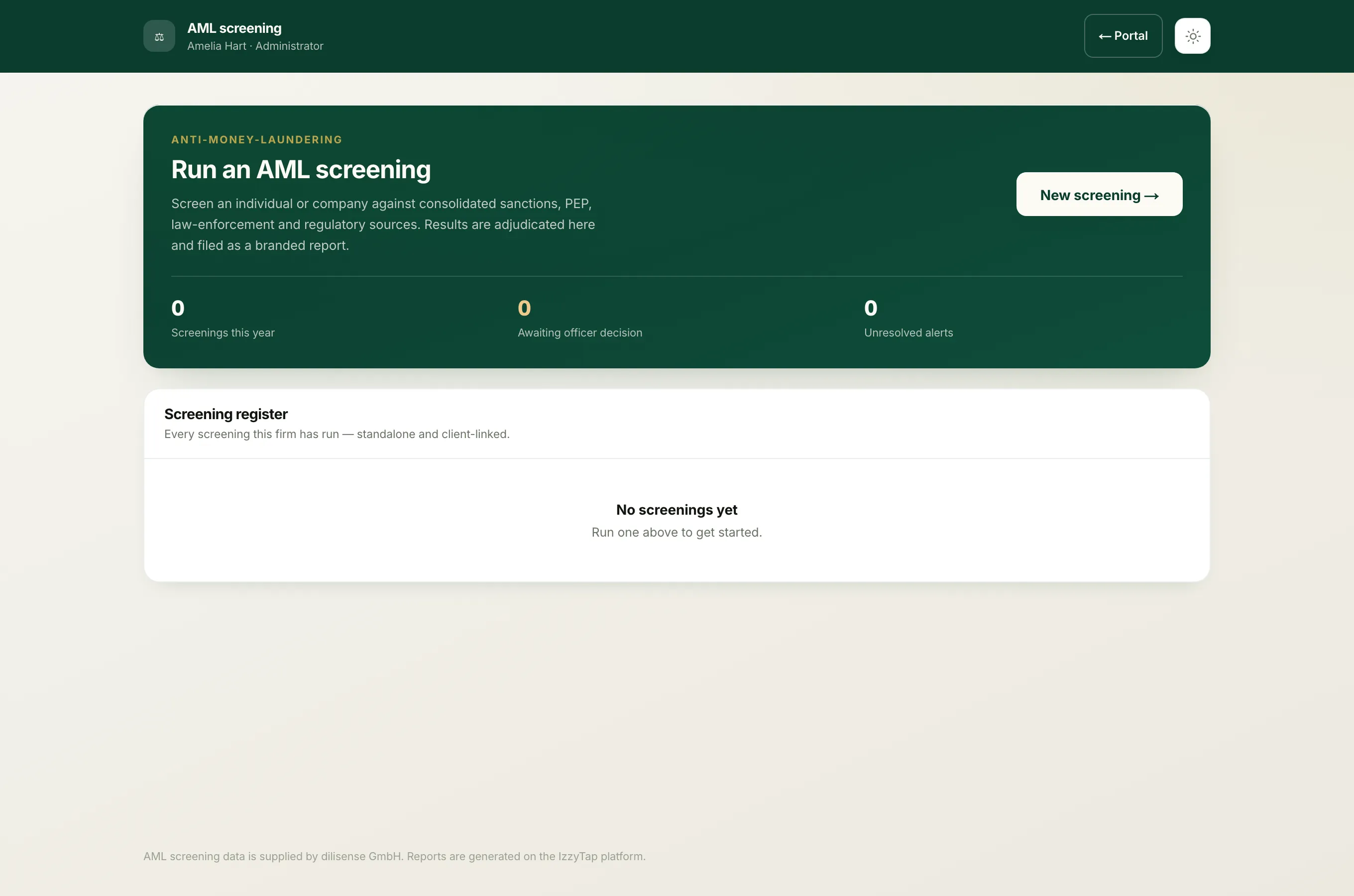
- Log in to your workspace.
- In the left menu, under Compliance, click AML screening.
- Scroll to the Screening register. This lists every check your firm has run.
- Click the subject's name to open their report.
Read the top of the page
At the top you will see the subject's name, whether they are an Individual or a Company, their date of birth and nationality if you supplied them, the date screened and a reference number that starts with AML-. If the check was linked to a client, the company name is shown here too and you can click it.
Just below sit three summary tiles:
- Automated shows the total number of alerts the machine found, before any human review.
- Adjudicated shows the overall risk once alerts have been dealt with. It reads Clear when nothing was found, otherwise low, medium or high. It also shows how many alerts are still unresolved.
- Progress shows how many alerts you have decided out of the total.
Important
A large alert count does not mean the person is guilty of anything. As the yellow note on the page says, the number reflects name similarity against risk databases, not a confirmed identity match. Many alerts are simply other people who share a similar name. Your job is to work through them.
Work through the alerts
Each alert is shown as its own card. A card that still needs your attention is marked Needs decision. A card the system already settled on its own carries an Auto tag.
Every card shows two things side by side:
- Matching, which is why the record came up, for example name similarity on a sanctions source.
- Contradicting, which is any detail that rules the alert out, for example a different date of birth or nationality. If it says none is available, the alert cannot be excluded on the data alone and needs a careful human decision.
Record a decision on an alert
- On an alert card, click Record a disposition. To revisit one you already decided, click Change disposition.
- Choose the option that fits:
- Confirmed match, this really is the same person.
- Probable match.
- Unresolved, you cannot yet tell.
- Probable false positive.
- False positive, a different person.
- In the Reasoning box, write in plain words why. This is required and it is printed on the report. For example, date of birth differs by 27 years, so this is a different person.
- Click Save disposition.
Tip
Alerts the system cleared for you are tucked away. Look for the line that says a number were auto-disposed and click Review all to open them. Each one records the exact identifier, such as a clashing nationality, that cleared it. Nothing is ever hidden from you.
Refer the file for approval
A screening is not a finished compliance check until your compliance officer signs it off. Once you have dealt with the alerts, scroll to the Refer for approval panel.
- If your firm has a compliance officer set up on the team, keep Officer in the team selected and pick their name from the list. They will decide inside their own workspace.
- If you want to send it to someone outside IzzyTap, click External email and type their address. Tick Save as this firm's default so you do not have to type it again next time.
- Add a short Note if there is anything the officer should know. This is optional.
- Click Refer for approval. IzzyTap attaches the report as a PDF, records the referral on the file and, for an external address, sends a secure one-time link they use to approve or decline.
After you refer it, the page shows Awaiting the compliance officer with the date and who it went to.
Note
An external officer decides from the secure link in the email, not by replying. The file then records their own decision and timestamp, which is exactly what an auditor expects to see.
The compliance officer's decision
If you are the compliance officer, referred files appear when you open AML screening, under Awaiting your decision.
- Log in to your workspace.
- In the left menu, under Compliance, click AML screening.
- On a waiting case, click Read the report and read it in full.
- Type a Reason for your decision. This is required whether you approve or decline.
- Click Approve or Decline.
Once a decision is recorded, the screening page shows it clearly as Approved or Declined, with the date and the reason.
Download the report as a PDF
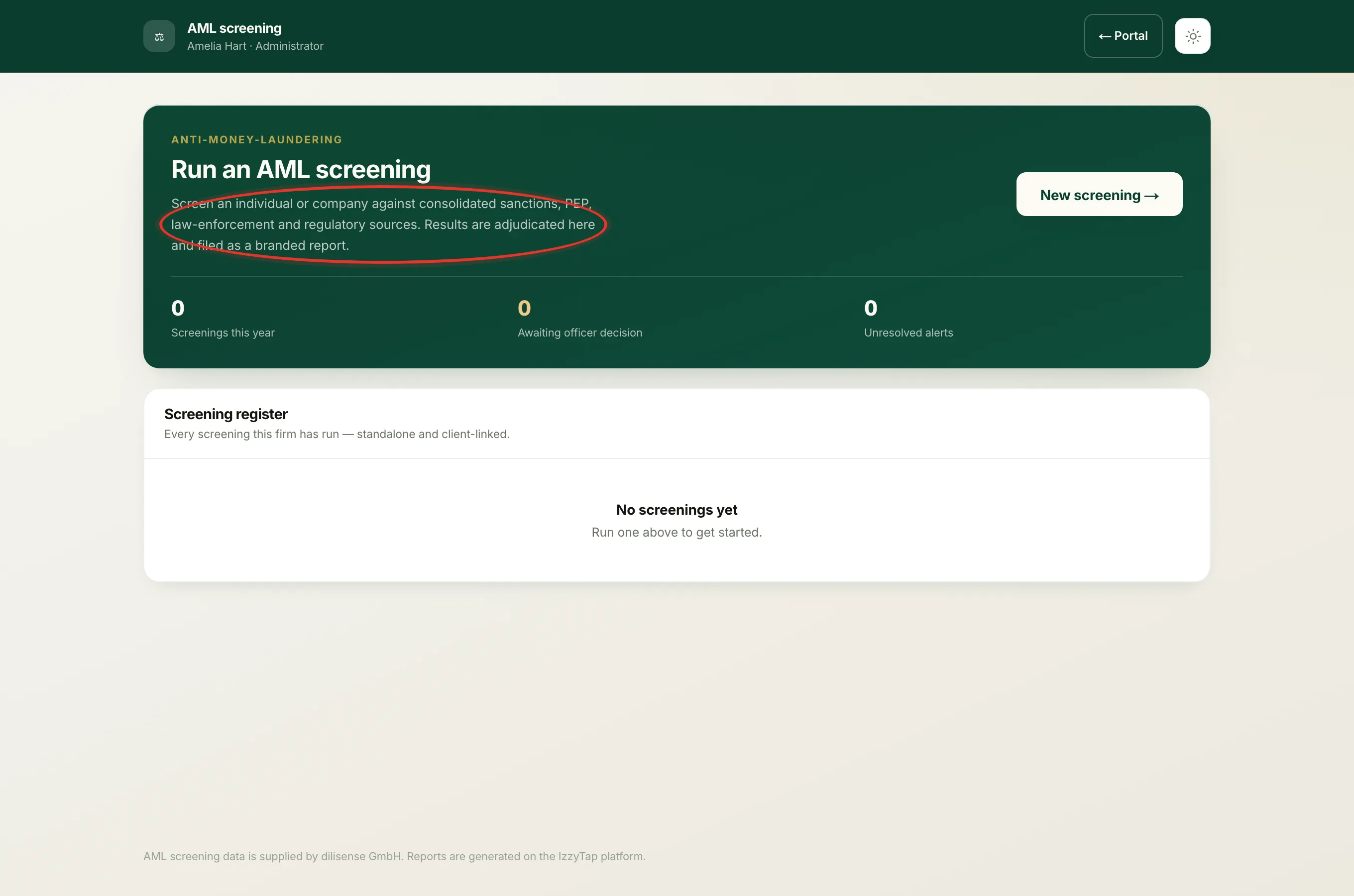
At any time you can save a copy. On the screening page, click the Report button near the top right. You can also click Report on any row in the Screening register. The PDF is branded for your firm and always reflects the latest dispositions and the officer's decision.
Important
AML screening results and the report are internal only. They are never shown to your client.