When you send an agreement, every party is emailed their own private link to sign. Sometimes an email does not arrive, or a client asks you to send the link another way. You can copy each party's link straight from the agreement page and share it yourself.
Open the sent agreement
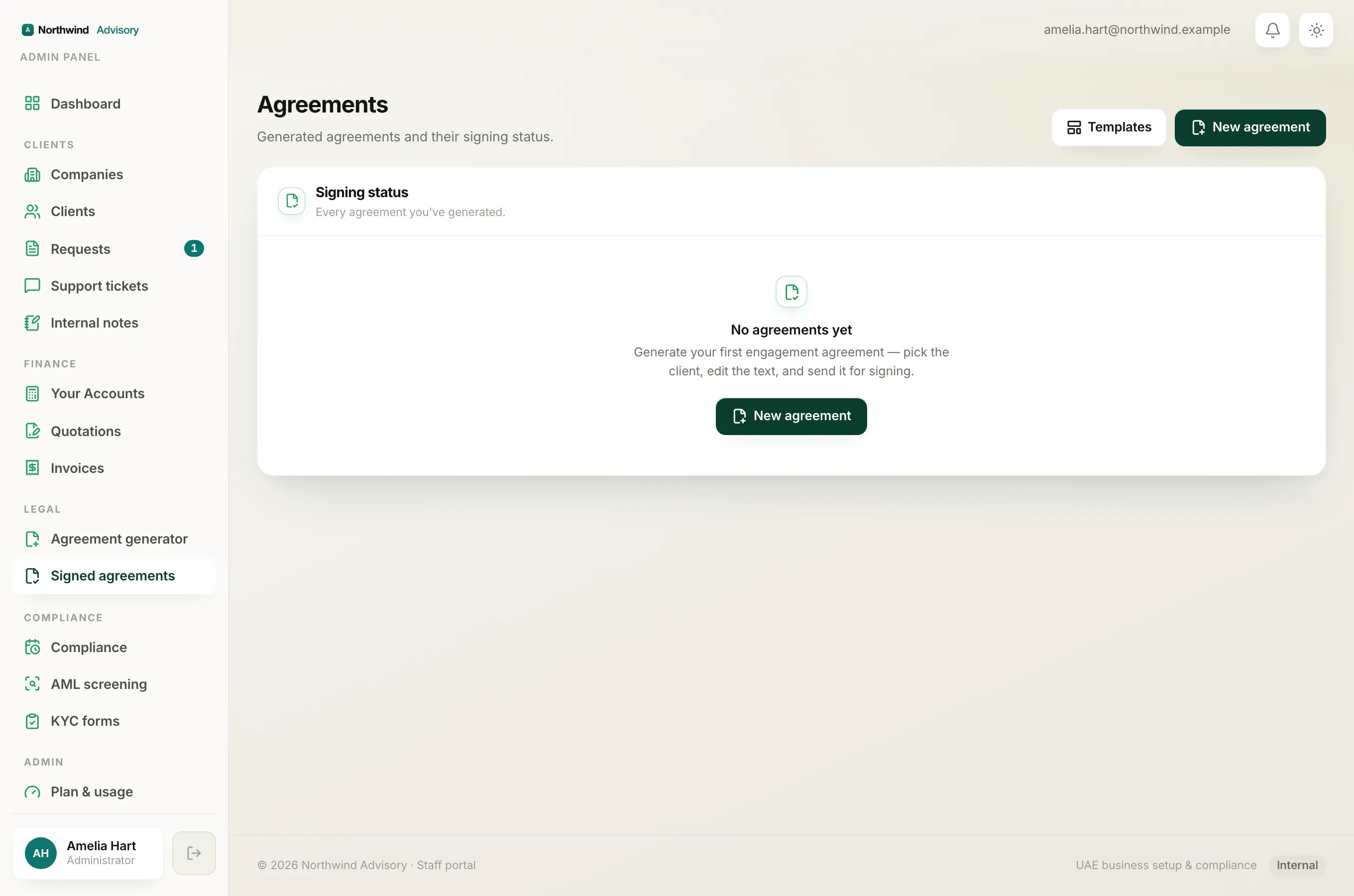
- Log in to your workspace.
- In the left menu, under Legal, click Signed agreements.
- Click the agreement you want. It must show the Out for signing chip. If it still says Draft, you have not sent it yet, so send it first. See Send an agreement out for signing.
Find and copy a party's link
On the right of the agreement page you will see a Signing links panel. It reads "Sent by email, share manually if needed." Under it, each party is listed with their own link below their name.
- Find the party you want in the list.
- Select their full link and copy it. On a phone, press and hold the link, then choose Copy.
- Paste it into WhatsApp, a text message or wherever you need.
Each link is private to that one person. Only send a party their own link, not someone else's.
See who has signed
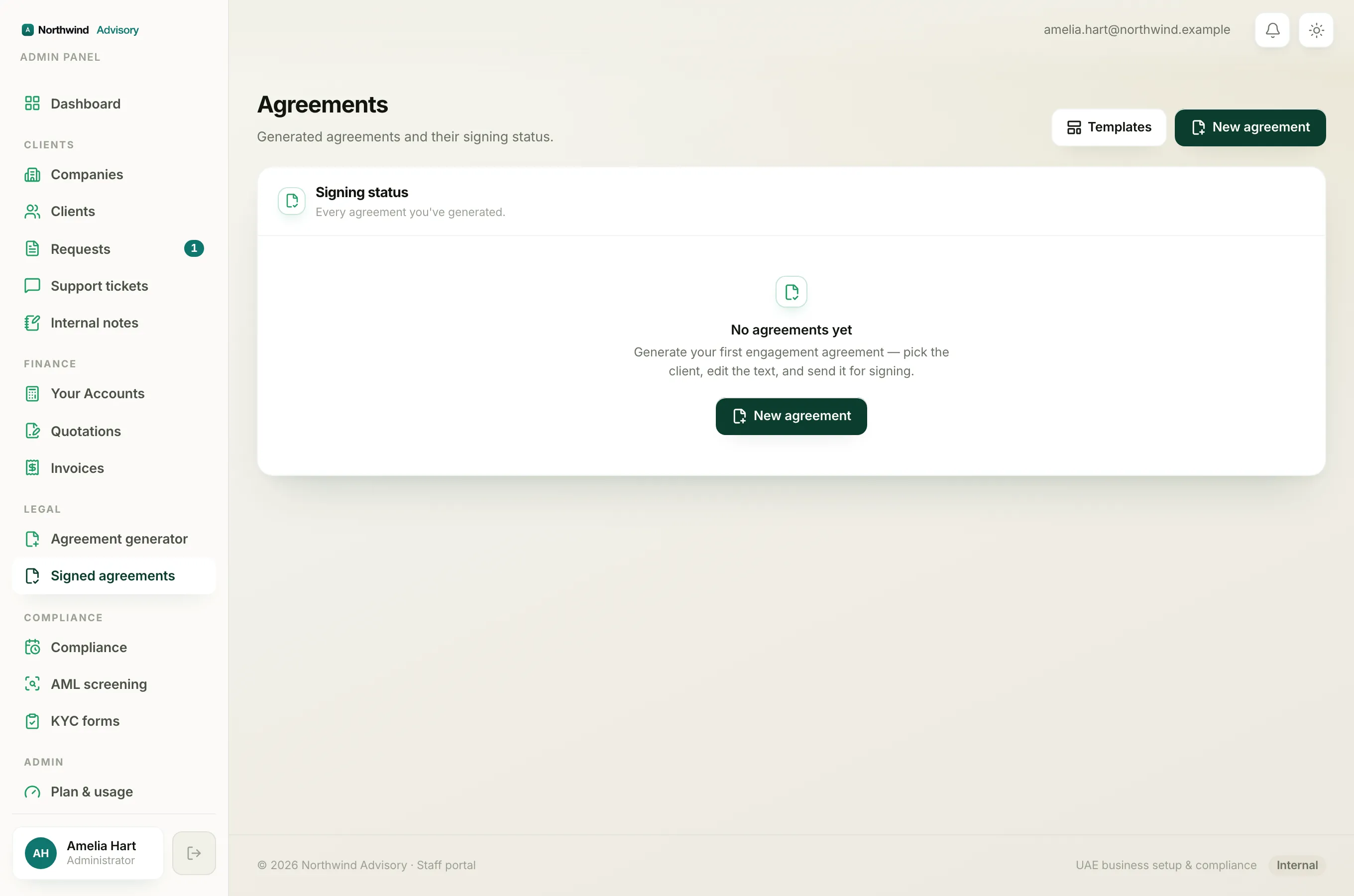
The same panel shows a green tick next to the name of anyone who has already signed. You can also check the Signing panel just above it, where each party shows either Signed in green or Awaiting in amber. Your own firm's row always shows Signed, because your firm signs first when the agreement goes out.
Note
Signing links stay valid for 14 days from when you sent the agreement. If a link has lapsed, copying it will not help, because it will no longer open. In that case send the agreement again to issue fresh links.
If a client still cannot open or sign after you share the link, see The client cannot open or accept the agreement.