Two kinds of folder
On a company's Files tab, every folder you create is one of two things:
- Shared with the customer. The client sees the folder and everything in it in their portal.
- Hidden, admin only. The folder and its files are for your team only. The client never sees it or knows it exists.
Use a hidden folder for working papers, internal drafts, or notes-to-self you do not want the client to open. Use a shared folder for anything the client should be able to see and download.
Note
This choice only applies to folders you create. The built-in Issued documents and Provided by client folders are always part of the client's view, and the Invoices folder is managed for you. None of those three can be hidden.
Set it when you create the folder
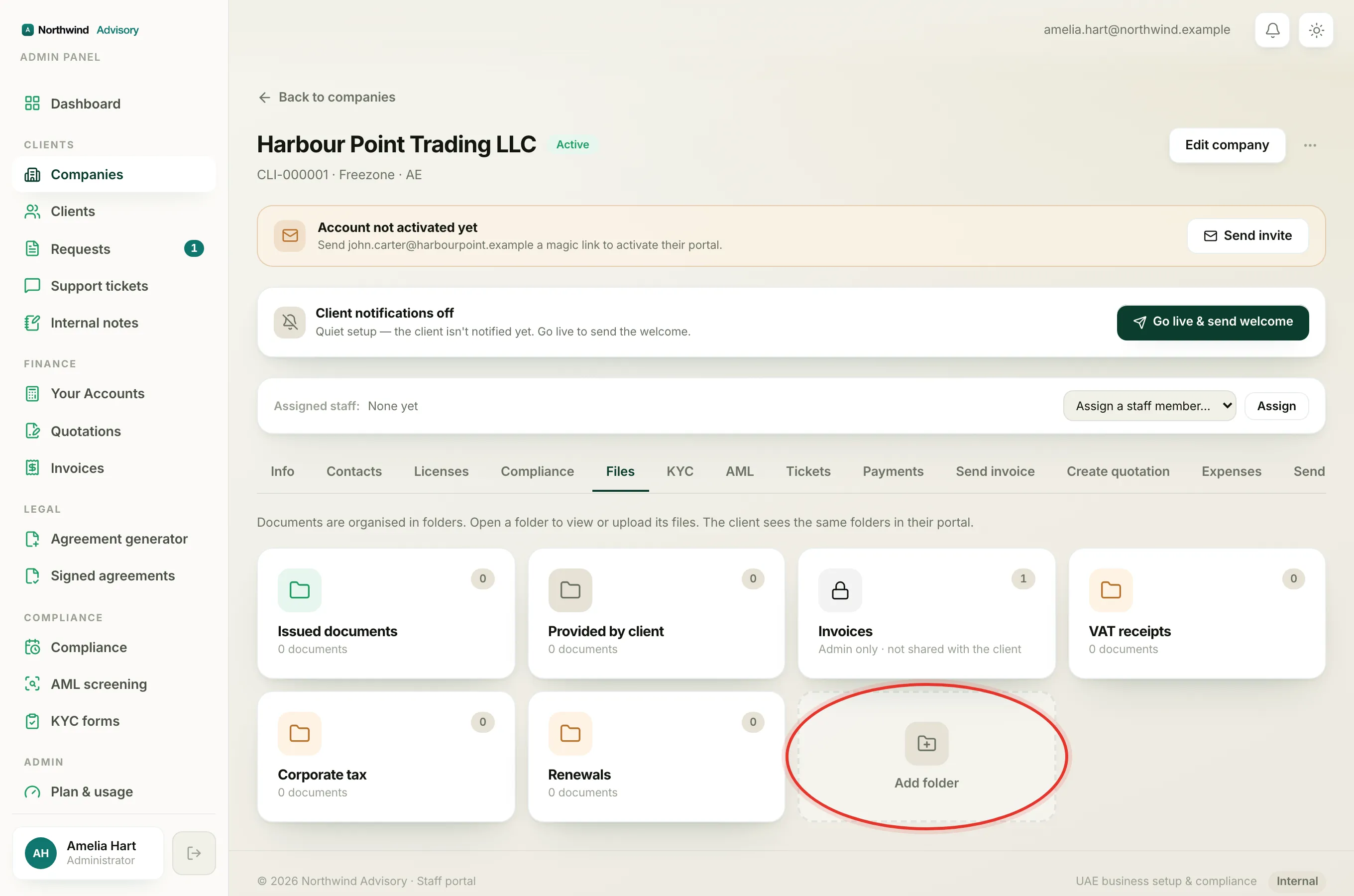
- Log in to your workspace.
- In the left menu, under Clients, click Companies.
- Open the company and click the Files tab.
- Click the Add folder tile and type a name.
- Under the name, choose one:
- Share with customer (selected by default).
- Hidden, admin only.
- Click Create folder.
Change a folder from shared to hidden, or back
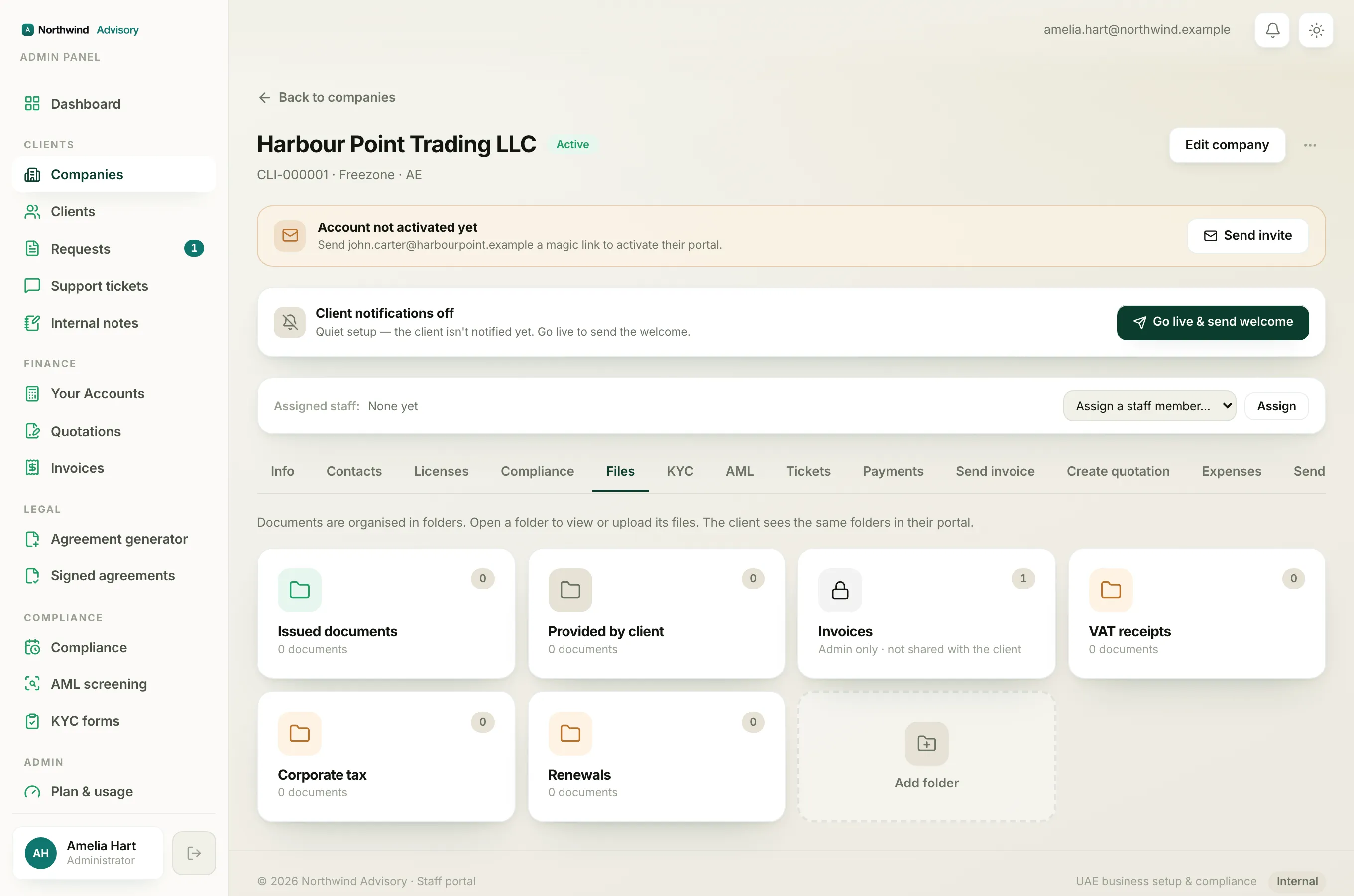
You can switch a folder's visibility at any time.
- On the Files tab, find the folder card.
- Click the menu (the three dots) on the card.
- Choose Hide from customer to make a shared folder private, or Make visible to share a hidden one.
- Confirm on the short prompt. For hiding it reads Hide from customer? They won't see it or its files. For sharing it reads Make visible to customer? They'll see this folder & its files.
The change takes effect straight away.
How to tell them apart at a glance
A hidden folder looks different in the grid. It carries a small lock icon instead of the usual folder icon, and under its name it reads Admin only · not shared with the client. A shared folder shows the normal folder icon and its document count.
What the client actually sees
When a folder is shared, the client sees the folder and can open and download the files inside it from their portal. When it is hidden, the folder simply does not appear for them, and neither do the documents in it. For the full picture of the client's side, see what clients see.
Important
Hiding a folder hides it from the client only. Your whole team can still see it. It is not a private, per-person space. Do not use a hidden folder to keep something from your own colleagues.
A note on internal costs
Hidden folders are a natural home for documents tied to your own costs and margins on a client, which feed the profit view described in see what a client is really worth. Keeping those in a hidden folder means the numbers stay on your side of the fence. For the wider layout of the Files tab, see organise a client's files in folders.