When to use this
Most of the time a plan goes live when a card is charged. But plenty of clients pay by bank transfer instead. Once the money has landed in your account, you set their plan live by hand. This puts them on a real paid plan straight away, and no card is involved.
Note
This is a staff action and needs the subscriptions permission. If you cannot see the Subscriptions menu item or the activation form, ask an admin at your firm to give you access.
Open the client's subscription page
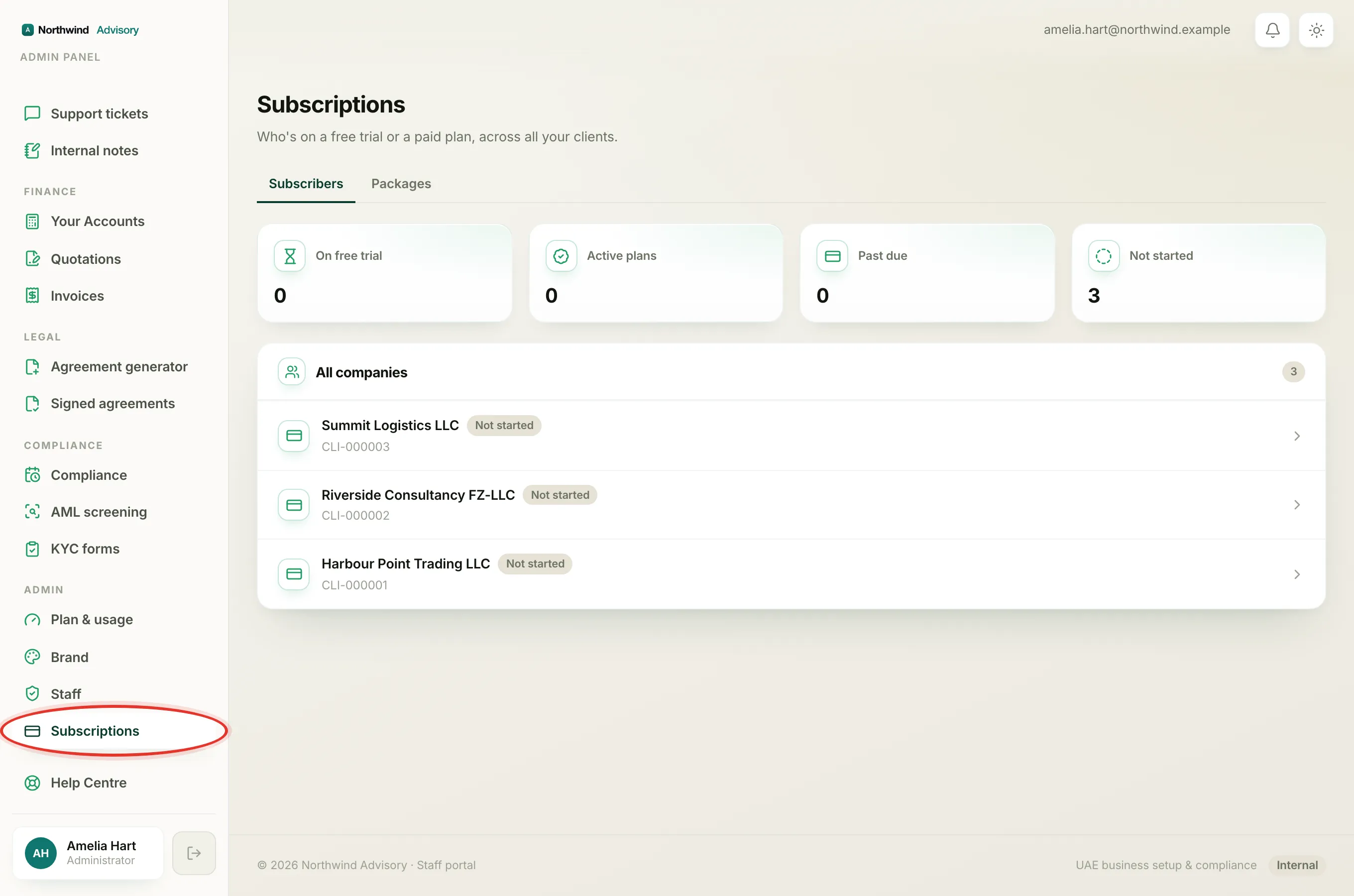
- Log in to your workspace.
- In the left menu, under Admin, click Subscriptions.
- Find the company in the All companies list and click its row.
The client's subscription page opens. It shows their current Subscription details and their Usage this period. Scroll down to the actions.
Activate the plan
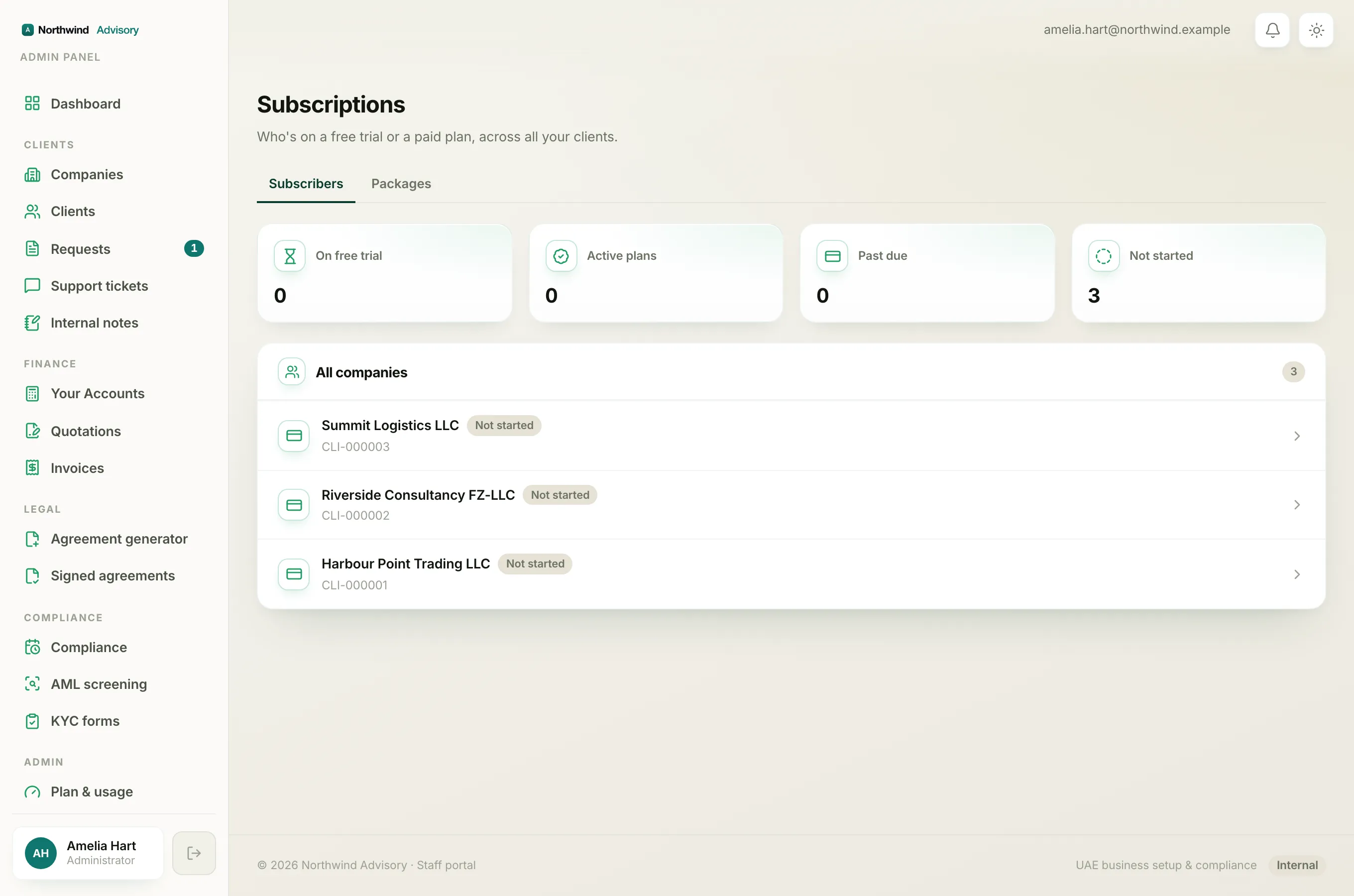
Find the section headed Activate a paid plan (bank transfer). It is labelled for a customer paying by bank transfer, with no card charged, and it sets the plan live immediately.
- Under Plan, choose the plan the client is paying for.
- Under Billing cycle, choose Monthly or Annual to match what they paid.
- Under Paid through (optional), you can set the date their payment covers them until. For example, if they paid for a year, set the date one year out. If you leave it blank, a standard period is applied for you.
- Click Activate.
A green confirmation appears, for example "Activated (annual, bank transfer)." The client's status turns to Active and the Payment field on their page now reads Bank transfer (manual).
Important
Activation takes effect immediately. Only do it once you have actually received the bank transfer, because the client gains full paid access the moment you click Activate.
What the client sees
As soon as you activate, the client's owner gets a notification confirming their plan is active, for example "Your subscription is active." No card is charged and no payment is taken through the app. The bank transfer you already received is the payment.
If they asked for a plan themselves
If the client requested a specific plan from their side, you will see an amber Plan change requested box higher up the same page, with a one-click Activate button. Using that button is the tidy way to fulfil a request, because it clears the request at the same time. See Approve a plan change request.
Changing your mind later
To stop or restart a plan you activated, use the Manage section further down the same page. See What each client subscription status means to understand the state a plan lands in after you cancel or reactivate it.