Everyone mis-clicks sometimes. You might mark the wrong invoice paid, or enter the wrong amount. The important thing to know is that a recorded payment is a permanent record. There is no delete or undo button. This page explains why, and the safe ways to put a mistake right.
Why a recorded payment cannot be undone
A payment is evidence that money changed hands. If your books are set up, recording it also posts an entry to your ledger. Letting anyone quietly delete that would break your audit trail and could leave your accounts wrong. So IzzyTap keeps every payment on the record and corrects mistakes by adding a matching, visible entry, never by erasing history.
First, work out what actually happened
The right fix depends on whether real money reached you.
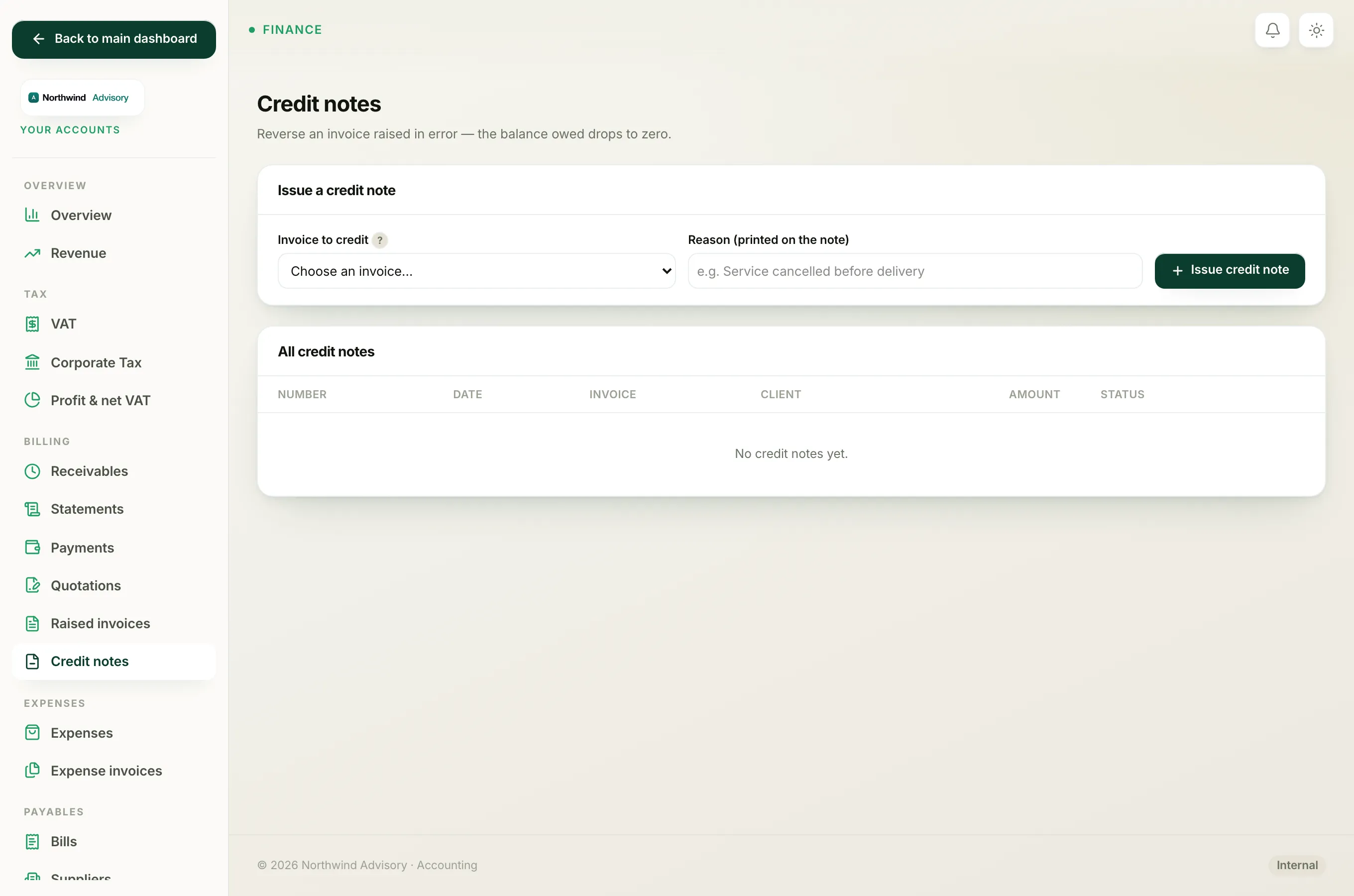
- The invoice was raised in error and no money came in. You do not need to touch any payment. Cancel the invoice, or issue a credit note against it, so the balance owed drops to zero. A credit note can only be raised against an invoice that is issued, still unpaid, and not already credited. See Issue a credit note and Cancel an invoice.
- You recorded a payment that never happened, or against the wrong invoice. Because the payment cannot be removed, and crediting a paid invoice is blocked (see below), this is best handled carefully rather than by a quick self-serve click. Keep a clear note of what went wrong, and follow the refund route below.
Why you cannot just credit a paid invoice
If you try to raise a credit note against an invoice that has already been marked paid, IzzyTap stops you and shows a message like: "This invoice has been paid. Crediting it would need a cash refund. Reverse the payment first." That guard exists so you do not accidentally wipe out an invoice while its payment is still sitting in your accounts as money received. Reversing a payment that has already cleared is not a self-serve action in IzzyTap today. For a fuller comparison of the options, see Cancel, credit note or refund: which one to use and Why you can't cancel a paid or part-paid invoice.
How refunds show on the Payments report
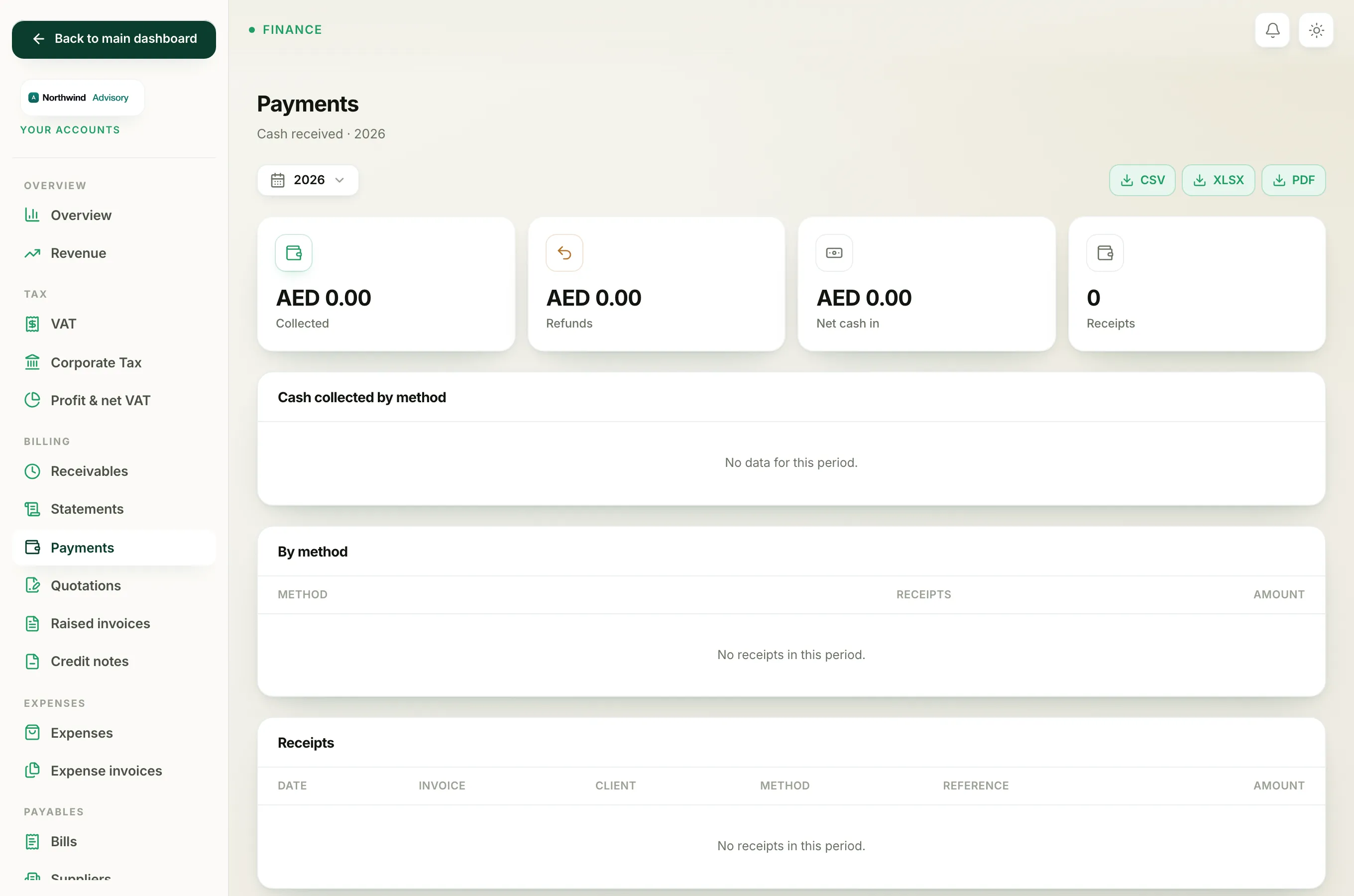
When a payment is treated as refunded, it does not vanish from your figures. On the Payments page it is counted separately so your cash total stays honest:
- Log in to your workspace.
- In the left menu, under Finance, click Your Accounts.
- Open the Payments report.
- At the top you will see tiles for Collected, Refunds and Net cash in. Collected is everything received, Refunds is the amber total that was paid back out, and Net cash in is Collected minus Refunds. That way a refund lowers your real cash without hiding the original receipt.
Read more about that screen in See the cash you've collected in Payments.