Companies and individuals live in the same list
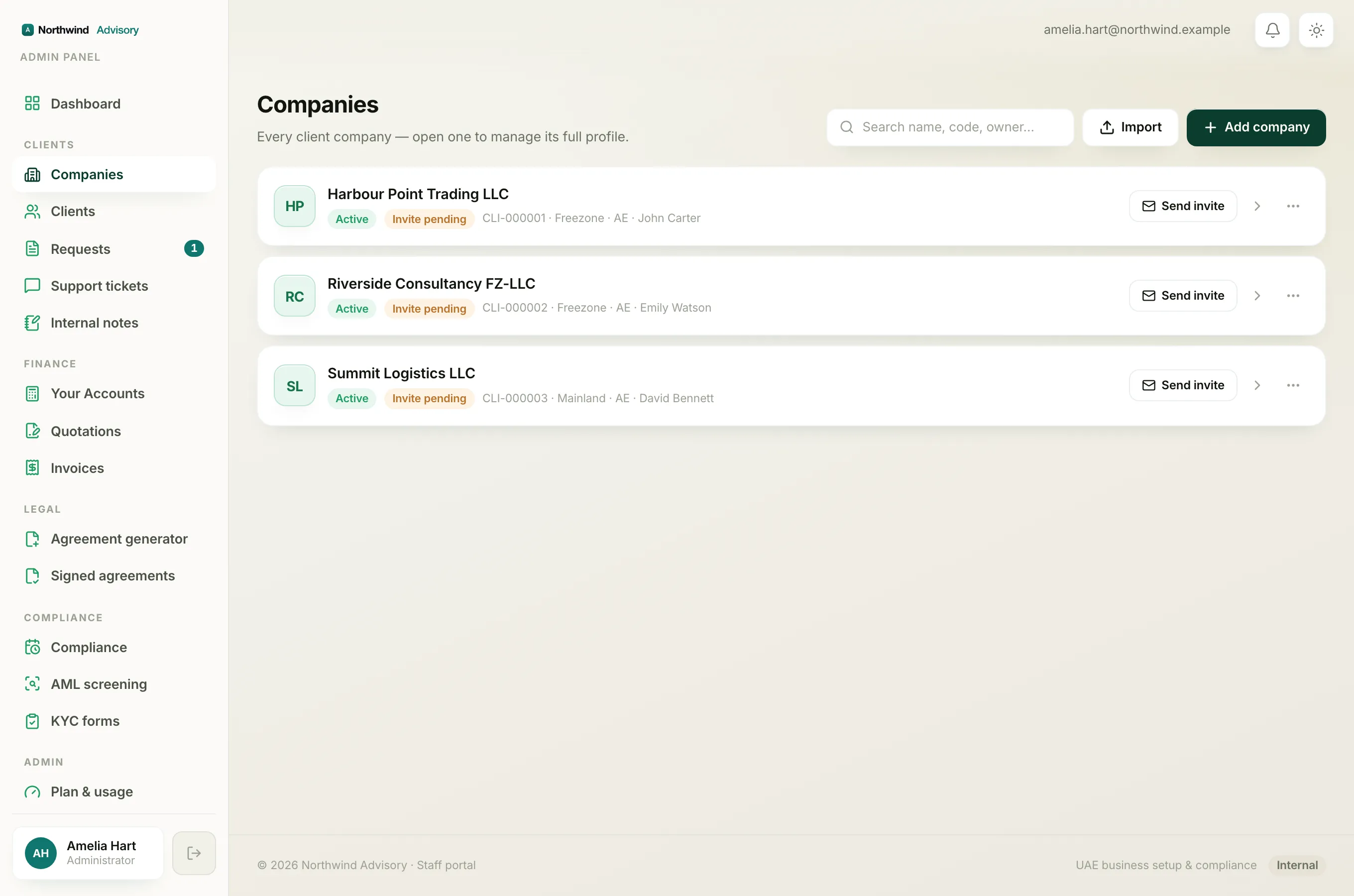
Everything in IzzyTap is organised around a client workspace. Most of the time that workspace is a company, but sometimes your client is just one person, for example someone applying for a personal visa or a sole applicant who has not set up a company yet.
Both kinds sit in the same Companies list. A simple tick-box tells the system which one this is.
Mark a client as an individual when you add them
- Log in to your workspace.
- In the left menu, under Clients, click Companies.
- Click Add company (top right).
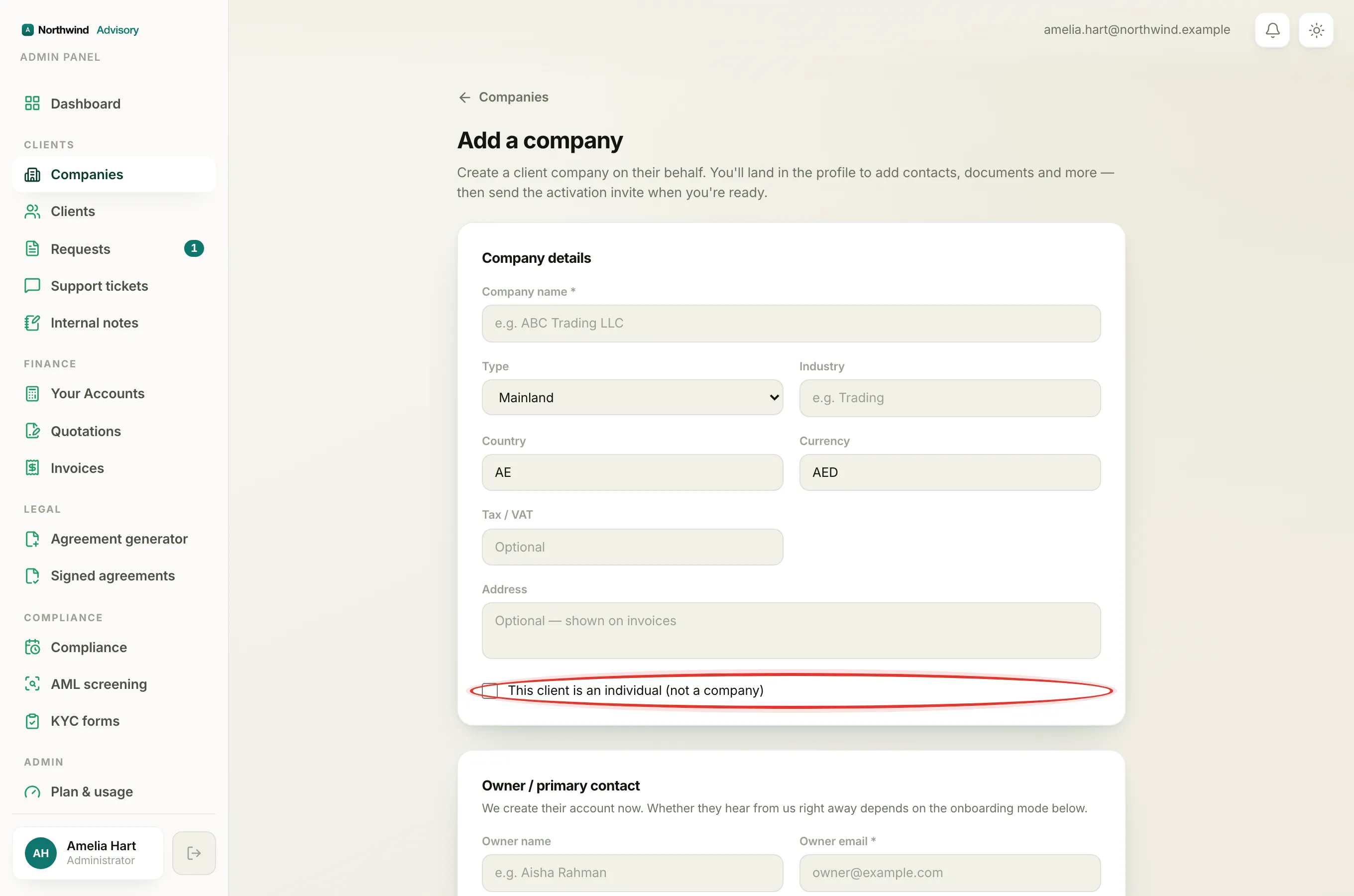
- Fill in the details as usual. In the company details section there is a tick-box that reads This client is an individual (not a company).
- Tick it if this client is a person rather than a registered company, then finish adding them.
Leave the box unticked for a normal company.
What the Individual setting changes
Ticking the box does two visible things:
- On the Companies list, a grey Individual chip appears on that client's card, next to the status chip.
- On the client's own page, the Company info card shows Account type as Individual instead of Company.
Everything else works the same. An individual still gets a workspace, can have requests and tickets, can be sent invoices and quotations, can be sent KYC forms, and can have files and documents. The label is there so your list is easy to read and your paperwork uses the right wording.
Note
The Legal name field is still used for an individual, so put the person's full name there.
Change it later
If you ticked the wrong box, or a person's status changes, you can switch it any time:
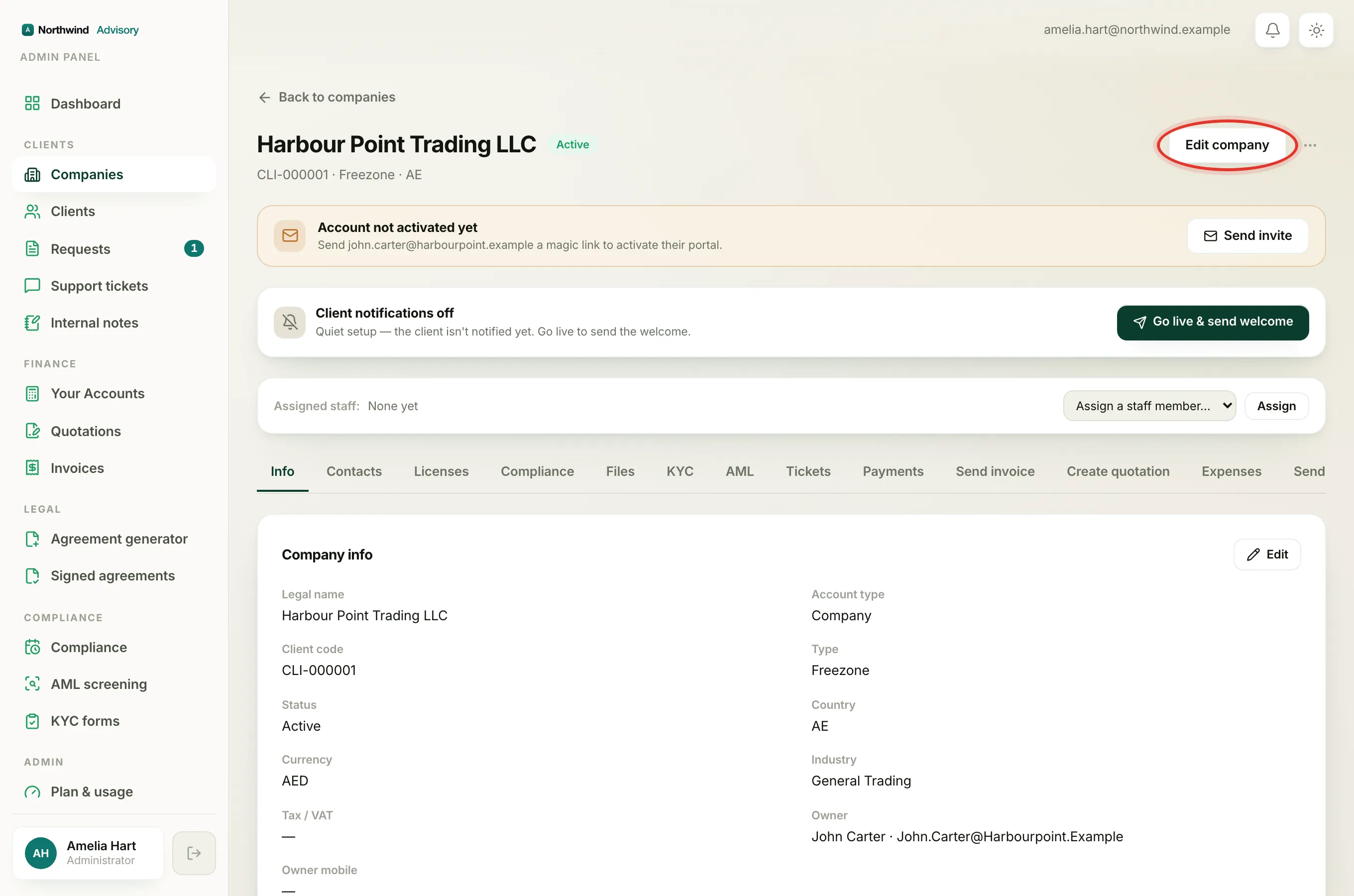
- Open the client from the Companies list.
- On the Company info card, click Edit.
- Tick or untick This client is an individual (not a company).
- Click Save changes.
The Individual chip and the Account type row update straight away.