What this does
Importing lets you create many client companies at once from a spreadsheet. Each row becomes a company plus an owner account. Everything is set up quietly, with no emails sent, so you can bring your whole client list across in one go. When you are ready, you send all the welcome invites together in a single batch.
To add just one client by hand, see How to add a company instead.
Step 1: Get the template
- Log in to your workspace.
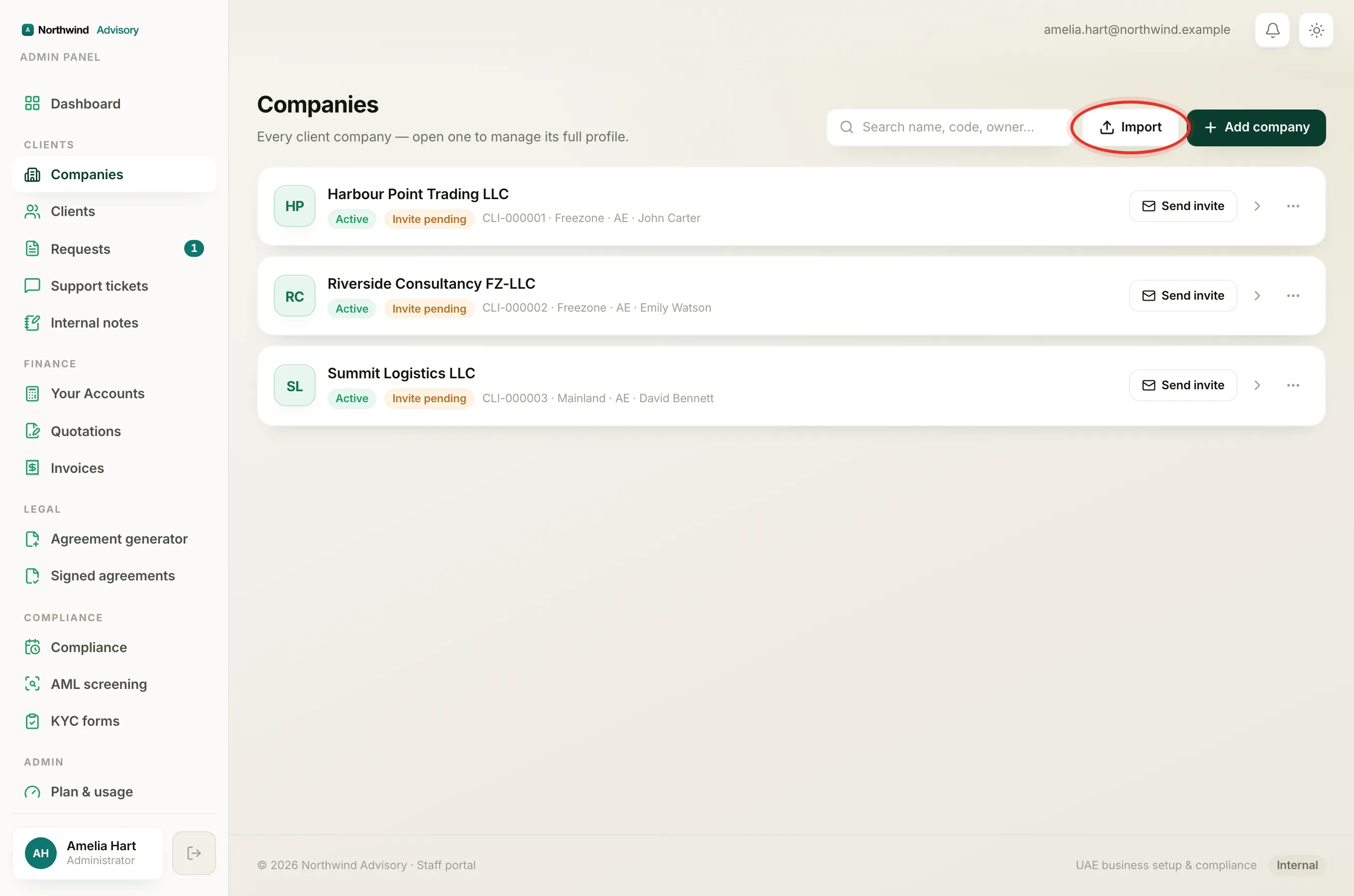
- In the left menu, under Clients, click Companies.
- In the top right, click Import.
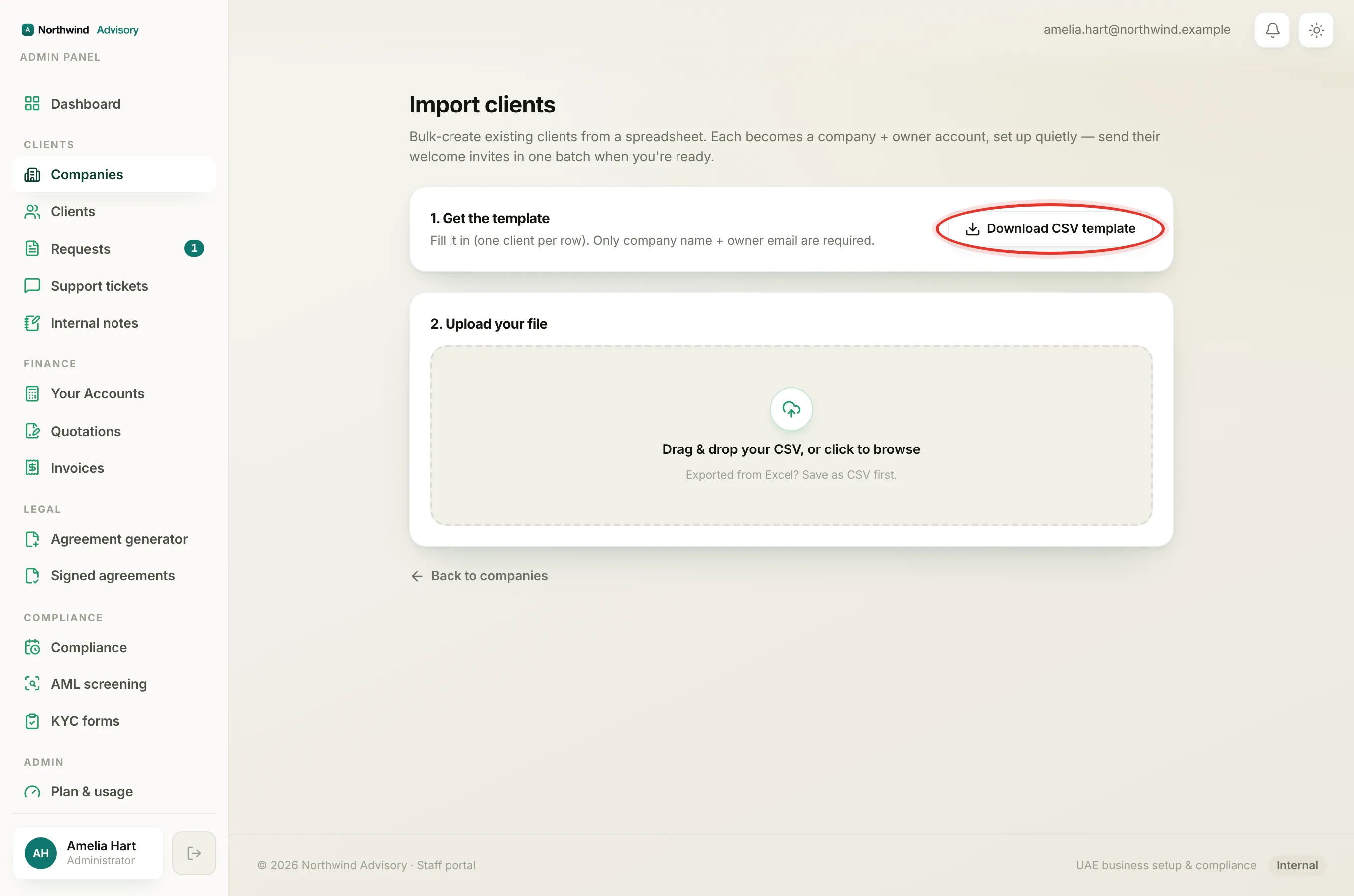
- You are now on the Import clients page. On the right of the first box, click Download CSV template.
- Open the downloaded file in your spreadsheet program. Put one client on each row.
Important
Only the company name and the owner email are required for each row. The other columns are optional. If a row has no name or no email, that row is skipped.
Tip
If you built your list in Excel, save it as a CSV file first. IzzyTap reads CSV files only.
Step 2: Upload your file
- Fill in the template and save it.
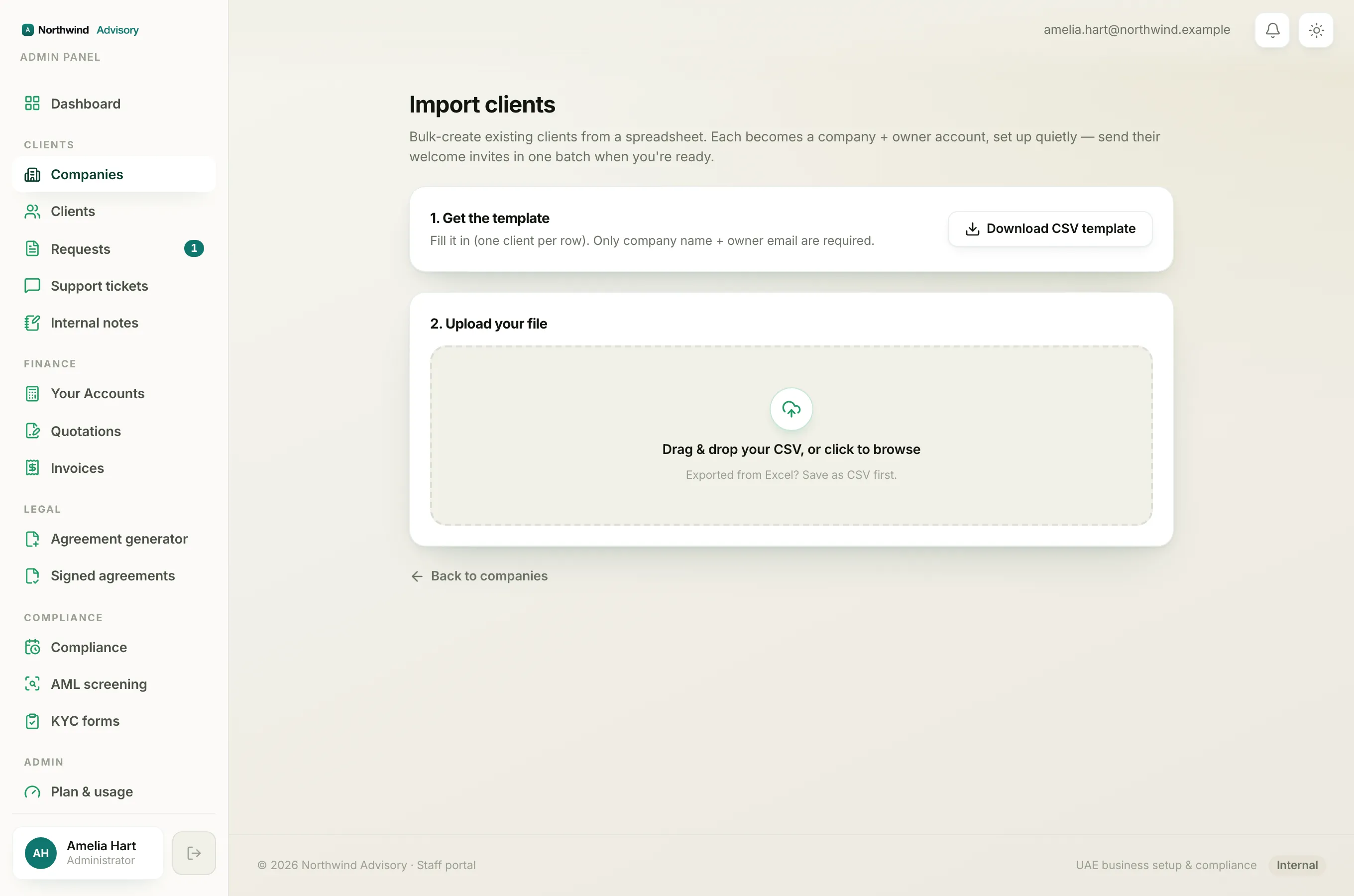
- Back on the Import clients page, find the box titled 2. Upload your file.
- Drag your CSV file onto the upload area, or click it to browse and pick the file.
Step 3: Check the preview
IzzyTap reads your file and shows a preview. Nothing is created yet at this stage.
- Look at the summary chips: to create, skipped, and errors.
- Scroll the list to check each row. A row shows Will create, Skip, or Error with the reason.
- If something is wrong, click Choose another file, fix your spreadsheet, and upload again.
- When the preview looks right, click the Import button, for example Import 12 companies.
Step 4: Send the welcome invites
After the import finishes you see Import complete with a count of created, skipped, and failed rows. The new companies are set up quietly, so no client has been emailed yet.
- When you are ready for the clients to hear from you, click Send welcome invites.
- IzzyTap emails every imported owner a welcome and a login link, and shows how many were sent.
To import a second file, click Import another file. To go back to your list, click Back to companies.
What to do next
- Open any imported company and fill in the rest of its details. See How to edit a company's details.
- Add extra contacts to a company. See How to manage a company's contacts.