Why there is no upload button in Documents
When you open Documents in your portal, you will notice there is nowhere to drag or upload a file. This is on purpose. The Documents area is a read-only vault. It is the safe, tidy record of everything your firm has issued to you and everything you have already sent in. Keeping it read-only means nothing in your official record can be changed or deleted by accident.
So you never upload straight into Documents. Instead, files land there automatically once you send them to your firm the right way. There are two ways to do that.
Way 1: attach a file when you reply to a request
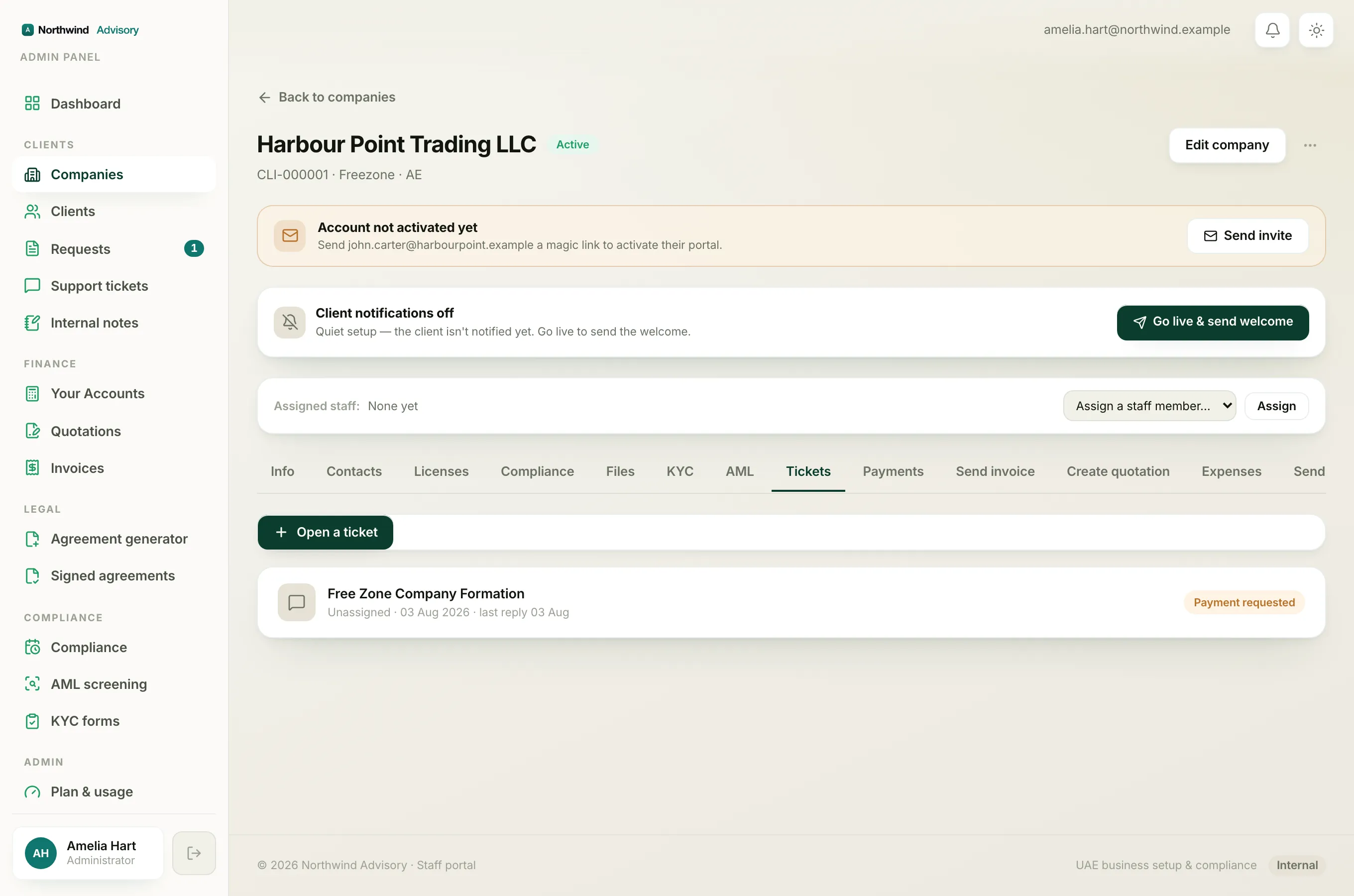
This is the most common way to send a document. If your firm has asked you for something, they will usually open a request and you will see a Documents requested note in the thread.
- Log in to your portal.
- In the left menu, click Requests.
- Open the request your firm is working on.
- Scroll to the reply box at the bottom.
- Click Attach and choose the file from your device.
- Add a short message if you like, then click Send.
The file is delivered to your firm right away and is filed in your vault under the Provided by you folder.
Note
You can send a PDF, an image (JPG, PNG or WebP), or a Word document, up to 10 MB each. If a file is too big or the wrong type, the reply box will tell you before you send.
Way 2: upload inside a KYC form
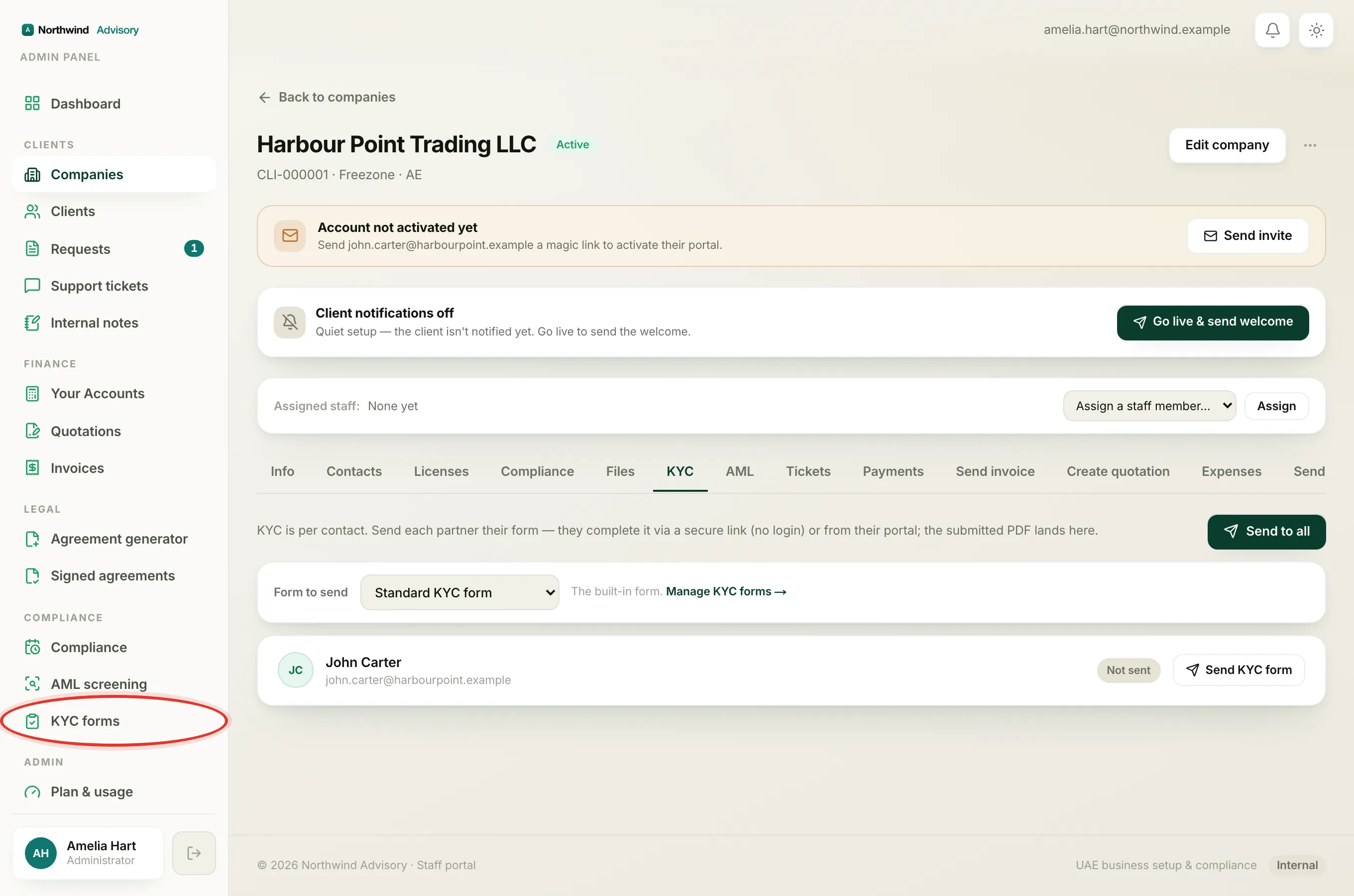
If your firm has asked you to complete a KYC (Know Your Customer) form, some steps in that form ask you to attach a document, such as a passport or Emirates ID. Anything you upload there is saved into your vault automatically once you submit the form. See Complete a KYC form for an owner or partner.
Where your files appear afterwards
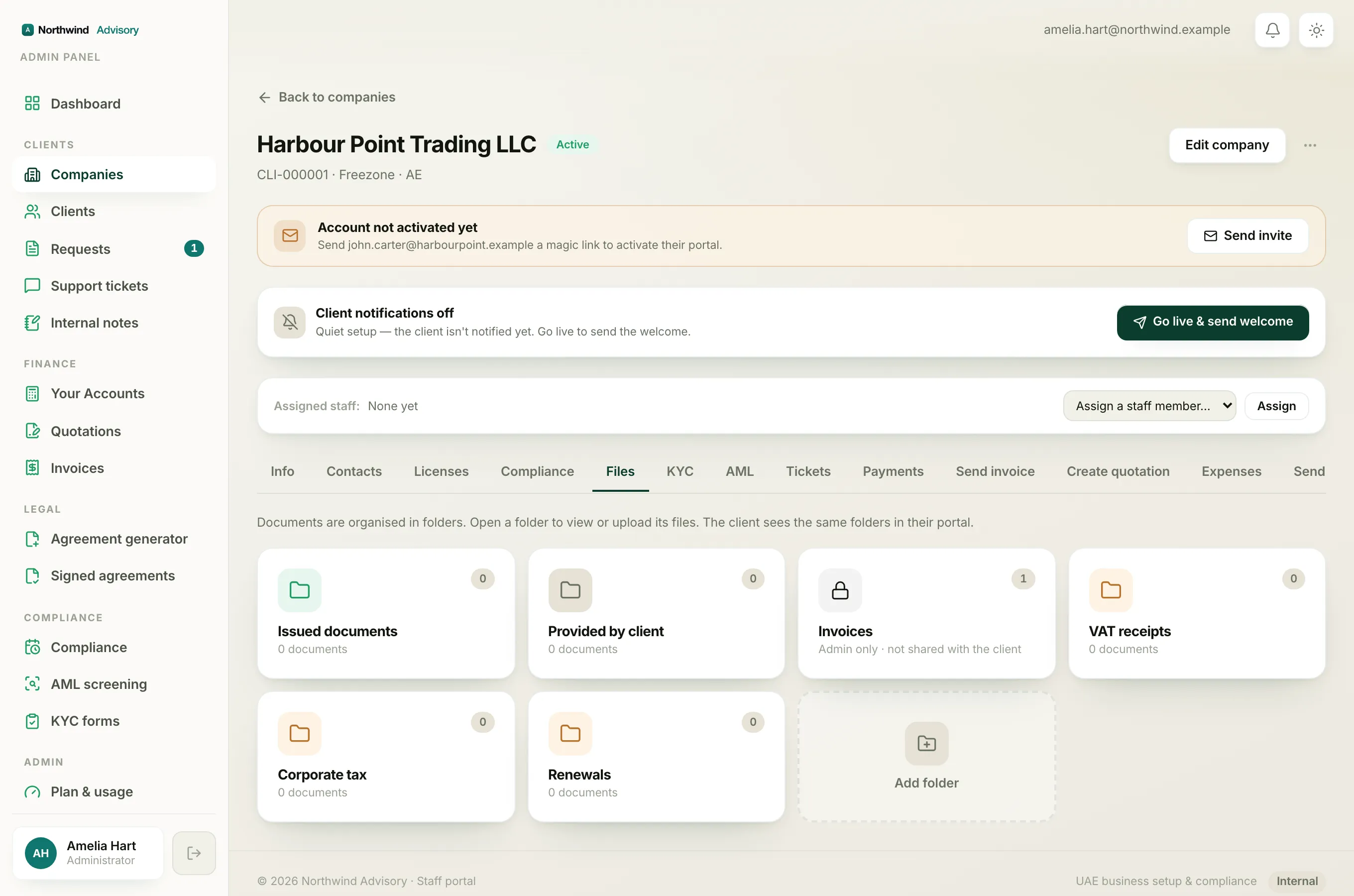
Once a file is in, open Documents from the left menu to find it:
- Issued to you holds the official documents your firm has prepared and released to you.
- Provided by you holds everything you have sent in, whether through a request reply or a KYC form.
- Your firm may also create named folders to keep things organised.
To read or save anything, just click the row. For more on opening and saving files, see Find and download your documents.
Tip
If you have a document to send but there is no open request for it, send your firm a message and ask them to open one, or ask where they would like it. That keeps everything in the right place and on the record.